
QR Code for Business Cards - vCards, Profiles & Booking
Create QR codes for business cards that open contact details, vCards, websites, portfolios, LinkedIn profiles, booking pages, and digital cards. Help new contacts save or act in one scan.
Free QR code generator
Create a QR code online
Generate QR codes for websites, email, phone numbers, vCards, Wi-Fi, plain text, forms, PDF files, and campaign links. Customize colors, add a logo or frame, then download a print-ready PNG or SVG.
Choose QR code type
Website QR code, Email QR code, Phone QR code, vCard QR code, Wi-Fi QR code, Text QR code, SMS, WhatsApp, event, and download links.
Add your content
Enter your website URL, contact details, message, phone number, location, or file destination before generating the QR code.
Customize and download
Adjust QR colors, error correction, logo, frame, size, and margin. Generate QR Code, Download PNG, Download SVG, or Save and track scans.
Contact handoff
Turn a business card into a saved contact, profile, or booking path
A QR code for business cards is useful when the card should do more than sit in a pocket. It can open a vCard, contact page, website, portfolio, LinkedIn profile, booking page, digital card, lead form, real estate listing, sales sheet, or trackable campaign URL. Freelancers, consultants, sales teams, recruiters, real estate agents, agencies, event networkers, and small businesses can use QR codes to make the handoff easier.
The best destination depends on the real conversation. A static vCard can give the fastest native contact-save action. A dynamic profile page can be updated after cards are printed and can include portfolio, booking, social links, and scan analytics. A lead form may work for sales teams, while a portfolio page may work better for creative work. QR Code Lab helps create the code and keep the printed card useful.
QR Code Lab creates URL QR codes and static contact-style codes, depending on the setup. It does not manage your CRM, book meetings, store every contact relationship, or replace the destination page. The card should send people to the action that helps them remember and contact you.
Business card follow-up
Turn a business card QR code into a contact path people can actually use
Card flowA QR code on a business card should make the handoff easier: save contact details, open a profile, book a call, view a portfolio, download a media kit, join a list, or reach the right follow-up page.
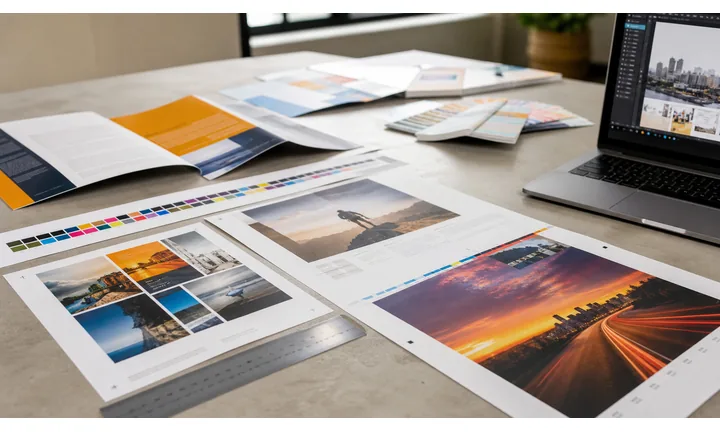
Make the card do more than carry a phone number
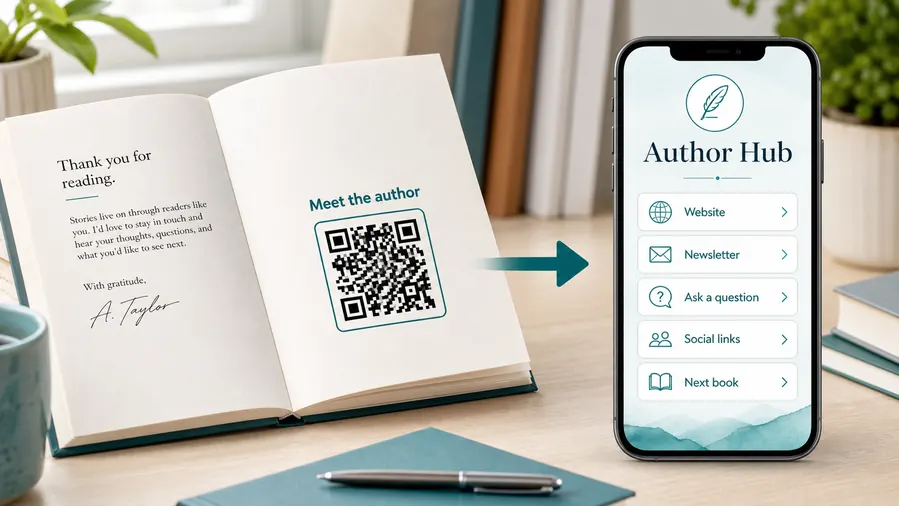
Use the QR code to open a vCard, profile page, booking calendar, portfolio, service menu, quote form, or company page that matches the person printed on the card.
The scan should continue the conversation started by the card.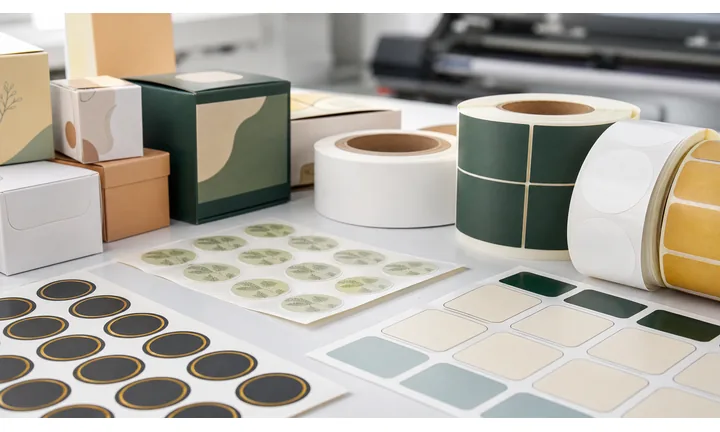
Choose the destination by relationship depth
A quick networking card may need save-contact. A consultant, realtor, attorney, designer, or founder may need a richer profile with proof, booking, documents, and next-step buttons.
One card can carry more context than the printed space allows.
Keep printed cards useful after details change
Dynamic QR helps when job title, phone number, calendar link, portfolio, offer, landing page, or company profile may change before the cards run out.
A printed business card often lives longer than one role, campaign, or calendar URL.A business card QR should remove the awkward follow-up step
People scan after a meeting, introduction, event, or referral. The destination should quickly confirm who you are and make saving, booking, or reviewing your work easy.
If the card promises a vCard, portfolio, calendar, or offer, the first screen should deliver that exact path.Networking
Open save-contact, LinkedIn, calendar, short bio, and direct follow-up.
Sales and consulting
Route to booking, case studies, offer page, proposal request, and documents.
Creative work
Show portfolio, reels, press kit, socials, and inquiry form.
Team cards
Keep department, role, phone, and booking destinations editable after printing.
Card placement
Place business card QR codes where they support the handoff, not the decoration
PlacementA business card QR code should be large enough to scan, separated from crowded design, and paired with a short CTA that explains whether the scan saves contact, opens a profile, or books a follow-up.

The QR is tiny and unexplained
A small code tucked into a busy card corner may look modern but fail when printed or scanned under event lighting.
A bare code also leaves recipients guessing what will open.
The QR clearly supports follow-up
Give the code room, preserve quiet zone, and add copy such as save my contact, book a call, view portfolio, or open my profile.
The destination should match that exact promise.
What should the recipient do after the meeting?
Save contact, book a call, view proof, request quote, open portfolio, or join a list.
Will the card be scanned quickly?
Networking events, counters, and referrals need a clean CTA and fast mobile destination.
Does the card design protect scan quality?
Avoid tiny size, low contrast, metallic glare, rounded cutoffs, and crowded logos around the code.
Could contact details change?
Use dynamic QR when roles, numbers, calendars, offers, or profiles may move.
Back of card
Best for a larger QR, CTA, profile, booking, and portfolio path.
Front corner
Use only if the code stays large, high contrast, and away from essential contact text.
Event card
Open lead form, calendar, demo page, deck, or follow-up offer.
Team card
Route each person to role-specific contact, profile, booking, or department page.
Creative card
Open portfolio, showreel, press kit, inquiry form, and social proof.
Service card
Link to booking, quote request, reviews, credentials, and service menu.
Referral card
Send warm referrals to context, next steps, contact, and appointment booking.
Premium stock
Test matte, gloss, foil, texture, and dark paper before printing at scale.
Business card QR placement should make follow-up easier
Put the code where people can scan it quickly and know exactly what happens next.
Choose static vCard or dynamic profile by what may change later
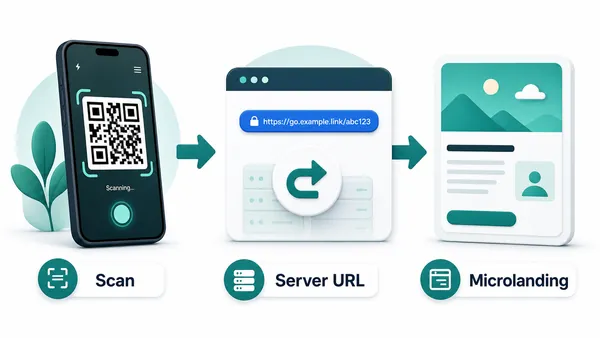
DecisionA static vCard is simple when contact details are final. A dynamic QR is safer when the card should open an editable profile, booking page, portfolio, campaign page, or tracked follow-up path.
Static QR for fixed contact data
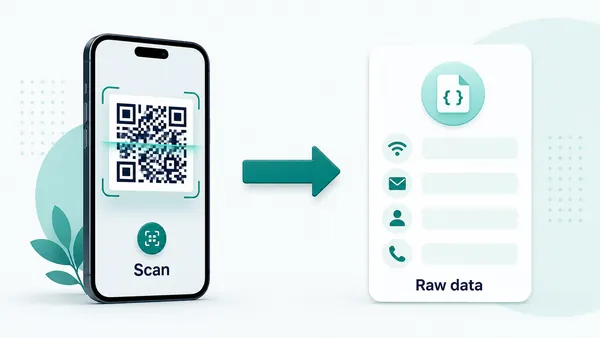
A static vCard QR stores contact data directly in the QR pattern, so phones can save the contact without a managed redirect.
This works well for stable names, phone numbers, email addresses, job titles, and company details.
The tradeoff is permanence: if the phone number, role, URL, or email changes after printing, the card cannot be updated.
Dynamic QR for editable professional profiles
A dynamic QR opens a managed link first, then sends the recipient to the current profile, booking, portfolio, vCard download, or campaign page.
This is useful when cards are printed in batches, when teams change roles, or when the follow-up destination may evolve.
Dynamic QR also lets you compare card placements when events, teams, or campaigns need scan reporting.
Quick decision
Print and trust
Make the card QR useful before adding decoration
Use business card QR codes for vCards, team profile pages, portfolios, booking calendars, LinkedIn profiles, lead forms, real estate listings, sales sheets, and personal landing pages. The CTA should say save contact, view portfolio, book a meeting, open profile, or see listings. A tiny unlabeled QR code may look clean, but it gives the other person no reason to scan.
Test the printed card at real size. A small QR code with poor contrast, rounded corners, glossy stock, or a busy background may look stylish but fail when someone scans quickly at an event. If you add a logo or change colors, keep enough contrast and quiet zone. Dynamic QR codes are helpful when your profile, calendar, portfolio, or campaign link changes. QR Code Lab scan analytics can show whether cards are scanned after events, but actual leads and bookings stay in your CRM or calendar tool.
If the card is for a team, use separate QR codes for each person or role. That keeps contact handoff personal and makes reporting easier after conferences or sales meetings.
Contact UX
Make the business card scan confirm who you are and what to do next
Scan UXThe first screen after a card scan should immediately match the person, company, and promise printed on the card, then offer simple actions for saving, booking, or reviewing work.
Contact saving should be obvious
vCard, phone, email, company, roleIf the QR promises a contact save, show the name, company, title, and save-contact action without making the recipient hunt.
Keep the data tidy and test how common phones handle the vCard.
Booking and inquiry should feel natural
Calendar, quote, consultation, demoWhen the card is meant to start a business conversation, put the booking or inquiry action near the top.
Explain the next step in plain language so the recipient knows what will happen after submitting.
Portfolio and profile paths should earn trust quickly
Portfolio, case study, deck, testimonialsFor creatives, consultants, founders, and sales teams, the QR can carry proof that does not fit on the card.
Show the most relevant work, credentials, or offer before asking for a form.
Does the page identify the card owner?
Name, role, company, and primary action should match the printed card immediately.
Is the next action clear?
Save contact, book time, view work, request quote, or open profile should not blur together.
Can the recipient act later?
The destination should be easy to reopen from the card or saved contact.
A business card QR should make follow-up feel effortless
Use the scan to preserve the introduction and reduce the work needed to reconnect.
Card design
Design a business card QR code that feels premium and still scans
Design safelyBusiness cards are small, tactile, and often printed on textured or coated stock. The QR needs enough size, contrast, quiet zone, and CTA clarity to survive real handoff conditions.
Make the QR look intentional, not pasted on
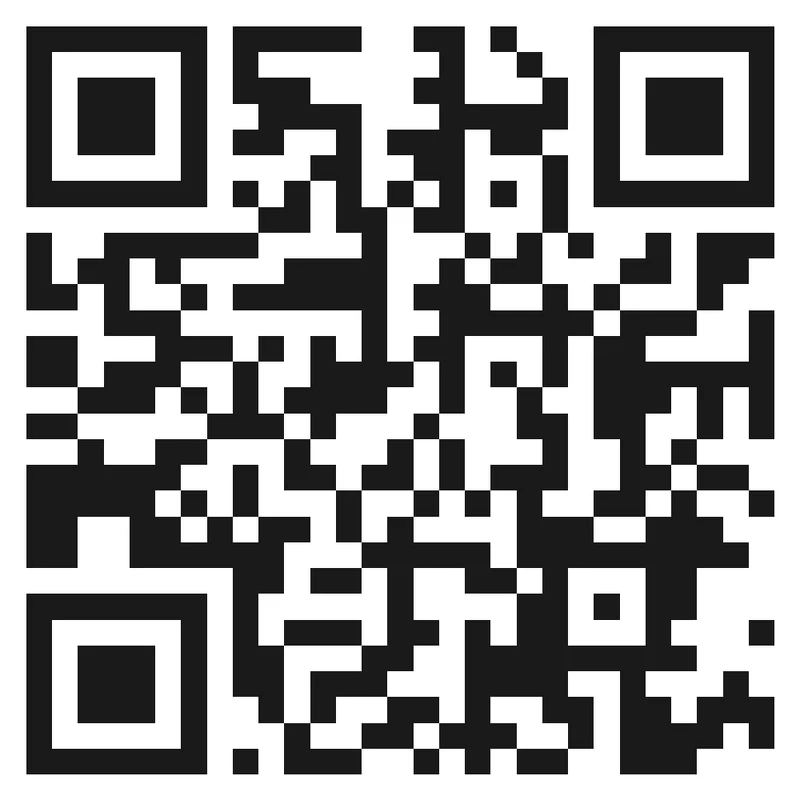
Risk
A tiny QR squeezed between contact lines can make the card feel crowded and hard to scan.
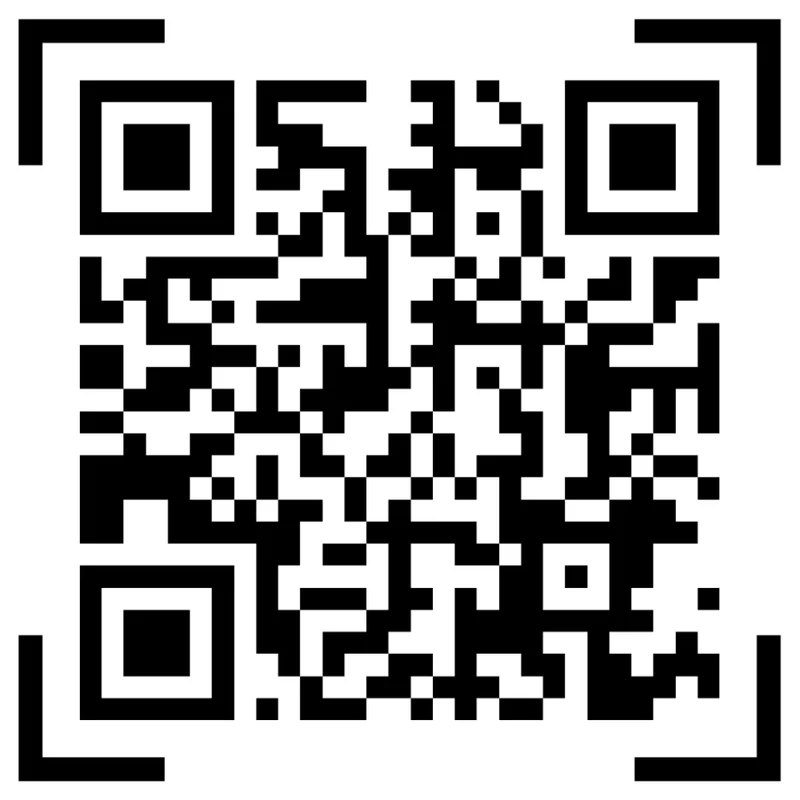
Better
Give the QR a dedicated area, enough quiet zone, and a short CTA that explains the scan result.
Test premium materials before ordering a full run
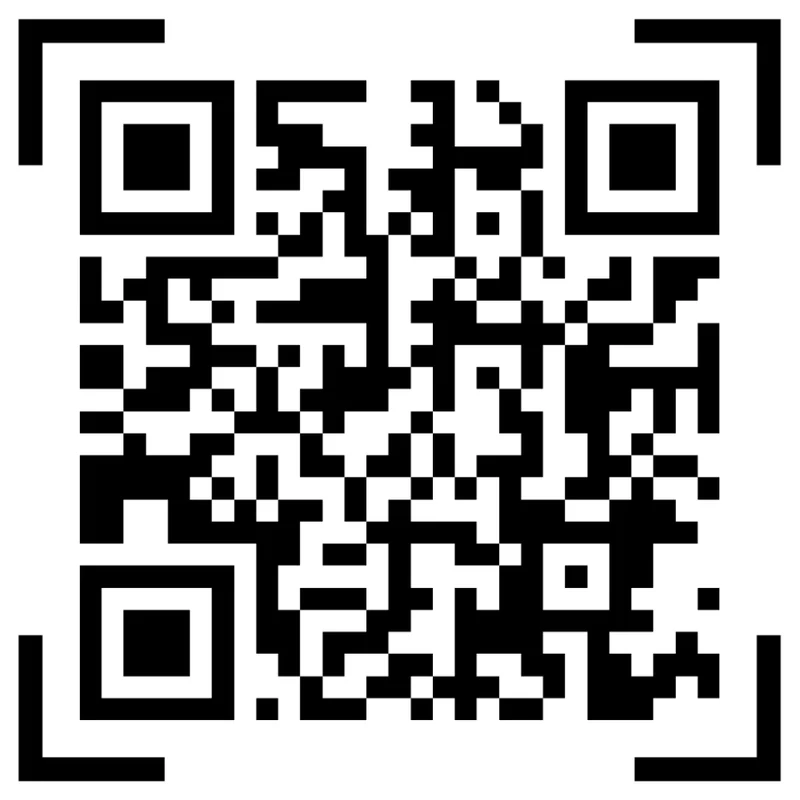
Risk
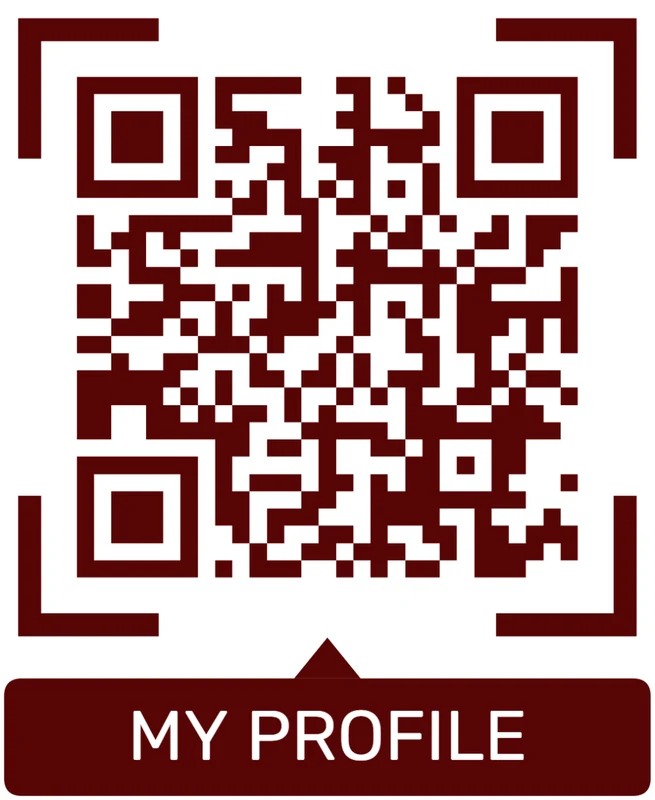
Foil, dark stock, gloss coating, heavy texture, and low-contrast brand colors can damage scan reliability.
Better
Keep the pattern high contrast, use brand styling around the code, and scan a printed proof on the final stock.
Customize corners and modules
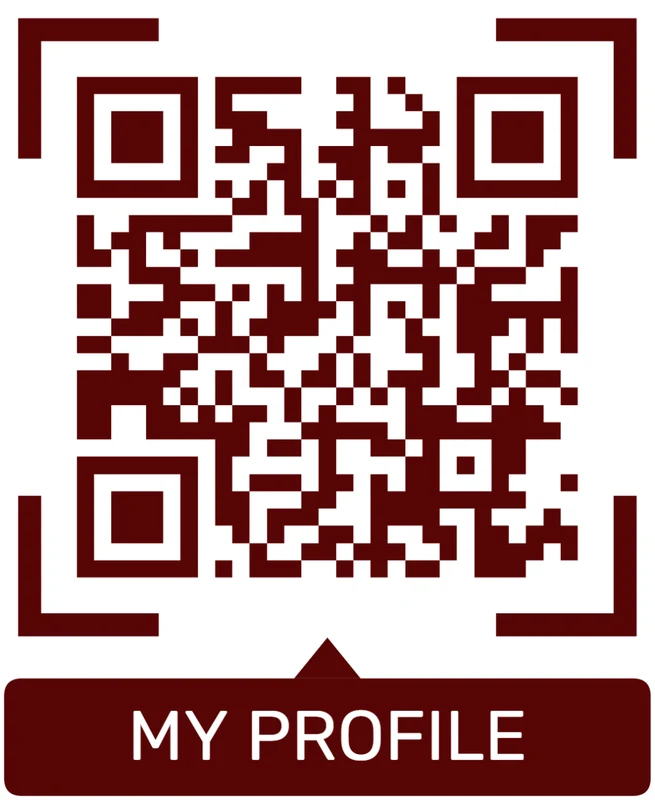
Standard pattern
A colored framed code already looks better, but it can still look like every other QR code.
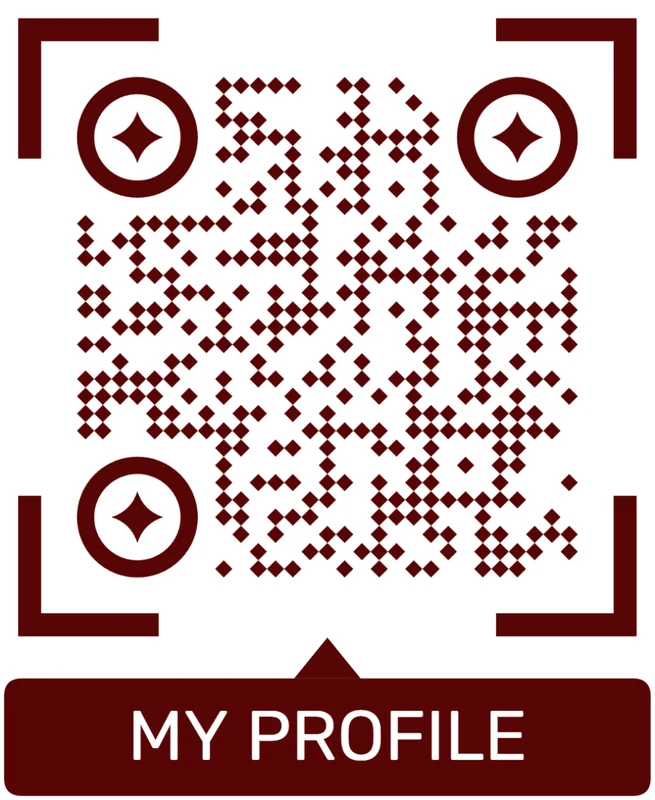
Custom eyes and module shape
Rounded modules, styled finder corners, and cleaner patterns can make the code feel premium. Keep the three corner markers clear.
Add a logo carefully
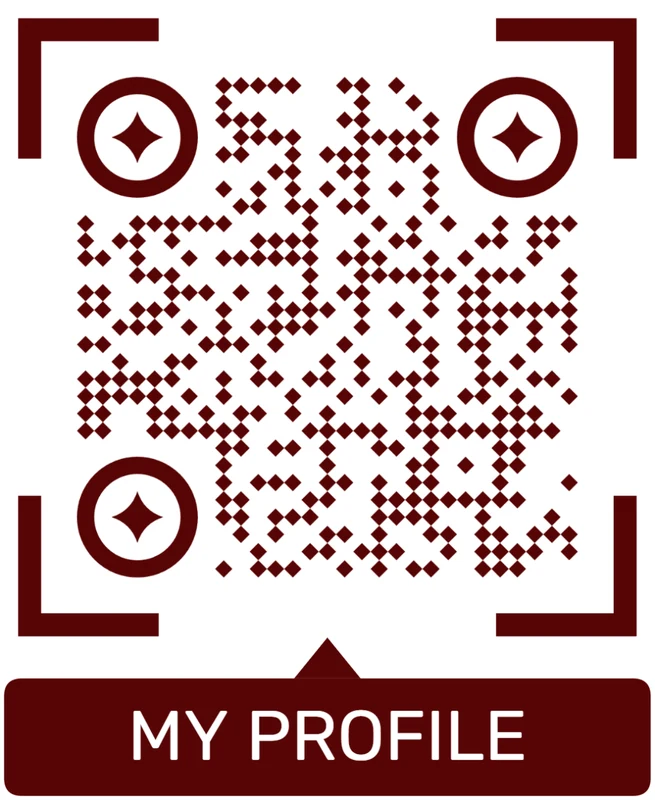
Styled QR code
A styled code can look polished, but people may still not know what brand, profile, file, or campaign it represents.
Logo QR code
A centered logo helps signal the destination. Keep it small, use a clean background behind it, and test the exported code.
Design for the handshake and the phone
The card can look polished, but the QR still has to scan quickly when someone wants to follow up.






