
Wi-Fi QR Code Generator for Guest Networks, Cafés & Events
Create Wi-Fi QR codes for cafés, hotels, rentals, offices, studios, events, and guest areas — scanners join faster without typing SSID or password from signs, cards, or mobile devices.
Free QR code generator
Create a QR code online
Generate QR codes for websites, email, phone numbers, vCards, Wi-Fi, plain text, forms, PDF files, and campaign links. Customize colors, add a logo or frame, then download a print-ready PNG or SVG.
Choose QR code type
Website QR code, Email QR code, Phone QR code, vCard QR code, Wi-Fi QR code, Text QR code, SMS, WhatsApp, event, and download links.
Add your content
Enter your website URL, contact details, message, phone number, location, or file destination before generating the QR code.
Customize and download
Adjust QR colors, error correction, logo, frame, size, and margin. Generate QR Code, Download PNG, Download SVG, or Save and track scans.
Guest network access
Let people join Wi-Fi without typing the password by hand
A Wi-Fi QR code is one of the clearest cases where a static QR code is genuinely useful. The code can contain the network name, security type, and password directly, so most phones understand the payload and show the native “join this network” prompt after scanning. The scanner does not need to open a website or pass through a redirect first, which keeps the experience fast and familiar.
That direct behavior removes a lot of small friction. Guests do not need to read a long password from a sign, staff do not need to repeat credentials, and typing mistakes disappear. It works well for cafes, hotels, offices, clinics, salons, classrooms, rentals, coworking spaces, studios, waiting rooms, and event check-in areas where visitors need access quickly and staff should not spend time spelling passwords.
The trade-off is that static Wi-Fi QR codes do not create scan analytics in QR Code Lab and cannot be updated after printing. If you change the password or network name, printed signs need to be replaced. For safety, share a guest network rather than the private network your business systems use.
Example: sharing a guest network without typing its details
These fictional network details illustrate a Wi-Fi payload. They are not credentials for a real network.
WIFI:T:WPA;S:StudioGuest;P:ExampleOnly123;;- Expected result
- A compatible phone offers to join StudioGuest. The device may still require confirmation.
- Reception check
- Test with a device that is not already connected, and verify internet access after joining. A captive portal may require another step.
The password is readable from the QR content; the QR is not encryption or access control. Share a guest network intentionally, and replace a static printed code if its network details change. Enterprise authentication and device support require separate checks.
Guest network boundary
Make Wi-Fi access easy without confusing it with network security
Wi-FiA Wi-Fi QR code removes password typing, but the router, guest network, and access policy still decide what people can reach after they join.
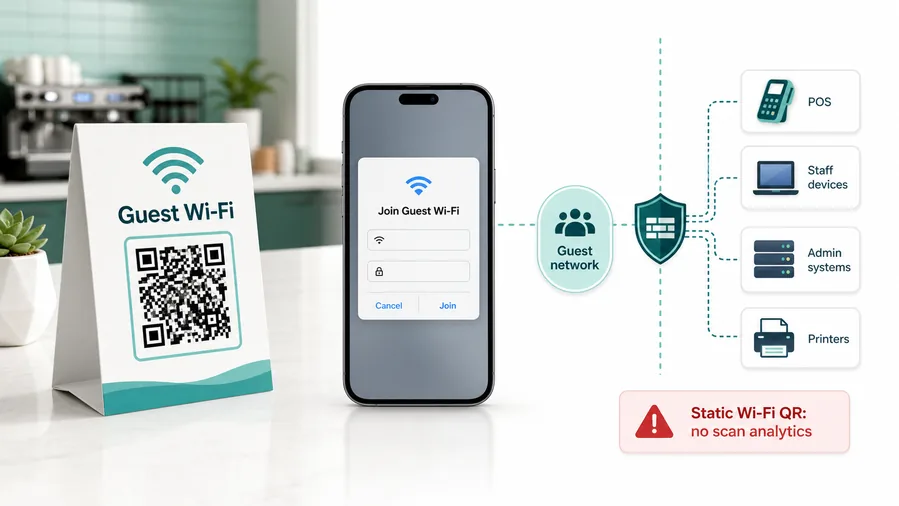
The QR code shares credentials; it does not secure the network
The scan can prepare the network name, encryption type, and password for the phone. Segmentation, bandwidth limits, device isolation, and access rules still belong in router or IT settings.
This is why static Wi-Fi QR is often better than dynamic for joining a network. A redirect URL cannot open the same native Wi-Fi flow.Use a guest network instead of the staff network
For cafes, hotels, offices, clinics, rentals, schools, salons, events, and waiting rooms, the QR should connect visitors to a dedicated guest SSID, not internal systems or POS devices.
If you need analytics, you can track a landing page, but the experience becomes a web page with Wi-Fi instructions, not a native join-network QR.Make the printed promise simple and honest
Tell people the network name and where the code is intended to work. Avoid implying that scanning verifies safety, identity, payment, or private access beyond joining the Wi-Fi network.
Use a guest network, client isolation, router-level limits, and a password rotation process. QR codes make access easier; they do not make the network safe.Do not print sensitive network access casually
Anyone who can scan the code can read or use the Wi-Fi credentials. If access should be limited, rotate passwords, use guest isolation, or put the QR only where the intended guests can reach it.
Configure network security on your router, firewall, access point, or IT management system.QR removes typing; network settings provide control
Use the QR code for a clean join experience, then rely on router and IT policy to protect internal systems, payment devices, staff tools, and private data.
Guest Wi-Fi moments
Let guests join the right Wi-Fi network without asking staff for the password
Guest accessA Wi-Fi QR code is useful when visitors, customers, tenants, students, patients, attendees, or guests should connect quickly from a table card, room card, front desk sign, classroom sheet, event badge, or rental guide.
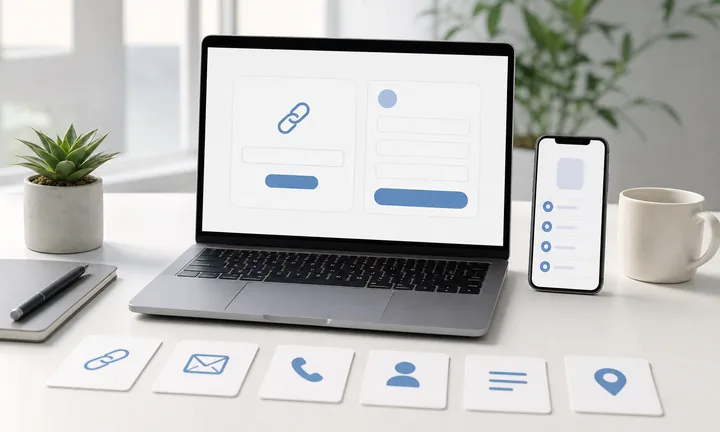
Put the network access where people already pause
Use Wi-Fi QR codes on cafe tables, hotel room cards, reception desks, rental welcome guides, clinic waiting areas, office guest signs, classrooms, coworking desks, and event check-in materials.
The scanner should see the network name and understand where the access applies.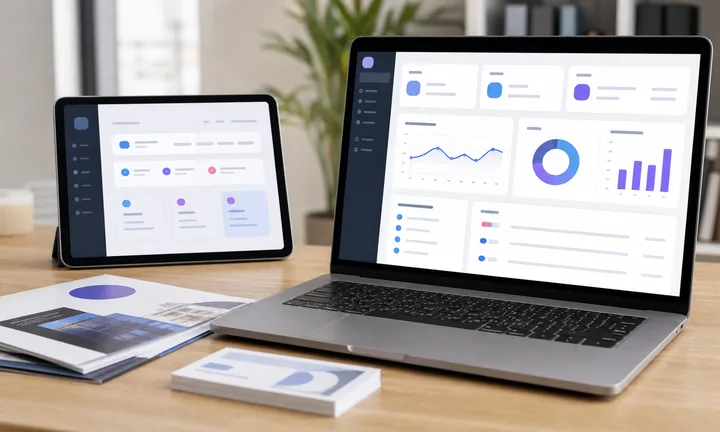
Reduce repeated password questions for staff
A clear printed QR code can save staff from spelling passwords, correcting capitalization, and explaining network details every time a visitor needs access.
The benefit is operational calm, not just convenience.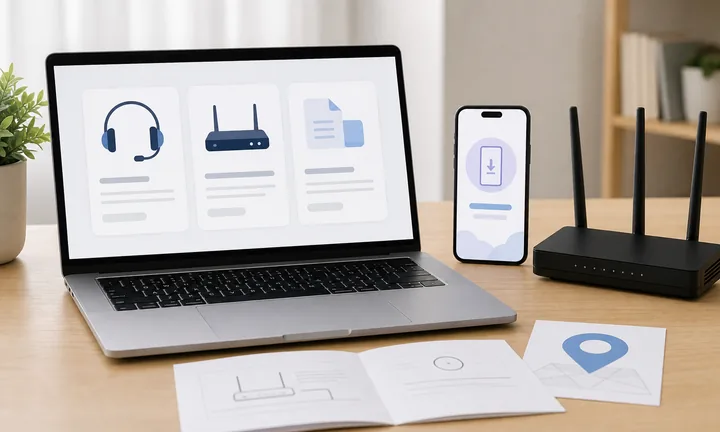
Keep access separate from private systems
The QR should connect guests to a guest SSID with the access level they need. It should not become a shortcut into staff devices, payment terminals, cameras, printers, or admin tools.
Easy access still needs a clean network boundary.The scan should make joining Wi-Fi obvious and safe enough for the setting
QR Code Lab can create the code from network credentials. The quality of the experience depends on the correct SSID, password, encryption setting, printed placement, and the network policy behind it.
Do not use Wi-Fi QR as a substitute for real guest network configuration.Show the network name nearby
Print the SSID or a clear label so guests know which network they are joining before scanning.
Test on common phones
Confirm iOS and Android devices recognize the Wi-Fi payload and show the expected join prompt.
Use guest isolation where it matters
Separate visitor access from staff tools, POS systems, private files, smart devices, and admin interfaces.
Update print when credentials rotate
If the password changes often, use controlled placement or a process for replacing printed cards quickly.
Choose static Wi-Fi QR for native joining and dynamic QR for an access page
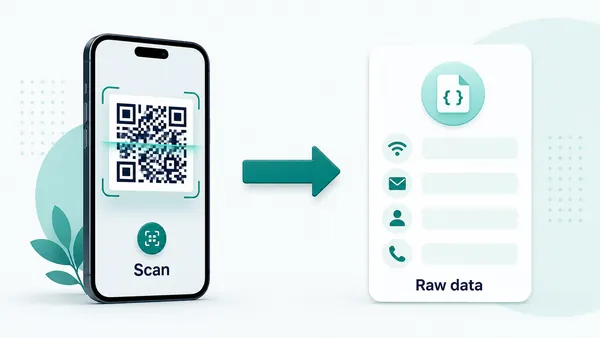
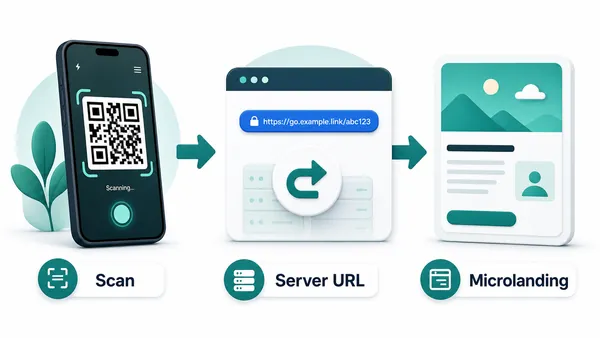
DecisionA normal Wi-Fi QR code stores network credentials directly so phones can show a native join prompt. A dynamic QR code opens a web destination first, which is useful for instructions, terms, or changing access details but is not the same native Wi-Fi payload.
Static Wi-Fi QR opens the native join flow
A static Wi-Fi QR code contains the SSID, encryption type, and password inside the QR pattern, so compatible phones can prepare the network join action directly.
This is the cleanest option for stable guest networks in restaurants, hotels, rentals, offices, schools, salons, clinics, and event spaces.
The tradeoff is permanence. After printing, QR Code Lab cannot change the encoded password or collect scan analytics from that direct native action.
Dynamic QR opens an editable Wi-Fi access page
A dynamic QR code stores a managed URL first, then opens the current page you choose. That page can explain the network, show terms, offer support, or publish updated instructions.
Because the QR payload is a URL, the phone usually treats it like a web link, not like native Wi-Fi credentials.
Use dynamic when you need an editable guest access page, scan reporting, policy text, troubleshooting, or a fallback path more than the fastest native join prompt.
Quick decision
Wi-Fi scan experience
Make the Wi-Fi scan show the expected network and next step
Scan UXGuests scan Wi-Fi QR codes because they want immediate access. The prompt or page should make the network name, location, and trust boundary clear before they connect.
The phone controls the Wi-Fi prompt
SSID, encryption, password, join confirmationWhen the QR contains Wi-Fi credentials, the device decides how to display the join prompt and whether it supports the encoded network format.
Test on iOS and Android with the exact SSID, password, and encryption type. A small typo or wrong security setting turns convenience into a support question.
A landing page helps when guests need instructions first
Terms, troubleshooting, room notes, support, fallback passwordIf guests need terms, location-specific notes, troubleshooting, or another support path, a mobile page can explain access before or alongside the Wi-Fi details.
This is useful in hotels, rentals, campuses, venues, and offices where access may depend on room, event, language, or policy.
Dynamic QR can support changing access workflows
Rotating passwords, event access, location pages, support routesDynamic QR is helpful when the printed card should open updated instructions or a current access page after credentials or policy change.
Keep expectations clear: scan analytics show interest in the access page, while actual network joins and device behavior belong to the router or network system.
Does the network name match the printed label?
Guests should see the expected SSID and recognize the venue, room, classroom, office, or event before joining.
Does it work on common phones?
Scan the final QR on iOS and Android, using the final print size and the exact credentials that guests will use.
Is there a fallback when joining fails?
Provide a printed network name, staff path, short instruction, or support note for devices that do not handle the Wi-Fi payload cleanly.
Wi-Fi QR should remove typing without hiding the access rules
Use it for clean guest access, but keep the network name, intended audience, and support path visible enough that guests know what they are joining.
Network safety
A guest Wi-Fi QR code should be convenient without exposing your private network
The safest pattern is a separate guest network with isolation from internal devices, printers, POS systems, staff laptops, admin panels, and back-office tools. The QR code makes access easier, so the network design has to be deliberate before the password is printed in public. If anyone in the room can scan the code, assume the credentials are public and build the network around that reality.
Put the code where people pause with phones in hand: table tents, reception desks, waiting rooms, room cards, guest manuals, coworking desks, classroom walls, rental welcome books, and event welcome areas. A visible sign is not enough; the scan has to fit the real visitor flow. A door sign may be ignored while the phone is in a pocket, but a table card often works because the guest is already settled.
If you need analytics, terms acceptance, vouchers, or user identification, a simple static Wi-Fi QR is not enough. In that case, use your network/captive portal tools and treat the QR code as a path to the correct access flow.