
PDF QR Code Generator for Menus, Manuals, Files & Downloads
Create PDF QR codes for menus, brochures, manuals, price lists, product sheets, catalogs, certificates, and downloads. Use dynamic tracking when file links may change after printing.
Free QR code generator
Create a QR code online
Generate QR codes for websites, email, phone numbers, vCards, Wi-Fi, plain text, forms, PDF files, and campaign links. Customize colors, add a logo or frame, then download a print-ready PNG or SVG.
Choose QR code type
Website QR code, Email QR code, Phone QR code, vCard QR code, Wi-Fi QR code, Text QR code, SMS, WhatsApp, event, and download links.
Add your content
Enter your website URL, contact details, message, phone number, location, or file destination before generating the QR code.
Customize and download
Adjust QR colors, error correction, logo, frame, size, and margin. Generate QR Code, Download PNG, Download SVG, or Save and track scans.
Document access
Use a PDF QR code when print should open a real document, not a search page
A PDF QR code points scanners to a hosted PDF file, document download page, brochure, manual, menu, catalog, worksheet, guide, event packet, policy document, product resource, real estate sheet, classroom handout, or safety note. It is useful when the physical material is too small, too static, or too expensive to carry all the information itself. The scan should take people to the exact file they expected, not make them browse a website to find it.
QR Code Lab generates the QR code for a PDF link. The PDF itself needs to be hosted somewhere reachable by the scanner, or you can send people to a landing page that contains the PDF download. A landing page is often better when you need context, buttons, multiple files, updated versions, language choices, related ZIP files, or a mobile-friendly explanation before the download. Direct PDF links are clean when the document is short, current, and easy to read on a phone.
For printed PDFs, dynamic QR codes are especially useful. A menu changes, a manual gets revised, an event handout is updated, or a catalog moves to a new URL. With a dynamic QR code, the printed image can stay the same while the final document destination changes.
PDF access moments
Use a PDF QR code when the scan should open a document people can read or download
PDF QRA PDF QR should connect print to the exact file: menu, manual, brochure, worksheet, catalog, guide, report, policy, checklist, certificate, or event resource.
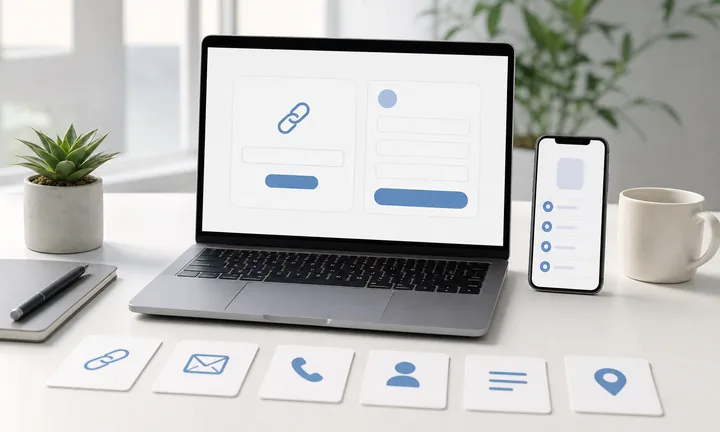
Send scanners to the document promised beside the code
Use PDF QR codes on menus, manuals, posters, packaging inserts, classroom sheets, event programs, product labels, brochures, and service materials when the file is the next useful action.
The CTA should name the file: download menu, open manual, get worksheet, or view brochure.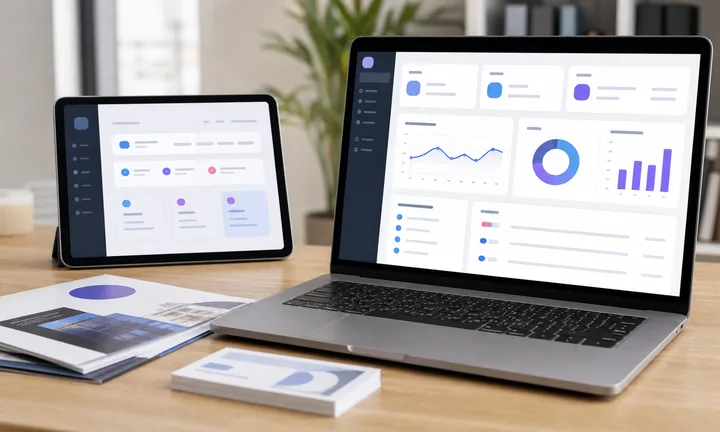
Make the file usable on a phone
A PDF destination should open quickly, fit mobile reading reasonably, and make the first page confirm the document people expected.
A file that exists is not always a file people can use.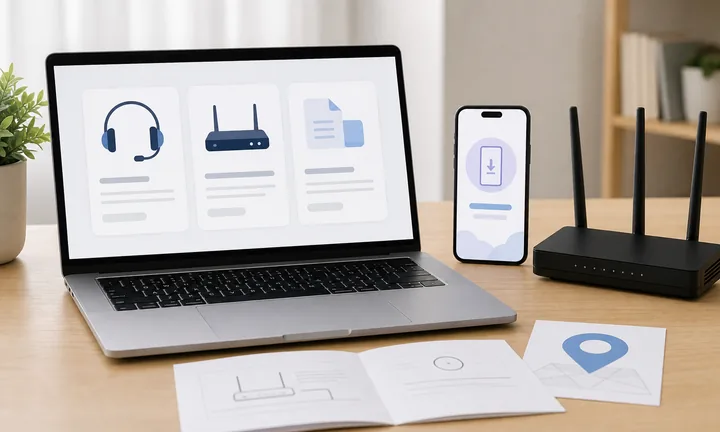
Keep printed file links editable
Dynamic QR helps when menus, manuals, guides, forms, catalogs, schedules, worksheets, or policies are replaced after printed materials are distributed.
Files are often revised after print.A PDF QR should make the right document easier to reach
The scanner is usually holding a printed prompt and wants the full file without typing a URL. The QR should open the exact document or a small file page with clear context.
Use a landing page when one scan needs several files, languages, versions, or support actions.Exact file
Open the intended PDF, menu, manual, catalog, worksheet, guide, report, or checklist.
Mobile readability
Check file size, first page, download behavior, and whether the document is usable on phones.
Version control
Use dynamic QR when files may be updated after menus, labels, handouts, or brochures are printed.
File hub
Use a mobile page when the scanner needs several documents, languages, or related actions.
After-print control
Use dynamic QR when PDF files may be replaced after print
DynamicPDF QR codes often live on physical materials while the file behind them changes: menu, manual, catalog, worksheet, brochure, schedule, policy, or guide.
A fixed PDF link can point to an outdated document
A static QR keeps opening the original file even if prices, instructions, schedules, policies, or product details change.
That is risky for menus, manuals, packaging, handouts, brochures, labels, and classroom materials.
Editable QR keeps printed file links current
Dynamic QR lets the printed code stay the same while the PDF or file page behind it is replaced.
It also helps compare scans by printed placement when menus, brochures, labels, or handouts need reporting.
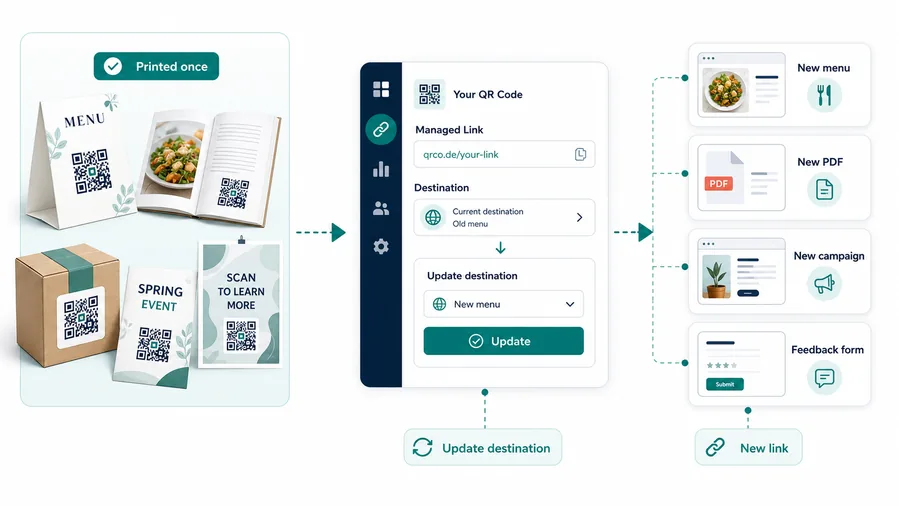
Menus and price sheets
Update seasonal menus, delivery PDFs, price lists, and promotional sheets without reprinting table cards or flyers.
Manuals and guides
Replace setup guides, instructions, care sheets, safety PDFs, and troubleshooting documents after products ship.
Event resources
Update agendas, speaker files, worksheets, maps, certificates, and follow-up downloads.
Brochures and catalogs
Keep catalogs, product sheets, service decks, and sales PDFs current after print campaigns go out.
Use dynamic when the PDF is not truly final
If the file may be revised while the QR remains in circulation, make the printed code editable from the start.
PDF print handoff
Check the PDF QR code before the document link goes onto print
Print readyA PDF QR must scan reliably and open a file people can actually use from the printed context.
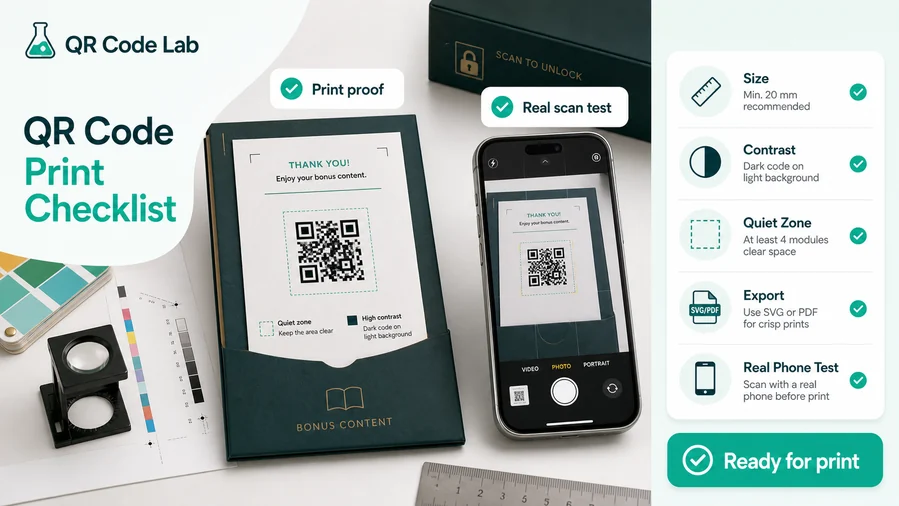
Test the QR at the real printed size
Scan the code from the actual menu, label, brochure, poster, handout, or package insert size before publishing.
Small file QR codes on glossy paper, folded flyers, or dense layouts need strong contrast and enough quiet zone.
Check the document experience on mobile
Open the PDF from the QR on a phone and confirm file size, first page, orientation, download behavior, and readability.
If the PDF is heavy or several files are needed, use a small landing page instead of sending people straight to a file.
Use a file landing page when one QR needs several documents
A direct PDF is clean for one file, but menus, manuals, training packs, and event resources often need several versions, languages, or related links.
A file hub can present documents, buttons, images, support, and fallback actions while the printed QR stays simple.
Restaurant menu
Open current menu, drinks, allergens, specials, delivery, and booking links when needed.
Product manual
Link setup guide, care instructions, safety sheet, warranty, troubleshooting, and support.
Class worksheet
Share PDF worksheet, answer key, examples, video, and updated resources.
Event handout
Open agenda, slides, speaker notes, map, certificate, and follow-up files.
Print PDF QR only after file and scan path are tested
The code should open the right document, remain readable in print, and give a fallback when the file alone is not enough.
PDF scan UX
Make the PDF scan open a file people can use on their phone
Scan UXA PDF QR should not simply prove that a document exists. It should open the right file quickly, clearly, and in a format the scanner can read or download.
Use direct PDF links for one stable file
Menu, manual, brochure, worksheetA direct PDF QR works when the scanner needs one document and the file is mobile-friendly.
The printed CTA should name the document so people know what will open.
Use a file page when context or choices matter
Languages, versions, files, supportA file page can show several PDFs, language choices, version notes, images, support links, and related actions.
This is better when the scanner may need more than one document.
Use dynamic routing when files change
New menu, revised manual, updated guidePDFs are often replaced after the QR is printed.
Dynamic QR keeps the printed code connected to the current approved file or file page.
Does the file match the printed promise?
If the CTA says open warranty PDF, the first screen should not be a generic file directory.
Is the PDF comfortable on mobile?
Check file size, zoom, orientation, first page, download behavior, and whether the content is readable.
Will the file need updates?
Use dynamic QR when menus, manuals, schedules, catalogs, worksheets, or policies may change after print.
The PDF scan should get people to the right document without friction
Use a direct file for simple cases and a file hub when the document experience needs context, choices, or fallback.
File handoff
Make the PDF easy to open on a phone before you print the QR code
A PDF that looks fine on a desktop can be unpleasant on a phone. Before printing, scan the code and check the first mobile experience: does the file open quickly, is the text readable, is the download obvious, and does the user understand what the document is for? If the PDF is huge, sideways, image-heavy, or packed with tiny columns, the QR code may work perfectly while the experience still feels broken.
For menus, manuals, brochures, school resources, real estate sheets, product instructions, book bonuses, and event materials, consider a microlanding page when the person may need more than one file or action. The page can introduce the document, offer the current PDF, link related files, provide a ZIP download, show a short summary, or separate “read online” from “download.” That is often clearer than opening a large document with no context.
Use dynamic QR when the file may change after printing. It gives you room to replace a PDF, fix a typo, add a new version, or route old print materials to a better document without creating a dead code. That is especially useful for menus, manuals, and long-lived packaging.