
Google Review QR Code Generator for Local Business Reviews
Create Google review QR codes for Business Profile review links, receipts, table cards, packaging, counters, and follow-up messages. Help customers open the right review page fast.
Free QR code generator
Create a QR code online
Generate QR codes for websites, email, phone numbers, vCards, Wi-Fi, plain text, forms, PDF files, and campaign links. Customize colors, add a logo or frame, then download a print-ready PNG or SVG.
Choose QR code type
Website QR code, Email QR code, Phone QR code, vCard QR code, Wi-Fi QR code, Text QR code, SMS, WhatsApp, event, and download links.
Add your content
Enter your website URL, contact details, message, phone number, location, or file destination before generating the QR code.
Customize and download
Adjust QR colors, error correction, logo, frame, size, and margin. Generate QR Code, Download PNG, Download SVG, or Save and track scans.
Public review path
Make it easy for real customers to leave an honest Google review
A Google review QR code can point to an existing Google Business Profile review link or review page. It is useful for restaurants, salons, clinics, local shops, hotels, service businesses, real estate agents, repair teams, and local marketers who want to make the review path easier after a real customer interaction.
The safest review QR is direct and honest. Ask for feedback from real customers without promising ratings, filtering negative feedback, or offering rewards only for positive reviews. A QR code should reduce the typing and searching, not pressure someone into a fake or forced response.
QR Code Lab creates the QR code for the review URL and can show scan activity by placement. It does not generate reviews, manipulate ratings, manage reputation, create fake feedback, or control Google review behavior. Google controls the review flow, account prompts, visibility, and moderation.
If you also want private feedback, use a separate destination. Public review requests and private issue reports serve different jobs, and mixing them can make customers unsure where to complain or praise.
Example: check that the review link belongs to the right business
Use the review link for the exact Business Profile and location the customer visited. Test it from the printed receipt or card rather than assuming a general Maps link opens the review action.
- Destination check
- Confirm the business name and location before sharing the code. A visitor may need to sign in to Google before posting.
- Neutral invitation
- Share your experience with this location. Make the invitation available without selecting only customers expected to leave positive feedback.
- Measurement
- A QR scan is not a published review. Review submission, moderation and display are controlled by Google.
Do not promise a specific rating or automatic review publication. Review requests must follow Google's current policies; the QR code does not bypass account or moderation requirements.
Review request
Ask for Google reviews at the moment the customer can judge the experience
ReviewsA Google review QR code should make the public review path easy while keeping the ask honest, timely, and separate from private support issues.
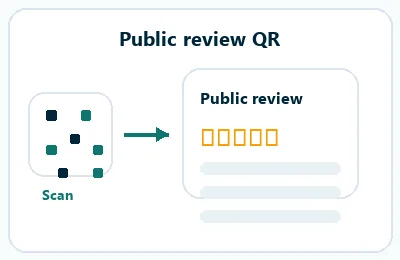
Send satisfied customers to the correct Google review page
Use the QR code after the visit, purchase, appointment, meal, stay, or service is complete, when the customer has enough context to leave a useful public review.
Receipts, table cards, thank-you cards, counter signs, packaging inserts, hotel checkout cards, and service follow-ups. Do not pressure customers, gate unhappy feedback, or imply that a positive review is required.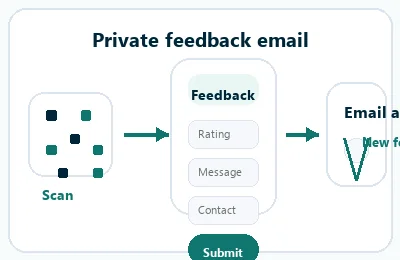
Keep support problems out of the public review ask
If the customer needs help, route them to a contact form, support desk, manager note, or feedback page before asking for a public rating.
Restaurants, hotels, clinics, local services, stores, events, delivery, and repair workflows where support may be needed. A review QR should not hide the business contact path when something went wrong.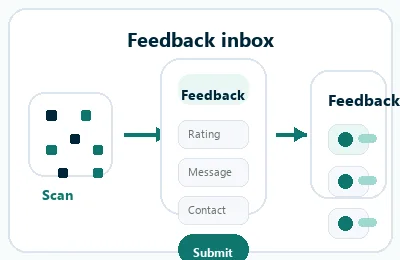
Tell customers what opens before they scan
Print a direct caption such as “Review us on Google” so customers know the scan opens a public review destination, not a coupon, menu, receipt, or support form.
Any public-facing review request where trust and clarity matter. Avoid vague QR labels that make the destination feel suspicious or manipulative.A good review QR makes the honest next step easier
Use the QR code to reduce friction, not to pressure the customer or hide other feedback options.
Review placement
Place Google review QR codes after the customer moment is complete
PlacementGoogle review QR placement should come after a real experience: meal finished, service delivered, stay completed, purchase made, appointment ended, or support interaction resolved.

The review ask appears before the customer can judge
A review QR at the entrance or before service can feel premature because the customer has not yet had the experience.
Early placement may earn weak or confused scans instead of useful reviews.
The QR appears after the value has been delivered
Receipts, thank-you cards, checkout counters, table cards after the meal, packaging inserts, and service follow-ups match the moment better.
The printed copy should clearly say that the scan opens the Google review page.
Has the customer experienced enough?
Ask after the meal, appointment, purchase, stay, delivery, or service is complete.
Is the public review path clear?
Use a plain caption like “Review us on Google” so the destination is not vague.
Is support still needed?
Keep a contact or feedback path visible for problems that should be handled privately.
Will staff explain the ask consistently?
Printed review cards work best when the team understands the timing and wording.
Receipt or checkout card
Strong for restaurants, stores, salons, repairs, clinics, and services after payment.
Table card after service
Works when guests have finished the meal and can leave a fair review.
Hotel or room card
Best near checkout or after the stay, with a support path for unresolved issues.
Package insert
Use after product delivery, setup, or unboxing when the customer has enough context.
Poster or event sign
Best where people pause: registration line, booth, waiting area, seat back, schedule board, or exit path. Weak when people only pass at speed.
Business card
Useful after a conversation because the person already knows why they might save a contact, open a portfolio, book a call, or follow up.
Window sign
Good for after-hours menus, booking, pickup instructions, or quick offers. Avoid complex actions when the person is outside and just walking by.
Cover or front label
Use it only when the promise is immediate and clear. Otherwise the better scan moment is often inside the material or after the first interaction.
Review QR placement should respect the customer moment
Ask when the experience is fresh and complete, then make the Google review destination obvious.
Review scan UX
Make the Google review scan feel trustworthy before the rating screen opens
Scan UXCustomers should understand that the QR opens a public Google review page and that support issues still have a private path.
The scan opens the right Google review destination
Business profile, review form, location-specific listingFor businesses with multiple locations, the QR should open the correct Google review destination for the place the customer actually visited.
The printed business name, location, and review caption should match what appears after the scan.
The review ask should be direct and respectful
Review us, share feedback, tell us how we didA clear review prompt feels safer than a vague QR code. Customers should know they are leaving a public review before they scan.
Avoid wording that promises rewards for positive ratings or makes the customer feel pushed.
Support problems need a separate route
Contact manager, support form, feedback pageIf the customer has an unresolved issue, a private feedback or support link may be more useful than sending them straight to a public review page.
Use the printed material or nearby page copy to make that support path easy to find.
Does the QR open the correct location?
Test the review link for the exact branch, venue, or business profile before printing.
Is the public action named?
Write “Review us on Google” or similar clear copy near the QR code.
Is there a private issue path?
Do not make the public review form the only route for customers who need help.
A review QR should earn trust before it asks for trust
Make the destination clear, keep the ask fair, and route unresolved problems to a human support path.
Review timing
Place review QR codes after the experience, not before it
Good placements include receipts, checkout counters, table cards, appointment cards, packaging inserts, thank-you cards, hotel room cards, service completion sheets, follow-up materials, and front desk signs. The CTA should say leave a Google review, share your experience, or review us on Google. Keep it polite and optional.
Timing matters. A review QR works best after the customer has received service, eaten the meal, completed the appointment, or picked up the order. If the experience is still in progress, a private feedback or support QR may be better because the team still has a chance to fix the issue.
Scan analytics can show which printed placements send customers toward the review page, but QR Code Lab cannot know whether a Google review was completed or what rating was left. Use scan data for placement learning, and use Google for actual review results.
Keep the ask respectful. A simple thank-you card or receipt note often feels better than a loud demand at the counter, especially when customers are still finishing the interaction.






