
vCard QR Code Generator for Digital Business Cards & Contacts
Create vCard QR codes that save name, phone, email, company, job title, website, and address to contacts. Use them on cards, badges, resumes, flyers, events, handouts, and signs now.
Free QR code generator
Create a QR code online
Generate QR codes for websites, email, phone numbers, vCards, Wi-Fi, plain text, forms, PDF files, and campaign links. Customize colors, add a logo or frame, then download a print-ready PNG or SVG.
Choose QR code type
Website QR code, Email QR code, Phone QR code, vCard QR code, Wi-Fi QR code, Text QR code, SMS, WhatsApp, event, and download links.
Add your content
Enter your website URL, contact details, message, phone number, location, or file destination before generating the QR code.
Customize and download
Adjust QR colors, error correction, logo, frame, size, and margin. Generate QR Code, Download PNG, Download SVG, or Save and track scans.
Digital contact handoff
Turn a scan into a saved contact, not another typed business card
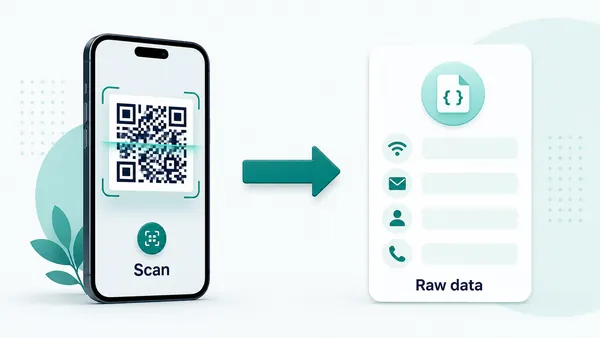
A vCard QR contains contact data rather than requiring the reader to type it from a business card. A compatible scanner can offer a contact preview, while the phone and the recipient control the final save action.
Use a direct vCard for a stable personal contact. Use a profile or contact-page URL when the destination needs several actions or later updates; that is a different scan experience from opening a native contact card.
Static contact details stay in the printed code. They do not create scan analytics in QR Code Lab, and editing a web page cannot change contact records already saved on someone else's phone.
Example: the contact someone should see after scanning
A conference badge needs a small, usable contact record. This fictional vCard shows the difference between contact data and a link to a profile.
BEGIN:VCARD
VERSION:3.0
N:Rivera;Alex;;;
FN:Alex Rivera
ORG:Example Studio
EMAIL:alex@example.com
URL:https://example.com
END:VCARD- Expected result
- A compatible reader offers a contact preview; the person confirms whether to save it.
- Check before sharing
- Verify the displayed name, company and email, not just that the camera detects a QR code.
A static vCard keeps the original details after printing. Changing a profile page does not update an already saved address-book entry. Include only contact information you are willing to share.
Contact save moments
Turn a printed introduction into a saved contact
vCardA vCard QR code is useful when the scan should help someone keep your name, phone, email, company, role, website, address, or profile without retyping details from a card, badge, brochure, sign, or printed introduction.
Make the contact action immediate after meeting
Use vCard QR codes on business cards, name badges, table tents, office signs, sales sheets, conference materials, portfolio cards, real estate boards, and clinic or service desks when saving contact details is the expected next step.
The QR label should say save contact, not just scan me.
Keep the contact data clean and recognizable
The saved contact should show the right name, role, company, phone, email, website, and address. If the scanner has to clean up confusing fields later, the QR code did not really remove friction.
Test the saved contact on several phones before printing.
Use a landing page when the relationship needs more than a contact card
A vCard is great for saving details, but a portfolio, booking page, lead form, product page, or social profile may be better when the scanner needs proof or a specific follow-up action first.
Choose the destination by what should happen after the meeting.The scan should make follow-up easier, not vague
QR Code Lab can create the vCard QR code or route scanners to a contact-focused destination. The contact details, privacy expectations, and follow-up promise still need to be clear in the printed context.
A saved contact is valuable only when the scanner remembers why they saved it.Name the contact purpose
Use nearby copy such as save my contact, book a consultation, contact support, open portfolio, or connect after the event.
Check every field
Confirm phone, email, company, title, URL, address, and optional notes before exporting. Contact mistakes spread quickly once cards are printed.
Respect the scanner’s choice
The phone should present a save-contact prompt or clear page; the scanner decides whether to store the contact.
Use dynamic for richer follow-up
If the destination should include booking, portfolio, files, social links, or updated contact routes, use a dynamic page instead of only static vCard data.
Choose static vCard QR when the contact details are final
DecisionStatic vCard QR stores the contact data directly in the QR pattern. Dynamic QR is better when the printed code should open an editable contact page, booking route, portfolio, or lead capture path later.
Static vCard QR saves contact details directly
A static vCard QR code contains the contact fields inside the QR pattern, so the phone can prepare a contact-save screen without a managed redirect.
This works well for stable personal cards, staff badges, office desks, printed directories, service cards, and event materials where the contact information is final.
The tradeoff is permanence. After printing, QR Code Lab cannot edit the encoded contact details or collect scan analytics from that direct native action.
Dynamic QR opens an editable contact destination
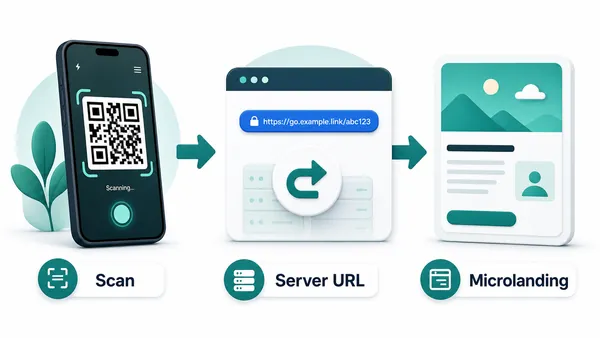
A dynamic QR code stores a managed URL first, then sends scanners to the current contact page or landing page.
That destination can include save-contact buttons, booking links, portfolio proof, social profiles, forms, files, and updated contact details after the card is printed.
Use dynamic when contact routes may change, when follow-up needs more than one action, or when printed placements need scan reporting.
Quick decision
Contact scan experience
Make the contact scan feel trustworthy before saving
Scan UXA vCard QR code asks someone to put your details into their phone. The scan should show a recognizable person or business, clean fields, and a clear reason to save the contact.
The phone controls the save-contact screen
Name, company, phone, email, website, addressWhen the QR contains vCard data, the device decides how to display the contact and which fields are saved.
Keep the data tidy and test it on iOS and Android. Extra notes, long titles, missing country codes, or awkward field mapping can make the saved contact look unprofessional.
A landing page helps when the next step is more than saving
Booking, portfolio, lead form, profile, files, supportIf the scanner needs to choose a follow-up action, a mobile page can be more useful than a direct contact-save prompt.
Use the page to show who they met, why the contact matters, and which action comes next: book, call, email, view work, download files, or request a quote.
Dynamic QR can compare printed contact placements
Cards, badges, booths, signs, brochures, countersDynamic QR can show scan interest by placement before sending people to a contact-focused destination.
Keep measurement realistic: scans show attention and intent, while saved contacts, replies, bookings, and deals belong to your CRM or communication tools.
Does the scanner know whose contact this is?
The printed card, badge, or sign should make the person, company, role, and follow-up reason clear before the scan.
Do the fields save cleanly?
Test phone, email, company, title, URL, address, and notes on several devices so the saved contact looks intentional.
Is saving the right next action?
If the scanner needs proof, booking, pricing, or a portfolio first, use a landing page with a save-contact option rather than only vCard data.
The scan should make follow-up easier after the meeting
Use vCard QR when saving contact is the value. Use a contact page when the relationship needs context before the person decides to save or respond.
Contact placement timing
Place vCard QR codes where a relationship just started
PlacementvCard QR codes work best when someone has met a person, seen a service, visited a desk, handled a card, or paused at a booth and wants an easy way to continue the relationship.

A contact QR without context is easy to skip
A QR code in a generic footer or crowded design may be visible but fail to explain why the scanner should save the contact.
People save contacts when they understand the future value: follow-up, booking, support, referral, portfolio review, or direct communication.
The code belongs beside the introduction
Place the vCard QR near the person’s name, role, photo, company, offer, desk, badge, or business card details.
The CTA should connect the scan to a clear action, such as save contact, book a call, open portfolio, or reach support.
What just happened?
The person met you, took a card, visited a booth, read a profile, asked for help, or saw a service they may need later.
What should happen next?
The scan should save contact details or open a page for booking, calling, emailing, viewing work, or requesting a quote.
Is the phone naturally available?
Business cards, badges, counter signs, brochures, table tents, and desk materials are stronger than fast-moving or distant placements.
Is the future value obvious?
Say why to save the contact: consultation, support, appointment, sales follow-up, portfolio, real estate inquiry, or professional connection.
Business card
Turn a printed card into a saved contact, booking path, portfolio, or quote request before the card is lost.
Conference badge
Help people save speaker, exhibitor, staff, or attendee details after a real conversation.
Trade show booth
Connect booth visitors to a rep, demo booking, product page, lead form, or follow-up contact.
Reception or service desk
Offer department contacts, after-hours help, appointment lines, and support paths where people already ask questions.
Real estate sign or flyer
Let prospects save an agent contact, request a viewing, call about availability, or open a listing page.
Portfolio or sales sheet
Connect printed proof to the person or team who can continue the conversation.
Clinic or local service card
Make appointment desks, support lines, and professional contacts easier to save after a visit.
Printed directory or office sign
Help visitors save the right team, department, or person without copying phone and email details.
Use vCard QR where saving contact is a real next step
If the scanner needs to evaluate, compare, or choose before saving details, send them to a focused contact landing page instead.
Contact moment
Build the vCard QR around the moment people actually need you
The best vCard QR placement is usually close to a real conversation or decision. On a business card, it should support the handoff. On an event badge, it should help the other person save you before the next meeting starts. On a desk sign or printed sales sheet, it should give visitors a reliable way to keep the right contact without asking staff to spell an email address. On a proposal, it can make the account owner easy to reach after the document is shared internally.
For teams, it is worth deciding whether every person needs a direct static vCard or whether a branded profile page is better. A direct vCard is excellent for personal contact saving. A managed profile page is better when you want scan statistics, updated links, multiple contact options, a booking button, portfolio links, social profiles, office locations, or a short explanation of what to do next.
Keep the contact data clean. Remove fields people do not need, use a professional email, include the right country code, and test on real phones. A vCard QR is small, but it becomes part of how people remember and save you.