
QR Code Payment System - Checkout, Invoices & Portals
Create QR codes for payment systems linking checkout pages, invoices, payment portals, tip pages, donation pages, customer accounts, and receipts. Send customers to the payment provider you trust.
Free QR code generator
Create a QR code online
Generate QR codes for websites, email, phone numbers, vCards, Wi-Fi, plain text, forms, PDF files, and campaign links. Customize colors, add a logo or frame, then download a print-ready PNG or SVG.
Choose QR code type
Website QR code, Email QR code, Phone QR code, vCard QR code, Wi-Fi QR code, Text QR code, SMS, WhatsApp, event, and download links.
Add your content
Enter your website URL, contact details, message, phone number, location, or file destination before generating the QR code.
Customize and download
Adjust QR colors, error correction, logo, frame, size, and margin. Generate QR Code, Download PNG, Download SVG, or Save and track scans.
Payment link access
Use QR codes to open payment pages, not to replace your payment processor
A QR code for a payment system is useful when a printed sign, invoice, receipt, table card, tip card, donation card, or service bill should open a payment link quickly. It can point to checkout pages, payment portals, invoices, tip pages, donation pages, customer accounts, deposit pages, or receipt pages. The QR code makes access easier, especially on mobile.
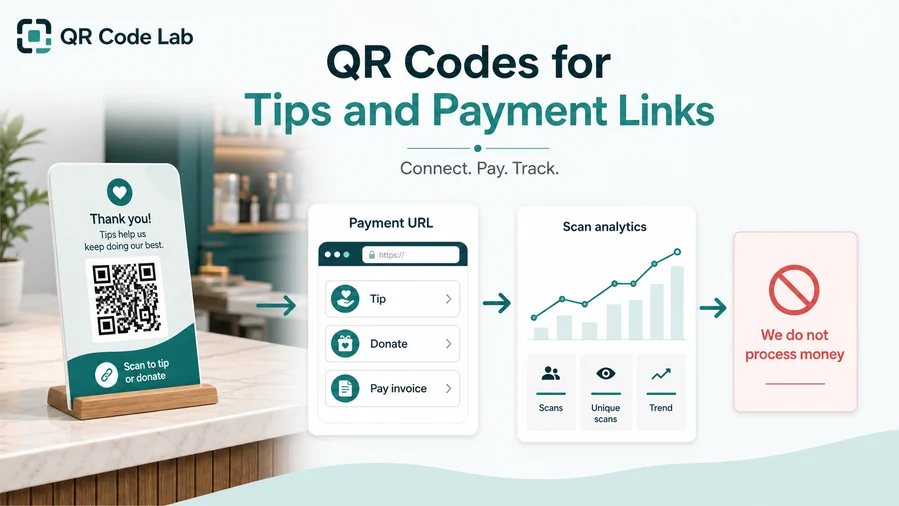
It is important to be clear about the role of QR Code Lab. We help create the QR code, manage a dynamic destination, and track scans. We do not process payments, store card details, move money, approve transactions, issue refunds, or act as a POS provider. The actual payment is handled by your payment processor or billing platform after the scan.
This separation is useful. You can update a printed payment QR if the invoice page, donation link, or checkout URL changes, and you can see whether a sign or invoice gets scanned. But payment security, receipts, disputes, taxes, and customer financial data remain inside the payment system you choose.
Payment link flow
Payment link flow payment, tip, and checkout teams with payment links, tip pages, checkout, invoices, donations, and receipts
Payment boundaryUse QR codes to move payment, tip, and checkout teams from counters, receipts, tip cards, invoices, signs, merch tables, and printed handouts to payment links, tip pages, checkout, invoices, donations, and receipts without asking people to type a long payment URL.

Open the trusted payment destination
Use QR codes on invoices, counters, table cards, estimates, tickets, donation cards, and booking materials to open the right checkout, tip, deposit, balance, or payment request page.
The printed CTA should say what the person is paying for.
Keep scan data separate from payment confirmation
QR Code Lab can help route and measure scans, but completed payment status, receipts, refunds, and disputes must be checked inside the payment provider.
A scan is not payment proof.
Make public payment codes easy to verify
Payment QR codes need strong brand, amount, invoice, table, trip, donation, or order context before people enter money or card details.
Trust context matters more when the code is public.A QR payment system should reduce typing without blurring financial responsibility
The QR code is the shortcut to the payment page. The payment provider is where checkout, funds, authentication, receipts, refunds, chargebacks, and compliance happen.
Use specific CTAs: pay invoice, tip staff, pay deposit, donate, pay table bill, or complete booking.Clear payment purpose
Show what the scan opens: invoice, deposit, tip, balance, donation, checkout, or receipt.
Provider trust
Use recognizable HTTPS payment pages with business, amount, and order context.
Confirmation boundary
Treat scan analytics as traffic; confirm payment inside the provider.
Public safety
Inspect public payment QR placements for sticker replacement, wrong links, and stale pages.
Payment boundary
Use QR payment links with a clear boundary between scan routing and payment processing
PaymentsQR Code Lab can create the code, route scanners to a payment page, and show scan activity. The payment provider handles checkout, money movement, receipts, refunds, disputes, and confirmation.
Invoices and balances
Open trusted invoice, balance, deposit, or final payment pages from printed bills, estimates, contracts, and service cards.
Tips and donations
Route table cards, taxi cards, event signs, and donation materials to a clearly labeled tip or donation page.
Booking and order checkout
Use QR codes for deposits, event fees, appointment payments, pickup orders, tickets, and checkout links.
QR Code Lab creates the shortcut; the payment provider processes the money
Checkout, funds, receipts, refunds, disputes, chargebacks, tips, deposits, balances, and confirmation stay inside the trusted payment, POS, booking, or invoice provider.
A scan can show interest in the payment path, but it does not prove that payment was completed.QR payment links need trust before money moves
The scanner should understand who they are paying, why, and where confirmation will come from before entering payment details.
Payment placement
Place payment QR codes where the payment purpose is obvious
PlacementA payment QR should sit beside the invoice, table bill, donation ask, tip prompt, estimate, booking, or checkout context so the scanner knows what the money is for.

A bare payment QR creates doubt
People should not have to guess whether the code opens a tip, invoice, donation, deposit, balance, or checkout page.
Payment QR codes need stronger context than ordinary marketing links.
Put the code beside the payment explanation
Use invoices for balances, table cards for bills or tips, booking cards for deposits, and donation signs for contribution pages.
The first screen should match the printed amount, purpose, business, or provider context.
What is being paid?
Invoice, tip, donation, deposit, order, balance, booking fee, subscription, event ticket, or checkout.
Who receives the money?
Show business, provider, staff, organization, invoice, order, table, trip, or booking context before checkout.
Can the QR be tampered with?
Inspect public counters, tables, signs, meters, and stickers regularly when money is involved.
Where is payment confirmed?
Use the provider for receipt, status, refund, dispute, and accounting confirmation.
Invoice or estimate
Open balance, deposit, progress payment, final payment, receipt, and billing support.
Table card
Use for pay bill, tip, split check, receipt, and staff help with restaurant context.
Counter sign
Open checkout, deposit, donation, tip, or support page with clear business identity.
Receipt
Route to receipt copy, tip, review, refund support, or payment issue help.
Booking card
Open deposits, cancellation policy, event fee, appointment payment, and receipt.
Donation sign
Show organization, campaign purpose, amount options, and receipt expectations.
Vehicle or taxi card
Use for fare payment, tips, receipts, invoices, and lost-item support.
Event badge or booth
Open ticket upgrades, merch checkout, donations, deposits, and invoices.
Payment QR placement should remove payment ambiguity
If the scanner cannot tell what they are paying for before scanning, the placement needs clearer copy.
Scan reporting
Use payment QR scan data carefully and confirm money inside the provider
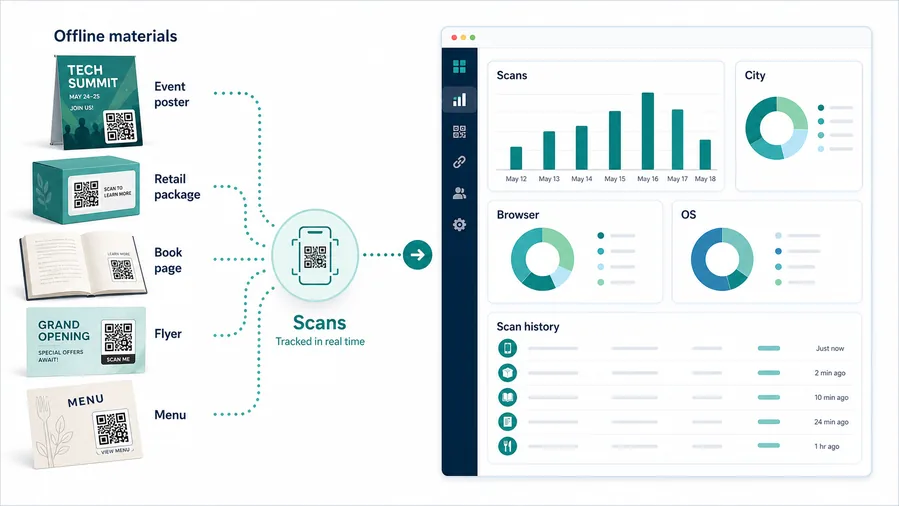
AnalyticsQR scan analytics can show interest in payment paths, but completed transactions, amounts, refunds, and disputes belong to the payment system.
A scan total is not a payment report
A QR code can show how many people opened a payment path, but it cannot prove that they completed checkout.
Payment status, amount, receipt, refunds, and disputes must come from the provider.
Separate codes clarify which payment prompt was used
Use different dynamic QR codes for invoices, tips, deposits, donations, tables, counters, events, and branches when comparison matters.
The scan signal can help find friction, but accounting still lives elsewhere.
Scan volume
Review how often people open each payment prompt during the selected period.
Timing
Check scans around invoice due dates, service periods, events, table turns, or campaign windows.
Broad location
Use approximate location signals for branch, event, or placement checks.
Provider comparison
Compare scan data with payment-provider reports to find drop-off between scan and completed payment.
Invoice follow-up
See whether printed invoices, estimates, and reminders are sending people to payment pages.
Tip prompts
Compare table cards, taxi cards, counters, and service receipts as tip entry points.
Donation campaigns
Track different signs, flyers, events, and partner placements before checking donation totals in the provider.
Stale payment cleanup
Find old payment links, retired providers, moved invoices, or expired campaigns still receiving scans.
Name payment QR codes by payment purpose and placement
Use names like invoice-balance, table-tip, counter-donation, booking-deposit, or taxi-receipt so scan reports can be reconciled later.
Payment scan UX
Make the QR payment scan show purpose, provider, and support before checkout
Payment UXA payment QR code should reduce typing, not create trust friction. The first screen should make the business, amount context, purpose, provider, and support path clear.
Invoice scans should show what the balance belongs to
Invoice, deposit, balance, receiptShow invoice number, business identity, payment purpose, due date, amount context, provider, and receipt expectation before checkout.
Keep billing support visible for questions, partial payments, and disputes.
Tip and donation scans need recipient clarity
Tip, donation, campaign, staffShow who receives the money, why the payment is requested, whether amounts are suggested or optional, and what receipt or confirmation to expect.
Avoid anonymous pages that make public QR codes feel suspicious.
Order and booking scans should confirm the purchase context
Order, booking, deposit, ticketBefore payment, show order, service, table, trip, booking, event, or product context clearly.
The scanner should not pay before understanding what checkout completes.
Does the first screen match the printed payment CTA?
The scanner should immediately see invoice, tip, donation, deposit, balance, order, or checkout.
Is the payment provider recognizable?
Use HTTPS pages and provider branding that make payment trust easier.
Is support visible before payment?
Show how to ask about wrong amount, duplicate charge, refund, receipt, or failed checkout.
The QR payment path should feel safer than typing a link
If the first screen does not make the payment purpose clear, pause and fix the destination before printing.
Payment trust flow
Make payment QR codes clear, branded, and easy to verify
Useful placements include invoices, counter signs, table cards, tip cards, donation cards, event signs, service bills, parking notices, receipts, and customer account letters. CTAs should say pay invoice, leave tip, donate here, open checkout, pay deposit, view receipt, or open account. The printed text should make it obvious who is requesting payment and what the payment is for.
Dynamic QR codes are practical when payment links change, but trust matters more than convenience. Use a branded landing page or a clearly recognizable payment page before asking for money. Avoid vague short links on payment materials. If the scan opens a third-party processor, make that expected in the surrounding text so people are not surprised.
QR Code Lab can count scans and manage the QR destination, but it cannot confirm whether a payment was completed inside another system. Use your payment processor for transaction records, refunds, disputes, and compliance. A good QR payment flow should reduce typing while making the payment destination easier to trust. That clarity is especially important on tips, invoices, and public signs.
Scan trust
Make QR payment systems trustworthy before customers enter money or card details
TrustPayment QR codes are high-trust placements. They need clear business identity, payment purpose, provider context, and regular inspection when used in public.

Fake payment destinations
Unknown QR codes can imitate checkout, invoices, tips, donations, parking, menus, or delivery services.
Watch for similar-looking domains, long URLs, login or verify keywords, and pages asking for credentials after an unexpected scan.
Sticker replacement on public payment codes
Tables, counters, meters, vehicles, and signs should be checked because payment QR stickers can be replaced.
A trustworthy QR should not make the final destination mysterious, especially on posters, labels, menus, parking signs, or event materials.
Unclear amount or recipient
Customers need to understand who receives the money, what the payment covers, and where confirmation appears.
Before paying, check the domain, HTTPS, amount, recipient, and whether the destination matches the place or brand that printed the QR.Inspect the destination before people rely on it
Scan the printed proof, check the domain, review the first screen, and confirm the action matches the printed promise before distribution.
A QR code removes typing, but the destination still has to prove that it belongs to the business, author, or payment provider.Decoded destination
Check that the QR opens the current payment, invoice, tip, donation, checkout, or receipt page.
Business and provider identity
Confirm the page shows the business, organization, provider, and payment purpose before checkout.
Payment context
Review invoice, table, order, booking, campaign, tip, amount, and receipt expectations.
Public placement
Inspect printed payment QR codes regularly for sticker tampering, damage, and outdated links.
Publish QR codes people can understand
The printed CTA, destination title, brand identity, and first button should all describe the same action.






