
QR Code Print Size Guide for Distance, DPI & Print Materials
Learn the right QR code print size for labels, cards, flyers, posters, packaging, and signs. Check scan distance, quiet zone, DPI, contrast, export quality, and real print testing.
Free QR code generator
Create a QR code online
Generate QR codes for websites, email, phone numbers, vCards, Wi-Fi, plain text, forms, PDF files, and campaign links. Customize colors, add a logo or frame, then download a print-ready PNG or SVG.
Choose QR code type
Website QR code, Email QR code, Phone QR code, vCard QR code, Wi-Fi QR code, Text QR code, SMS, WhatsApp, event, and download links.
Add your content
Enter your website URL, contact details, message, phone number, location, or file destination before generating the QR code.
Customize and download
Adjust QR colors, error correction, logo, frame, size, and margin. Generate QR Code, Download PNG, Download SVG, or Save and track scans.
Print sizing
Choose QR size from the scanning distance, not from the empty space in the design
A printed QR code has to be sized for the real moment of scanning. A business card can be held close to the phone. A poster may be scanned from a few steps away. A product label may be small, curved, glossy, or handled under poor lighting. The right size depends on scan distance, material, contrast, quiet zone, and how much data the QR pattern contains.
For print work, the quiet zone around the QR code is not decoration. It helps the camera find the code. Keep a clean margin, avoid crowding the QR with text or borders, and do not let background patterns, folds, glare, or nearby graphics compete with the modules. If the QR includes a logo, frame, or brand color, test the final design at the printed size instead of trusting the screen preview.
Use SVG or PDF when you can, especially for packaging, posters, menus, flyers, labels, books, and business cards. A clean vector export is safer than resizing a blurry image inside a design file. If the destination may change after printing, use a dynamic QR code so a good print layout does not become useless because one link moved.
Print size and distance
Size the QR code for the distance, material, and real scan moment
Print guideA QR code that scans from a phone screen may fail after it is printed too small, placed too far away, softened by ink, or crowded by artwork. Size decisions should start from where the scanner stands.
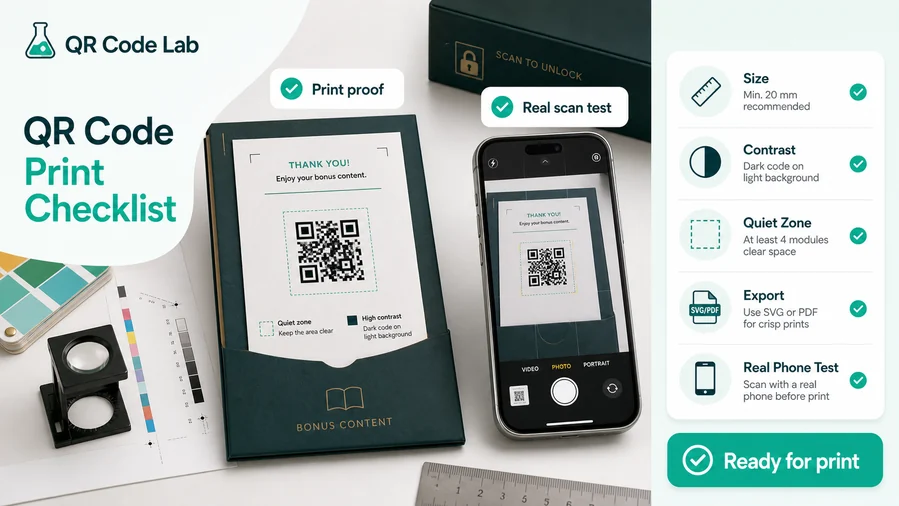
Match physical size to how far away the scanner will be
Small labels, business cards, packaging inserts, table tents, posters, windows, and outdoor signs do not share the same scan distance. Print a final-size proof and test it from the place a person will naturally hold the phone.
If the code has a logo, frame, color, or low-detail finder pattern, give it more room than a plain black-and-white QR code. The smaller the print, the less decoration it can safely carry.
Keep the exported artwork sharp and the quiet zone untouched
Use SVG or PDF for professional print layouts so the QR edges stay crisp after scaling. Avoid stretching raster exports, compressing the pattern, or placing the code over textured artwork.
Leave a clear quiet zone around the code and test contrast on the final material, especially on glossy stickers, dark labels, folded flyers, laminated menus, and textured packaging.
Test the printed code together with the mobile destination
A size guide is not only about the square image. The scan should open a fast mobile page, file, form, menu, contact action, or guide that matches the promise printed beside the code.
For long-lived print, dynamic QR protects the material if the PDF, URL, menu, product page, or campaign destination changes after the print run.
Business cards and stickers
Use short CTA copy, strong contrast, and a real-size scan test because the code is usually small and handheld.
Packaging and labels
Check curves, glare, folds, nearby barcodes, and whether the customer can scan while holding the product.
Flyers and posters
Increase size for pass-by scanning and make the scan promise visible before someone walks away.
Signs and windows
Test from the real viewing distance and lighting, including reflections, glass, outdoor light, and movement.
Approve QR print size by scanning the final-size proof
The right size is the one that works on the real material, from the real distance, with the final destination already checked.
Readable design
Keep QR styling inside the limits of the printed size
Design safelyFrames, logos, colors, and CTA labels are useful only when the printed code still has enough contrast, quiet zone, and module clarity for the chosen size.
Use simpler styling when the code is small
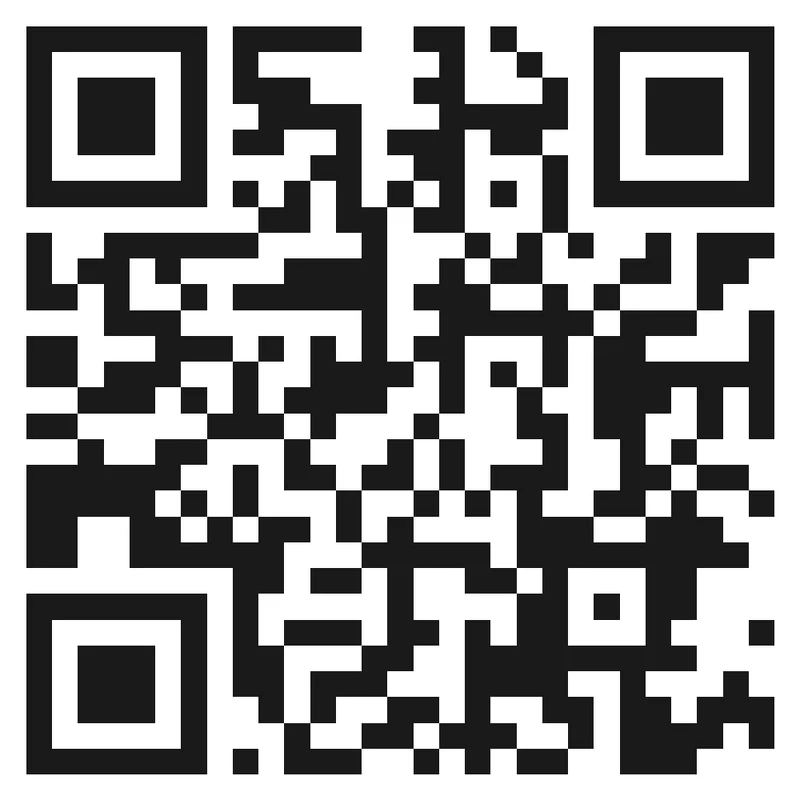
Risk
A small QR code with heavy decoration, weak contrast, or an oversized logo can look branded while becoming slower or harder to scan.
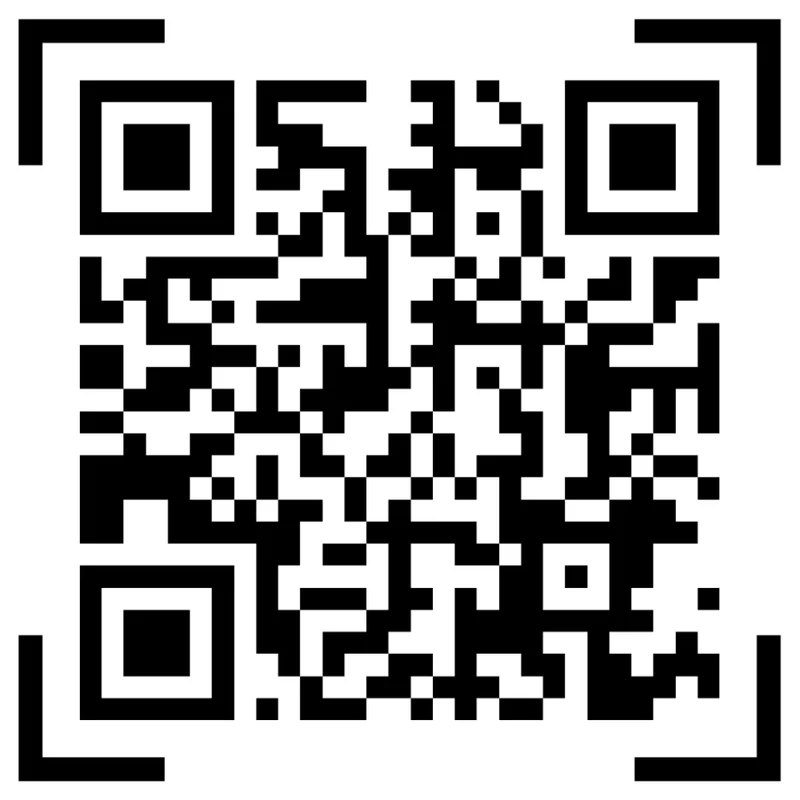
Better
Keep small print clean: strong contrast, protected quiet zone, readable finder corners, and a short CTA outside the pattern.
Add visual context without crowding the scan area
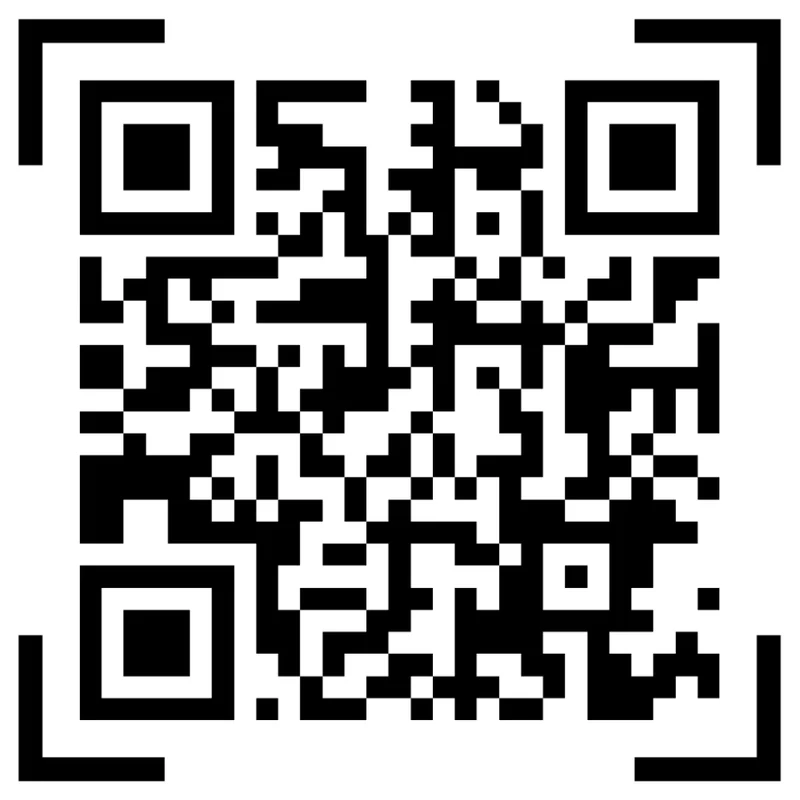
Crowded
Putting the QR too close to photos, copy, edges, folds, or dielines can reduce scannability even when the code itself is large enough.
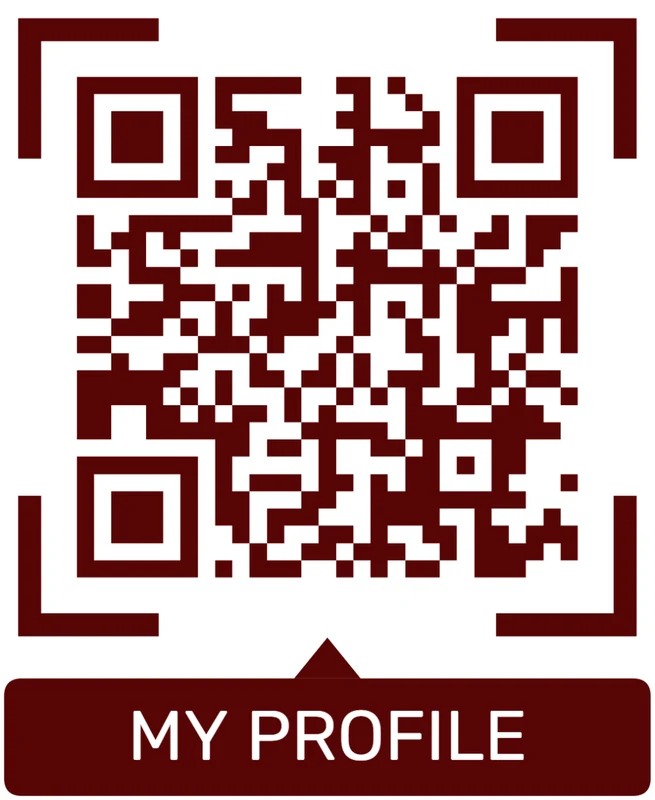
Proofed
Use a frame and spacing to separate the code from the layout, then test the final artwork after scaling and export.
Customize corners and modules
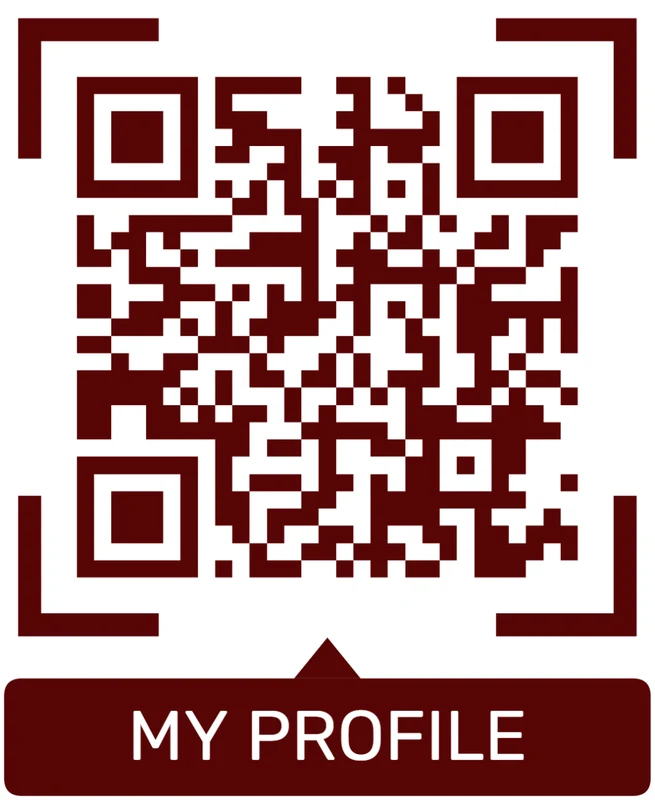
Standard pattern
A colored framed code already looks better, but it can still look like every other QR code.
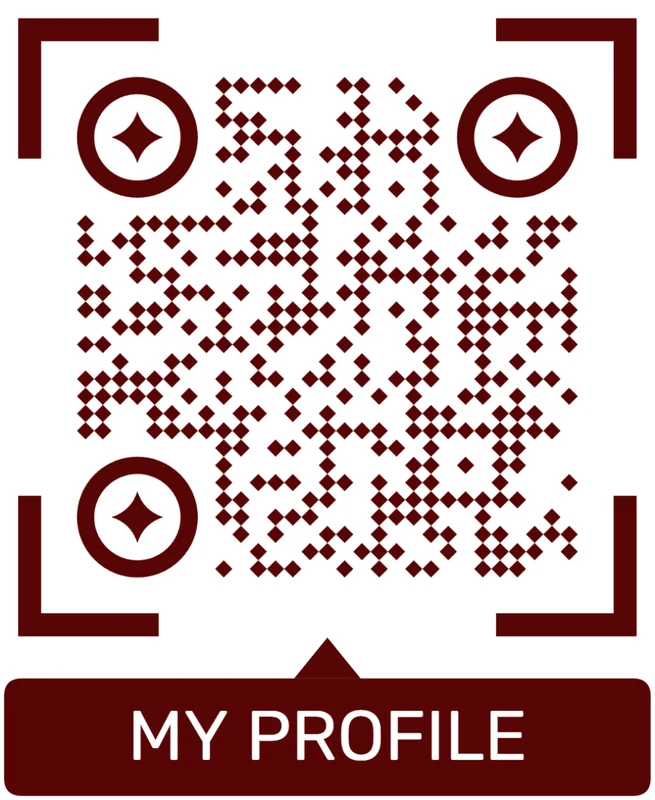
Custom eyes and module shape
Rounded modules, styled finder corners, and cleaner patterns can make the code feel premium. Keep the three corner markers clear.
Add a logo carefully
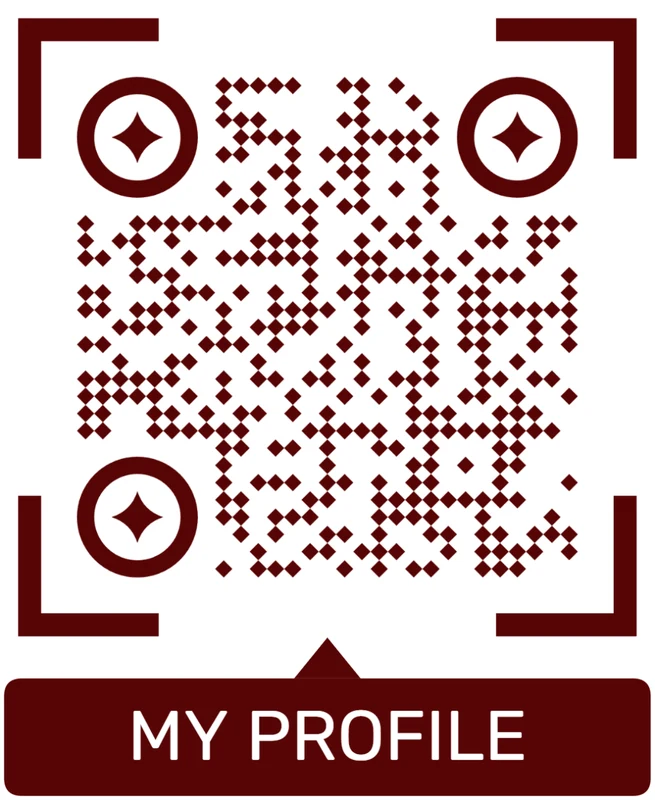
Styled QR code
A styled code can look polished, but people may still not know what brand, profile, file, or campaign it represents.
Logo QR code
A centered logo helps signal the destination. Keep it small, use a clean background behind it, and test the exported code.
Design choices should follow the print size
If the code is small or far away, prioritize readability over decoration and move branding into the frame or CTA.
Print scan test
Test the scan from the distance people will actually use
Scan testQR print size is practical: the phone, lighting, angle, material, and destination all matter once the code leaves the design file.
Small materials need clean patterns and close-range testing
Cards, labels, stickers, inserts, tagsHandheld materials can use smaller codes, but they still need enough quiet zone and contrast after trimming, folding, lamination, or packaging placement.
Scan the final-size sample with the phone held naturally, not only from a perfect straight-on angle.
Table and counter placements need a clear CTA
Menus, table tents, receipts, counter cardsThe code may be visible for longer, but the scan promise still needs to be obvious: open menu, pay, review, book, reorder, or get help.
Check restaurant lighting, reflections, protective sleeves, and whether the code is still readable after cleaning or handling.
Posters and signs need larger codes and simpler design
Posters, windows, booths, walls, bannersPass-by placements need a larger QR code, less decoration, and a CTA that can be understood before the person gets close.
Test from the real walking path or viewing point, including glare, shadows, glass, and surrounding visual noise.
Can the code scan at final size?
Print the smallest intended version and scan it from the expected distance with several phones.
Is the quiet zone still clean?
Check that borders, dielines, photos, text, folds, stickers, and nearby graphics do not touch the QR area.
Does the destination match the printed promise?
Open the final page, file, form, menu, contact action, or guide on mobile before approving the print run.
A QR size is ready only when the physical proof works
Use the final material, final distance, and final destination as the approval standard.
Format examples
Match the QR code to the print format and the hand position
For flyers and menus, put the QR code where the person naturally pauses and can hold the phone steady. For posters and window signs, increase the size because the scanner may stand farther away and may not want to walk closer. For labels and packaging, protect the quiet zone and avoid curves, seams, folds, glossy reflections, and crowded product text when possible.
For books and manuals, place the code near the page where the extra file, video, checklist, or bonus material is mentioned. For receipts, table tents, badges, and appointment cards, the code can be smaller because the person usually holds the item close. Still, small does not mean squeezed. A little extra white space often does more for scanning than a decorative border.
Before approving a print run, scan the actual printed sample with several phones under normal light. Test from the distance people will really use, not from the perfect angle at your desk. QR Code Lab can generate the asset, but the final print size should be proven in the material, finish, and placement where the code will live.
Print size FAQ
QR print size questions to settle before export
Quick answersUse these checks to avoid the most common print-size failures: codes that are too small, too decorated, too close to artwork, or too far from the scanner.
Sizing
Start with the real viewing distance and the smallest final placement.
How do I know if the QR code is large enough?
Print it at the intended size and scan it from the distance a real person will use. If the scan feels slow or requires perfect positioning, increase the size or simplify the design.
Can tiny QR stickers work?
They can work for close handheld scans, but they need strong contrast, a clean quiet zone, and very little decoration. Test the smallest sticker before printing a full batch.
Should posters and signs use larger QR codes?
Yes. People scan from farther away and often while moving, so posters, windows, banners, and booth signs need larger codes and clearer CTA copy.
Does logo size affect print size?
Yes. Larger logos and custom styling reduce the margin for error, so decorated QR codes usually need more physical space than plain codes.
Artwork
The design file should protect the QR pattern after export and print.
Which file format is best for print?
Use SVG or PDF for professional print layouts. Raster files can work, but only when resolution is high enough and the QR is not stretched or compressed.
Can the QR touch other graphics?
No. Keep a quiet zone around all sides. Text, borders, photos, folds, dielines, and decorative frames should not crowd the readable pattern.
Do colored QR codes scan well?
They can, if contrast stays strong on the final material. Test the printed result, especially on glossy, dark, textured, or transparent surfaces.
Should the CTA be inside the QR image?
Keep the CTA outside the readable pattern or in a frame that preserves the quiet zone. The code area itself should stay clean.
Testing
Approval should happen on the printed sample, not only in the browser.
How many phones should I test with?
Use several common phones and scanner apps if the material is important. A code that works only on one device or at one angle is not ready.
What conditions should I test?
Use the real material, lighting, distance, angle, and placement. Check glare, folds, curves, protective sleeves, windows, and shadows.
Should I test the destination too?
Yes. The QR image can scan perfectly and still fail the campaign if the page, PDF, form, menu, or file is slow or confusing on mobile.
When should I use dynamic QR?
Use dynamic QR when the printed material is expensive to replace or when the URL, PDF, menu, campaign, or landing page may change later.
Placement
The best size depends on how people encounter the code.
Why does distance matter so much?
The farther the scanner stands, the larger and simpler the QR code needs to be. Pass-by placements need more visual room than handheld labels.
Can I put a QR near a barcode?
Yes, but leave enough separation so people and scanners understand which code to use. Do not let the barcode area crowd the QR quiet zone.
What if the material is curved?
Curved bottles, jars, cables, and small containers can distort the pattern. Use a larger code, simpler design, and a final placement test.
What is the safest approval rule?
If the final-size printed sample scans quickly from the real distance and opens the right mobile destination, the size is much safer to approve.
Design and branding
For logos, colors, frames, CTA labels, and print-ready styling.
Can I add a logo?
Yes, but keep enough QR modules visible and test the result. A logo should support the design, not damage scanning.
Can QR codes be colored?
Yes. Keep strong contrast between foreground and background, and avoid colors that make the QR pattern too light.
Can I invert colors?
Only after testing. Some scanners handle inverted codes poorly, especially on glossy or low-contrast print.
What is the quiet zone?
It is the empty margin around the QR code. Do not crop it or place text, borders, or graphics too close to the code.
Safety and trust
For unknown QR codes, public print, payment links, and security checker pages.
How do I know what is inside a QR code?
Use a QR safety checker to decode the QR image and preview the raw content before opening it.
Can a QR code hide a phishing link?
Yes. The QR pattern hides the link until it is decoded, so unknown public QR codes should be inspected carefully.
What should I check before opening?
Look at the domain, HTTPS, shorteners, unusually long URLs, encoded characters, sensitive keywords, and whether the destination matches the physical context.
Does the checker guarantee safety?
No. It helps preview decoded content and basic risk signals, but it does not replace browser, antivirus, bank, or payment security checks.
Native actions
For Wi-Fi, email, phone, SMS, calendar, and vCard QR codes.
Why does Wi-Fi QR behave differently?
A static Wi-Fi QR stores structured network data, so many phones can show a native join-network prompt.
Can dynamic QR open native Wi-Fi directly?
Usually no. A dynamic QR contains a URL first, so the phone treats it like a web link rather than direct Wi-Fi credentials.
Can a QR start email or phone actions?
Yes, if the QR contains formats such as mailto:, tel:, or sms:. The device decides how to handle the action.
When should I use static for native actions?
Use static when the direct device action matters more than editability, redirects, or scan analytics.
Scan experience
For mobile pages, micro-landings, CTAs, forms, and post-scan clarity.
What should users see after scanning?
They should see a mobile-friendly page or native action with one obvious next step.
How many buttons should a landing page have?
Keep it focused. One to five buttons usually works better than a full website navigation menu.
Should QR go to the homepage?
Usually no. It should open the exact action promised next to the printed code.
How do I reduce confusion?
Add a short label near the QR code and make the destination match the printed context: menu, file, booking, feedback, payment, or contact.
Print size decisions should be proven, not guessed
Use the final-size sample as the truth: scan distance, material, design, quiet zone, and destination all need to work together.






