
Why Is My QR Code Not Scanning? Fix Size, Contrast & Links
Fix QR codes that will not scan by checking size, contrast, quiet zone, logo placement, damaged print, bad URLs, lighting, distance, export quality, camera behavior, and dynamic settings.
Free QR code generator
Create a QR code online
Generate QR codes for websites, email, phone numbers, vCards, Wi-Fi, plain text, forms, PDF files, and campaign links. Customize colors, add a logo or frame, then download a print-ready PNG or SVG.
Choose QR code type
Website QR code, Email QR code, Phone QR code, vCard QR code, Wi-Fi QR code, Text QR code, SMS, WhatsApp, event, and download links.
Add your content
Enter your website URL, contact details, message, phone number, location, or file destination before generating the QR code.
Customize and download
Adjust QR colors, error correction, logo, frame, size, and margin. Generate QR Code, Download PNG, Download SVG, or Save and track scans.
Troubleshooting
Fix the physical scan first, then check the destination behind the code
When a QR code does not scan, the problem is usually either the printed image or the destination behind it. Start with the physical code: size, quiet zone, contrast, blur, glare, curved surfaces, damage, logo placement, and camera distance. A phone has to detect the QR pattern before it can care where the code goes.
If the code scans but does not open the expected page, check the payload. A static QR code may contain a typo or old URL that cannot be changed after printing. A dynamic QR code may point to a disabled, expired, moved, or misconfigured destination. The scan can be technically successful while the user experience still feels broken because the page is slow, confusing, or not mobile friendly.
Troubleshooting is fastest when you test like a real scanner. Print a sample, scan it in normal lighting, hold it at a normal distance, try several phones, and open the exact destination customers will see. Do not approve a print run from a design preview alone. QR Code Lab can help with clean output and dynamic control, but real scanning must be tested in the real placement.
Print troubleshooting
Check print size, material, and placement when a QR code will not scan
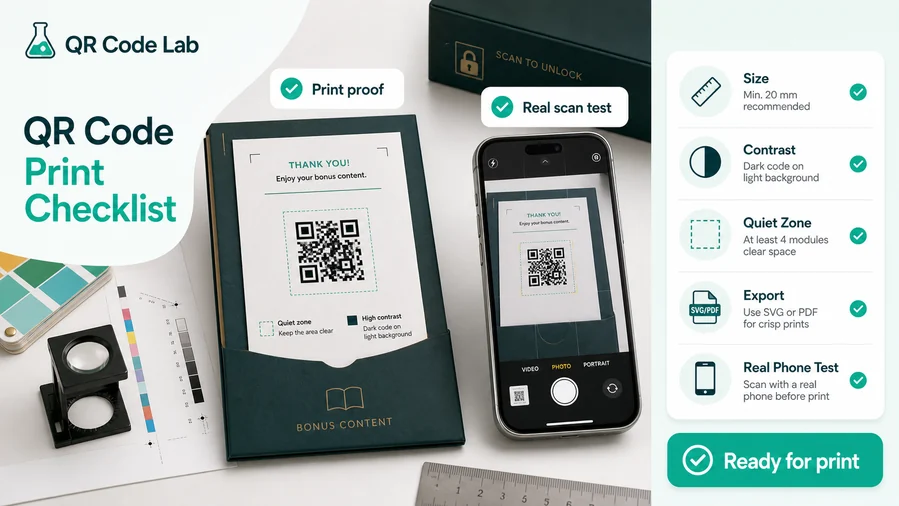
Print readyA QR code that fails in the real world is often not broken data. It may be too small, too low contrast, too reflective, too distorted, too close to other artwork, or too far from the scanner.
Reproduce the failure in the real placement
Scan the printed code from the distance, angle, and lighting people actually use. A code on a glossy window, curved bottle, folded flyer, badge, table tent, or wall poster behaves differently from the same artwork on a monitor.
If the phone struggles to focus or frame the code, increase the printed size, improve contrast, move the code away from folds or glare, and restore white space around the pattern.
Confirm that the scan result is the expected destination
If the camera recognizes the QR but the destination is wrong, slow, blocked, expired, or permission-protected, the problem is not the pattern itself. Decode the value and test the page on a normal phone connection.
For printed assets that may need correction, a dynamic QR code helps because the destination can be updated without changing the already printed code.
Do not stop troubleshooting at “the camera reads it”
A successful scan still creates a bad experience if the landing page is not mobile-friendly, the file does not open, the form requires login, or the first screen does not match the printed CTA.
Test the complete path: scan, redirect, page load, primary action, files, forms, buttons, and fallback links. The code is only useful when that whole path works.
Too small on print
Increase physical size, simplify nearby artwork, and test from the real viewing distance before reprinting.
Low contrast or glare
Use a cleaner background, stronger dark-on-light contrast, matte material when possible, and avoid reflective placement.
Missing quiet zone
Move text, borders, images, and folds away from the QR so the scanner can identify the pattern cleanly.
Broken destination
Check redirects, permissions, HTTPS, file access, form settings, and whether the final page works on mobile.
Troubleshoot the code, then the path behind it
Fix physical scanability first. If the camera reads the code, inspect the encoded value and destination experience before changing the design again.
Visual diagnosis
Fix the visible scan blockers before blaming the QR data
DesignMost non-scanning QR problems come from physical readability: low contrast, small size, cropped quiet zone, distortion, glare, dense payloads, or decorative changes that make the pattern harder for the camera to detect.
Check contrast, quiet zone, and size first

Common failure
A code can look fine in a design file but fail after it is shrunk, placed on a busy background, printed with weak contrast, or trimmed too close to the pattern.

Better
Give the code more physical size, restore the quiet zone, use a plain background, and keep strong dark-on-light contrast on the final material.
Separate design failure from destination failure

Confusing symptom
Sometimes the camera reads the QR code, but the page is slow, expired, blocked, redirected strangely, or does not match the printed promise.

Clear test
Scan the code, inspect the decoded value, open the destination on mobile data, and verify the first screen before reprinting.
Customize corners and modules

Standard pattern
A colored framed code already looks better, but it can still look like every other QR code.

Custom eyes and module shape
Rounded modules, styled finder corners, and cleaner patterns can make the code feel premium. Keep the three corner markers clear.
Add a logo carefully

Styled QR code
A styled code can look polished, but people may still not know what brand, profile, file, or campaign it represents.
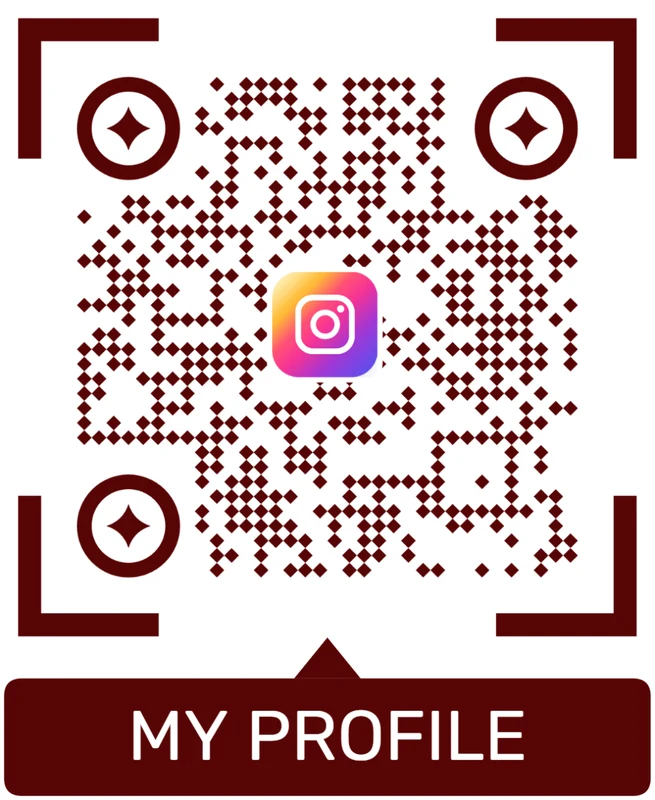
Logo QR code
A centered logo helps signal the destination. Keep it small, use a clean background behind it, and test the exported code.
A QR code can fail before or after the camera reads it
Diagnose the physical code first, then the encoded value, redirect path, mobile page, and destination permissions. Fix the exact failure instead of redesigning blindly.
Scan diagnosis
Diagnose whether the failure is camera, data, redirect, or destination
Scan UXWhen a QR code will not scan, separate the problem into stages. The camera must detect the pattern, decode the value, open the right path, and land on a page that works on a phone.
The physical code is the first suspect
Small size, glare, quiet zone, contrast, damageIf the phone never recognizes the code, inspect size, contrast, quiet zone, print quality, distortion, reflection, and scan distance.
Try another phone and another lighting condition before changing the destination. If both fail, the printed code or artwork likely needs correction.
The encoded value or redirect path is the next suspect
Old URL, typo, permissions, expired linkIf scanning opens something unexpected, decode the QR and compare the raw value with the intended destination.
For dynamic QR, check whether the managed destination is active, correct, and not pointing through an expired campaign or broken redirect.
The mobile destination can still fail the scan
Slow page, login wall, broken file, unclear CTAIf the page loads but people cannot complete the action, the QR code is technically readable but the scan experience is still broken.
Check mobile layout, file access, form permissions, first-screen clarity, and whether the action promised in print is visible immediately.
Does another phone scan it?
Cross-test with different cameras and scanner apps to separate a bad code from one device or lighting problem.
Does a clean reprint scan?
Print the same QR larger, with better contrast and quiet zone, to see whether the issue is physical production.
Does the final URL work on mobile data?
Open the decoded destination outside your logged-in browser and check redirects, permissions, files, and forms.
Fix the exact stage that fails
Do not redesign everything at once. Identify whether the failure is physical scanability, encoded data, managed redirect, or mobile destination, then correct that layer.
Common causes
Look for the boring failures before assuming the QR code itself is broken
Tiny codes, low contrast, missing quiet zones, heavy logo overlays, compressed images, glossy reflections, dark backgrounds, inverted colors, and busy print layouts are common reasons a QR code becomes unreliable. Increasing error correction can help with some damage and logo use, but it cannot rescue every weak design decision. If the scanner has to work too hard, many people will simply give up.
For dynamic QR codes, also check that the managed link is active, the final destination loads on mobile, redirects are not suspicious or broken, and the content has not been removed. A code that opens a slow desktop page may feel broken even when the QR image scans correctly.
The fix is usually practical: enlarge the code, restore the quiet zone, improve contrast, export as SVG or PDF for print, reduce the logo size, simplify the background, or update the dynamic destination. After every fix, test again from the same distance and angle your users will have. Small changes can make scanning feel instant.
Troubleshooting answers
Common QR scan problems and how to narrow them down
FAQUse these checks to separate print problems from destination problems before reprinting or rebuilding the QR code.
Camera recognition
Start with the physical code if the phone does not recognize it.
Why will my QR code not scan at all?
Common causes are small size, poor contrast, missing quiet zone, glare, distortion, damage, low print quality, or scanning from too far away.
Can a QR code work on screen but fail in print?
Yes. Printing changes size, edges, contrast, material, glare, and placement. Always test the final printed version.
Does error correction fix every scan issue?
No. It helps with limited damage or obstruction, but it cannot fix a code that is too small, distorted, badly placed, or low contrast.
Should I test with more than one phone?
Yes. Testing several phones helps reveal whether the issue is the code itself or one scanner, camera, browser, or lighting condition.
Visual layout
Design choices can make a valid QR code harder to read.
Can a logo break a QR code?
A logo can hurt scanning if it is too large, covers important areas, reduces contrast, or pushes the code to a smaller final size.
What is quiet zone?
Quiet zone is the clear blank space around the QR pattern. Without it, the scanner may not identify the code boundary.
Are inverted colors safe?
Some inverted or low-contrast designs scan poorly. Test them on real phones before printing.
Can the background image cause problems?
Yes. Busy backgrounds, gradients, patterns, and transparent overlays can reduce contrast and confuse the scanner.
After the scan
A scan can succeed even when the destination experience fails.
Why does my QR scan but open the wrong page?
The encoded URL may be wrong, old, redirected, or the dynamic destination may be misconfigured. Decode the QR and compare it with the intended page.
Why does the page not open on phones?
Check HTTPS, mobile load speed, permissions, file access, login walls, form settings, and redirects on mobile data.
Can I fix a wrong static QR after printing?
No. A static QR contains the final data in the pattern. If the data is wrong, the printed code must be replaced.
Can dynamic QR help after printing?
Yes, if the physical code scans. Dynamic QR can update the destination behind the same printed pattern.
Production checks
The final material decides whether the scan works in the real world.
Where should I place the QR on print?
Place it where people can pause, see the CTA, hold the phone naturally, and scan without folds, glare, or awkward angles.
What file format is best for print?
SVG or PDF is usually best for professional print because vector edges stay sharp at different sizes.
Should I use a short destination URL?
Shorter payloads can create less dense QR patterns. Dynamic QR can help keep the printed code manageable while the final destination stays editable.
What should I check before reprinting?
Check physical size, quiet zone, contrast, material, decoded value, destination URL, mobile page, and the CTA printed beside the code.
Design and branding
For logos, colors, frames, CTA labels, and print-ready styling.
Can I add a logo?
Yes, but keep enough QR modules visible and test the result. A logo should support the design, not damage scanning.
Can QR codes be colored?
Yes. Keep strong contrast between foreground and background, and avoid colors that make the QR pattern too light.
Can I invert colors?
Only after testing. Some scanners handle inverted codes poorly, especially on glossy or low-contrast print.
What is the quiet zone?
It is the empty margin around the QR code. Do not crop it or place text, borders, or graphics too close to the code.
Safety and trust
For unknown QR codes, public print, payment links, and security checker pages.
How do I know what is inside a QR code?
Use a QR safety checker to decode the QR image and preview the raw content before opening it.
Can a QR code hide a phishing link?
Yes. The QR pattern hides the link until it is decoded, so unknown public QR codes should be inspected carefully.
What should I check before opening?
Look at the domain, HTTPS, shorteners, unusually long URLs, encoded characters, sensitive keywords, and whether the destination matches the physical context.
Does the checker guarantee safety?
No. It helps preview decoded content and basic risk signals, but it does not replace browser, antivirus, bank, or payment security checks.
Native actions
For Wi-Fi, email, phone, SMS, calendar, and vCard QR codes.
Why does Wi-Fi QR behave differently?
A static Wi-Fi QR stores structured network data, so many phones can show a native join-network prompt.
Can dynamic QR open native Wi-Fi directly?
Usually no. A dynamic QR contains a URL first, so the phone treats it like a web link rather than direct Wi-Fi credentials.
Can a QR start email or phone actions?
Yes, if the QR contains formats such as mailto:, tel:, or sms:. The device decides how to handle the action.
When should I use static for native actions?
Use static when the direct device action matters more than editability, redirects, or scan analytics.
Scan experience
For mobile pages, micro-landings, CTAs, forms, and post-scan clarity.
What should users see after scanning?
They should see a mobile-friendly page or native action with one obvious next step.
How many buttons should a landing page have?
Keep it focused. One to five buttons usually works better than a full website navigation menu.
Should QR go to the homepage?
Usually no. It should open the exact action promised next to the printed code.
How do I reduce confusion?
Add a short label near the QR code and make the destination match the printed context: menu, file, booking, feedback, payment, or contact.
Troubleshooting is faster when each layer is tested separately
Check scanability, decoded data, redirect behavior, and mobile destination before deciding what to rebuild.






