
QR Code for Workbooks - Worksheets, Templates & Videos
Create QR codes for workbooks linking worksheets, answer keys, templates, videos, downloads, bonus lessons, teacher notes, and updates. Add digital support to exercises and printed lessons.
Free QR code generator
Create a QR code online
Generate QR codes for websites, email, phone numbers, vCards, Wi-Fi, plain text, forms, PDF files, and campaign links. Customize colors, add a logo or frame, then download a print-ready PNG or SVG.
Choose QR code type
Website QR code, Email QR code, Phone QR code, vCard QR code, Wi-Fi QR code, Text QR code, SMS, WhatsApp, event, and download links.
Add your content
Enter your website URL, contact details, message, phone number, location, or file destination before generating the QR code.
Customize and download
Adjust QR colors, error correction, logo, frame, size, and margin. Generate QR Code, Download PNG, Download SVG, or Save and track scans.
Workbook companion path
Connect printed exercises to worksheets, videos, templates, and answers
A QR code for workbooks is useful when a printed exercise needs digital support without crowding the page. It can open worksheets, answer keys, templates, lesson videos, bonus lessons, source files, teacher notes, audio, quizzes, updates, and download folders. The printed workbook stays focused, while the scan gives learners a helpful next step when they need it.
Workbook QR codes work best when they are tied to the exact activity. A writing prompt can open a template. A math page can open a worked example. A language exercise can open audio. A teacher page can open notes or downloads. A back-matter code can open updates, corrections, or bonus material. QR Code Lab helps create dynamic, print-ready codes and scan analytics for these learning resources.
QR Code Lab creates URL QR codes and tracks scans. It does not create lessons, grade answers, host learning platforms, manage student records, or provide educational certification. Your website, file host, LMS, video platform, quiz tool, or teacher resource page provides the actual workbook content.
Workbook learning moments
Workbook learning moments schools, teachers, tutors, and training teams with assignments, worksheets, lessons, schedules, feedback, resources, and parent or student follow-up
Workbook resourcesUse QR codes to move schools, teachers, tutors, and training teams from worksheets, classroom posters, school handouts, lesson materials, event signs, and training packets to assignments, worksheets, lessons, schedules, feedback, resources, and parent or student follow-up without making students, parents, or attendees type a long URL.

Attach help to the exercise page
Place QR codes beside workbook sections, drills, prompts, projects, and review pages so learners can open the matching example, video, checklist, template, or guided answer.
The printed CTA should name the resource and avoid vague scan copy.
Keep answer keys and corrections flexible
Use QR codes for solution pages, errata, revised prompts, updated worksheets, and companion files that may change after the workbook is printed.
Editable destinations protect long-lived print editions.
Offer bonus material without crowding the workbook
Send readers to printable pages, audio, datasets, project files, extra practice, reflection forms, teacher notes, and support paths outside the printed layout.
The scan should extend the lesson, not interrupt it.A workbook QR code should help the learner continue the task
The reader is already doing an exercise. The scan should open the next useful resource for that exact page instead of a broad library or generic homepage.
Use specific CTAs: open hint, check answer, download template, watch example, submit work, or view correction.Exercise support
Open hints, examples, videos, checklists, and answer keys tied to the printed activity.
File access
Provide templates, PDFs, datasets, audio, worksheets, and project files without long URLs.
Edition updates
Keep errata, revised prompts, broken links, and companion resources current after printing.
Teacher or coach handoff
Separate student-facing practice from instructor notes, submissions, and assessment resources.
Schools, classrooms, workbooks, and textbooks
Connect workbook pages to the exact resource learners need next
Learning accessWorkbook QR codes are useful when an exercise, worksheet, prompt, project, or review page should open the matching hint, answer key, example, video, file, form, or correction.

Open examples beside the exercise
Attach worked examples, short videos, model answers, prompts, and checklists to the printed task that needs them.

Release answer keys with context
Send learners to guided solutions, final answers, scoring notes, or self-check pages tied to the section and edition.

Link templates and downloads
Use QR codes for printable pages, spreadsheets, worksheets, audio, datasets, source files, and project templates.

Collect submissions or reflections
Open upload forms, reflection prompts, quizzes, practice logs, and instructor feedback paths.

Support different learning levels
Route beginners, advanced learners, teachers, parents, or coaches to the right version of the resource.

Fix printed-resource mistakes
Use dynamic destinations for revised prompts, broken file links, updated examples, and errata pages.

Extend the workbook after purchase
Offer bonus exercises, challenge pages, updates, newsletters, and next-workbook paths after the learner gets value.

Keep the page clean
Move large instructions, files, answer explanations, and media outside the printed layout without losing context.
Learners should land on the resource for this exact exercise
The scan should remove typing and searching by opening the promised hint, answer, video, file, form, or download immediately.
Workbook authors and teachers need links that survive the print run
Dynamic QR helps maintain answer keys, templates, correction pages, submission forms, and companion files across editions and semesters.
Put workbook QR codes beside the task
Books, KDP, and author bonuses
Give workbook readers useful extras without crowding the printed pages
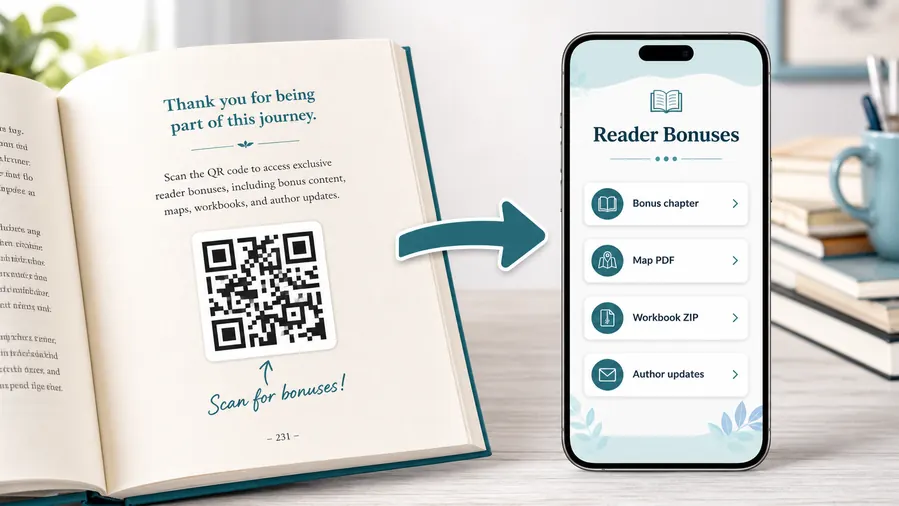
Reader bonus hubA workbook QR code can keep exercises clean while opening answer keys, templates, printable worksheets, bonus tasks, audio, datasets, corrections, and instructor resources.
Put companion files where readers can use them
Use a mobile-friendly resource page for PDFs, templates, spreadsheets, audio, datasets, printable pages, answer keys, correction notes, and bonus packs.
The printed workbook should say whether the scan opens hints, answers, downloads, submissions, or bonus material.Templates and printables
Link worksheets, practice pages, planners, logs, forms, and reusable templates from the exercise that needs them.
Answer keys and explanations
Open guided solutions, examples, scoring notes, and self-check pages without adding long answer sections to the book.
Bonus exercises
Offer extra drills, challenge pages, project files, audio, and companion downloads after the learner completes a section.
Corrections and updates
Keep errata, revised prompts, broken links, and updated resources available after the workbook is sold.
Newsletter and next-book previews
A QR code near the author note or final chapter can invite readers into a newsletter, preorder page, series hub, or sample of the next book.
Feedback and author contact
Let readers report errors, ask questions, join a beta-reader list, or send private feedback without publishing a personal email address in the book.
Printed workbooks make broken resource links expensive
If a template, answer key, file folder, or correction page changes after publication, dynamic QR can fix the destination without replacing the book.
Put the QR where the reader expects the resource
Use exercise margins, section endings, project pages, answer sections, and back matter so the scan belongs to the workbook flow.
Workbook print check
Check workbook QR codes before the files go to print
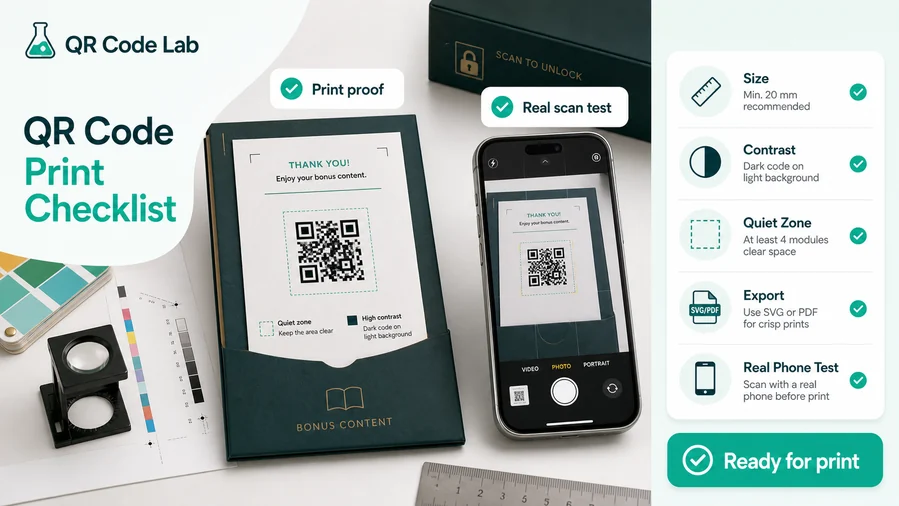
Print readyWorkbook QR codes have to stay readable in margins, worksheets, project pages, and back matter after paper, binding, trim size, and classroom or desk lighting change the scan conditions.
Keep codes readable without disrupting exercises
Match QR size to the trim and reading distance, preserve a clean quiet zone, and avoid placing codes where writing, binding, or page curl will interfere.
Test a printed proof from the smallest intended size before uploading or sending files to print.
Proof each destination against the exact activity
Scan from the printed proof and confirm the resource matches exercise, section, edition, and printed CTA.
Use vector artwork for professional layouts and avoid decoration that weakens contrast or finder corners.
Use a resource page when one workbook needs several learning actions
A workbook section may need hints, answer keys, templates, downloads, submissions, and bonus tasks.
A clear mobile page can separate those actions without crowding the exercise or sending learners to the wrong file.
Exercise margin
Open hint, worked example, video, or self-check answer.
Project page
Link templates, upload forms, checklists, and project files.
Answer section
Open guided solutions, scoring notes, and errata.
Back matter
Offer downloads, bonus pages, updates, and next-workbook resources.
Print workbook QR codes only after the resource path is tested
The QR image, printed CTA, exercise context, and destination should agree before readers see the book.
After-print control
Keep workbook resource links editable after the workbook is printed
DynamicWorkbooks can stay in use for years while templates, answer keys, videos, forms, and corrections change. Dynamic QR protects the printed edition.
A fixed QR can trap a workbook with old resources
A static QR is fine for a permanent page, but it cannot follow moved files, updated answer keys, revised prompts, or changed submission forms.
That is risky when the workbook is already printed, sold, or used in a classroom.
An editable QR keeps the workbook useful
Dynamic QR lets the author update templates, answer keys, bonus files, errata, videos, and forms while the printed code stays the same.
The learner scans the same page and still reaches the current resource.
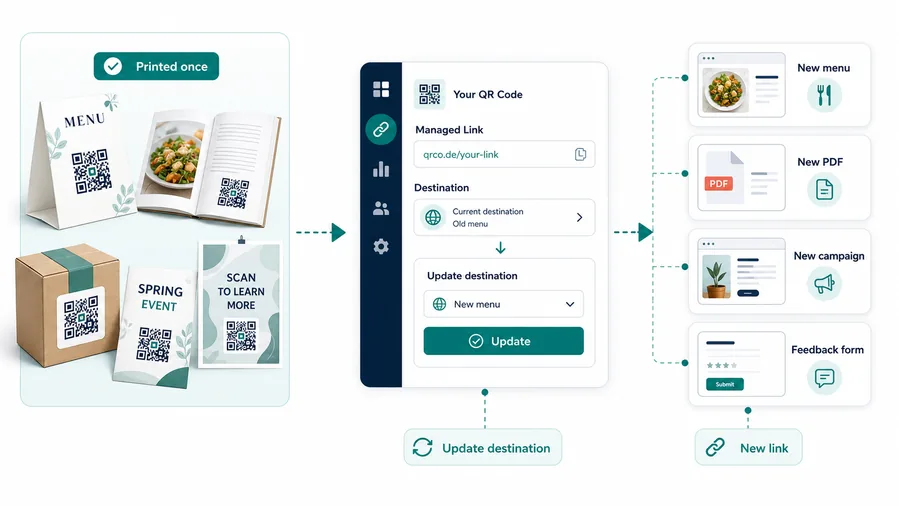
Answer and errata updates
Fix solution pages, corrections, revised prompts, and edition notes.
Templates and files
Replace moved PDFs, spreadsheets, audio, datasets, and download folders.
Forms and submissions
Update upload paths, quizzes, reflection forms, and instructor feedback links.
Bonus content
Add new exercises, challenge packs, companion resources, and next-book pages.
Use dynamic QR for workbook resources that may need maintenance
If the printed activity depends on a living file or page, editable destination control protects the reader experience.
Exercise and resource flow
Place workbook QR codes where extra help makes the task easier
Useful placements include exercise pages, chapter openers, answer sections, teacher notes, appendix pages, download instructions, bonus pages, cover inserts, and companion worksheets. CTAs should say download template, watch lesson, open audio, get answer help, try quiz, read teacher notes, or get bonus pages. Clear labels prevent confusion about whether the scan gives help, answers, or extra practice.
Dynamic QR codes are practical for workbooks because files, videos, answer pages, and correction notes can change after printing. You can update the destination while the workbook stays useful. Scan analytics can show which exercises or resource types receive attention, helping authors, teachers, and publishers improve future editions.
Keep the scan focused on the current task. If the code appears beside a single exercise, open support for that exercise, not a general library. If answers are available, label them honestly so learners and teachers can choose when to use them. For classrooms, include a short printed fallback when devices are not available. That keeps the workbook useful even in mixed device settings.
Scan reporting
Use workbook scan data to understand which resources learners actually open
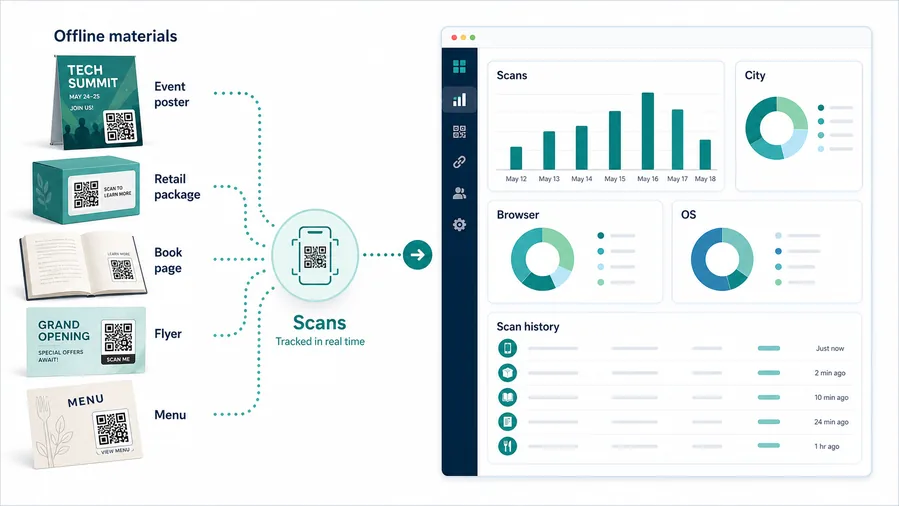
AnalyticsTracking can show resource demand by exercise, section, or edition, without treating scans as learning outcomes.
One workbook-wide code hides the resource need
A single QR can show total scans, but it cannot tell whether readers wanted hints, answers, templates, downloads, forms, or corrections.
It also cannot compare sections, editions, projects, and back matter.
Separate tracked codes make workbook support easier to read
Use different dynamic codes for answer keys, templates, project files, submissions, bonus pages, and errata when comparison matters.
Scan data is directional, but it helps authors and teachers improve future resources.
Scan volume
Review scans by exercise, chapter, resource type, edition, or bonus page.
Timing
Check activity around launches, assignments, course dates, and review periods.
Broad location
Use approximate location signals to understand regional, classroom, or market patterns.
Device context
Confirm PDFs, videos, forms, and downloads work well on learner devices.
Exercise support
Compare hint, answer, example, and video scans by section.
Download health
Monitor templates, files, and bonus packs to catch broken or moved resources.
Submission flow
Track upload forms, quizzes, reflections, and instructor handoff separately.
Edition cleanup
Find old workbook editions or retired resource paths still receiving scans.
Name workbook QR codes by section, resource, and edition
Use names like chapter-3-hints, project-template, answer-key-v2, or bonus-pack so reports stay readable.






