
QR Code for Repair Shops - Quotes, Status & Reviews
Create QR codes for repair shops linking quote forms, booking pages, repair status pages, warranties, reviews, coupons, maps, and contact cards. Use them on receipts, counters, tags, and signs.
Free QR code generator
Create a QR code online
Generate QR codes for websites, email, phone numbers, vCards, Wi-Fi, plain text, forms, PDF files, and campaign links. Customize colors, add a logo or frame, then download a print-ready PNG or SVG.
Choose QR code type
Website QR code, Email QR code, Phone QR code, vCard QR code, Wi-Fi QR code, Text QR code, SMS, WhatsApp, event, and download links.
Add your content
Enter your website URL, contact details, message, phone number, location, or file destination before generating the QR code.
Customize and download
Adjust QR colors, error correction, logo, frame, size, and margin. Generate QR Code, Download PNG, Download SVG, or Save and track scans.
Repair customer path
Help customers open quotes, status, warranties, and reviews without calling twice
A QR code for repair shops is useful when customers need a simple way to move from a counter sign, receipt, estimate sheet, warranty card, pickup bag, appointment card, coupon, window sign, or local flyer to the right repair action. It can open quote forms, booking pages, repair status pages, warranty details, review pages, coupons, maps, support pages, and contact cards.
Repair customers are usually trying to solve a specific problem, not browse a general website. Before service, they may need a quote, appointment, directions, or list of supported repairs. During service, they may need status updates or a way to approve work. After pickup, they may need warranty instructions, care tips, a receipt, review link, or a reminder for future maintenance. QR Code Lab helps repair shops create print-ready codes, update destinations later, and see which materials create scans.
QR Code Lab creates URL QR codes and scan analytics. It does not manage repair tickets, collect approvals, process payments, run bookings, provide repair advice, or store customer repair records. Your repair software, form tool, website, payment provider, or review platform handles the actual service workflow.
Service workflow
Help repair shop customers check status, approve estimates, pay invoices, and understand pickup or warranty next steps
Repair actionsA repair shop QR code should support the whole service counter workflow: intake, photos, diagnostics, estimate approval, status updates, invoice payment, pickup instructions, warranty, reviews, and repeat service.

Move intake and diagnostics into a clearer request
Use QR codes on counter signs, intake forms, tickets, and cards so customers can submit device, appliance, bike, jewelry, equipment, or item details with photos and contact preferences.
The scan should reduce back-and-forth before the technician starts.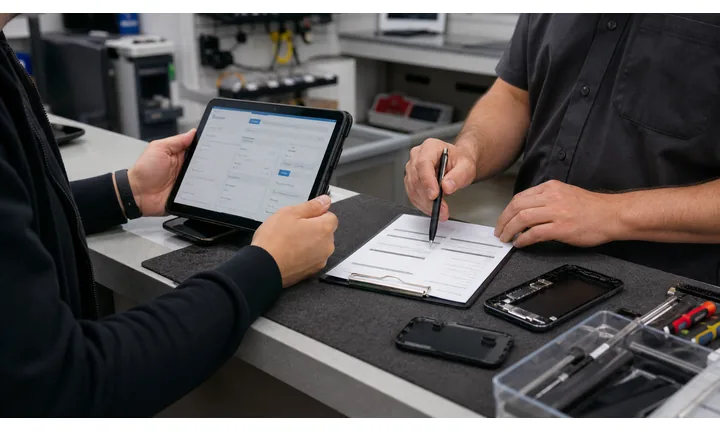
Keep repair status and approvals easy to find
Repair tickets and claim slips can open status pages, estimate approvals, part availability, pickup windows, support contact, and updated repair notes.
Customers scan because they want clarity without calling the counter again.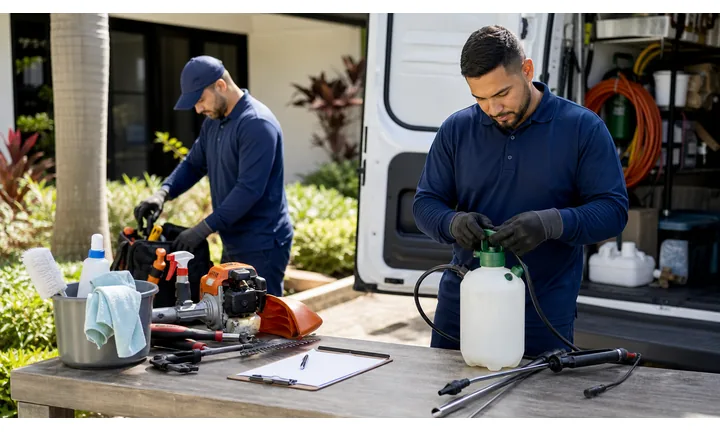
Attach payment, warranty, and review to the completed job
Invoices and pickup receipts can open trusted payment, warranty details, care instructions, private feedback, reviews, and future service reminders.
The final scan should close the job cleanly and invite the next relationship.Repair QR codes should reduce uncertainty while the item is out of the customer’s hands
The customer may be dropping off an item, waiting for diagnosis, approving a quote, paying, picking up, or asking what happens if the fix fails. The destination should continue that exact repair moment.
Use CTAs such as check repair status, upload photos, approve estimate, pay invoice, read pickup instructions, get warranty help, or leave review.Intake
Open photo upload, issue description, contact details, item model, and service terms.
Approval
Route to estimate approval, parts notes, timeline, and technician questions.
Pickup
Share payment, pickup hours, care notes, warranty, and receipt details.
Follow-up
Invite private feedback, public review, warranty claim, referral, or next service.
Repair customer moments
Turn repair shop print into intake, status checks, approvals, payments, warranty, and reviews
Service counterRepair shop QR codes work when they match the customer stage: drop-off, diagnosis, estimate, waiting, pickup, payment, warranty, or post-repair feedback.

Collect better issue details before the technician starts
Open forms for item type, model, photos, symptoms, history, contact preference, and urgency from counter signs or intake sheets.

Let customers check progress without calling
Use claim tickets and receipts for repair status, parts arrival, estimate review, pickup timing, and support questions.

Make estimate approval clear and documented
Route customers to quote details, parts options, timeline, approval, decline, and follow-up questions.

Open deposits and balances through trusted pages
Use invoices and pickup slips for diagnostic fees, deposits, balances, parts charges, receipts, and billing support.

Keep aftercare attached to the completed repair
Link pickup cards to warranty terms, care instructions, troubleshooting, support, and what to do if the issue returns.

Ask after the customer has the item back
Use receipts and follow-up cards for reviews, private feedback, referrals, and next-service reminders.
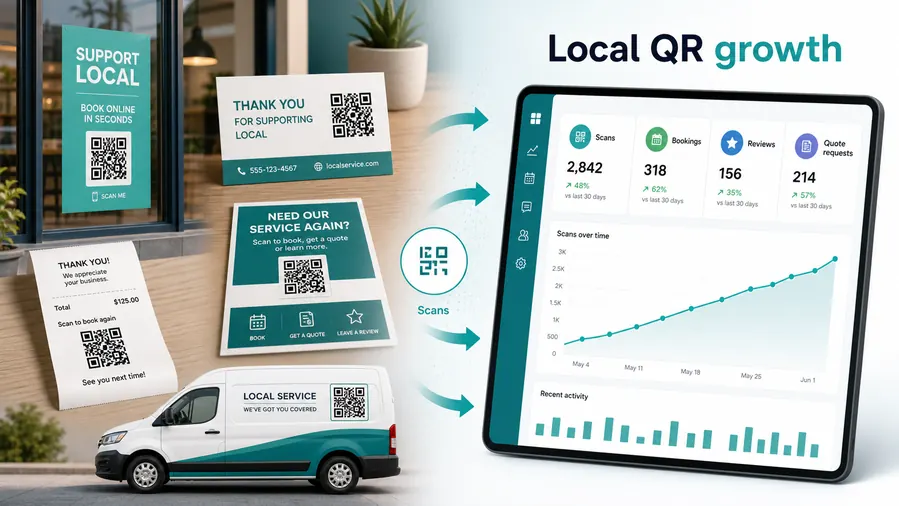
Repair customers scan when they need confidence and status
The destination should answer what happens next, what it costs, when pickup is ready, and how support works after the repair.
Editable QR keeps repair counter materials current
Dynamic QR lets repair shops update intake forms, status pages, payment links, warranty rules, hours, and review paths without reprinting tickets and counter cards.
Match repair QR placement to the service stage
Repair placement
Place repair shop QR codes where customers drop off, wait, approve, pay, pick up, or need support
PlacementRepair QR placement should follow the service counter journey: intake at drop-off, status on the claim ticket, estimate approval during diagnostics, payment at pickup, and warranty after the item leaves.

A generic repair QR does not answer the customer’s status question
Customers need to know whether the scan opens intake, status, estimate approval, payment, warranty, or review.
Repair scans work when the printed CTA matches the service stage.
Put the code beside the repair action it supports
Use counter signs for intake, claim tickets for status, invoices for payment, and pickup cards for warranty or feedback.
The first screen should reassure customers that they are in the right repair workflow.
What is the customer trying to do?
Drop off an item, explain damage, approve estimate, check status, pay, pick up, claim warranty, or leave feedback.
What should happen next?
Submit details, upload photos, read terms, approve work, pay invoice, read care notes, contact support, or review the shop.
Will the destination change?
Use dynamic QR for forms, hours, payment links, warranty rules, status pages, and review prompts.
Can the QR survive counter handling?
Use durable, high-contrast codes on cards, tickets, stickers, invoices, and pickup packets.
Counter sign
Open intake, service terms, photo upload, and contact preferences.
Repair ticket
Link status, estimate approval, parts notes, pickup window, and support.
Intake form
Collect item model, issue details, photos, warranty, and customer contact.
Invoice
Open trusted payment, receipt, diagnostic fee, balance, and billing support.
Pickup card
Share warranty, care notes, troubleshooting, review, and future service.
Equipment sticker
Route to maintenance, warranty, support, and next repair booking.
Window sign
Show services, hours, booking, quote request, and proof.
Follow-up card
Invite private feedback, review, referral, and next-service reminder.
Repair QR placement should reduce status calls and pickup confusion
If the code does not help with intake, status, approval, payment, warranty, or feedback, it needs a clearer role.
After-print control
Keep repair shop QR links current when forms, status pages, payment links, and warranty rules change
DynamicRepair tickets, cards, stickers, and counter signs often stay in use while operations change. Dynamic QR keeps printed materials connected to current intake, status, approval, payment, and warranty destinations.
Old repair print can send customers to stale forms or policies
Static QR is risky when intake forms, status pages, payment providers, hours, warranty rules, and review links change.
A stale destination creates calls, confusion, and trust issues during an already anxious repair experience.
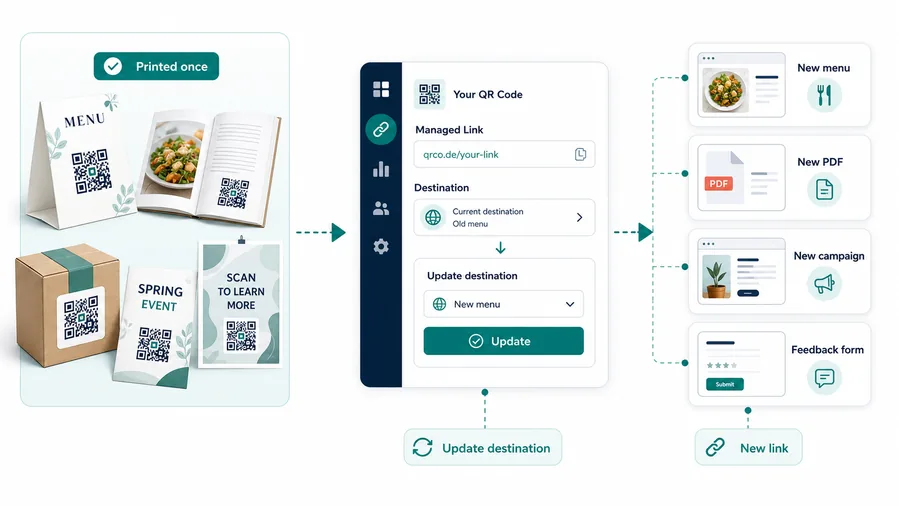
One printed code can keep opening the current repair workflow
Dynamic QR lets tickets, invoices, counter cards, and pickup slips stay useful while the destination changes behind the scenes.
That is practical for forms, estimates, payments, pickup policies, and warranty support.
Intake and photos
Update service forms, photo upload, item categories, terms, and contact preferences.
Status and approvals
Point claim tickets to current status pages, estimate approval, parts notes, and pickup windows.
Payments
Change diagnostic fees, deposits, balances, invoices, and provider links without reprinting.
Warranty and reviews
Refresh aftercare, support, warranty claims, private feedback, and public review paths.
Use dynamic QR for repair materials customers keep during the job
If the destination may change before the ticket, invoice, or pickup card disappears, keep the QR editable.
Scan reading
Compare repair shop scans by counter sign, ticket, invoice, pickup card, sticker, and follow-up prompt
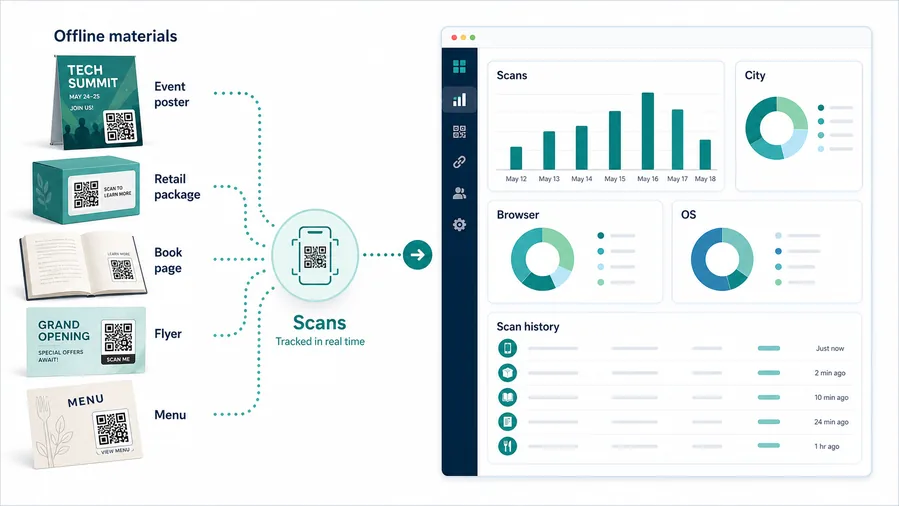
AnalyticsQR analytics can show which repair materials customers actually use. Separate dynamic codes help compare intake, status, approval, payment, warranty, and review placements.
All repair scans collapse into one counter total
A shared QR can show overall activity, but it cannot tell whether a counter sign, claim ticket, invoice, pickup card, sticker, or follow-up card caused the scan.
Use one code only when placement comparison does not matter.
Each repair placement becomes a useful service signal
Separate dynamic QR codes let you compare intake, status, approval, payment, warranty, support, and review paths.
The data is directional, but it can reduce repeated questions and improve print.
Scan volume
See which repair placements receive attention.
Time and device
Check when customers scan before drop-off, during waiting, or after pickup.
Broad location
Use approximate location carefully for branches, counters, campaigns, and service areas.
Placement comparison
Compare counter signs, repair tickets, invoices, stickers, pickup slips, and follow-up cards.
Name codes by repair stage
Use names such as counter-intake, ticket-status, estimate-approval, invoice-pay, pickup-warranty, or card-review.
Separate support and marketing scans
Intake, status, payment, warranty, review, and referral codes should stay separate if reporting matters.
Keep expectations practical
Scan data shows attention and timing; repair outcomes, payments, and reviews still need their own systems.
Books and printed content
Learn whether readers open bonus pages, downloads, updates, or feedback forms from book pages.
Repair analytics work when every code has a service-counter job
Clear QR naming turns scan totals into useful signals for intake, communication, billing, and follow-up.
Counter and receipt flow
Place repair QR codes where the customer needs the next answer
Good placements include service counters, repair receipts, estimate forms, warranty cards, pickup bags, appointment cards, review cards, window decals, coupons, and business cards. CTAs should say request quote, book repair, check status, approve service, read warranty, get directions, save contact, claim coupon, or leave review. The wording should match the customer moment because a status QR and a review QR solve different problems.
Dynamic QR codes help when booking links, quote forms, status pages, coupons, warranty instructions, or review destinations change. Scan analytics can compare counter signs, receipts, pickup bags, and local flyers. That gives a shop a practical signal about which offline touchpoints bring people back online, while the repair platform still handles tickets, payments, approvals, and records.
Keep the destination easy to use on a phone. A customer may be standing at the counter or trying to check status quickly. Show the repair action first, keep forms short, and make the shop name visible. If the page asks for personal details, avoid unclear short links and use a branded destination that feels connected to the printed material.
Payment clarity
Use repair shop payment QR codes for diagnostics, deposits, balances, parts, and invoices with job context
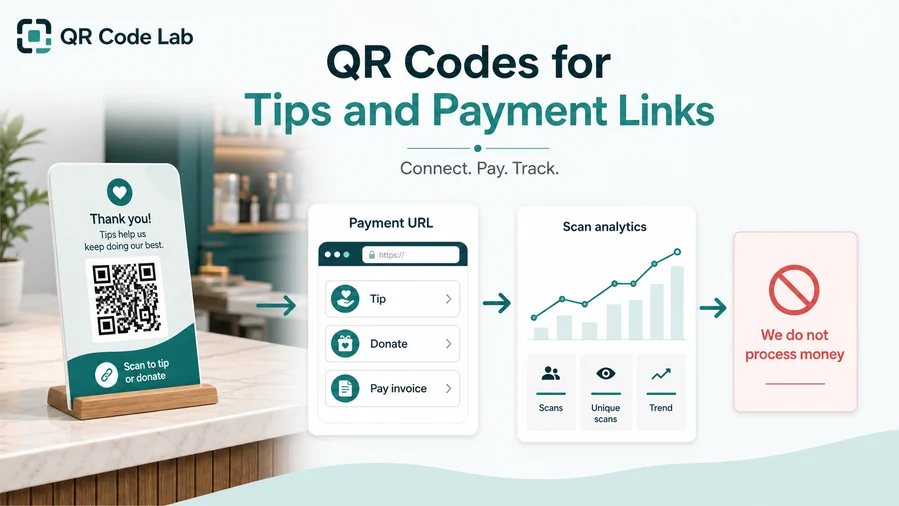
PaymentsA repair payment QR should show whether the customer is paying a diagnostic fee, estimate deposit, parts charge, final balance, warranty-related fee, or invoice.
Diagnostic fees and deposits
Open trusted payment pages from intake forms, estimates, and claim tickets with job and customer context.
Parts and approvals
Use estimate pages for parts charges, upgrade options, quote approval, and customer authorization.
Pickup balances
Route pickup invoices to final payment, receipt, warranty terms, care notes, and support.
The QR should open a trusted payment provider, not collect card details itself
Keep authentication, receipts, refunds, disputes, and confirmation inside the provider, POS, repair, restaurant, or billing system. The QR is only the shortcut.
Scan analytics only show QR scan activity. A scan does not mean a payment was completed.Repair payment QR codes need job and item clarity
Customers should know which repair, item, and fee the scan belongs to before paying.
Customer trust
Make repair shop QR codes look official before customers share item details, approve work, or pay
TrustRepair QR codes may open intake, status, estimate approvals, payments, warranty, and feedback. The printed code and destination should clearly belong to the repair shop and the specific service stage.

Anonymous intake or status pages
Customers may hesitate to share photos, contact details, item serials, or issue history if the page does not show the shop identity.
Watch for similar-looking domains, long URLs, login or verify keywords, and pages asking for credentials after an unexpected scan.
Unclear approvals and payments
Estimates, diagnostic fees, parts charges, deposits, and balances need job context before a customer approves or pays.
A trustworthy QR should not make the final destination mysterious, especially on posters, labels, menus, parking signs, or event materials.
Outdated warranty and support links
Old warranty terms, wrong hours, retired forms, and dead review links create avoidable support problems.
Before paying, check the domain, HTTPS, amount, recipient, and whether the destination matches the place or brand that printed the QR.Scan like a customer before printing
Confirm the first screen matches the printed CTA, shows the business identity, and opens the current status, loyalty, product, payment, review, or support path.
The current detailed report is a static URL analysis. It helps reveal the encoded content and basic URL risk signals, but it does not guarantee that a destination is safe and does not replace browser, antivirus, payment, or bank security checks.Decoded content
See the raw value inside the QR before opening it.
Content type
Recognize URL, Wi-Fi, mailto, phone, SMS, vCard, or plain text.
URL risk signals
Review HTTPS, shorteners, IP addresses, long URLs, encoded characters, query parameters, and sensitive keywords.
Destination report
For URL codes, view final URL fields, static redirect report fields, domain fields, TLS placeholders, page metadata fields, and risk reasons.
Make your own QR codes easier to trust
A safe-looking QR code is not only about security. It is also about reducing uncertainty for the scanner. Use clear destination text, a branded landing page, normal HTTPS domains, and a visible explanation of what happens after scanning.






