
QR Code for Planners - Templates, Videos & Bonus Guides
Create QR codes for planners linking printable templates, habit trackers, setup videos, bonus pages, author sites, updates, and support. Add digital companion resources to printed planners.
Free QR code generator
Create a QR code online
Generate QR codes for websites, email, phone numbers, vCards, Wi-Fi, plain text, forms, PDF files, and campaign links. Customize colors, add a logo or frame, then download a print-ready PNG or SVG.
Choose QR code type
Website QR code, Email QR code, Phone QR code, vCard QR code, Wi-Fi QR code, Text QR code, SMS, WhatsApp, event, and download links.
Add your content
Enter your website URL, contact details, message, phone number, location, or file destination before generating the QR code.
Customize and download
Adjust QR colors, error correction, logo, frame, size, and margin. Generate QR Code, Download PNG, Download SVG, or Save and track scans.
Planner bonus path
Add templates, trackers, setup videos, updates, and support to printed planners
A QR code for planners is useful when printed pages need digital extras without long URLs or crowded layouts. It can open printable templates, habit trackers, setup videos, bonus pages, author sites, updates, and support resources. Planner creators, KDP publishers, coaches, teachers, productivity brands, and journal authors can use QR codes to make a printed planner feel more useful while keeping the page clean.
Planner QR codes work best when they are tied to the page where the reader needs help. A yearly setup page can open a setup video. A habit tracker can open printable refills. A goal section can open a worksheet. Back matter can open updates, support, or the author site. A launch insert can invite the reader to bonus materials or a newsletter. The promise should be specific, not just “scan for more.” QR Code Lab helps create print-ready codes, dynamic destinations, and scan analytics for those extras.
QR Code Lab creates URL QR codes only. It does not create templates, host downloads, manage trackers, or provide planner content. Your file host, website, course platform, email tool, or support page provides the actual material.
Planner companion path
Help planner users reach printable inserts, templates, setup guides, updates, and support
Planner resourcesA planner QR code should extend the printed product with useful digital help: downloadable inserts, printable refills, setup videos, habit trackers, spreadsheet templates, calendar files, updates, and reader support.

Give planner buyers the extras that make the system easier to use
Use QR codes inside planners, journals, habit trackers, and productivity books to open printable pages, templates, setup notes, and digital companion files.
The scan should feel like added value, not a missing instruction manual.
Support the planning workflow after purchase
A QR destination can explain how to start the planner, download refills, use trackers, sync digital files, report issues, or find related products.
Planner users return to the resource when their system evolves.
Keep companion files editable after the planner is printed
Dynamic QR helps if printable PDFs, calendar links, templates, corrections, support pages, or bonus files change after inventory is already sold.
A planner may stay on a desk all year; the QR destination should stay alive.A planner QR should make the planning system more useful
The user may need refills, setup help, monthly templates, digital trackers, habit pages, goal worksheets, or support. The QR destination should make the next planning step obvious.
Use CTAs such as download planner inserts, get habit tracker, open setup guide, report an issue, or see related planner pages.Refills
Open printable pages, calendars, habit trackers, goal sheets, and planning inserts.
Setup
Share getting-started notes, examples, workflows, and video walkthroughs.
Updates
Keep corrected files, new templates, edition notes, and support paths current.
Relationship
Offer reader support, related planners, newsletter signup, and feedback after delivering the promised files.
Planner bonus files
Use QR codes in planners for printable refills, digital templates, setup help, and updates
BonusesPlanner buyers often want more than the bound pages: refills, habit trackers, budget sheets, meal plans, goal worksheets, calendar files, spreadsheet templates, and examples of how to use the system.
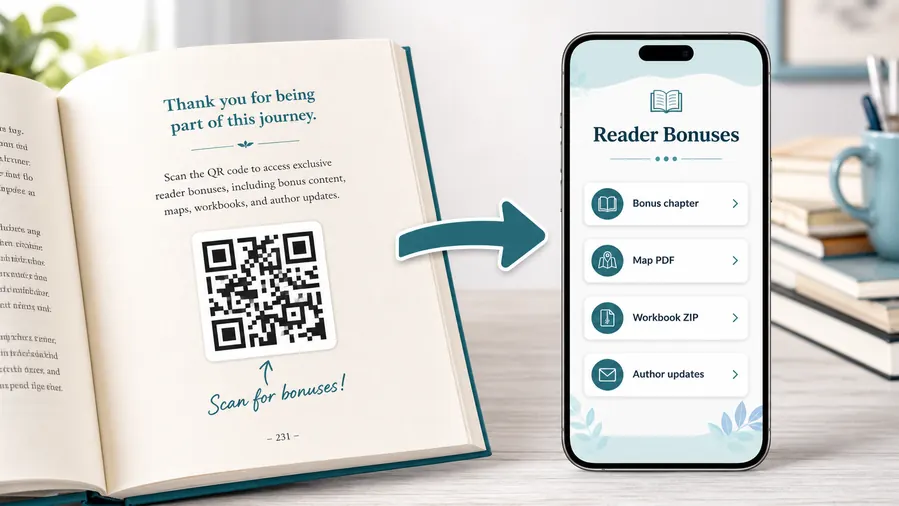
Use file hosting as the simple reader bonus system
For many authors the practical win is not a fancy website. It is a clean place to upload and share the files readers expect after scanning: a PDF bonus chapter, a map, a worksheet, a TXT reading list, or a ZIP archive with templates and printables. QR Code Lab can host the downloadable files behind a mobile micro-landing page, so the reader sees clear buttons instead of hunting through a website or typing a fragile link from the page.
When a file changes, update the hosted file or destination. The printed QR code can stay the same when you use a dynamic QR flow.Bonus chapters and deleted scenes
Give readers an epilogue, side story, alternate scene, or preview chapter without increasing the page count or changing the KDP interior.
Maps, illustrations, and reference images
Fantasy, history, travel, education, and technical books often need visuals that are better in color, larger format, or updated outside the printed page.
Worksheets, templates, and ZIP downloads
Non-fiction readers can download checklists, spreadsheets, planners, exercises, workbook pages, or a ZIP bundle of printable resources.
Audio, video, and companion media
Send readers to pronunciation guides, author commentary, demos, playlists, interviews, or short explanations that make the book more useful.
Newsletter and next-book previews
A QR code near the author note or final chapter can invite readers into a newsletter, preorder page, series hub, or sample of the next book.
Feedback and author contact
Let readers report errors, ask questions, join a beta-reader list, or send private feedback without publishing a personal email address in the book.
Do not trap planner buyers on a fragile raw file link
A dynamic QR destination gives the printed planner one stable code while files, download buttons, support notes, and related products can change later.
Place the QR where planner users expect the resource
Good spots are a resources page, the end of a chapter that references the bonus, the author note, a workbook exercise, a map page, or the final call-to-action. The code should feel like a useful next step, not a decoration.
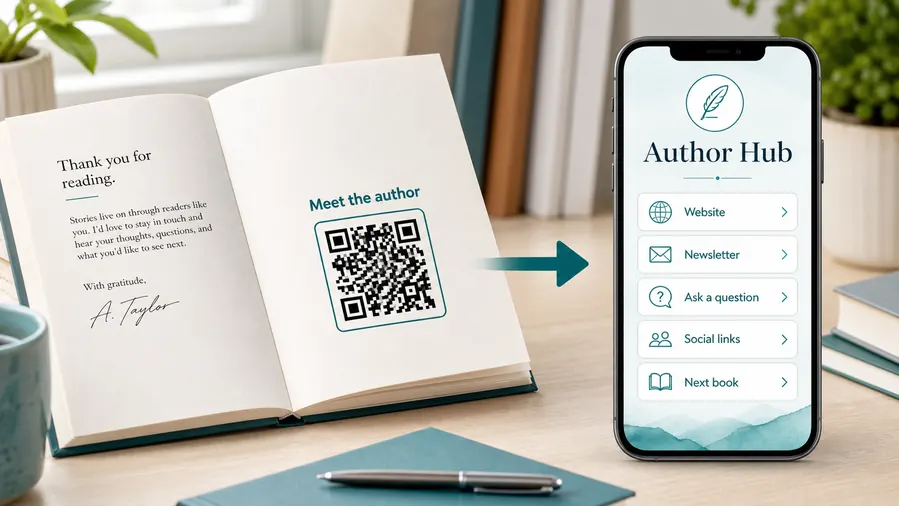
Planner print readiness
Make planner QR codes readable on real paper, tabs, and frequently used pages
Print checkPlanner QR codes may be scanned many times over months. Test size, contrast, margin, and page placement before the planner goes to print or KDP upload.
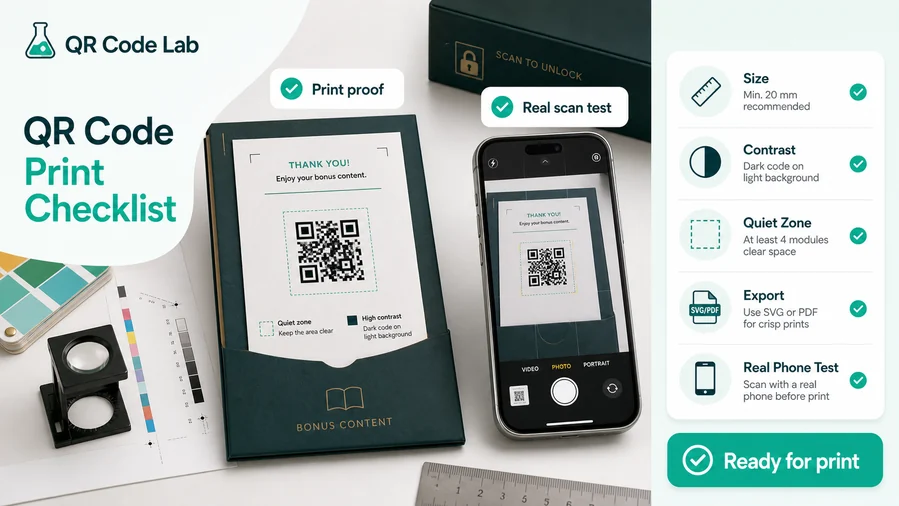
Keep the QR clear on busy planner layouts
Start with the physical basics: give the QR code enough size for the viewing distance, keep a clean quiet zone around it, and use strong contrast between the code and the background. A decorative frame or brand color is fine only while the finder squares and the pattern remain clear.
Export SVG or PDF when the QR code goes into professional print layouts. Raster files can work for small jobs, but vector output protects sharp edges on packaging, books, posters, labels, inserts, and manuals. Avoid inverted colors unless you test them on several phones, because some combinations look stylish on screen and scan poorly on paper.
Test the printed proof, not only the design file
Do not test only the design file on your monitor. Print a sample at the real size, scan it with a phone from the likely distance, and check it under normal lighting. A QR code in a book margin, on glossy packaging, on a folded flyer, or behind a display window behaves differently from the same code on a bright screen.
When the printed material is expensive to replace, use a dynamic QR code. If the destination changes later, the printed code can keep working while the link, file, offer, feedback form, or microlanding page is updated in QR Code Lab.
Use a companion hub when the planner has several resources
A direct URL is enough when every scanner should go to the same single page. For books, manuals, packaging, training material, event handouts, and product inserts, a microlanding page is often more useful because it can collect several clear actions behind one printed QR code.
In QR Code Lab you can make that page practical: upload a cover image or product image, add buttons for the main action, attach a PDF for reading, add a ZIP with bonus files, and include a feedback or contact path. The printed QR code stays simple, while the destination can present the exact next step the scanner needs.
Goal planner
Link to goal worksheets, review prompts, quarterly refills, and example pages.
Habit tracker
Offer printable trackers, spreadsheet versions, setup notes, and monthly templates.
Budget planner
Provide budget sheets, category examples, spreadsheet files, and update notes.
Meal or family planner
Open meal templates, shopping lists, calendar files, and support resources.
Print planner QR codes only after the companion path is tested
The code should work from the real planner page, and the destination should deliver the promised resource quickly.
After-print control
Keep planner QR destinations editable after books, refills, and inserts are printed
DynamicPlanner resources change: templates improve, files move, new editions launch, and support pages evolve. Dynamic QR keeps printed planners connected to the current companion hub.
A printed planner can outlive its file links
Static QR is fine only when the destination is permanent. Planner PDFs, spreadsheets, author sites, support pages, and product links can move.
A broken resource link weakens the product experience.
The printed code can keep opening the current resource hub
Dynamic QR lets you update downloads, support, corrections, templates, and related products without changing the printed planner.
That matters for KDP books, printed inserts, and planners sold over a long season.
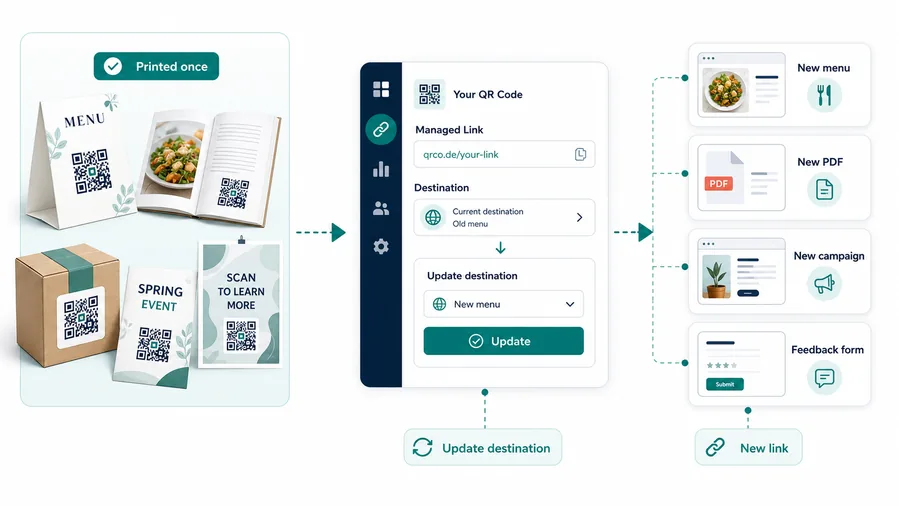
Template updates
Replace PDFs, spreadsheets, calendar files, ZIP packs, and printable inserts after launch.
Corrections and support
Add errata, improved instructions, download fixes, and contact paths.
New editions
Point older planners to updated resources, next-year editions, and matching refill packs.
Product expansion
Add related notebooks, sticker packs, digital planners, bundles, and reader resources after the product grows.
Use dynamic QR when the planner promises resources that may evolve
The buyer should not lose downloads or support because a file or landing page changed after print.
Interior and refill flow
Place planner QR codes where the reader needs extra structure
Useful placements include setup pages, monthly dividers, habit trackers, goal pages, bonus sections, back matter, cover inserts, bookmarks, and companion worksheets. CTAs should say download templates, get printable refills, watch setup guide, open bonus pages, receive updates, or contact support. Readers are more likely to scan when the QR code answers a practical need on the current spread.
For printed planners, test the QR code at real trim size and paper finish. Keep a clean quiet zone and avoid placing the code too close to the binding. Dynamic QR codes protect printed inventory when bonus files, update pages, support links, or author sites change. Scan analytics can show whether readers actually use the extras, while your linked host handles downloads and signups.
Keep labels consistent if the planner has many QR codes. Readers should know the difference between a refill file, a setup lesson, a support page, and an author update before they scan. If you offer downloads, open the exact file or folder promised on the printed page.
Planner scan reading
Use planner QR scan data to learn which templates, refills, and support pages users open
AnalyticsQR analytics can show whether planner users scan setup pages, refills, habit trackers, budget templates, support links, or back-matter resources. Use it as product feedback, not as a measure of productivity.
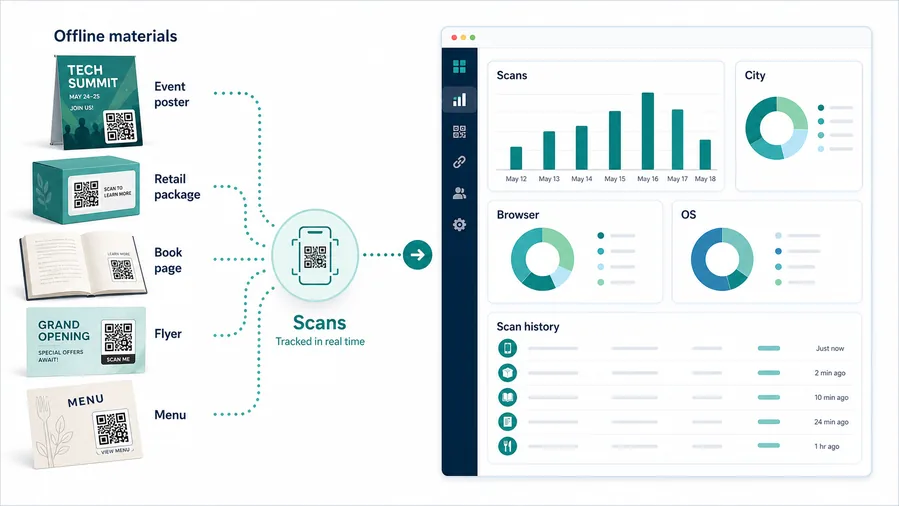
All planner scans become one number
A single QR can show general interest, but it cannot tell whether users wanted setup help, refills, templates, support, or related products.
Use one code only when resource comparison does not matter.
Each planner resource becomes easier to improve
Separate dynamic QR codes let you compare setup guide, section templates, back-matter support, and related-product links.
This is directional product feedback, not a complete view of user behavior.
Scan volume
See which planner resources users open most often.
Time and device
Check when scans happen and which device or browser opens the destination.
Broad location
Use approximate location carefully, mainly for edition and market context.
Resource comparison
Compare setup guides, refills, templates, support, updates, and related products.
Name codes by planner and resource
Use names such as planner-front-setup, habit-refill, budget-sheet, backmatter-support, or meal-template.
Compare promised bonuses
See whether users prefer refills, setup help, spreadsheets, calendar files, or support resources.
Keep expectations modest
Scan analytics shows resource interest, not whether the planner improved someone’s routine.
Books and printed content
Learn whether readers open bonus pages, downloads, updates, or feedback forms from book pages.
Planner QR analytics work when each code has a resource purpose
Good naming turns scans into practical product feedback for future planner editions.






