
Takeout Order QR Code - Pickup Menus, Coupons & Support
Create takeout order QR codes linking pickup order pages, digital menus, payment links, coupons, delivery pages, reviews, and support pages. Use them on bags, receipts, windows, flyers, and counters.
Free QR code generator
Create a QR code online
Generate QR codes for websites, email, phone numbers, vCards, Wi-Fi, plain text, forms, PDF files, and campaign links. Customize colors, add a logo or frame, then download a print-ready PNG or SVG.
Choose QR code type
Website QR code, Email QR code, Phone QR code, vCard QR code, Wi-Fi QR code, Text QR code, SMS, WhatsApp, event, and download links.
Add your content
Enter your website URL, contact details, message, phone number, location, or file destination before generating the QR code.
Customize and download
Adjust QR colors, error correction, logo, frame, size, and margin. Generate QR Code, Download PNG, Download SVG, or Save and track scans.
Takeout order path
Make pickup, reorder, menus, and offers easy from printed food materials
A takeout order QR code is useful when guests should move from a bag, receipt, menu, flyer, pickup shelf sign, table card, window sign, or delivery insert to a digital menu, pickup order page, payment link, coupon, delivery page, review page, or support page. The scan gives hungry customers a faster route than searching online.
Takeout QR codes work best after a good meal or at a decision point. A bag insert can open reorder. A receipt can open feedback or next-order offer. A window sign can open pickup ordering after hours. A printed menu can open the current online menu with updated prices and availability. QR Code Lab helps create dynamic QR codes and scan analytics for these restaurant materials.
QR Code Lab creates URL QR codes and tracks scans. It does not process orders, manage delivery, handle payments, update menu inventory, or replace your POS. Your ordering provider, menu platform, payment processor, review page, or restaurant website handles the actual takeout workflow. That separation keeps the printed QR code flexible while the ordering system remains the source of truth.
Takeout order moments
Takeout order moments restaurants, cafes, bars, and food service teams with digital menus, ordering links, reservations, reviews, loyalty rewards, coupons, guest Wi-Fi, and feedback forms
Takeout QRUse QR codes to move restaurants, cafes, bars, and food service teams from table tents, menus, receipts, takeout bags, counter signs, food trucks, delivery packaging, and loyalty cards to digital menus, ordering links, reservations, reviews, loyalty rewards, coupons, guest Wi-Fi, and feedback forms without making guests search or type a long URL.
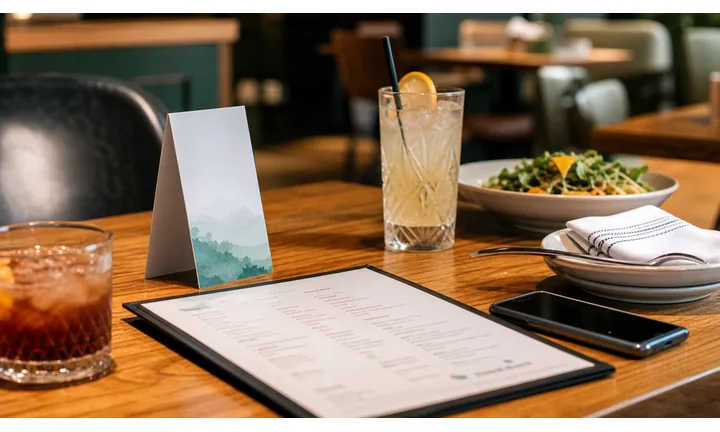
Turn bags, flyers, and counters into ordering shortcuts
Takeout customers scan when they want to reorder, check the menu, claim an offer, confirm pickup, or solve an order issue. The QR destination should match that moment instead of opening a generic homepage.
Use CTAs such as order takeout, reorder this meal, view pickup menu, or check delivery options.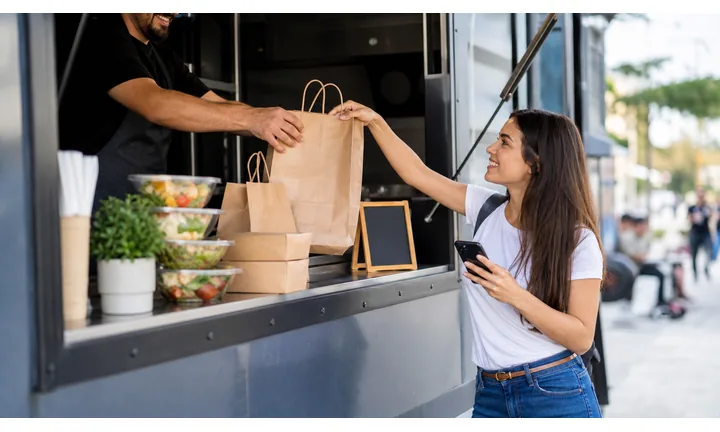
Keep menu and ordering context clear
The first screen should confirm restaurant, branch, current menu, order channel, pickup or delivery choice, hours, fees, and whether the guest is leaving QR Code Lab for a provider.
Ordering confusion costs more than an extra sentence of context.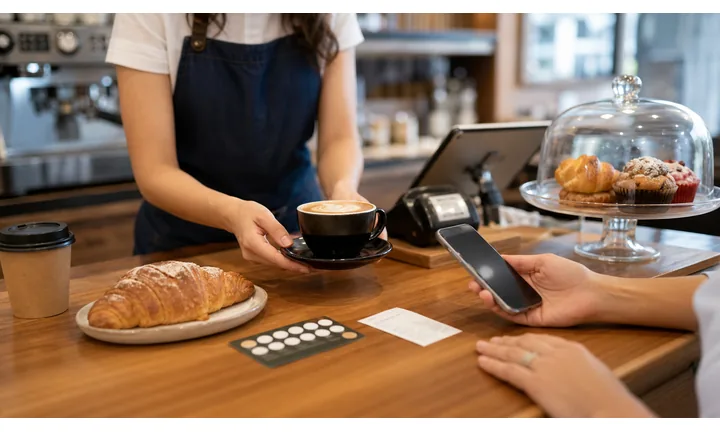
Update long-lived print when restaurant operations change
Flyers, bag stickers, table cards, receipts, and hotel cards can outlive menu prices, delivery providers, pickup rules, and seasonal offers. Dynamic destinations keep the printed shortcut useful.
Use dynamic QR for print that stays in circulation.A takeout QR should reduce ordering friction, not create another menu search
The guest is often hungry, mobile, or holding food. The QR should open the action promised by the print: menu, reorder, pickup, delivery, offer, status, receipt, or support.
Keep branch, hours, ordering provider, fees, and support visible before checkout.Menu and reorder
Open current takeout menu, specials, reorder links, family meals, and popular items.
Pickup clarity
Show pickup time, address, counter, curbside, parking, and late-order instructions.
Delivery handoff
Make provider, fees, delivery area, timing, and support route obvious.
Support and feedback
Give guests a clear path for wrong items, missing sides, refunds, reviews, and next-order offers.
Restaurants, cafes, and bars
Design the takeout QR around the ordering moment
Guest-first flowA takeout QR code should move guests to the next practical action: view menu, order pickup, reorder, claim coupon, check delivery, pay through the provider, or report an issue.
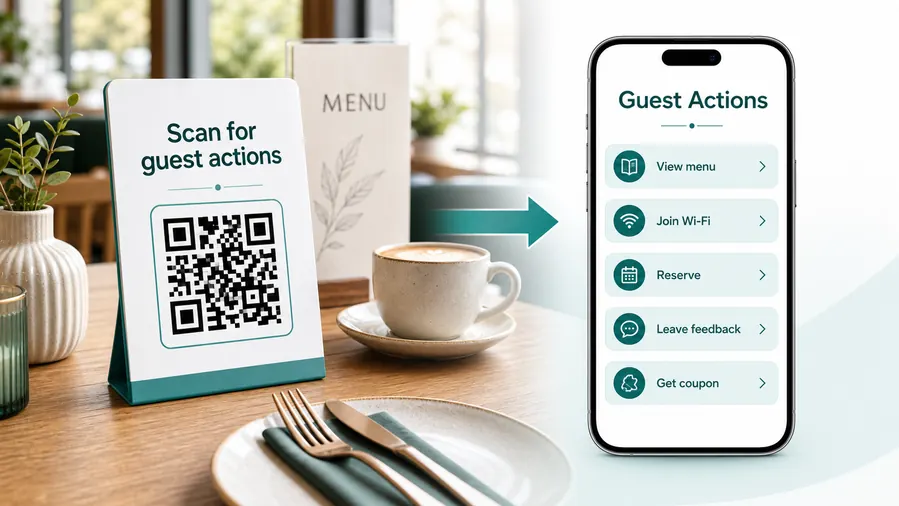
The guest wants food, not navigation
Open the relevant branch, menu, ordering channel, and pickup or delivery instructions before asking the guest to choose from a broad restaurant site.
Open the current takeout menu
Use counter cards, bag stickers, hotel cards, and flyers to open menu items, prices, modifiers, sold-out notes, allergens, and specials.
Send guests to pickup ordering
Route to the correct branch, pickup time, ordering provider, curbside note, or phone backup when online ordering is unavailable.
Make reordering easy from packaging
Bags, receipts, and inserts can open reorder links, favorite meals, family bundles, loyalty offers, or seasonal campaigns.
Clarify delivery handoff
If the QR opens a delivery provider, show delivery area, fees, expected timing, branch, and support route before checkout.
Support order issues after pickup
Give guests a route for missing items, cold food, wrong order, refund request, receipt, or manager contact without pushing them into public reviews first.
Connect ordering to offers and loyalty
Use takeout QR pages for first-order coupons, lunch offers, rewards, catering, birthday promos, and return-visit incentives.
At the table
Menu, Wi-Fi, ordering, ask-for-help, specials.
While waiting
Drinks, dessert, event calendar, story behind the dish.
After payment
Review, private feedback, coupon, reservation.
Takeaway or delivery
Reorder link, loyalty signup, coupon, feedback.
Use dynamic QR when the destination may change
Menus, specials, reservation tools, coupons, review flows, seasonal campaigns, and ordering links change. A dynamic QR code keeps the printed code stable while letting you update where it sends the guest.
Do not make the guest solve your whole website
Most guests scan because they want one next action, not a tour of the restaurant site. If the QR code opens a hub, keep the first buttons aligned with the place where the code appears: menu at the table, review or coupon on the receipt, reorder or feedback on packaging.
Takeout placement
Place takeout QR codes where guests can order, reorder, or solve the next issue
PlacementTakeout QR placement should match the food moment: counter, bag, receipt, flyer, delivery insert, hotel card, window sign, or pickup shelf.

A takeout QR without an ordering promise gets ignored
A code on a bag or flyer can be visible but vague if guests do not know whether it opens menu, reorder, coupon, delivery, or support.
Takeout placement should answer why scan now.
Put the code beside the food or order decision
Use counter signs for pickup ordering, bags for reorder and support, receipts for feedback and loyalty, and flyers for campaign menus.
The first screen should match the exact action printed beside the QR.
What does the guest need now?
Menu, pickup order, reorder, delivery, coupon, receipt, support, review, or loyalty.
Which branch handles the order?
Show location, hours, pickup rules, delivery area, and provider before checkout.
Will the menu or provider change?
Use dynamic QR for rotating menus, offers, delivery links, pickup rules, and ordering providers.
Is the CTA specific enough?
Print order pickup, reorder this meal, report an issue, or claim takeout offer instead of generic scan copy.
Takeout bag
Best for reorder, coupon, feedback, missing item support, and loyalty follow-up.
Receipt
Use for review, private issue report, reorder, refund route, loyalty, and next-visit offers.
Counter sign
Open pickup menu, order ahead, wait-time info, loyalty, and payment provider context.
Pickup shelf
Show order status, support, pickup instructions, and contact path.
Flyer or door hanger
Open campaign menu, delivery offer, local branch page, and ordering link.
Delivery insert
Route to support, reorder, coupon, delivery feedback, and branch-specific help.
Hotel card
Send travelers to menu, directions, hours, delivery, pickup, and phone backup.
Window sign
Help passersby view menu, order now, check hours, or claim a current offer.
Takeout QR placement should shorten the path to food
Use the code where guests understand the offer and can act without asking staff to explain the link.
Ordering UX
Make the takeout scan lead to a clear ordering path
Scan UXA QR code removes typing, but the mobile destination still has to confirm restaurant, branch, menu, pickup or delivery path, and support before checkout.
Use direct menu pages when guests only need to choose food
Menu, specials, allergens, pricesThe menu should load quickly, show current items, and make branch or service-channel context obvious.
If ordering is elsewhere, the next button should say so before the handoff.
Use provider links when checkout happens outside QR Code Lab
Pickup, delivery, payment, order statusThe guest should recognize the provider, restaurant, branch, fees, timing, and support path before entering details.
A scan does not confirm an order or payment; the provider remains the source of truth.
Use support paths when the order already happened
Missing item, refund, receipt, feedbackBags and receipts should offer order issue, refund, manager contact, and private feedback before pushing public review.
The best page separates reorder, support, loyalty, and review actions clearly.
Does the first screen match the printed CTA?
A bag QR promising reorder should not open a generic homepage or unrelated campaign.
Is the branch and ordering channel clear?
Show location, hours, pickup, delivery, fees, provider, and support before checkout.
Can guests finish on a phone?
Menus, modifiers, payment provider pages, and support forms should work without zooming or hunting.
The takeout scan should feel like ordering help
Keep the destination focused on the action that made the guest scan.
Pickup and reorder flow
Place takeout QR codes where guests are already thinking about food again
Useful placements include takeout bags, receipts, printed menus, pickup shelves, counter signs, delivery inserts, window decals, coupons, and local flyers. CTAs should say order pickup, reorder here, view menu, claim next-order offer, leave review, get support, or track order. The code should lead directly to the promised action.
Dynamic QR codes are practical because menus, order links, coupons, delivery pages, and pickup instructions change. You can update the destination without reprinting bags or menus. Scan analytics can compare receipts, bag inserts, pickup shelves, and flyers so restaurants can see which printed touchpoints bring guests back.
Keep the destination fast. Takeout customers often scan when they are hungry, in a hurry, or holding a phone with one hand. Show menu, reorder, or offer details quickly. QR Code Lab manages the link and scan data, while ordering systems handle carts, payment, fulfillment, and receipts. If the QR code is on a bag or receipt, make the next-order offer easy to understand before asking for account details.
Order payment boundary
Use takeout QR codes for order and payment links, not payment processing
PaymentsQR Code Lab can create the code, manage the destination, and show scan activity. The restaurant ordering or payment provider handles checkout, receipts, refunds, disputes, and order status.
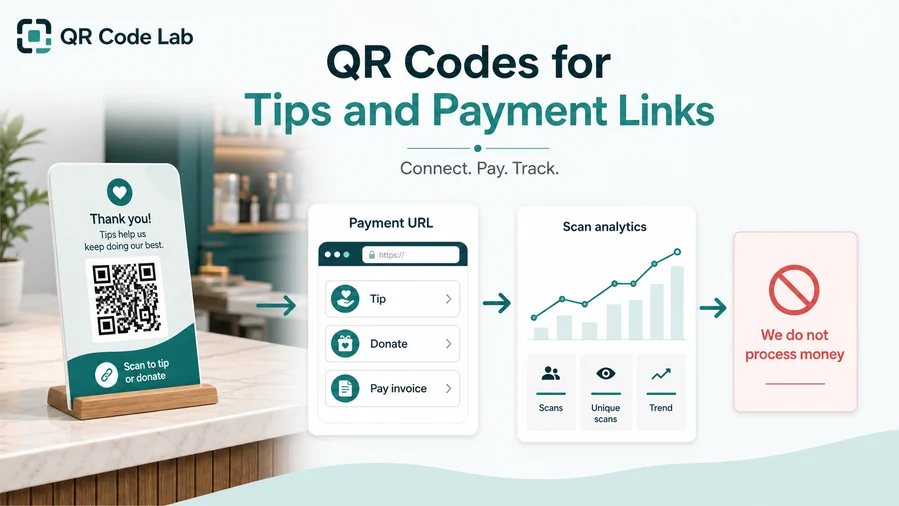
Open the trusted ordering page
Send guests to the correct pickup, delivery, invoice, deposit, or provider checkout page without long URLs.
Keep order confirmation with the provider
The provider should handle order total, taxes, fees, receipt, refund, delivery, and status updates.
Update ordering links after print
Dynamic destinations can move flyers, bags, receipts, and counter signs when menus, providers, or offers change.
Order and payment confirmation stay outside QR Code Lab
QR Code Lab is not a restaurant POS system, delivery platform, bank, wallet provider, escrow service, or merchant of record.
A scan does not prove that an order or payment was completed.Separate order scans from order confirmation
Use QR Code Lab to get guests to the right ordering page, then use the provider to confirm order and payment status.
Takeout order trust
Make takeout QR destinations recognizable before guests order or pay
TrustTakeout QR codes can open menus, providers, coupons, payment pages, and support forms. The first screen should show restaurant, branch, action, provider, and support route before checkout.
Wrong branch or provider
A QR can accidentally send guests to the wrong location, old menu, expired offer, or unrelated ordering provider.
Show branch and ordering channel immediately.
Payment page confusion
Guests need provider, amount context, fees, receipt expectations, and support before entering payment details.
Payment confirmation belongs in the provider, not the scan count.
Old flyers and bag stickers
Printed takeout materials often stay in circulation after menus, prices, hours, and offers change.
Use dynamic QR for long-lived takeout print.Inspect takeout QR destinations before printing
Confirm branch, menu, ordering provider, support route, first-screen CTA, and final domain before printing bags, flyers, receipts, and counter cards.
A QR checker reveals the destination, but it does not validate order status, payment completion, refunds, or provider reliability.Decoded destination
Review whether the QR opens the intended menu, pickup, delivery, coupon, support, or order page.
Restaurant identity
The first screen should match the expected branch, brand, and service channel.
Checkout context
Check provider, fees, receipt, refund, and support expectations before publishing.
Printed context
Review bags, flyers, receipts, and counter signs for stale or mismatched links.
Publish takeout QR codes guests can trust
Clear CTAs, recognizable ordering pages, current menus, and visible support routes make takeout QR codes useful under hungry, mobile conditions.






