
QR Code for Fast Food Restaurants - Menus, Orders & Coupons
Create fast food QR codes for menus, ordering links, coupons, loyalty rewards, reviews, Wi-Fi, hiring forms, locations, and drive-thru signs. Use them on counters, trays, receipts, and packaging.
Free QR code generator
Create a QR code online
Generate QR codes for websites, email, phone numbers, vCards, Wi-Fi, plain text, forms, PDF files, and campaign links. Customize colors, add a logo or frame, then download a print-ready PNG or SVG.
Choose QR code type
Website QR code, Email QR code, Phone QR code, vCard QR code, Wi-Fi QR code, Text QR code, SMS, WhatsApp, event, and download links.
Add your content
Enter your website URL, contact details, message, phone number, location, or file destination before generating the QR code.
Customize and download
Adjust QR colors, error correction, logo, frame, size, and margin. Generate QR Code, Download PNG, Download SVG, or Save and track scans.
QR solutions for this use case
Quick service guest path
Help fast food guests open menus, offers, rewards, and orders faster
A QR code for fast food restaurants is useful when the customer is already near a counter, tray, receipt, drive-thru sign, window, coupon, or takeout bag and needs a fast next step. It can open menus, ordering links, coupons, loyalty rewards, review pages, Wi-Fi access, hiring forms, location pages, app downloads, and drive-thru offers. The value is speed: fewer typed URLs, fewer repeated questions, and clearer paths from print to action.
Fast food QR codes should feel fast in practice. A customer scanning from a tray liner may want rewards or a coupon. A person in line may want the menu. A customer with a receipt may want to review, reorder, or claim a deal. A job seeker near a hiring poster may want the application form. QR Code Lab helps create print-ready codes, dynamic destinations, and scan analytics so restaurants can update offers and compare placements.
QR Code Lab points to the URL supplied by the restaurant. It does not process orders, payments, loyalty points, reviews, or hiring applications. Ordering, loyalty, review, and application systems remain outside QR Code Lab.
Fast-food guest path
Help fast-food guests order, pay, review, join Wi-Fi, or come back faster
Guest actionsA fast-food QR code should match the quick-service moment: table ordering, menu lookup, coupon claim, loyalty signup, feedback, Wi-Fi, allergen info, pickup instructions, or a return offer on the receipt or bag.
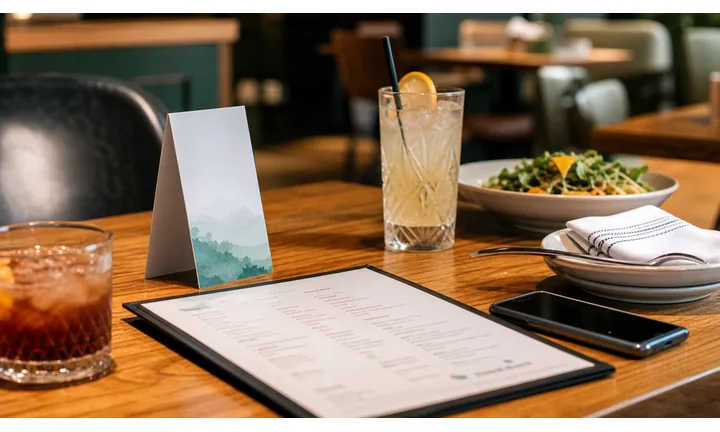
Turn counter, table, and bag moments into useful actions
Use QR codes on counter cards, table tents, tray liners, receipts, bags, cups, drive-thru windows, and pickup shelves to open menus, order pages, coupons, feedback, Wi-Fi, or loyalty signup.
The scan should save time during a short visit, not send guests into a slow homepage.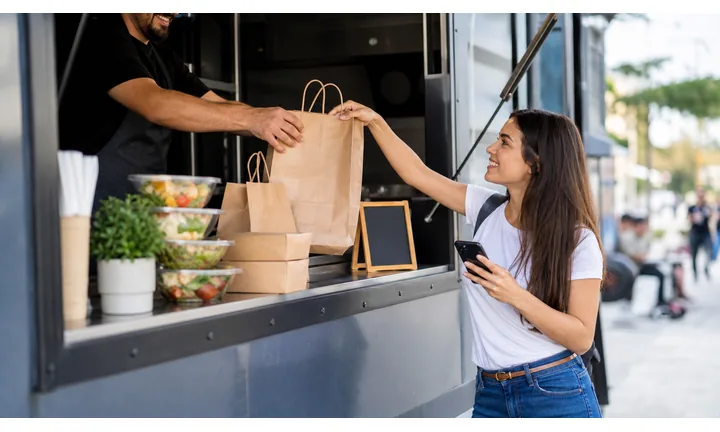
Keep menu and offer links current across busy locations
Dynamic QR helps when prices, sold-out items, seasonal offers, app links, location pages, allergen notes, delivery links, and campaign pages change after print.
Quick-service print moves fast; editable destinations prevent stale offers from staying on bags and signs.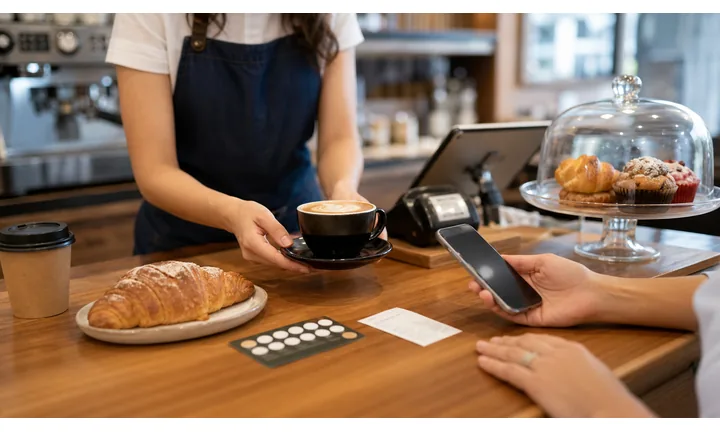
Separate convenience from payment and privacy boundaries
QR codes can open ordering, checkout, tips, Wi-Fi, feedback, and account pages, but payment processing, loyalty accounts, and network controls belong to the linked provider or router.
Clear copy helps guests know whether they are ordering, paying, joining Wi-Fi, or leaving feedback.A fast-food QR should respect the guest’s short attention window
Fast-food guests scan while waiting, ordering, eating, picking up, or leaving. The destination should open the action they expected within seconds and work well on a phone in a noisy, hurried setting.
Use CTAs such as order ahead, view menu, claim coupon, join Wi-Fi, leave feedback, get allergen info, or reorder.Before ordering
Open menu, specials, allergens, app download, coupon, and order-ahead pages.
During the visit
Use table cards for ordering, Wi-Fi, help requests, nutrition, and service feedback.
After payment
Use receipts and bags for reviews, loyalty, rewards, coupons, support, and reorder links.
By location
Keep branch pages, hours, pickup notes, local offers, and campaign links editable.
Restaurants, cafes, and bars
Match fast-food QR codes to the guest action in front of them
Guest-first flowFast-food QR codes work when they remove friction at a specific moment: order at the table, check allergens, claim a coupon, join Wi-Fi, leave feedback after pickup, or return from a receipt or bag.
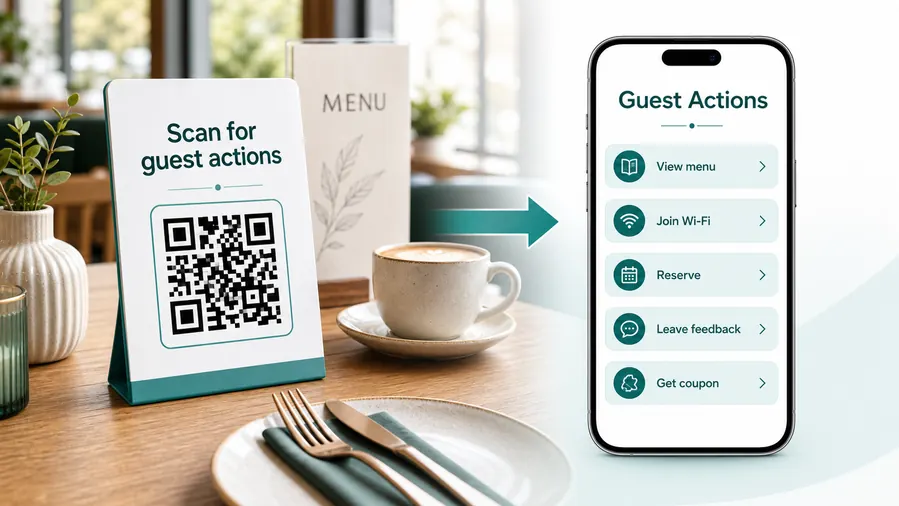
Start with the quick-service reason to scan
The best fast-food QR flow does not send every guest to a generic homepage. It opens the practical action created by the placement: menu at the counter, order page at the table, coupon on the receipt, or feedback after the meal.
Open the current menu before the guest reaches the counter
Use window signs, counter cards, and table tents to show a phone-friendly menu with prices, photos, modifiers, allergens, and sold-out changes.
Make ordering or reordering faster
Route table tents, pickup shelves, bag stickers, and receipts to order-ahead, reorder, delivery, or app pages when that is the real guest action.
Offer coupons without slowing the line
Put QR codes on receipts, tray liners, cups, and campaign signs so guests can claim rewards, app offers, or return-visit coupons after they pay.
Collect feedback while the visit is still remembered
Use receipt and bag QR codes for quick private feedback, review prompts, service recovery, and store-level comments.
Help guests find allergen and nutrition information
Use menu boards, counter cards, and packaging to open current ingredient, allergen, nutrition, and preparation notes without crowding print.
Let guests join Wi-Fi without asking staff
Use clearly labeled Wi-Fi QR codes in dining areas while keeping the guest network separate from POS, staff devices, and payment systems.
Before ordering
Menu, allergens, nutrition, deals, app download, and order-ahead.
At the table
Order more, join Wi-Fi, request help, view offers, or give service feedback.
After payment
Review, coupon, loyalty, receipt survey, support, or reorder link.
Takeaway packaging
Reorder, product information, delivery link, complaint path, and location-specific offer.
Use dynamic QR for fast-food links that change by menu, season, or location
Dynamic QR keeps printed signs, receipts, bags, cups, and tray liners useful when prices, offers, ordering pages, store hours, menu items, and campaign links change.
Do not make guests work harder than the counter would
The first screen should load fast, name the action, show the location or brand, and avoid long forms unless the guest clearly chose feedback, loyalty, or account signup.
Guest network boundary
Offer fast-food guest Wi-Fi without confusing it with network security
Wi-FiA Wi-Fi QR code can make the dining area easier for guests, but the router and network policy still decide what guests can reach after they join.
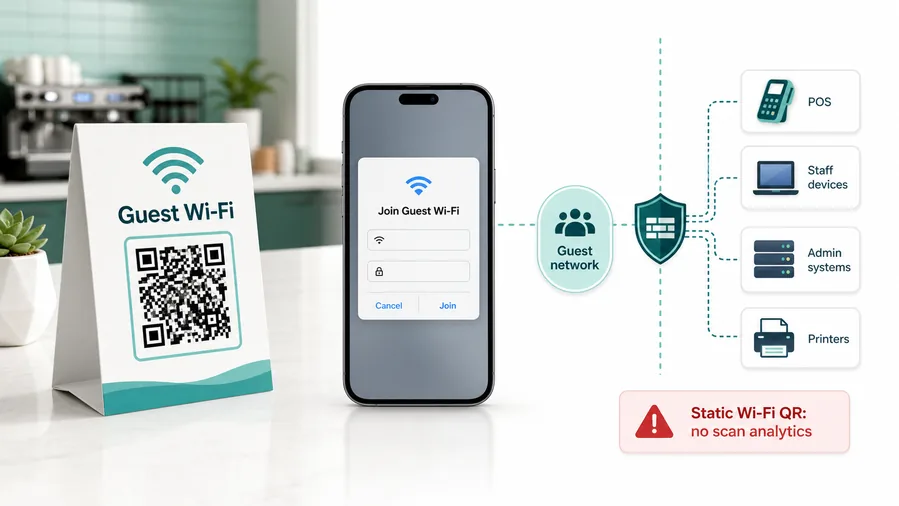
Use native Wi-Fi QR for the join prompt
A static Wi-Fi QR usually stores the SSID, encryption type, and password directly in the QR pattern so phones can show the built-in join-network prompt.
A dynamic redirect can explain Wi-Fi rules or show help, but it is not the same as the native join action.Keep guest Wi-Fi separate from restaurant operations
Fast-food locations should keep POS terminals, staff devices, printers, cameras, and payment systems away from the guest network that customers join from dining-area QR codes.
The QR code reduces typing; network segmentation protects operations.Print Wi-Fi codes where guests wait or sit
Use table tents, counter cards, pickup waiting areas, and dining-room signs with clear copy so guests know the QR opens Wi-Fi and not ordering, coupons, or payment.
Labeling avoids confusing Wi-Fi scans with menu or checkout actions.Treat the printed Wi-Fi QR like a shared password
Anyone who can see, photograph, or forward the fast-food Wi-Fi QR code may be able to join until the guest password changes.
Use router, firewall, access point, or IT settings for real isolation and monitoring.QR removes password friction; the network provides control
Use QR for a fast guest join experience, and use network settings to protect restaurant operations.
Fast-food placement
Put fast-food QR codes where the guest can act before the moment passes
PlacementFast-food QR placement should match pace and intent. Use the code where guests are paused long enough to scan and where the printed CTA explains the value immediately.

The code is visible but the guest is moving
A QR code on a busy doorway or drive-thru lane can be easy to see but hard to scan safely or comfortably.
Fast-food placement should consider line pressure, phone availability, and whether the guest knows what they get.
The code appears where waiting creates intent
Counter waits, seated dining, pickup shelves, receipts, bags, and tray liners give guests a clear reason to scan for menu, order, coupon, Wi-Fi, or feedback.
The CTA should promise one immediate action instead of a broad brand page.
What is the guest doing right now?
Choosing, waiting, eating, picking up, paying, leaving, or opening takeaway packaging.
What should happen next?
View menu, order, claim coupon, join Wi-Fi, check allergens, leave feedback, reorder, or contact support.
Is the phone naturally available?
Table tents, receipts, bags, and pickup areas usually work better than moving lines or crowded doorways.
Is the value clear in two seconds?
Use labels such as scan to order, scan for Wi-Fi, scan for allergen info, scan for coupon, or scan to review this location.
Counter card
Open menu, order-ahead, app download, nutrition, allergen notes, or current offers while the guest waits.
Table tent
Useful for ordering more, Wi-Fi, feedback, help requests, loyalty, and location-specific promotions.
Receipt
Strong for surveys, reviews, loyalty signup, coupons, reorder, refunds, and support because the purchase just happened.
Bag or packaging sticker
Open reorder links, product notes, coupons, delivery pages, complaint paths, and campaign offers after takeaway.
Drive-thru window
Use for app download, coupons, order accuracy feedback, and receipt survey after the handoff, not while the car is moving.
Pickup shelf
Open pickup instructions, missing-item support, reorder, loyalty, and app links while the customer is paused.
Menu board insert
Link to allergens, nutrition, seasonal items, and language-specific menus without crowding the board.
Door or window sign
Use only for clear pre-order, hours, app, coupon, or menu actions that can be scanned before entering.
Fast-food QR placement should save time immediately
Keep QR codes where the action is obvious, the guest is paused, and the destination works quickly on a phone.
Fast-food scan reporting
Use scan data to compare fast-food placements, not to overclaim sales
AnalyticsTracking helps quick-service teams compare which printed materials earn scans: counter cards, table tents, receipts, bags, tray liners, windows, pickup shelves, and local campaign signs.
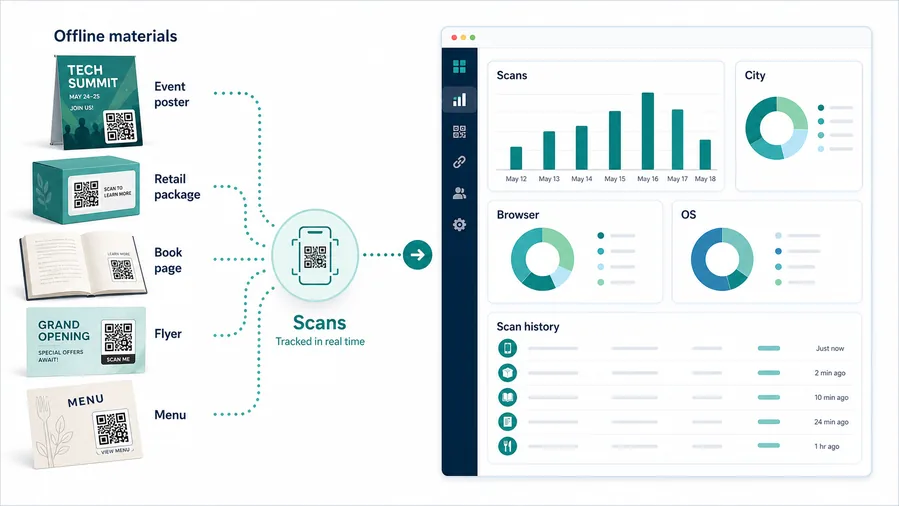
All fast-food scans collapse into one total
A single QR code can show interest, but it cannot tell whether a receipt, table tent, bag sticker, counter sign, or drive-thru card produced the scan.
That makes it hard to improve placement, offer wording, and store-level campaigns.
Each material becomes a practical signal
Use separate dynamic QR codes when receipts, bags, menu boards, table cards, and local offers need their own readout.
Scan analytics can guide placement decisions, but order, payment, and loyalty conversion still belong to those systems.
Scan volume
Review how many scans each fast-food QR code received by campaign, location, or printed material.
Time and device
Check when guests scanned and which device, browser, or operating system opened the destination.
Broad location
Use approximate location signals to spot branch or campaign patterns without treating them as guest identity.
Code comparison
Compare receipts, table tents, bags, counter cards, window signs, pickup shelf cards, and local offers side by side.
Receipt surveys
Compare review and feedback QR codes by location, campaign, date range, and printed receipt message.
Table tent performance
See whether seated guests scan for ordering, Wi-Fi, loyalty, coupons, or feedback.
Packaging campaigns
Track scans from bags, cups, tray liners, stickers, and limited-time offer inserts.
Operational cleanup
Spot zero-scan materials, expired offers, dead destinations, or codes still scanning after a promotion ends.
Name fast-food QR codes by placement and location before launch
Scan reports are useful only when code names match the real material: receipt, bag, table tent, counter card, window sign, or branch campaign.
Counter and drive-thru flow
Put QR codes where customers pause with a phone nearby
Use fast food QR codes on counter signs, tray liners, receipts, table tents, drive-thru signs, takeout bags, coupons, loyalty cards, hiring posters, window decals, and local flyers. The CTA should say order ahead, open menu, claim coupon, join rewards, leave review, download app, find location, or apply now. Each placement should match the moment instead of sending every scan to the same homepage.
Dynamic QR codes help when offers, menus, ordering links, loyalty pages, hiring forms, and app links change. That matters because quick-service promotions and menu items can change weekly or by location. Scan analytics can show which physical touchpoints create digital action: drive-thru signs, receipt cards, tray liners, or window posters.
Keep destinations simple and mobile friendly. A customer waiting in line will not read a long page. Send them to the menu, deal, app, or order page directly, with clear branding so the scan feels official. For drive-thru signs, make the code large and place it where a car can stop safely long enough to scan.
Ordering and payment boundary
Use fast-food QR codes for ordering and checkout links, not payment records
PaymentsQR Code Lab can create codes for order pages, checkout links, tips, deposits, catering invoices, coupons, and provider payment pages. The ordering, POS, wallet, or payment provider handles funds, receipts, refunds, disputes, and order status.
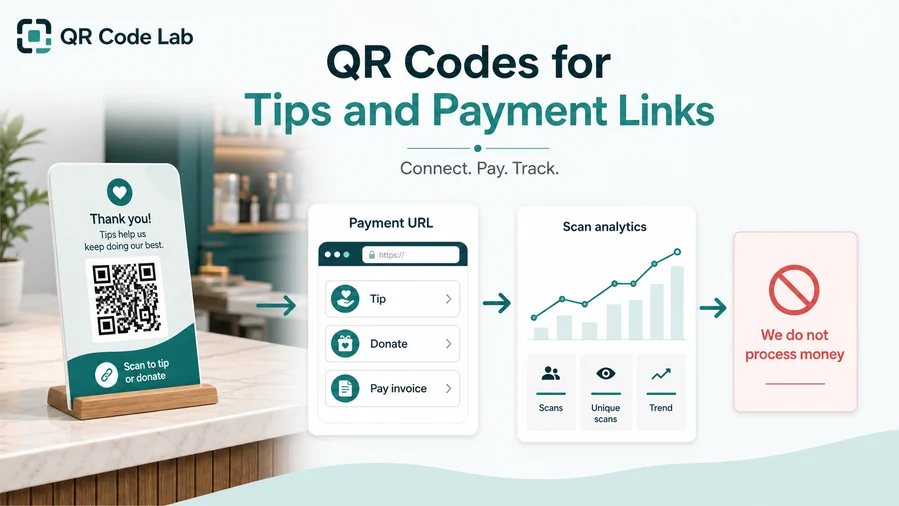
Open ordering or checkout without typing
Use QR codes on tables, receipts, bags, catering forms, and counter cards to send guests to the trusted ordering or payment page.
Support coupons, tips, and catering balances
If the QR opens an offer, tip jar, party tray order, deposit, or invoice, label the purpose clearly before the scan.
Keep checkout destinations editable
Dynamic QR helps when ordering providers, campaign pages, menu links, branch pages, or catering payment instructions change.
A scan is not an order or payment confirmation
Scan analytics can show that someone opened an order or payment link, but only the POS, ordering app, wallet, or payment provider can confirm checkout, payment, refund, and order status.
Use the restaurant’s operational systems as the source of truth.Keep fast-food payment QR codes convenient and clear
Use QR to shorten the route to checkout while the actual transaction stays with the proper provider.






