
Google Form QR Code Generator for Surveys, RSVPs & Signups
Create Google Form QR codes for surveys, feedback, signups, RSVPs, quizzes, attendance, intake forms, and lead capture. Let people open forms with one scan from print quickly today.
Free QR code generator
Create a QR code online
Generate QR codes for websites, email, phone numbers, vCards, Wi-Fi, plain text, forms, PDF files, and campaign links. Customize colors, add a logo or frame, then download a print-ready PNG or SVG.
Choose QR code type
Website QR code, Email QR code, Phone QR code, vCard QR code, Wi-Fi QR code, Text QR code, SMS, WhatsApp, event, and download links.
Add your content
Enter your website URL, contact details, message, phone number, location, or file destination before generating the QR code.
Customize and download
Adjust QR colors, error correction, logo, frame, size, and margin. Generate QR Code, Download PNG, Download SVG, or Save and track scans.
Form response path
Use a Google Form QR code when the scan should become a submitted response
A Google Form QR code sends scanners to a Google Form share link for surveys, sign-ups, RSVPs, registrations, intake forms, quizzes, attendance, feedback, lead capture, check-ins, waitlists, volunteer forms, quote requests, and simple requests. It is useful for schools, events, clinics, workshops, nonprofits, local businesses, classrooms, receipts, posters, flyers, handouts, and printed campaigns. The real goal is not opening the form; it is getting a useful response from someone who is already in the right moment to answer.
QR Code Lab creates the QR code for the form link. It does not create, edit, host, or collect the Google Form responses. The form permissions, questions, required fields, confirmation message, response spreadsheet, and access settings remain inside Google Forms. That separation is important: QR Code Lab helps with scan access and tracking, while Google Forms handles the actual submission and response storage.
Before printing, open the exact form link in a private browser or on a phone that is not signed into your account. Make sure the form is accessible to the intended audience, mobile-friendly, and not accidentally restricted to your organization when the public needs to respond.
Form response moments
Use a Google Form QR code when the scan should collect a response immediately
Form QRA Google Form QR should turn a printed touchpoint into a clean response path: survey, RSVP, sign-up, intake, feedback, waiver, quiz, order request, or support detail.
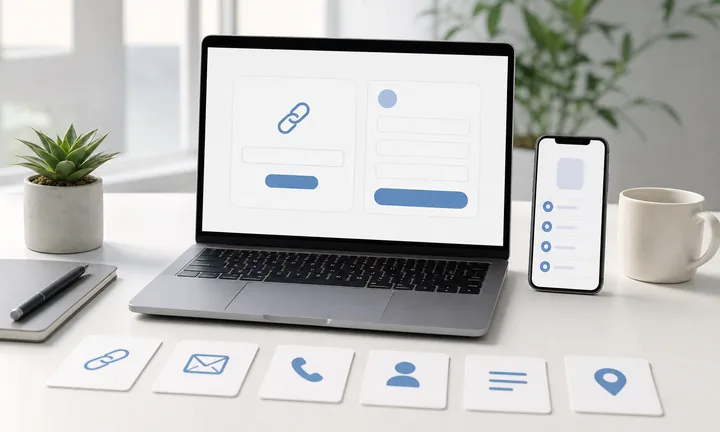
Collect answers while the context is fresh
Use Google Form QR codes on event signs, classroom handouts, receipts, product inserts, clinic desks, service cards, posters, and workshop materials when the scanner can answer right away.
The CTA should say what the form does: RSVP, give feedback, request help, or submit details.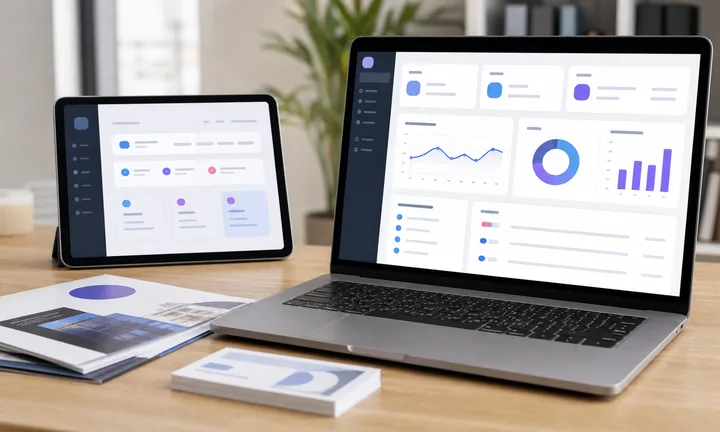
Make the form feel worth the scan
The first screen should explain who the form is for, how long it takes, whether a sign-in is required, and what happens after submission.
Shorter, clearer forms earn more complete responses.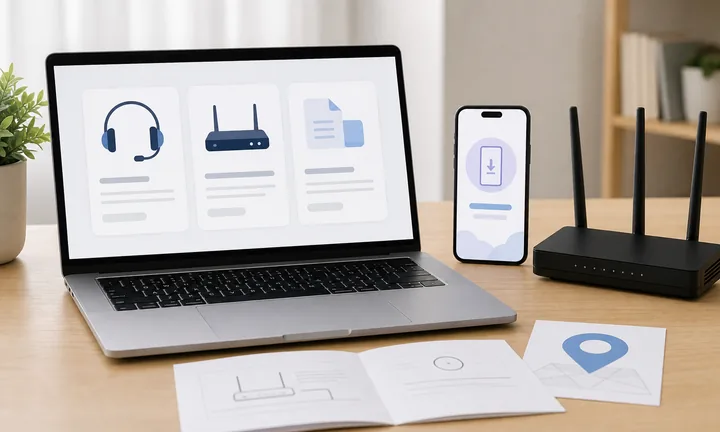
Keep printed form links editable
Dynamic QR helps when the form is replaced, closed, copied for a new campaign, moved to another intake system, or routed to a thank-you page after collection ends.
Forms often change after the first print run.A Google Form QR should reduce the distance between intent and response
The scanner is already at the moment that creates useful input: attending, buying, waiting, learning, visiting, or asking for help. The QR should make submission feel easy and expected.
Use separate dynamic codes when responses need to be compared by event, classroom, location, product, branch, or campaign material.Response capture
Open surveys, RSVPs, signups, quizzes, intake forms, waivers, feedback, and request forms.
Context clarity
Explain time required, sign-in needs, privacy expectations, and what happens after submission.
Campaign routing
Use dynamic QR when a form may close, move, duplicate, or change after materials are printed.
Source comparison
Separate codes by poster, table card, branch, class, event, or product when reporting matters.
Form setup decision
Choose a Google Form QR setup by how long the form link must stay useful
SetupA direct form QR works for one final Google Form. Use dynamic QR when the form may be replaced, duplicated for another campaign, closed after a deadline, or routed to a different destination later.
URL QR code
Use for websites, landing pages, menus, product pages, portfolios, booking pages, and campaign pages.
Best dynamic when links may changePDF / File QR code
Use for menus, manuals, worksheets, bonus materials, brochures, certificates, ZIP archives, and checklists.
Dynamic is safer for printvCard QR code
Use for business cards, badges, counters, portfolios, sales materials, and follow-up contact details.
Static opens native contact saveWi-Fi QR code
Use for cafes, hotels, offices, classrooms, venues, rental spaces, and guest networks.
Usually best as staticForm QR code
Use for feedback, registrations, quote requests, surveys, support requests, applications, and check-in.
Dynamic helps forms evolveWhatsApp / messaging QR
Use when the next step is a conversation: support, sales, booking, delivery questions, or consultation.
Prefilled messages reduce frictionMaps QR code
Use for venues, offices, stores, events, pickup points, property listings, booths, and meeting locations.
Great for physical destinationsSocial QR code
Use for Instagram, TikTok, YouTube, X, LinkedIn, Behance, creator pages, and community profiles.
Best when relationship continuesPayment link QR code
Use for invoices, tips, donations, event payments, deposits, checkout pages, and payment requests.
Make amount and context clearNative action?
Wi-Fi, vCard, email, phone, and SMS often work best when the action is encoded directly, especially if the native phone interface matters.
Editable or measurable?
Use a dynamic QR code when the destination may change, files may be replaced, campaigns need analytics, or printed material must stay useful later.
Several actions?
Use a microlanding page when one scan should offer buttons, files, contact, feedback, booking, social links, or multiple next steps.
Plan the form lifecycle before printing
Decide what happens when the form closes: keep collecting, show a thank-you page, route to a new form, or send people to a follow-up resource.
Form scan UX
Make the Google Form scan feel quick, clear, and safe to submit
Scan UXA form QR should explain the purpose before asking for answers. People are more likely to finish when the first screen confirms the form, time, privacy expectation, and next step.
Use direct forms for simple response capture
Survey, RSVP, feedback, signupA direct Google Form works when the scanner already knows why they are submitting and the form is short enough for mobile.
Use a clear title, short intro, and first question that matches the printed CTA.
Use a landing page when the form needs context
Instructions, privacy, deadline, fallbackA short page can explain who should respond, what information is needed, how long it takes, and what happens after submission.
This is stronger for intake, waivers, applications, public events, and unfamiliar audiences.
Plan what happens after the form closes
Thank-you, waitlist, new form, contactExpired forms make printed QR codes feel broken.
Dynamic QR lets the same printed code move to a waitlist, follow-up form, results page, or support contact after the campaign ends.
Is the form mobile-friendly?
Check title, intro, question length, required fields, file upload behavior, and sign-in requirements on a phone.
Does the scanner know why data is requested?
Explain the purpose, deadline, privacy expectation, and what happens after submission.
Will the form still be open later?
Use dynamic QR when the form has a deadline, campaign cycle, event date, or replacement plan.
The form scan should convert intent into a finished response
Use the simplest path that helps people submit correctly without surprise or extra searching.
Response friction
A form QR works when the form is short enough for the physical moment
The scanner is often standing in a hallway, leaving an event, waiting at a desk, holding a receipt, sitting in a classroom, looking at a poster, or unpacking a product. That is not the moment for a long form with unclear required fields. Keep the first questions focused, explain why the response matters, and avoid asking for information you do not truly need. Every extra required field lowers the chance that the scan turns into a submitted response.
Match the CTA to the form. “Register for the workshop,” “Leave feedback,” “Join the waitlist,” “Request a quote,” “Submit attendance,” or “RSVP here” is better than “scan form.” If the form asks for personal data, make the reason clear and avoid collecting sensitive details unless your workflow really requires them. A friendly confirmation message also helps because the scanner wants to know their response was received.
Use dynamic QR codes when the form might change after printing. You may need to replace an RSVP form with a waitlist, switch a survey to feedback, update an intake link, or move from event registration to check-in. Dynamic tracking shows whether the printed placement generated scans before you evaluate response rates inside Google Forms.
After-print control
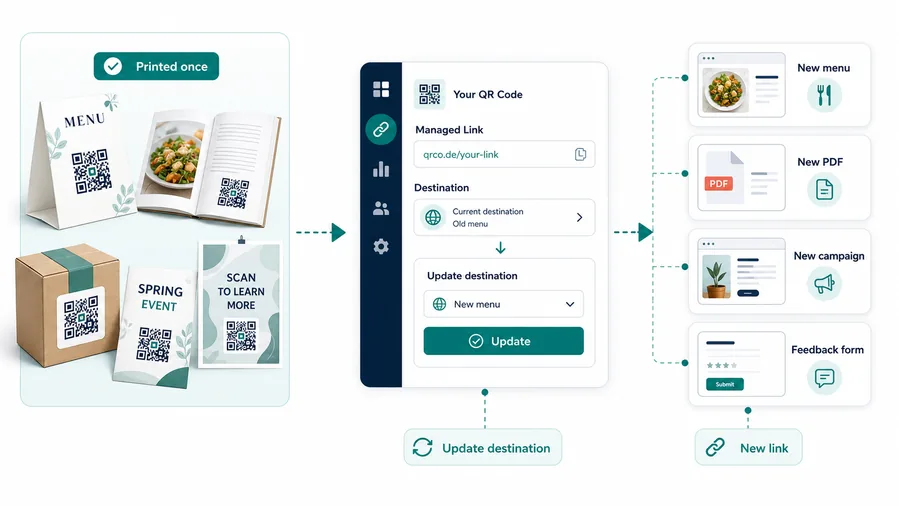
Use dynamic QR when Google Forms may close, move, or change after print
DynamicPrinted form QR codes often live longer than the first survey, RSVP, intake, or feedback form. Dynamic QR keeps the printed shortcut useful when the collection path changes.
A fixed form link can become stale after the deadline
A static QR keeps opening the original form even if responses are closed, the form was copied, or the campaign moved to a new version.
That is risky on posters, table cards, product inserts, event signs, classroom sheets, and service materials.
Editable QR keeps response paths current
Dynamic QR lets the printed code route to the active form, waitlist, thank-you page, results page, or follow-up destination.
It also helps compare scan interest by placement without changing the respondent experience.
RSVP and event forms
Move from RSVP to waitlist, check-in, agenda, or feedback after the event stage changes.
Surveys and feedback
Replace closed surveys, seasonal questionnaires, classroom forms, and service feedback links.
Intake and requests
Route to the current support, quote, application, waiver, or order-request form.
Placement reporting
Use separate QR codes for posters, table cards, counters, classrooms, branches, and handouts.
Use dynamic when the form has a lifecycle
If the form can close, change, or be replaced, keep the printed QR editable from the start.