
Restaurant Wi-Fi QR Code Generator for Guest Access
Create restaurant Wi-Fi QR codes for guest networks, table cards, receipts, lobby signs, cafés, bars, waiting areas, and visitor access. Help guests connect without typing long passwords.
Free QR code generator
Create a QR code online
Generate QR codes for websites, email, phone numbers, vCards, Wi-Fi, plain text, forms, PDF files, and campaign links. Customize colors, add a logo or frame, then download a print-ready PNG or SVG.
Choose QR code type
Website QR code, Email QR code, Phone QR code, vCard QR code, Wi-Fi QR code, Text QR code, SMS, WhatsApp, event, and download links.
Add your content
Enter your website URL, contact details, message, phone number, location, or file destination before generating the QR code.
Customize and download
Adjust QR colors, error correction, logo, frame, size, and margin. Generate QR Code, Download PNG, Download SVG, or Save and track scans.
Guest Wi-Fi access
Let restaurant guests join the right network without typing the password
A restaurant Wi-Fi QR code is useful when guests should connect to a guest network from a table card, counter sign, receipt, lobby sign, bar menu, waiting area, or cafe wall without asking staff to spell the password. A static Wi-Fi QR code can store the network name, encryption type, and password so many phones can show the native join prompt after scanning.
Wi-Fi access is a convenience, but it also needs basic care. Restaurants should use a guest network, not the private business network used for POS, staff devices, cameras, or office systems. If you print the Wi-Fi password, assume guests can share it. QR Code Lab helps create scannable Wi-Fi QR codes and place them in guest-facing materials, but the network itself must be configured safely.
QR Code Lab creates QR codes. It does not provide internet service, manage routers, secure your network, collect Wi-Fi logins, or create scan analytics for static Wi-Fi QR codes. Your router, IT provider, or guest Wi-Fi platform handles access, isolation, speed limits, and network security.
Restaurant Wi-Fi moments
Restaurant Wi-Fi moments restaurants, cafes, bars, and food service teams with digital menus, ordering links, reservations, reviews, loyalty rewards, coupons, guest Wi-Fi, and feedback forms
Wi-Fi QRUse QR codes to move restaurants, cafes, bars, and food service teams from table tents, menus, receipts, takeout bags, counter signs, food trucks, delivery packaging, and loyalty cards to digital menus, ordering links, reservations, reviews, loyalty rewards, coupons, guest Wi-Fi, and feedback forms without making guests search or type a long URL.
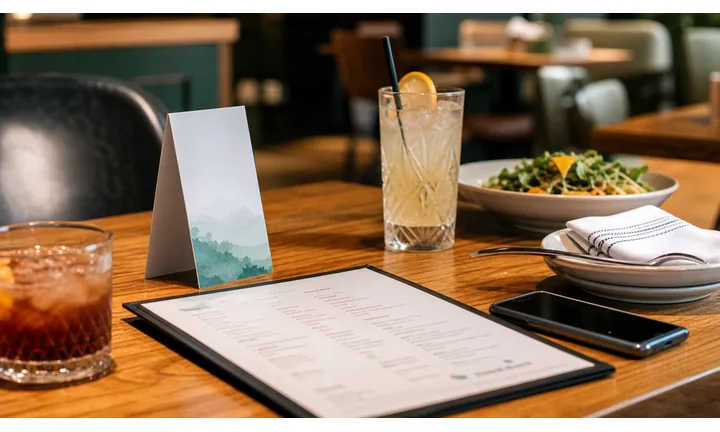
Let guests join without typing the password
Put the Wi-Fi QR on table tents, counters, host stands, receipts, or lobby signs so guests can connect while seated, waiting, or working without asking staff to repeat credentials.
Use a clear guest-network name, not the staff or POS network.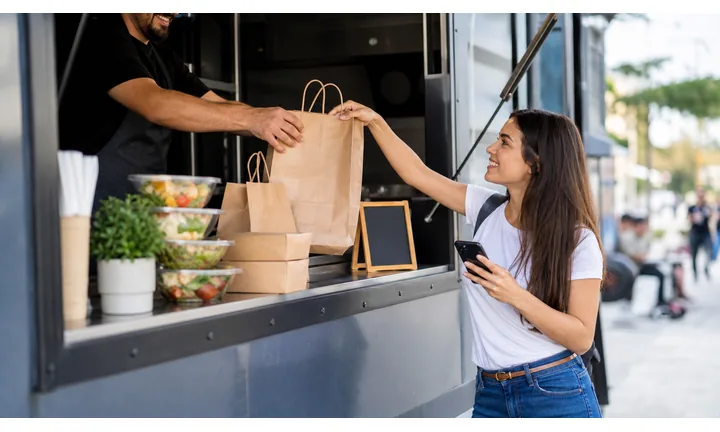
Keep the network boundary visible
The QR code removes typing, but the router controls isolation, bandwidth, filtering, and device access. Guests should understand that they are joining guest Wi-Fi, not a private business network.
Treat printed Wi-Fi QR codes like shared passwords.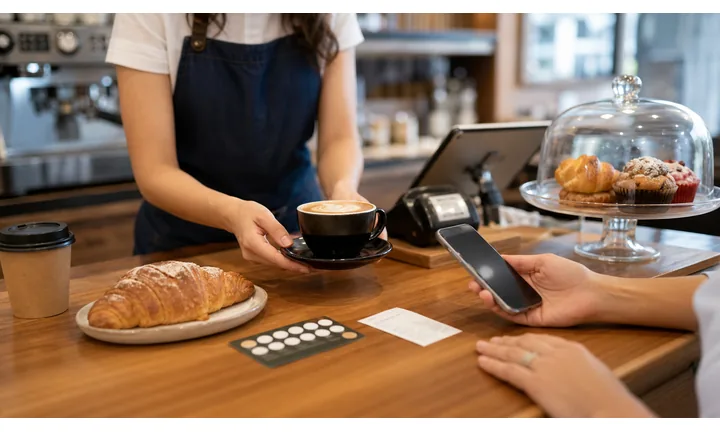
Use a landing page only when instructions matter
Most phones can join native Wi-Fi directly from static Wi-Fi QR data. A dynamic QR is better for house rules, troubleshooting, loyalty signup, or a welcome page, but it is not the same as native join.
Choose direct Wi-Fi QR when the main job is connecting quickly.Restaurant Wi-Fi QR should reduce staff interruptions without weakening the network
Guests want a fast connection; owners need guest access separated from payments, printers, tablets, cameras, and internal devices. The QR code is the shortcut, not the security policy.
Use router settings for isolation, rate limits, password rotation, and staff-device protection.Guest convenience
Make the code easy to find where guests pause: tables, counters, host stands, lobby areas, and receipts.
Network separation
Keep POS, staff tablets, printers, cameras, and office devices off the guest network.
Password rotation
Update guest credentials when staff changes, menus change, events end, or the code spreads too widely.
Clear support
Use nearby text for network name, guest-only purpose, and where to ask for help if joining fails.
Guest network boundary
Make restaurant Wi-Fi easy to join without confusing it with security
Wi-FiA Wi-Fi QR code removes password typing. The router, access point, and network policy still decide what guests can reach after they join.
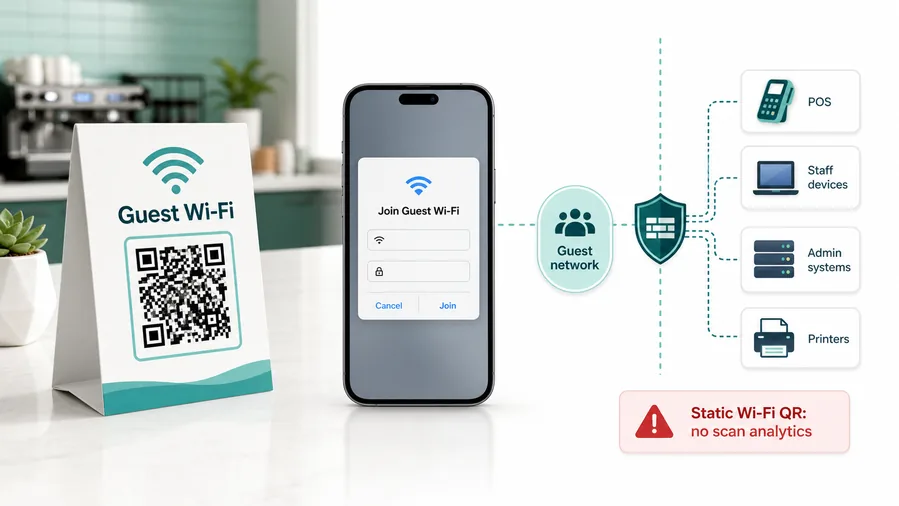
Use native Wi-Fi QR for the fastest join prompt
Static Wi-Fi QR stores the SSID, encryption type, and password directly in the QR pattern so phones can show the built-in join-network prompt.
This is the cleanest path when the only job is guest access.Use a landing page when guests need instructions
A dynamic QR can open house rules, troubleshooting, loyalty signup, table ordering, or a welcome page, but it usually will not trigger the native Wi-Fi join prompt by itself.
Do not trade a simple join action for a confusing extra page unless the instructions matter.Separate guest access from operations
The QR code should never be the only protection between guests and POS terminals, kitchen printers, staff tablets, cameras, or office devices.
Isolation belongs in network settings, not QR copy.Treat the printed restaurant Wi-Fi QR like a shared password
Anyone who sees, photographs, or forwards the code may be able to join until the guest password changes.
Use router, firewall, access point, or IT settings for real guest isolation.QR removes friction; the network provides control
Use the QR code for clean guest access, and use network settings to protect restaurant operations.
Use static Wi-Fi QR for joining, dynamic QR for instructions around the connection
FormatRestaurant Wi-Fi is one of the cases where a static QR is often the better primary code because phones can read the network details directly.
Static QR code
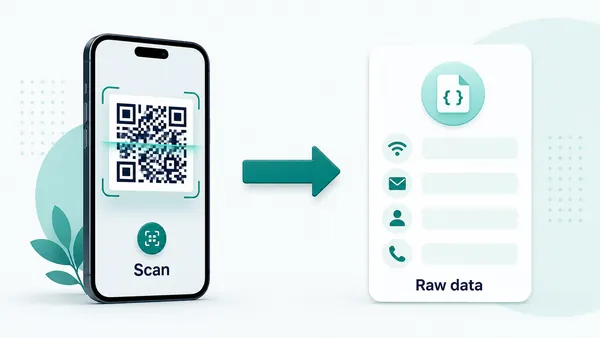
A static QR code contains the actual data inside the QR pattern. For Wi-Fi, that usually means the network name, encryption type, and password are encoded directly, so most phones can show the native "join this network" prompt after scanning.
The same idea applies to email, phone, SMS, vCard, calendar, and plain text codes. The device receives a format it already understands: open the mail app, start a call, prepare a message, or show the interface for saving a contact.
That direct behavior is the main advantage of static QR codes. There is no redirect step and no intermediate page, so the scan feels immediate and familiar. The trade-off is also clear: because nothing passes through QR Code Lab after the scan, the destination cannot be edited and scan statistics cannot be collected.
Dynamic QR code
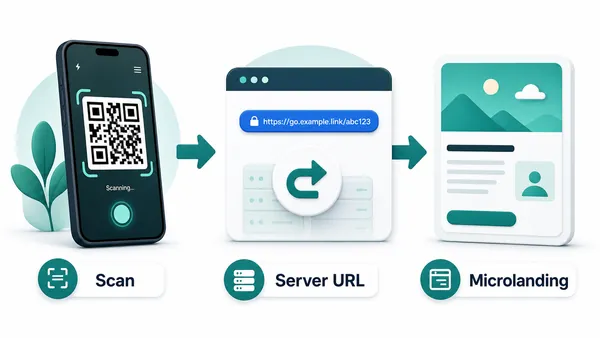
A dynamic QR code always contains a managed URL first. That redirect is what makes editing and analytics possible: QR Code Lab receives the scan, records useful signals, and then sends the visitor to the current destination.
Because the QR payload is a URL, the device usually treats it like a web link, not like a native Wi-Fi, email, contact, or calendar command. For those use cases, dynamic often means showing a small landing page where the visitor can continue to the real action.
The benefit is control after printing. You can replace a PDF, change a campaign URL, update a menu, swap a file, or measure whether a book, flyer, label, or package is actually being scanned without reprinting the code.
Quick decision
Wi-Fi placement
Place restaurant Wi-Fi QR codes where guests pause long enough to connect
PlacementWi-Fi QR placement should match the moment guests sit down, wait, work, study, meet, or ask staff for the password.

A Wi-Fi QR in the wrong spot still creates staff questions
If the code is hidden behind the counter, printed too small, or shown only after guests ask, staff still repeat the password all day.
Wi-Fi access should be visible at the pause point, not buried in a menu footer.
Put the code where phones naturally come out
Tables, waiting areas, counters, coworking corners, hotel lobbies, and receipts are stronger than doorway signs because guests are stopped and ready to connect.
Nearby text should confirm the network name and that it is guest Wi-Fi.
Where do guests ask for the password?
Tables, counter, host stand, waiting area, patio, bar, lobby, or event room.
Is the network name obvious?
Print the guest SSID beside the QR so people know which network they are joining.
Can the code be replaced after password changes?
Use removable table cards, counter signs, or inserts when credentials rotate.
Does the first scan match the promise?
Use static Wi-Fi QR for native join; use dynamic only when instructions or welcome actions matter.
Table tent
Best for dine-in guests who are seated, waiting, ordering, working, or browsing while they eat.
Counter sign
Useful for cafes, quick-service restaurants, pickup counters, and guests waiting for orders.
Host stand
Helps guests connect while waiting for a table or asking about availability.
Receipt
Can support return visits, cafe work sessions, loyalty, or Wi-Fi instructions after checkout.
Lobby or waiting area
Works for hotel restaurants, lounges, event spaces, and long waits where guests sit down.
Patio sign
Use when outdoor seating has separate coverage, weaker signal, or different guest behavior.
Event room
Give private events, meetings, and catering guests the correct temporary network.
Menu insert
Use only when the Wi-Fi message stays readable and does not compete with ordering.
Wi-Fi QR placement should reduce password questions
Put the code where guests already pause and can scan without interrupting staff.
Guest network flow
Use restaurant Wi-Fi QR codes for guest access, not internal systems
Useful placements include table tents, counter signs, lobby signs, receipts, menus, waiting areas, bar cards, hotel restaurant cards, and cafe walls. CTAs should say join guest Wi-Fi, connect to cafe Wi-Fi, scan for internet, or use guest network. Keep the label clear so guests know this is Wi-Fi access, not a menu or payment code.
A static Wi-Fi QR code is often best for direct phone behavior, but it will not provide scan analytics because the phone reads the network data directly. If you need a branded instruction page or analytics, you can use a dynamic URL QR code, but that adds a web step before guests see the network details. Choose the flow based on convenience and tracking needs.
Protect the business network. Use a separate guest SSID, rotate passwords when needed, and avoid exposing internal devices. QR Code Lab makes the printed code easier to create and update, while your router or IT setup is responsible for security, bandwidth, access rules, and privacy. If staff devices or POS systems share the same network, fix that before printing guest access everywhere.






