
QR Code for Event Planners - RSVPs, Schedules & Vendor Links
Create QR codes for event planners managing invitations, RSVPs, schedules, maps, menus, checklists, vendor pages, feedback, and updates. Connect guest, client, staff, and vendor workflows.
Free QR code generator
Create a QR code online
Generate QR codes for websites, email, phone numbers, vCards, Wi-Fi, plain text, forms, PDF files, and campaign links. Customize colors, add a logo or frame, then download a print-ready PNG or SVG.
Choose QR code type
Website QR code, Email QR code, Phone QR code, vCard QR code, Wi-Fi QR code, Text QR code, SMS, WhatsApp, event, and download links.
Add your content
Enter your website URL, contact details, message, phone number, location, or file destination before generating the QR code.
Customize and download
Adjust QR colors, error correction, logo, frame, size, and margin. Generate QR Code, Download PNG, Download SVG, or Save and track scans.
Event operations path
Give every event role the right link at the right moment
A QR code for event planners is useful when one event has many small digital paths: invitations, RSVP pages, schedules, maps, menus, checklists, vendor pages, feedback forms, client updates, staff instructions, and last-minute notices. Guests, clients, vendors, and staff do not need the same link. A good QR setup helps each person reach the page that fits their role without asking the planner to resend links all day.
Think about the event flow. A guest scanning a welcome sign may need the schedule or map. A vendor scanning a load-in sheet may need dock details. A client scanning a planning packet may need the approval page. A staff member scanning a checklist may need a private operations note. QR Code Lab helps create print-ready codes, dynamic destinations, and scan analytics so planners can update links and see which printed materials are actually used.
QR Code Lab creates URL QR codes only. It does not manage RSVPs, planning workflows, ticketing, checklists, vendor coordination, or feedback collection. The linked event, form, planning, ticketing, or feedback platform handles the actual work.
Events, conferences, and weddings
Give clients, vendors, and guests the right event action at each planning moment
Attendee flowEvent planner QR codes should reduce coordination friction, not create another generic link. Use them for RSVP, timelines, vendor briefs, floor plans, guest information, feedback, or post-event follow-up when the printed material already tells people why to scan.

Move client approvals out of long email threads
Use QR codes in proposals, mood boards, printed briefs, and venue packets to open approval forms, budget notes, timeline changes, vendor lists, and next-step checklists.
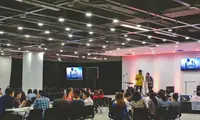
Give vendors one current source of truth
Put QR codes on production schedules, load-in sheets, catering briefs, booth packets, and day-of run books so vendors can open the latest instructions from the material in their hands.

Help guests act without searching their inbox
Use event signs, programs, badges, table cards, and welcome packets to open RSVP updates, maps, agendas, shuttle details, gift registries, speaker files, or feedback forms.
Collect post-event feedback while the moment is still fresh
Place QR codes on thank-you cards, checkout desks, attendee handouts, and follow-up materials to gather testimonials, survey answers, photo uploads, referrals, or next-event interest.

Speaker materials and feedback
After a session, attendees can scan a slide, poster, handout, or table sign to open slides, PDFs, worksheets, links, speaker profile, Q&A, or feedback form. The attendee gets the materials; the organizer gets a clean follow-up action.
The scanner should know exactly what the QR will open
Event guests, clients, and vendors scan faster when the printed CTA says the result: view schedule, confirm attendance, open floor plan, download materials, submit feedback, or contact the planner.
Separate event codes when reporting or ownership matters
Use different dynamic QR codes for client packets, vendor sheets, entry signs, table cards, sponsor materials, and follow-up pieces when the planner needs to see which placement actually gets used.
Match each QR code to the event planning workflow
Planner placement
Place event planner QR codes where coordination already needs a next step
PlacementThe strongest event planner placements are not decorative. They sit beside the decision, instruction, or guest moment that creates the need to scan: approve, check in, find a room, confirm a vendor task, or send feedback.

The code appears on event print without a job
A QR code on a poster, program, or packet can be visible and still underused if the surrounding copy does not say what happens after the scan.
Event planning materials compete with schedules, logistics, and people moving through a venue, so vague QR codes get ignored.
The code sits beside the planning task
Use QR codes near approval notes, room directions, vendor instructions, ticket checks, agenda changes, and feedback prompts.
The scan should feel like the obvious continuation of the printed material, not a separate digital errand.
What just happened?
The client received a proposal, the vendor reached load-in, the guest arrived, the attendee left a session, or the event ended.
What should happen next?
Approve, RSVP, check in, open a map, download files, contact the planner, submit feedback, or review the next-event offer.
Is the phone naturally available?
QR codes work best when people are paused at a desk, table, entrance, packet, badge, sign, or follow-up card, not while moving through a crowded line.
Is the value obvious in two seconds?
Print the benefit beside the code: scan for timeline, vendor updates, seating map, attendee guide, client approval, or post-event survey.
Proposal or client packet
Open approvals, planning checklists, budget options, mood boards, and meeting scheduling while the client reviews the plan.
Vendor run sheet
Give caterers, AV teams, florists, speakers, venues, and sponsors one current place for load-in times, maps, and contact details.
Entry or registration sign
Route guests to check-in, ticket lookup, Wi-Fi, map, agenda, and last-minute event updates.
Badge or program
Open speaker files, room maps, sponsor pages, session feedback, and attendee resources without searching email.
Table card or place setting
Use for menus, donation pages, photo uploads, feedback, schedules, or guest messages at the seated moment.
Post-event card
Ask for testimonials, referrals, surveys, photo galleries, and interest in future events while the experience is still remembered.
Sponsor or exhibitor material
Connect booths, inserts, and banners to lead forms, offers, product pages, and campaign-specific analytics.
Operations binder
Keep internal links to floor plans, contact trees, emergency notes, and live updates available to the event team.
Event QR placement should remove coordination work
Keep the code where the next action is already clear, and use a dynamic destination when event details may change before or during the day.
After-print control
Keep event QR destinations editable until the client event is over
DynamicEvent materials are often printed before every detail is final. Dynamic QR protects client packets, signs, schedules, vendor sheets, and programs when times, rooms, files, maps, or links change.
Printed event details can go stale quickly
A static QR code is fine when the destination will not change, but event schedules, venue maps, forms, speaker files, and ticket links often move late.
If the printed URL is fixed, every correction becomes a reprint, sticker, email, or apology at check-in.
The printed code can keep pointing to the current plan
Dynamic QR lets the planner update the destination behind signs, packets, programs, badges, and handouts without changing the visible code.
That matters most for events where the printed material leaves your desk before the final run-of-show is locked.
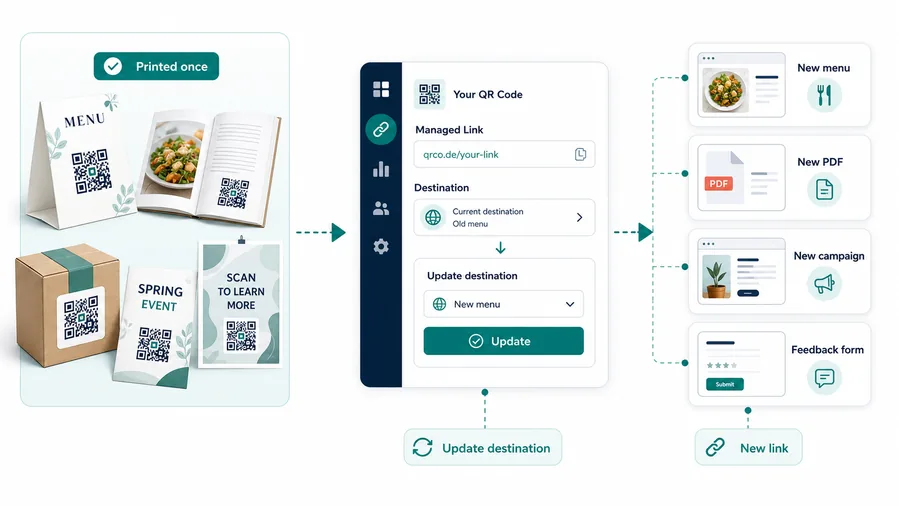
Run-of-show updates
Change agenda pages, speaker files, room assignments, and shuttle notes without replacing every printed program.
Vendor coordination
Update load-in instructions, floor plans, delivery routes, contacts, and production files behind vendor packet QR codes.
Client approvals
Keep proposal packets connected to current forms, choices, timelines, payment links, and final review pages.
Guest resources
Move attendee scans to the latest map, ticket help, photo gallery, feedback form, or post-event follow-up.
Use dynamic QR when the event may change after print
If the code appears on event material printed before the final details are frozen, editable destinations are usually worth it.
Event reporting
Use scan data to compare event materials without treating every scan as attendance
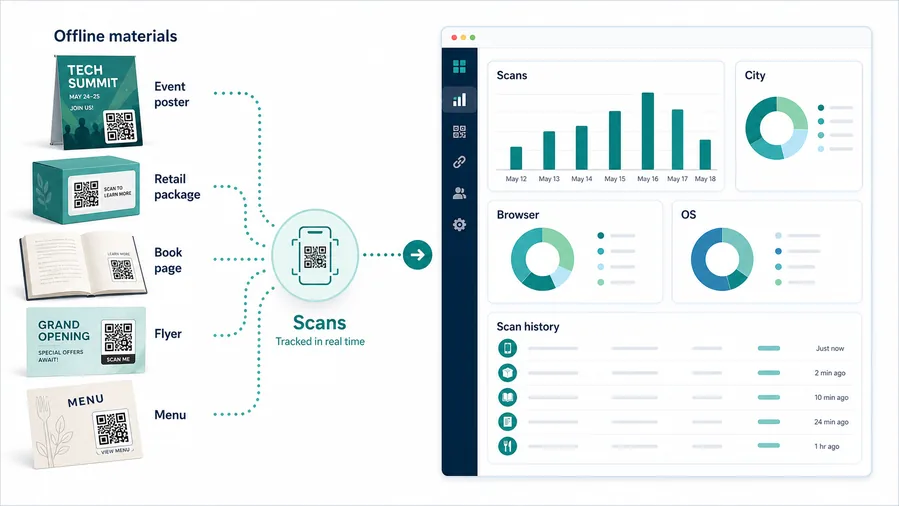
AnalyticsTracking helps event planners see which printed touchpoints create action: proposal packets, vendor sheets, registration signs, sponsor cards, programs, table cards, or follow-up pieces.
All event scans become one blended number
A single QR code can show that people scanned somewhere, but it cannot separate client reviews, vendor use, guest directions, sponsor interest, and follow-up activity.
That makes reporting weak when each placement had a different purpose.
Each event placement becomes a readable signal
Use separate dynamic QR codes for signs, packets, badges, programs, table cards, sponsor inserts, and follow-up cards when comparison matters.
The data is still scan activity, not attendance or revenue attribution, but it helps improve the next event.
Scan volume
See how many scans each event QR code received during planning, arrival, sessions, checkout, or follow-up.
Time and device
Review when scans happened and which device or browser opened the destination, especially around event-day peaks.
Broad location
Use approximate location signals to spot venue, city, or campaign patterns without treating them as identity data.
Code comparison
Compare client packets, vendor sheets, signs, programs, sponsor materials, and post-event cards side by side.
Client reporting
Show which event materials earned scans without overstating what those scans prove.
Venue placement review
Compare entrance signs, registration desks, hallway maps, table cards, and room posters.
Sponsor or exhibitor campaigns
Use separate codes for booths, inserts, banners, and lead forms when sponsors want placement-level reporting.
Operational cleanup
Find zero-scan codes, dead links, confusing placements, and scans that continue after the event has ended.
Name event QR codes before launch
Tracking only helps when each code name matches the real printed material, location, client, or campaign the planner needs to compare later.
Guest and staff flow
Use separate QR codes for guests, vendors, staff, and clients
Use event planner QR codes on invitations, welcome signs, badges, table cards, vendor packets, staff sheets, menus, thank-you cards, sponsor displays, seating cards, and feedback cards. The CTA should say RSVP, open schedule, view map, vendor info, guest menu, staff checklist, client update, or share feedback. Clear wording matters because a busy event is a bad place for mystery links.
Dynamic QR codes help when schedules, maps, menus, vendor details, room assignments, and feedback forms change close to the event. That flexibility is valuable because event details often shift after print materials are approved. Scan analytics can show whether guests use the map, whether table cards get interaction, or whether staff sheets are actually being scanned.
Do not make one catch-all QR code do every job. A wedding guest, corporate sponsor, venue manager, and catering vendor are in different moments. Give each group a simple destination and keep private operational links off public signs. For printed packets, add the QR code beside the exact instruction it supports so nobody has to guess why it is there.
Event scan experience
Make event planner QR destinations useful on the first screen
Scan UXA scan during planning or at an event should open a mobile page that confirms the printed promise immediately: agenda, map, check-in, vendor brief, approval, feedback, payment, or follow-up.
Client scans should reduce decision work
Proposal, approval, budget, schedule, depositWhen a client scans from a proposal or packet, the destination should continue the planning decision already in front of them.
Keep the first screen focused on the next approval, choice, booking, payment, or file instead of sending them to a broad homepage.
Vendor scans should answer operations questions fast
Load-in, floor plan, contact tree, run sheetVendors scan while working, so the page should be simple, current, and easy to use on a phone.
Put the most important schedule, location, contact, and file actions above anything decorative.
Guest scans should match the event moment
Ticket, map, agenda, photo, feedbackA guest scanning at entry, at a table, or after a session should understand exactly why the page opened.
Use direct CTAs and keep forms short so the QR feels helpful instead of interruptive.
Does the first screen match the printed CTA?
If the sign says scan for agenda, the page should open agenda information or a clear agenda button immediately.
Can scanners act under event pressure?
Use short pages, large buttons, fast-loading files, and clear fallback contact for check-in, vendor, or venue questions.
Is the destination still current?
Test the QR after schedule changes, vendor updates, payment changes, or file replacements.
The QR code should make the event feel more organized
Keep this block when the page needs to prove that the scan experience fits real clients, vendors, guests, and event teams.






