
QR Code for Accountants - Intake Forms, Booking & Reviews
Create QR codes for accountants linking intake forms, booking pages, document portals, reviews, contact cards, payment links, and tax resources. Use them on cards, desks, mailers, and signs.
Free QR code generator
Create a QR code online
Generate QR codes for websites, email, phone numbers, vCards, Wi-Fi, plain text, forms, PDF files, and campaign links. Customize colors, add a logo or frame, then download a print-ready PNG or SVG.
Choose QR code type
Website QR code, Email QR code, Phone QR code, vCard QR code, Wi-Fi QR code, Text QR code, SMS, WhatsApp, event, and download links.
Add your content
Enter your website URL, contact details, message, phone number, location, or file destination before generating the QR code.
Customize and download
Adjust QR colors, error correction, logo, frame, size, and margin. Generate QR Code, Download PNG, Download SVG, or Save and track scans.
Client document path
Help accounting clients find the right form, portal, or appointment link
A QR code for accountants is useful when clients need a trusted link without digging through email or typing a long portal address. It can open an intake form, appointment page, document portal, review link, contact card, payment link, tax resource, checklist, onboarding page, or year-end reminder. Accountants, tax preparers, bookkeepers, accounting firms, payroll consultants, and finance service teams can use QR codes on packets, invoices, office signs, appointment cards, and client handouts.
The practical benefit is fewer small delays. A client may forget which documents to bring, use the wrong upload link, miss the booking page, or not know how to pay an invoice. A clear QR code can send them to the exact page for the task, which saves staff from repeating instructions and helps clients feel more organized.
QR Code Lab creates URL QR codes and can help with dynamic links and scan analytics. It does not provide legal, financial, tax, medical, or professional advice, and it does not manage bookings, payments, forms, document uploads, or client records. Your accounting, payment, booking, or document platform handles the actual workflow and sensitive data.
Accounting client moments
Help clients send the right accounting information without another email chain
Client flowAn accountant QR code should connect a real client moment to a specific action: upload tax documents, start onboarding, book a review call, pay an invoice, leave a review, or open a secure client portal.

Turn paper instructions into a client action
Put QR codes on tax organizers, appointment cards, year-end letters, invoice notes, and office signs so clients can open the exact upload, booking, portal, or payment page from their phone.
The caption should name the action clearly, especially when the destination involves documents or money.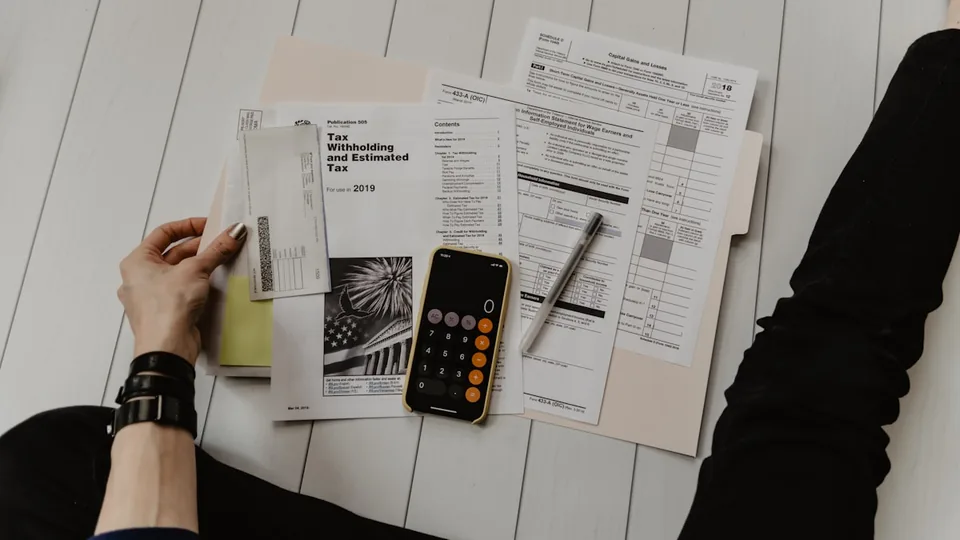
Reduce repeated intake questions
Route new clients to the right checklist, organizer, consent form, bookkeeping questionnaire, payroll setup, or consultation request before staff has to sort the request manually.
A focused intake path saves time for both the firm and the client.
Keep sensitive actions separated
Use different destinations for document upload, invoice payment, review requests, and public resources so clients do not confuse a secure task with a marketing page.
Trust matters more than clever routing when financial information is involved.An accounting QR should remove friction without weakening trust
Clients scan from documents, folders, invoices, lobby signs, and appointment reminders. The destination should confirm the firm, explain the task, and make the next step feel safe.
QR Code Lab creates the QR path; the accounting firm still owns portal security, payment confirmation, file handling, and professional advice.Tax season
Open organizers, upload links, deadline notes, extension forms, and appointment booking.
Bookkeeping
Route monthly clients to receipt uploads, payroll changes, bank-feed help, and close checklists.
Payments
Send clients to a trusted invoice or payment provider while keeping payment confirmation outside QR Code Lab.
Reputation
Ask satisfied clients for reviews after work is complete, not while they need urgent support.
Firm growth
Turn accounting touchpoints into clear client follow-up
PracticeAccounting QR codes work best when they serve a practical client need first, then support bookings, reviews, referrals, and repeat work after trust is already present.
Help clients send documents to the right place
Use QR codes on tax packets, checklists, and appointment reminders to open the secure upload or portal path without making clients search email.

Make review calls easy to schedule
Put booking QR codes on organizer instructions, year-end letters, and follow-up materials so clients can choose a time while the task is fresh.

Send invoice scans to the trusted payment page
Use a payment QR only to open the provider or invoice page; confirm payment status inside the accounting or payment system.

Ask for reviews after the work is complete
Use review QR codes on thank-you notes or follow-up emails when the client has a finished experience to respond to.

Make referrals easier for happy clients
Send satisfied clients to a referral form, niche service page, or consultation request that explains who the firm can help.

Link printed advice to current resources
Connect brochures and client handouts to updated deadlines, checklists, explainers, and small business resources.
Clients scan when the task is already in front of them
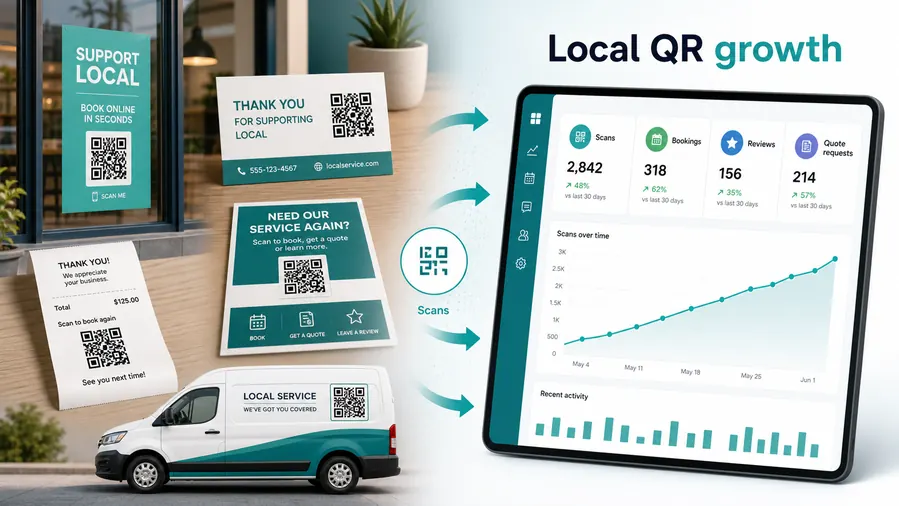
A client holding a tax packet, invoice, organizer, receipt folder, or appointment card is ready for one clear next step. The QR should reduce uncertainty, not open a generic services page.
The firm can guide demand without adding phone calls
Separate QR paths for uploads, bookings, payments, reviews, and referrals help staff see what people need and keep routine requests out of the inbox.
Place the code where the client task starts
Client placement
Place accountant QR codes beside the document, invoice, or question they solve
PlacementThe best accounting QR placement is not the biggest blank space. It is the spot where a client already needs to upload, book, pay, review, or understand a financial task.

The QR opens a general firm homepage
A homepage does not tell clients where to upload documents, pay an invoice, book a review, or ask a payroll question.
Accounting scans should be tied to the task printed beside the code.
The QR opens the exact client path
Use tax packet codes for upload and checklists, invoice codes for payment, lobby codes for portal help, and thank-you codes for reviews.
The printed CTA should say what happens after the scan.
What task is the client trying to finish?
Upload, booking, payment, intake, checklist, review, referral, or support should define the destination.
Is private data involved?
Document and portal QR codes should make the firm and security context clear before submission.
Will the link change by season?
Tax-year organizers, deadline pages, intake forms, and booking calendars often need dynamic destinations.
Can staff act on the request?
Route clients to the right system so scans reduce follow-up instead of creating another inbox pile.
Tax organizer
Open checklist, secure upload, appointment booking, extension information, and deadline notes.
Invoice
Send clients to a trusted payment page, billing contact, or invoice support path.
Client folder
Link to portal access, document retention notes, contact details, and next-year preparation.
Lobby sign
Use for check-in, Wi-Fi, parking, portal help, and review requests after service.
Appointment card
Open booking changes, preparation checklist, map, and contact options.
Bookkeeping packet
Route receipts, payroll changes, month-end tasks, and statement uploads.
Small business brochure
Open service pages, consultation request, niche checklists, and resource guides.
Thank-you note
Ask for a review, referral, or testimonial after the client experience is complete.
Accounting QR placement should lower client effort
Put the code where the client has the document, question, or invoice in hand, then open the specific next step.
Payment boundary
Use accountant QR codes for invoice links, not payment processing
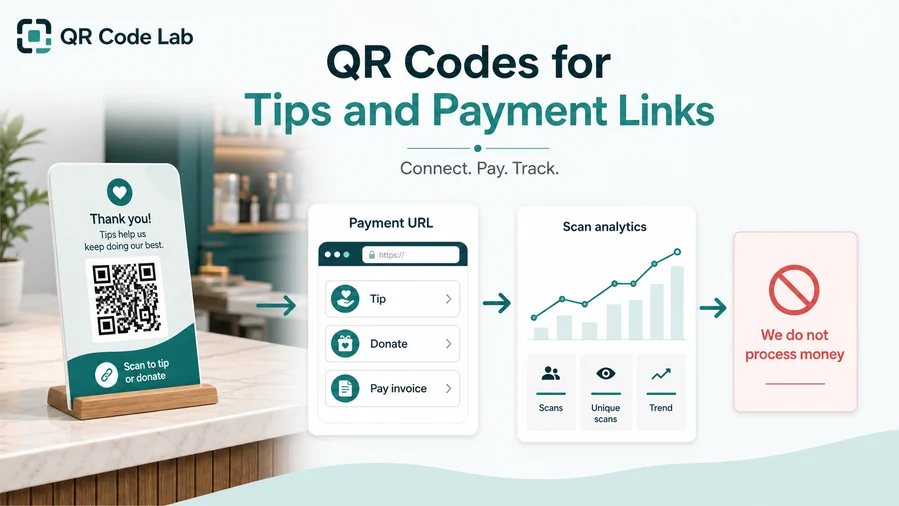
PaymentsQR Code Lab can help clients open an invoice, portal, or payment provider faster. The accounting firm and payment platform still handle amounts, receipts, refunds, disputes, and account records.
Open the right invoice or billing page
Use a QR code to reduce typing when a client needs to pay an invoice, deposit, retainer, subscription, or bookkeeping fee through the firm approved provider.
Keep billing context visible
The destination should show the firm, invoice purpose, expected amount, and provider identity before the client submits payment.
Separate payment from document exchange
Avoid mixing upload, intake, and payment actions in one vague scan path when financial records or private documents are involved.
Payment status lives in the payment system
A QR scan only shows that someone opened the payment path. It does not prove that the invoice was paid, settled, refunded, or reconciled.
Always confirm payment inside the payment provider or accounting system.Treat payment QR as access, not accounting proof
Use the code to get clients to the trusted payment page, then rely on the payment and accounting systems for confirmation.
Trust and privacy
Use clear labels because finance links need extra confidence
Use QR codes on business cards, appointment cards, invoices, client packets, tax organizer sheets, office signs, review request cards, printed checklists, onboarding folders, and reception desk materials. The CTA should say upload documents, book consultation, open tax checklist, save contact, pay invoice, review our firm, or start client intake. Finance-related scans should never feel mysterious.
For sensitive workflows, point clients to recognizable and secure destinations. Avoid vague short links when the page asks for documents, payment, or personal information. If the QR opens a portal, make the printed label match the portal name so clients can confirm they are in the right place. Dynamic QR codes help when portal URLs, tax-year checklists, appointment pages, payment links, or review pages change. QR Code Lab analytics can show which printed materials are used, while document uploads, invoices, and client records stay inside your official systems.
For seasonal tax work, separate codes for intake, checklist, payment, and reviews can reduce confusion. Each printed card should answer one client question clearly, and clear code names make later reports easier to read.
Client UX
Make accounting scans feel specific, safe, and easy to complete
Scan UXClients may scan while holding paperwork, invoices, or reminders. The first screen should confirm the firm, the task, and the next action before asking for private information.
Document and portal paths need clear identity
Upload, portal, tax organizer, payroll formClients should know they reached the right firm and task before submitting financial information.
Use plain labels, secure destinations, and short instructions instead of a dense services page.
Bookings and forms should reduce back-and-forth
Consultation, review call, intake, checklistThe scan should open the calendar, form, or checklist that matches the printed instruction.
A clean mobile path saves staff from clarifying the same task by email.
Payments should look trustworthy before checkout
Invoice, retainer, deposit, billing supportShow the firm, invoice context, and trusted provider before the client continues.
Do not treat scan analytics as proof of payment.
Does the first screen identify the firm?
Clients should see the firm name, task, and destination purpose immediately.
Is the private action separated?
Uploads, portals, and payments should not look like generic marketing forms.
Can the client finish on mobile?
Forms, calendars, files, and payment pages should be usable without desktop friction.
An accounting QR should reduce doubt before it reduces typing
Make the scan path clear enough that clients trust the action and staff receives cleaner requests.






