
QR Code for Wedding Photos - Galleries, Uploads & Albums
Create QR codes for wedding photos that link to galleries, guest upload forms, shared albums, photographer pages, highlights, and downloads. Use them on table cards, signs, programs, and thank-you cards.
Free QR code generator
Create a QR code online
Generate QR codes for websites, email, phone numbers, vCards, Wi-Fi, plain text, forms, PDF files, and campaign links. Customize colors, add a logo or frame, then download a print-ready PNG or SVG.
Choose QR code type
Website QR code, Email QR code, Phone QR code, vCard QR code, Wi-Fi QR code, Text QR code, SMS, WhatsApp, event, and download links.
Add your content
Enter your website URL, contact details, message, phone number, location, or file destination before generating the QR code.
Customize and download
Adjust QR colors, error correction, logo, frame, size, and margin. Generate QR Code, Download PNG, Download SVG, or Save and track scans.
Wedding photo sharing
Help guests open galleries, upload photos, and find the photographer
A QR code for wedding photos is useful when guests, family, and vendors need a simple way to reach a gallery, shared album, guest upload form, highlight reel, photographer page, or download folder. It can appear on table cards, welcome signs, programs, thank-you cards, favor tags, photo booth signs, or post-wedding cards. The scan keeps photo sharing easy while the event is still fresh.
Wedding photo QR codes can serve different moments. During the reception, a sign can invite guests to upload candid photos. After the event, a thank-you card can open the official gallery. A photographer card can open portfolio and booking information for guests planning their own wedding. A family card can open download instructions. QR Code Lab helps create dynamic codes that can change from upload mode to gallery mode after the event.
QR Code Lab creates URL QR codes and scan analytics. It does not host galleries by itself, store wedding photos, manage guest uploads, process orders, or control photographer delivery systems. Your gallery platform, cloud folder, upload form, photographer site, or wedding website handles the actual photo experience.
Wedding photo moments
Wedding photo moments event, wedding, venue, and attendee teams with registration, RSVPs, ticket pages, schedules, maps, guest details, and follow-up
Photo sharingUse QR codes to move event, wedding, venue, and attendee teams from invitations, banners, badges, programs, table cards, venue signs, and attendee handouts to registration, RSVPs, ticket pages, schedules, maps, guest details, and follow-up without making guests search or type a long URL.

Help guests find or upload photos
Use QR codes on table signs, programs, welcome cards, and thank-you notes to open guest upload folders, shared albums, hashtag pages, and gallery instructions.
The page should show the couple and event context clearly.
Deliver galleries without long private links
Photographers and planners can use QR codes on delivery cards, albums, and proof sheets to open private galleries, favorites, downloads, print shops, and album proofing.
Private galleries need trust and access clarity.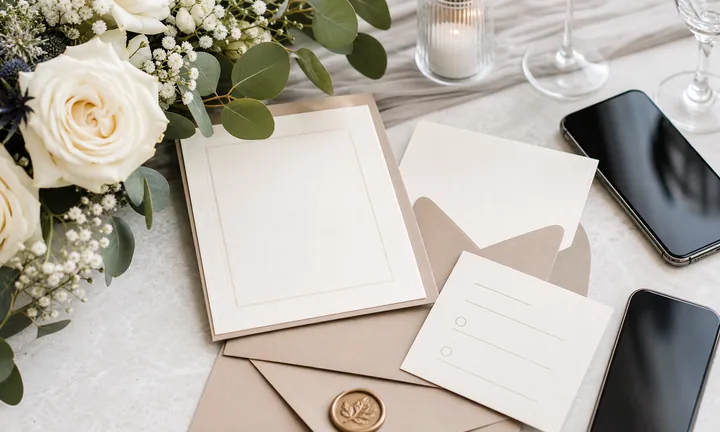
Keep photo links useful after the event
Dynamic QR lets the destination change from upload collection to preview gallery, final gallery, album ordering, thank-you page, or anniversary update.
Editable links help the same printed card serve several phases.A wedding photo QR code should match the photo phase
Before, during, and after the wedding, the same guests need different photo actions: upload, view, download, select favorites, order prints, share, or leave a message.
Use specific CTAs: upload photos, view gallery, download album, choose favorites, order prints, or send memories.Guest uploads
Open a simple mobile upload page with couple, date, and sharing instructions.
Gallery viewing
Send guests to previews, final galleries, albums, or password guidance with clear access notes.
Couple proofing
Use QR codes for favorite selection, album proofing, print orders, and download folders.
After-event sharing
Route thank-you cards to galleries, memories, guest messages, reviews, and anniversary updates.
Events, conferences, and weddings
Give wedding guests the right photo action at the right moment
Attendee flowWedding photo QR codes work when the scan matches the moment: upload guest photos, open the gallery, view instructions, choose favorites, download files, order prints, or share memories.

Collect guest photos during the event
Use table signs, programs, and welcome cards to open an upload page with couple name, date, and clear instructions.

Share the official gallery after delivery
Use thank-you cards, album inserts, or delivery cards to open previews, final galleries, password notes, and download options.

Guide photo booth and hashtag sharing
Open booth galleries, social sharing rules, hashtag prompts, and consent notes from signs near the activity.

Support couple proofing
Route the couple to favorite selection, album proofing, print choices, edit notes, and file delivery.

Connect print and album orders
Use gallery cards for print shops, album upgrades, gift prints, parent albums, and download packages.
Guests should know whether they are uploading or viewing
The printed CTA should distinguish upload photos, view gallery, download album, order prints, or leave a message so the scan does not feel risky.
Separate photo QR codes by phase when needed
Use different dynamic codes for upload collection, official gallery, proofing, print orders, thank-you cards, and review requests when the destinations differ.
Match QR placement to the wedding photo flow
Photo placement
Place wedding photo QR codes where guests are ready to upload, view, download, or share
PlacementWedding photo QR placement should follow the event and delivery flow: reception upload, booth sharing, thank-you gallery, album proofing, print ordering, and guest memories.

A photo QR without context can feel private or confusing
Guests need to know whether the scan opens an upload page, public gallery, private gallery, print shop, or message form.
Photo links often involve privacy, so the printed CTA and destination identity matter.
Put the code beside the photo action
Use reception signs for uploads, booth signs for sharing, thank-you cards for galleries, and album inserts for proofing or print orders.
The first screen should show the couple, event, and photo purpose.
Who is scanning?
Guest, couple, photographer, planner, family member, vendor, or print buyer.
What photo action should open?
Upload, view gallery, enter password, download, choose favorites, order prints, share hashtag, or leave a message.
Does privacy matter?
Private galleries, guest uploads, child photos, and download folders need clear access and sharing instructions.
Will the destination change after the wedding?
Use dynamic QR when the same card may move from upload collection to final gallery, prints, or thank-you content.
Reception table sign
Open guest upload page, shared album, hashtag, or photo instructions.
Program or welcome card
Share upload rules, ceremony photo guidance, and gallery notice.
Photo booth sign
Open booth gallery, social sharing, print pickup, and message prompts.
Thank-you card
Send guests to final gallery, download page, memories, or couple message.
Album insert
Open proofing, favorites, album upgrades, parent albums, and print orders.
Vendor card
Route couples to photographer portfolio, reviews, referrals, and booking.
Gift print card
Open print shop, download rights, album order, and delivery support.
Anniversary card
Share updated gallery, highlight reel, memories, and reprint options.
Wedding photo QR placement should make the sharing promise clear
If guests cannot tell whether they are uploading, viewing, or downloading, the code needs a clearer label or destination.
Photo scan UX
Make the wedding photo scan clear about upload, gallery access, and privacy
Scan UXWedding photo QR codes often involve private moments and shared memories. The first screen should show the couple, event, photo action, and access instructions before asking guests to upload or view.
Guest upload scans should feel simple and safe
Upload, album, message, hashtagShow the couple name, wedding date, upload instructions, acceptable file types, privacy note, and what happens after submission.
Guests should not wonder whether they are sending photos to the right place.
Gallery scans should explain access immediately
Preview, final gallery, password, downloadsLead with the couple or photographer identity, gallery status, password guidance, download rules, sharing permissions, and support.
Avoid dropping guests into a login or blank folder without context.
Proofing scans need couple-specific next steps
Favorites, prints, album, editsFor the couple, make favorites, album proofing, print orders, edit notes, and download options easy to find on mobile.
Keep payment and private file actions clearly separated.
Does the first screen identify the wedding?
Guests should immediately see the couple, date, photographer, or event context.
Is upload or viewing clearly labeled?
The page should distinguish upload photos, view gallery, download files, order prints, or choose favorites.
Are privacy and access expectations clear?
Show who can view, whether a password is needed, and how photos may be used or shared.
The photo scan should protect memories and reduce friction
If the destination makes guests unsure about privacy or access, rewrite the page before distributing the QR.
Scan reporting
Use wedding photo scan data to compare uploads, galleries, cards, and follow-up moments
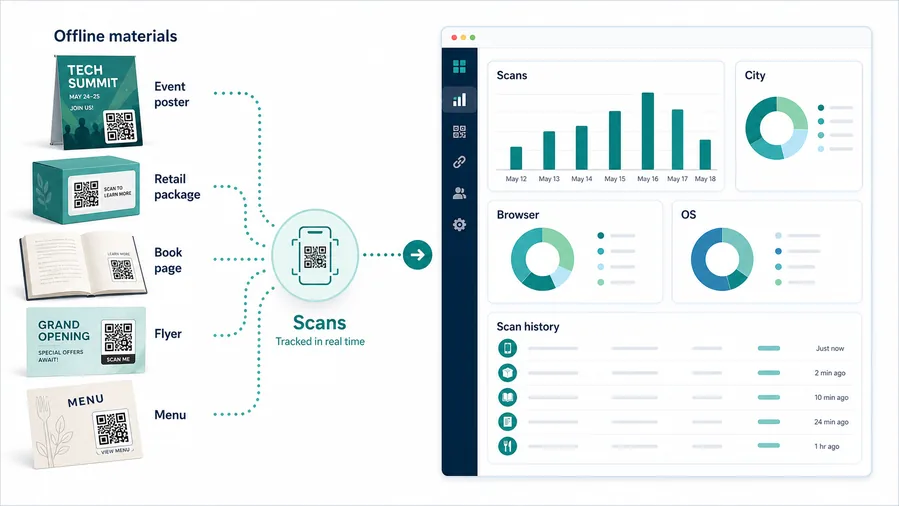
AnalyticsTracking helps understand which photo QR placements guests use, without treating scans as uploads, downloads, or print purchases.
One shared photo code hides the guest action
A single QR can show total scans, but it cannot tell whether guests wanted upload, gallery viewing, download, print orders, proofing, or messages.
It also cannot compare table signs, photo booth signs, thank-you cards, albums, and vendor cards.
Separate tracked codes make photo phases easier to read
Use different dynamic codes for upload, final gallery, proofing, prints, thank-you cards, and reviews when comparison matters.
Scan data is not the gallery activity itself, but it shows which printed prompts send people to the photo experience.
Scan volume
Review scans by upload sign, gallery card, thank-you note, album insert, booth sign, or vendor card.
Timing
Check activity during reception, after gallery delivery, around thank-you mailings, and near anniversary updates.
Broad location
Use approximate location signals to understand guest-region behavior without identifying individuals.
Device context
Confirm upload pages, galleries, downloads, and print shops work well on guest phones.
Upload participation
See whether reception signs and booth cards drive guests to the upload page.
Gallery delivery
Compare thank-you card, email insert, album card, and photographer delivery scans.
Print and album interest
Track print shop, album proofing, favorites, and download QR placements separately.
Cleanup old links
Find expired upload folders, moved galleries, old password pages, and retired print links still receiving scans.
Name wedding photo QR codes by event phase and photo action
Use names like reception-upload, booth-gallery, thankyou-final-gallery, album-proofing, or print-order so reports stay useful.
Upload and gallery flow
Place wedding photo QR codes where guests are ready to share or remember
Useful placements include reception table cards, welcome signs, photo booth signs, programs, favor tags, thank-you cards, photographer cards, album inserts, and post-wedding mailers. CTAs should say upload your photos, open wedding gallery, download highlights, view photographer, share memories, or see photo booth album. Make it clear whether guests are uploading, viewing, or downloading.
Dynamic QR codes are practical because the destination may change over time. Before the wedding, it may open upload instructions. During the event, it may open a shared album. After delivery, it may open the official gallery or highlight film. Scan analytics can show whether guests used table cards, signage, or thank-you cards.
Protect guest trust and privacy. If the album is private, explain that on the landing page. If uploads require a form or account, keep the instructions short. A guest should not have to search through a full wedding website to find the photo action promised by the printed QR code. The scan should feel like an invitation to share, not another task.
Photo feedback
Ask for wedding photo feedback after gallery access and support are clear
ReviewsWedding photo reviews work best after the couple can access the gallery, understand downloads, request help, and review the delivery experience.
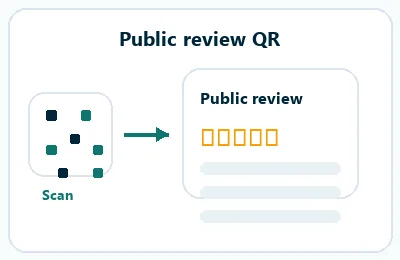
Invite reviews after the gallery is delivered
Use delivery cards or thank-you follow-up when the couple can judge communication, wedding-day presence, editing, delivery, and support.
Final gallery delivery, album proofing, print order follow-up, and photographer thank-you cards. Do not ask for public praise before access, download, or edit questions are resolved.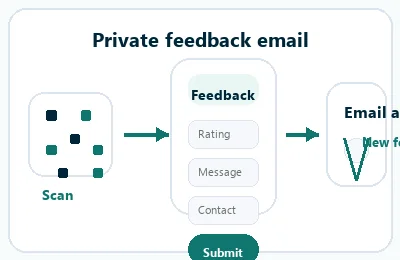
Keep private support visible for gallery issues
Offer private feedback for missing photos, password trouble, download confusion, print questions, album revisions, or privacy concerns.
Gallery cards, album inserts, proofing pages, and delivery notes. Private support should be easy to find beside review prompts.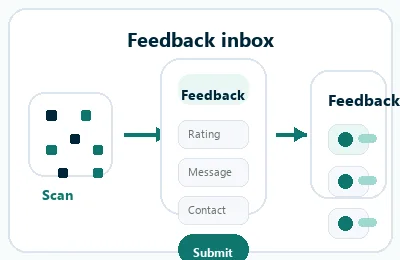
Invite referrals after the couple has the final value
After support is clear, suggest testimonials, referrals, vendor recommendations, anniversary sessions, or album upgrades.
Review confirmation, album delivery, thank-you cards, and final gallery pages. Keep promotion separate from urgent gallery or privacy support.Wedding photo review QR codes should protect trust around private memories
The scan should make support easy before asking for public praise or referrals.
Scan trust
Make wedding photo QR codes trustworthy before guests upload or open private galleries
TrustWedding photo QR codes may open guest uploads, private galleries, downloads, print shops, proofing, payments, reviews, and messages. The destination should clearly match the couple or photographer.

Anonymous upload pages
Guests may hesitate to upload personal photos if the page does not show the couple, date, photographer, or event context.
Watch for similar-looking domains, long URLs, login or verify keywords, and pages asking for credentials after an unexpected scan.
Private gallery confusion
Gallery links need clear access, password, download, sharing, and support instructions so guests do not land on a blank or suspicious page.
A trustworthy QR should not make the final destination mysterious, especially on posters, labels, menus, parking signs, or event materials.
Moved folders and expired links
Upload folders, gallery pages, print shops, and password pages can change after cards are printed.
Before paying, check the domain, HTTPS, amount, recipient, and whether the destination matches the place or brand that printed the QR.Scan the printed proof before people rely on it
Confirm the destination shows the right brand, couple, event, gallery, form, booking page, payment page, or support path before distributing print.
A QR code removes typing, but the page still has to prove that it belongs to the event, creator, or business.Decoded destination
Check whether the QR opens the current upload, gallery, proofing, print, download, message, or support page.
Event identity
Confirm the page shows the couple, wedding date, photographer, or event name before upload or download.
Privacy context
Explain who can view uploads, whether a password is needed, and how photos may be shared.
Support path
Show help for upload failure, missing photos, password issues, download rights, and print orders.
Publish QR codes people can verify
The printed CTA, destination title, brand identity, and first action should all describe the same promise.






