
Printable QR Code Design Generator for Scan-Safe Layouts
Design printable QR codes for labels, packaging, menus, flyers, posters, and business cards. Keep contrast, quiet zone, frame style, and export quality scan-safe for real print runs.
Free QR code generator
Create a QR code online
Generate QR codes for websites, email, phone numbers, vCards, Wi-Fi, plain text, forms, PDF files, and campaign links. Customize colors, add a logo or frame, then download a print-ready PNG or SVG.
Choose QR code type
Website QR code, Email QR code, Phone QR code, vCard QR code, Wi-Fi QR code, Text QR code, SMS, WhatsApp, event, and download links.
Add your content
Enter your website URL, contact details, message, phone number, location, or file destination before generating the QR code.
Customize and download
Adjust QR colors, error correction, logo, frame, size, and margin. Generate QR Code, Download PNG, Download SVG, or Save and track scans.
Print-safe design path
Design printable QR codes around contrast, quiet zone, CTA visibility, logo use, size, and proof scanning
Printable QR code design is about making a QR code look intentional without making it harder to scan. This page focuses on visual decisions for printed QR codes: contrast, quiet zone, frame choice, call-to-action visibility, logo use, size, background separation, proof scanning, and export quality. It is for designers, print shops, brands, restaurants, packaging teams, creators, and marketers who need a QR code to feel like part of the layout rather than an afterthought.
This is different from simply generating a downloadable QR code. A print-safe design has to survive paper texture, ink spread, glossy surfaces, store lighting, distance, cropping, and real phone cameras. A logo can help branding, but it should not consume too much of the code. A frame can improve attention, but it should not invade the quiet zone. A CTA can increase scans, but it must stay readable at final size.
QR Code Lab creates QR code designs and URL QR codes. It does not validate every printed material or control the final printer, paper, finish, lighting, or placement. Proof scanning remains essential before production.
Print-ready QR moments
Use printable QR code design when the code has to survive real materials
Print QRA printable QR code is not only a styled image. It has to scan after export, resizing, trimming, lighting changes, glossy stock, folds, distance, and the small mistakes that happen in print production.
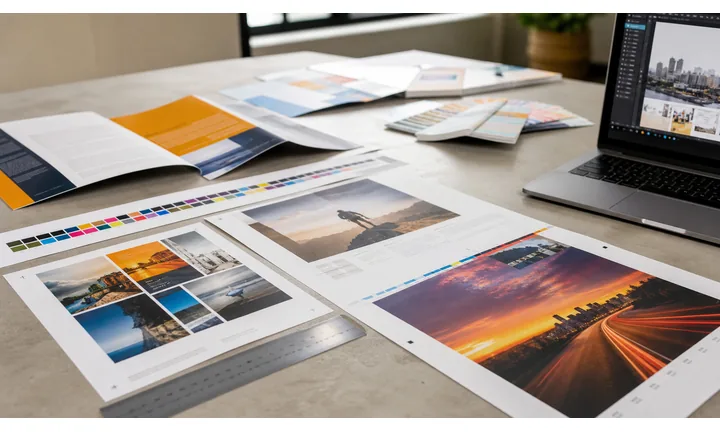
Design for the surface where the code will live
A QR code for a label, menu, business card, poster, table tent, package insert, manual, badge, or window sign needs different size, contrast, quiet zone, and call-to-action treatment.
The print context decides the scan constraints.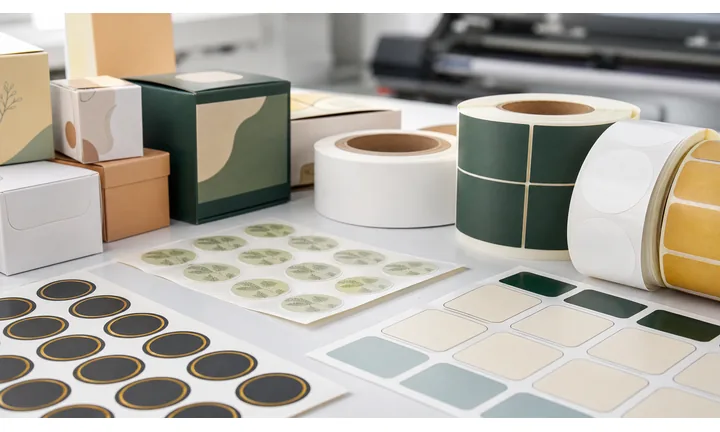
Keep branding subordinate to readability
Frames, logos, colors, and CTA labels can make the code feel intentional, but they should never crowd finder corners, reduce contrast, or make the scan target ambiguous.
A beautiful QR code that fails on paper is worse than a plain one.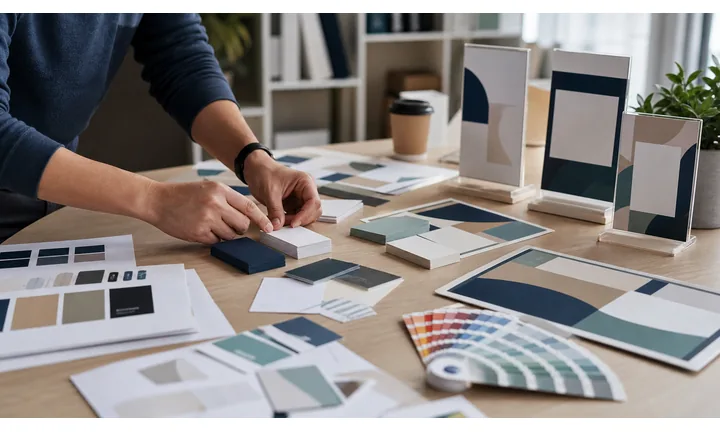
Test the exported file before the print run
Export SVG or PDF for professional layouts, print a real-size sample, scan it from the expected distance, and verify the destination on the same kind of phone your audience will use.
Testing catches expensive mistakes before paper, labels, and packaging are produced.Printable QR design should reduce reprint risk
The goal is not decoration. The goal is a code that remains readable, understandable, and useful after the artwork leaves the screen and becomes a physical object.
Use dynamic QR when the printed destination may need to change after production.Physical fit
Choose size, quiet zone, and placement for the actual viewing distance and material.
Brand control
Add logo, frame, color, and CTA only while contrast and finder corners stay clear.
Export safety
Use vector formats for professional print and avoid blurry raster files in large layouts.
Destination durability
Use dynamic QR for campaigns, menus, files, offers, or product pages that may change.
Branding without breaking scans
Design a printable QR code that looks intentional and still scans quickly
Design safelyPrintable QR design should make the scan area obvious, protect the quiet zone, and give people a clear reason to use the code while still fitting the brand system.
Add a frame so the code feels placed, not pasted
Before
A plain QR code can work, but on a flyer, label, package, or social graphic it may look like an afterthought with no clear scan area.
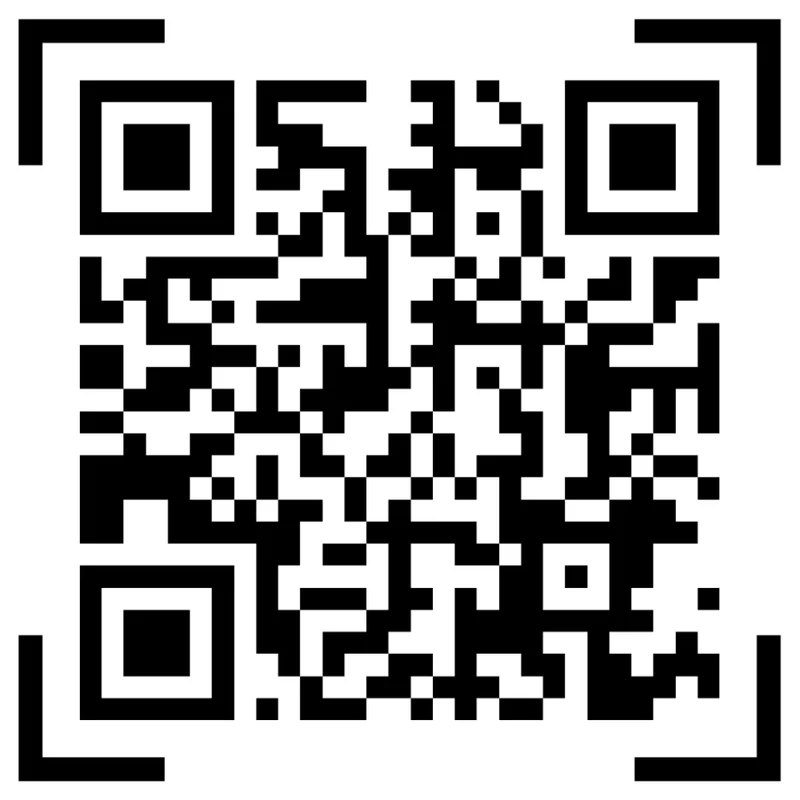
After
A clean frame separates the code from the layout, protects the quiet zone, and gives room for a short CTA such as scan for menu, get the PDF, or save contact.
Use color and logo only when readability stays strong
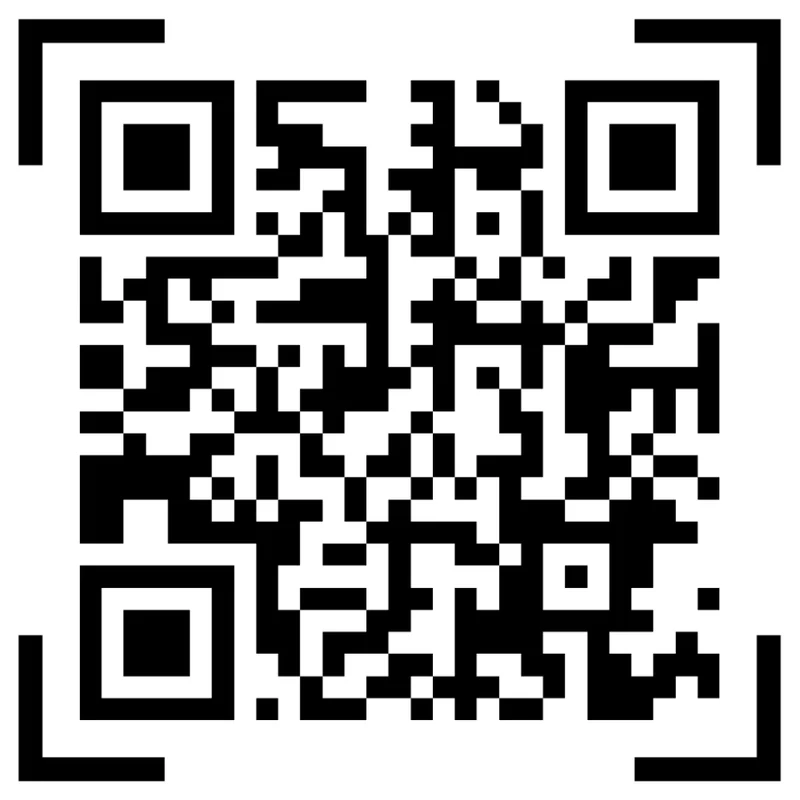
Risk
Low contrast colors, oversized logos, decorative patterns, and busy backgrounds can make a QR code feel branded while making it harder to scan.
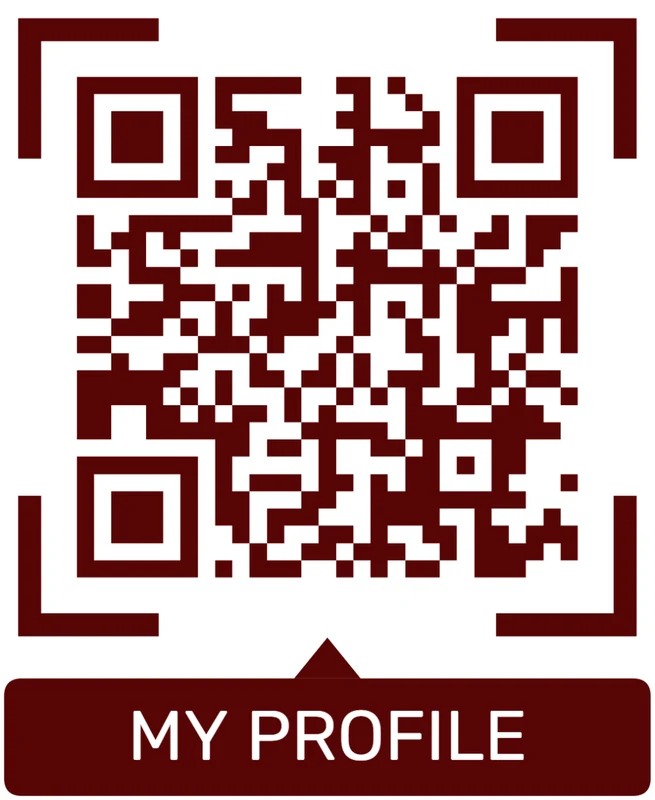
Better
Use strong foreground contrast, keep finder corners clear, leave a real quiet zone, and test the smallest printed size before sending the design to production.
Customize corners and modules
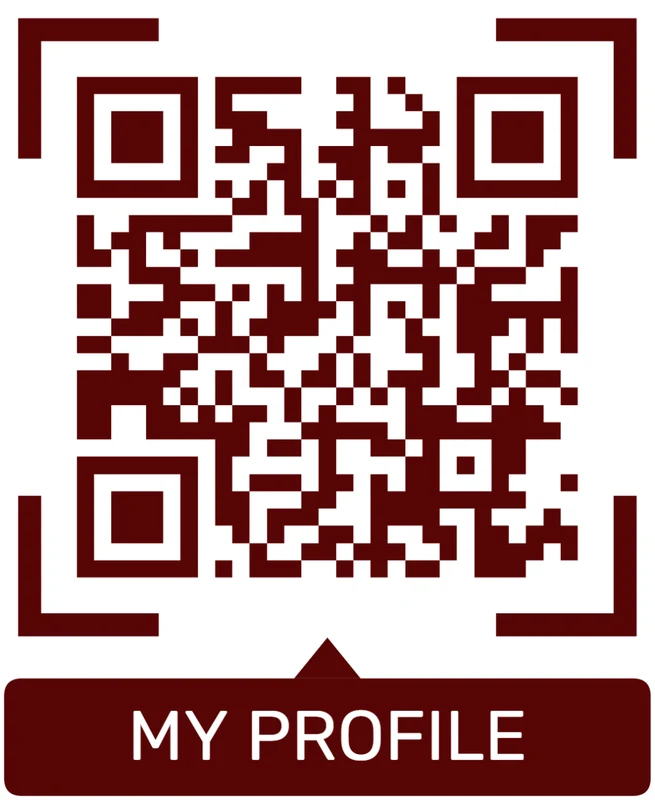
Standard pattern
A colored framed code already looks better, but it can still look like every other QR code.
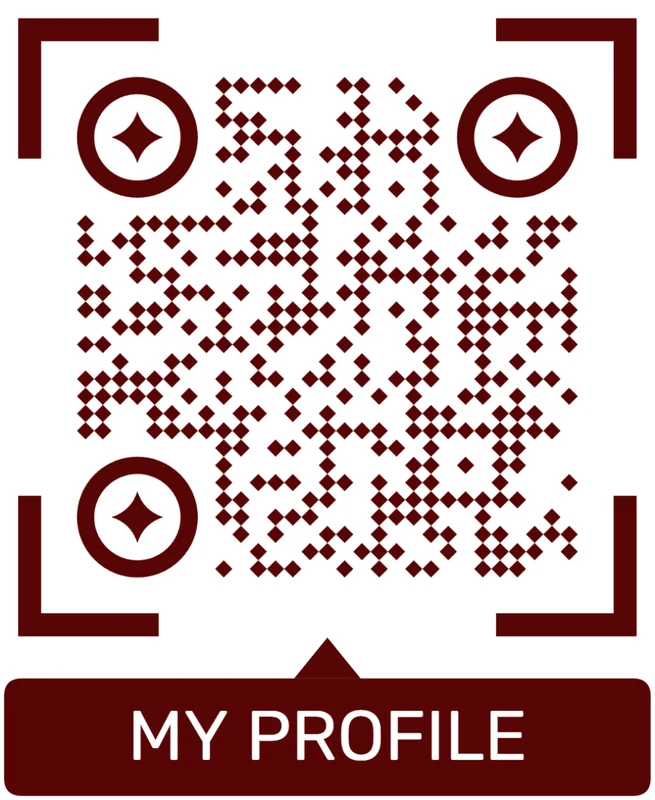
Custom eyes and module shape
Rounded modules, styled finder corners, and cleaner patterns can make the code feel premium. Keep the three corner markers clear.
Add a logo carefully
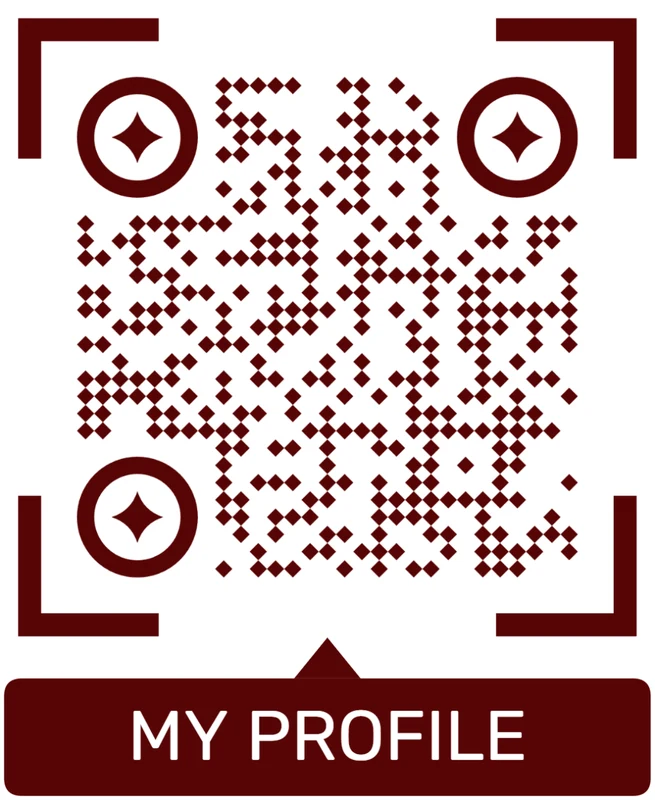
Styled QR code
A styled code can look polished, but people may still not know what brand, profile, file, or campaign it represents.
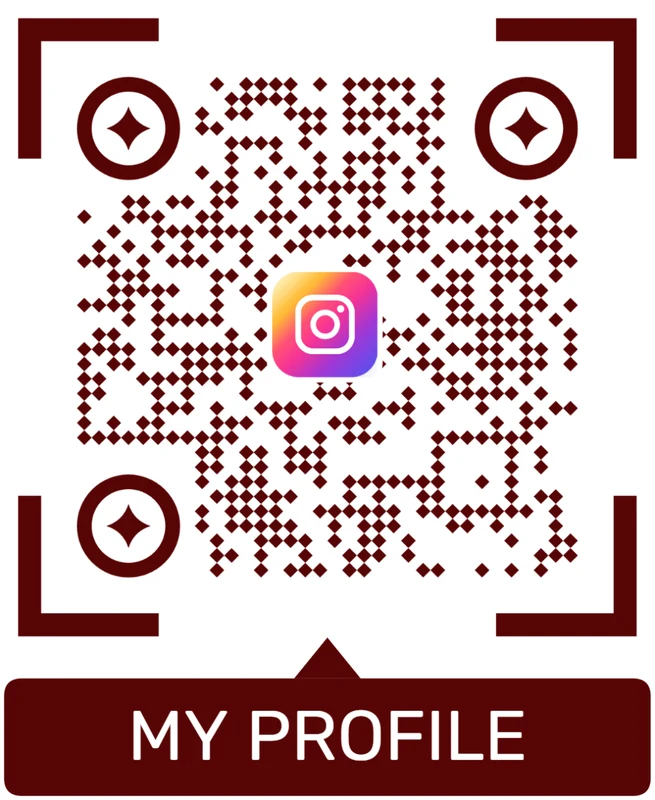
Logo QR code
A centered logo helps signal the destination. Keep it small, use a clean background behind it, and test the exported code.
Printable QR branding should make the scan more obvious, not more fragile
Add design elements only when they improve confidence, context, and recognition without reducing scan reliability.
Pre-print QA
Check the QR code, artwork, and destination before production
Print checkA print-ready QR code needs a practical handoff: correct destination, readable size, export format, naming, placement, and real scan tests before the file goes to a printer or production team.
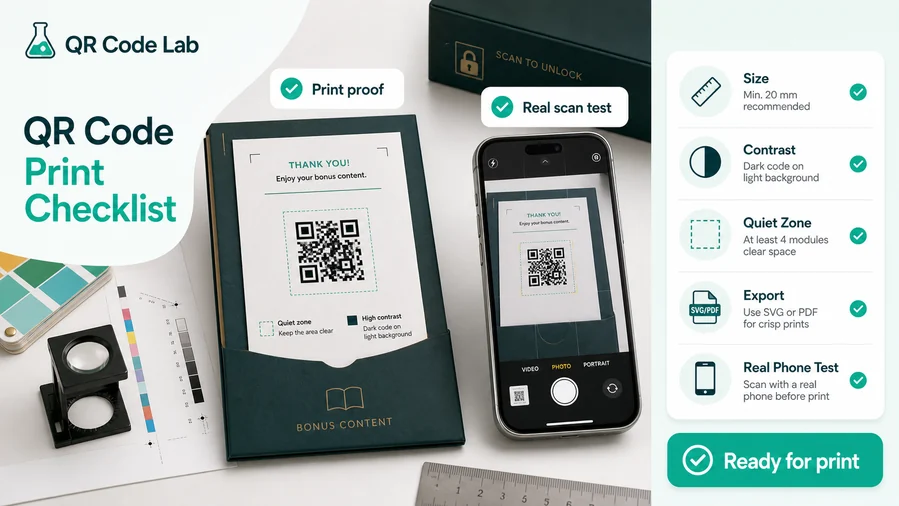
Make the printed code easy to scan
Start with the physical basics: give the QR code enough size for the viewing distance, keep a clean quiet zone around it, and use strong contrast between the code and the background. A decorative frame or brand color is fine only while the finder squares and the pattern remain clear.
Export SVG or PDF when the QR code goes into professional print layouts. Raster files can work for small jobs, but vector output protects sharp edges on packaging, books, posters, labels, inserts, and manuals. Avoid inverted colors unless you test them on several phones, because some combinations look stylish on screen and scan poorly on paper.
Test the scan like a reader or customer will
Do not test only the design file on your monitor. Print a sample at the real size, scan it with a phone from the likely distance, and check it under normal lighting. A QR code in a book margin, on glossy packaging, on a folded flyer, or behind a display window behaves differently from the same code on a bright screen.
When the printed material is expensive to replace, use a dynamic QR code. If the destination changes later, the printed code can keep working while the link, file, offer, feedback form, or microlanding page is updated in QR Code Lab.
Use a microlanding page when the scan needs more than one action
A direct URL is enough when every scanner should go to the same single page. For books, manuals, packaging, training material, event handouts, and product inserts, a microlanding page is often more useful because it can collect several clear actions behind one printed QR code.
In QR Code Lab you can make that page practical: upload a cover image or product image, add buttons for the main action, attach a PDF for reading, add a ZIP with bonus files, and include a feedback or contact path. The printed QR code stays simple, while the destination can present the exact next step the scanner needs.
Book bonus page
A QR code inside a book can open a mobile page with a cover image, downloadable PDF worksheets, a ZIP archive with templates or source files, and a feedback button for reader questions or reviews.
Manual or course materials
A printed lesson, workbook, or manual can link to updated examples, correction notes, extra exercises, downloadable files, and a support form without making the printed page crowded.
Packaging insert
A package card can lead to setup instructions, warranty registration, product care PDFs, recipe files, safety notes, or a review request, all arranged as clear mobile buttons.
Flyer or event handout
A flyer can open registration, schedule downloads, maps, speaker files, coupon PDFs, or a follow-up form, and the destination can be changed after the material is already distributed.
A clean pre-print check prevents expensive reprints
The safest QR design is the one that has been scanned from the real printed material before production begins.
Print placement
Place printable QR codes where the next action already makes sense
PlacementA printable QR code works best when the material, viewing distance, lighting, and user moment all support scanning. Good placement is a workflow decision, not only a layout decision.

Visible does not always mean scannable
A QR code on the far corner of a poster, near a fold, behind glare, or on a moving surface may look fine in the design file but fail in the real moment.
Placement has to respect how close people are, whether they can stop, and whether the phone is naturally available.
Put the code where the scanner already wants the next step
Better placement starts from the action: save a contact, open a menu, download a guide, register, review, reorder, get support, or learn more.
The QR belongs near the context that makes that action feel useful.
What just happened?
Purchase, unboxing, reading, waiting, receiving a card, viewing a sign, checking a label, or comparing a product.
What should happen next?
Open menu, download file, register warranty, leave review, book, reorder, save contact, get support, or view instructions.
Is the phone naturally available?
A receipt, table tent, manual, label, or card often performs better than a doorway people walk past quickly.
Is the value obvious in two seconds?
The CTA should clearly state what the scanner gets after the QR opens.
Receipt or checkout insert
Strong for reviews, loyalty signup, warranty registration, reorder links, feedback, and support because the purchase just happened.
Menu or table tent
Works when the person is seated, waiting, choosing, or ready to order and has time to scan.
Book page or back cover
Use the page where bonus files, errata, exercises, downloads, updates, or reader resources make sense.
Package insert or label
Place it where unboxing creates a question: setup, care, warranty, recipe, safety notes, replacement parts, or files.
Poster or sign
Increase size for distance and place the code where people can stop without blocking traffic.
Business card
Make the CTA direct: save contact, open portfolio, book consultation, or see current work.
Event badge or handout
Use QR for schedule, speaker files, feedback, networking, map, or follow-up resources.
Product display
Let shoppers open specs, comparisons, reviews, styling ideas, demos, or availability.
Printable placement should reduce scan friction
Choose the spot where the QR code answers the question the material just created.
Design and proof flow
Treat the final print environment as part of the QR design, not an afterthought
Useful print-safe decisions include using strong contrast, leaving a clean quiet zone, separating the code from busy backgrounds, choosing a frame with a clear CTA, keeping logo edits moderate, exporting at sufficient resolution, and testing at actual printed size. A code that scans on a bright monitor may fail on a small sticker, folded brochure, glossy label, dark menu, curved bottle, or dim restaurant table.
Dynamic QR codes add flexibility when printed campaigns change after launch, while analytics help compare placements. Still, the visual design must earn the scan first. Test with multiple phones, from the real scanning distance, under real lighting. If people will scan from a poster, test from poster distance. If they will scan a label, test the label on the actual product surface.
QR Code Lab helps create the QR and destination, while the designer or printer remains responsible for final layout, paper, finish, and production QA. The best print design is not the most decorative one; it is the one people notice, understand, and can scan without effort.






