
Check Printed QR Code Size, Contrast & Scan Reliability
Create and check printed QR codes for flyers, labels, packaging, menus, books, posters, stickers, receipts, and cards. Review size, quiet zone, contrast, URL, and scans first today.
Free QR code generator
Create a QR code online
Generate QR codes for websites, email, phone numbers, vCards, Wi-Fi, plain text, forms, PDF files, and campaign links. Customize colors, add a logo or frame, then download a print-ready PNG or SVG.
Choose QR code type
Website QR code, Email QR code, Phone QR code, vCard QR code, Wi-Fi QR code, Text QR code, SMS, WhatsApp, event, and download links.
Add your content
Enter your website URL, contact details, message, phone number, location, or file destination before generating the QR code.
Customize and download
Adjust QR colors, error correction, logo, frame, size, and margin. Generate QR Code, Download PNG, Download SVG, or Save and track scans.
QR solutions for this use case
Print proofing
Check the printed QR code before one small mistake becomes many copies
A printed QR code should be tested before it goes onto flyers, labels, packaging, menus, books, posters, stickers, receipts, or business cards. This page is for marketers, designers, print shops, packaging teams, restaurant owners, authors, event teams, and small businesses preparing production materials that cannot be fixed easily after printing.
The screen preview is only the first check. A QR code can look sharp in a design file and still fail when it is printed too small, placed on a glossy surface, wrapped around a curve, crowded by artwork, copied in low contrast, or scanned from too far away. The real test is the physical sample in the real size and material.
QR Code Lab creates clean QR assets and dynamic links when you need post-print control. It does not validate the final printed material for you. Test the exported code in context: size, quiet zone, contrast, scan distance, surface, lighting, destination URL, and mobile page. Do that before the full print run, not after the boxes arrive.
Print QA
Check printed QR codes before the print run leaves your control
Printed scan testA printed QR code should be tested on the final material, at the final size, under real lighting, and with the real destination before flyers, cards, labels, books, or signs are distributed.

Scan the physical proof, not only the screen preview
Print a sample at final size and scan it from the distance people will actually use. Paper texture, gloss, folds, curvature, and lighting can change a code that looked perfect in the design file.
The proof is the moment to catch scan problems cheaply.
Check the destination as part of the test
A printed QR can scan correctly and still fail the user if the page is slow, private, expired, wrong for mobile, or different from the printed call to action.
Printed QA includes the code, caption, and landing page together.
Use a checklist before approving mass print
Review contrast, quiet zone, minimum size, file format, placement, caption, redirect behavior, phone compatibility, and fallback instructions before production.
A small print test prevents expensive reprints.Printed QR testing is about the real scanning environment
The same QR code behaves differently on a glossy menu, small business card, curved package, folded flyer, window sign, book page, badge, or poster viewed from across a room.
Do not approve print from a zoomed-in monitor preview alone.Size
Match the code size to scan distance and the amount of detail in the QR pattern.
Contrast
Keep the code and background readable after ink, material, coating, and lighting are applied.
Quiet zone
Leave clean space around the QR so surrounding artwork does not interfere.
Destination
Confirm the first mobile screen matches the printed promise and loads without friction.
Proofing checklist
Run a real-world scan test before approving printed QR artwork
ChecklistPrinted QR codes fail most often because the test happened in the wrong environment. Use the actual size, material, placement, phone camera, and destination when checking the proof.
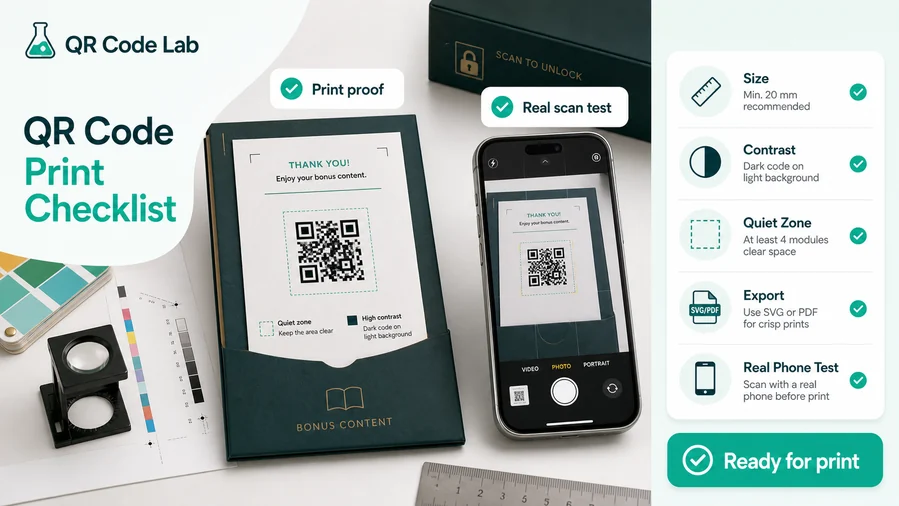
Check the physical code under realistic conditions
Print the QR at final size on the closest available material. Scan it from the expected distance, under normal lighting, with the code placed where it will actually live.
Test small cards, glossy flyers, package labels, signs, menus, book pages, badges, and stickers differently because each surface creates different scan conditions.
Confirm the scan opens the expected mobile experience
The page should load quickly, fit a phone, and match the printed CTA. If the print says “scan for menu,” the first screen should not be a broad homepage or a desktop-heavy landing page.
When the printed material is costly to replace, use a dynamic QR code so the destination can be corrected after launch.
Check the QR image and destination together
A clean scan is only half the job. The destination must be available, mobile-friendly, safe to open, and clear about the next action.
Test redirects, forms, PDFs, payment pages, booking pages, and downloads before printing because a broken destination is just as damaging as a bad QR image.
Flyer or poster
Test from the distance people will stand, not from a close-up design preview.
Business card
Check small size, quiet zone, matte or glossy finish, and contact-save behavior.
Package label
Scan on the real package shape, including curves, folds, laminate, and shelf lighting.
Menu or table card
Test in normal restaurant light, at seated distance, with the final menu destination.
Approve print only after the real proof scans cleanly
The final test should include the QR artwork, material, placement, caption, phone scan, and destination page in one pass.
Scan experience
Test the first three seconds after the printed scan
Scan UXAfter a printed QR scans, the first mobile screen should confirm the destination, match the printed promise, and make the next action obvious without zooming or searching.
The camera reads the code quickly
distance, lighting, quiet zone, contrastScan from the likely position: seated at a table, standing near a poster, holding a package, opening a book, or looking at a storefront sign.
If the scan requires awkward angles, extra zooming, or perfect lighting, fix the print before distribution.
The destination loads on a phone
redirect, PDF, form, menu, booking, paymentCheck speed, redirects, privacy warnings, login requirements, and mobile layout. A QR that opens a slow or confusing page will feel broken even if the code itself scanned.
Use a short, clear destination when the printed material is used in public or time-sensitive settings.
The page matches the printed call to action
menu, coupon, contact, file, RSVP, supportThe scanner should immediately see the promised action. If the printed caption says “download the guide,” the download should be obvious.
Unexpected homepages, expired campaigns, or buried forms weaken trust and make the print look careless.
Does it scan from the real distance?
Test from the physical position people will use, not from an ideal close-up.
Does the destination match the printed caption?
The first screen should confirm the exact action promised beside the QR.
Is there a fallback?
Use a short URL, staff instruction, or alternate path when the scan or destination fails.
A printed QR test ends only after the destination works
The code, caption, material, phone scan, and landing page should all pass before the printed asset is approved.
Production check
Test the physical sample, not only the screen preview
Print one sample and scan it with more than one phone. Test it under normal lighting, from the distance people will actually use, and at the angle the material creates. A poster, business card, bottle label, table tent, book page, and receipt all create different scan conditions. If the code only works when held perfectly still at your desk, it is not ready.
Look for boring problems first: missing quiet zone, weak contrast, tiny size, soft image export, oversized logo, glare, folds, curved packaging, busy backgrounds, or a destination that is slow on mobile. Fixing these before production is much cheaper than explaining a broken QR code after print.
Use dynamic QR codes when the destination may change after printing. The print test proves the image can be scanned; dynamic control helps keep the printed asset useful after the link, file, campaign, or landing page changes. Together, both checks protect the money already spent on production. A scan-safe code plus an editable destination is the safest pattern for serious print work.
Safety check
Check printed QR codes for trust problems before people scan them
SafetyPrinted QR codes can be copied, covered, replaced, or left in place after a campaign ends. Review the destination, printed context, and placement before exposing scanners to the link.

A pasted code can replace the real destination
Public signs, posters, menus, and donation materials should be checked for tampering, especially when payment, login, or personal information is involved.
Watch for similar-looking domains, long URLs, login or verify keywords, and pages asking for credentials after an unexpected scan.
Old print can keep opening expired pages
Campaign flyers, event posters, and labels may survive after the destination changes. Update dynamic links or remove outdated materials.
A trustworthy QR should not make the final destination mysterious, especially on posters, labels, menus, parking signs, or event materials.
The printed CTA can overpromise safety
Do not imply that scanning proves identity, payment, membership, or legitimacy. The destination and process still need verification where risk is high.
Before paying, check the domain, HTTPS, amount, recipient, and whether the destination matches the place or brand that printed the QR.Review the final printed destination
Scan the proof and confirm the URL, brand, page content, form behavior, payment path, and support route before the material goes public.
The current detailed report is a static URL analysis. It helps reveal the encoded content and basic URL risk signals, but it does not guarantee that a destination is safe and does not replace browser, antivirus, payment, or bank security checks.Decoded content
See the raw value inside the QR before opening it.
Content type
Recognize URL, Wi-Fi, mailto, phone, SMS, vCard, or plain text.
URL risk signals
Review HTTPS, shorteners, IP addresses, long URLs, encoded characters, query parameters, and sensitive keywords.
Destination report
For URL codes, view final URL fields, static redirect report fields, domain fields, TLS placeholders, page metadata fields, and risk reasons.
Keep responsibility attached to printed QR assets
Someone should own the destination after printing. Without ownership, old signs and files can keep sending people to broken, risky, or outdated pages.






