
QR Code Sticker Generator for Packaging, Bottles & Boxes
Create print-ready QR stickers for product labels, packaging, jars, bottles, shipping boxes, inserts, coupons, menus, and marketing. Keep contrast, padding, and size scan-safe today.
Free QR code generator
Create a QR code online
Generate QR codes for websites, email, phone numbers, vCards, Wi-Fi, plain text, forms, PDF files, and campaign links. Customize colors, add a logo or frame, then download a print-ready PNG or SVG.
Choose QR code type
Website QR code, Email QR code, Phone QR code, vCard QR code, Wi-Fi QR code, Text QR code, SMS, WhatsApp, event, and download links.
Add your content
Enter your website URL, contact details, message, phone number, location, or file destination before generating the QR code.
Customize and download
Adjust QR colors, error correction, logo, frame, size, and margin. Generate QR Code, Download PNG, Download SVG, or Save and track scans.
Sticker-ready QR path
Use QR code stickers when packaging, labels, inserts, coupons, menus, and support links need a durable scan point
A QR code sticker can open product pages, reorder links, support pages, menus, coupons, thank-you pages, social profiles, community links, warranty details, setup instructions, care guides, review links, or event information. It is useful for ecommerce brands, retailers, restaurants, product teams, packaging teams, print shops, and marketers who need a flexible QR placement without redesigning the whole package.
Sticker QR codes have different constraints from posters or cards. They may be small, glossy, curved around bottles or jars, placed on shipping boxes, added to inserts, or handled repeatedly. A sticker may sit on a busy package, near folds, under store lighting, or on a surface that bends. The design needs strong contrast, a clean quiet zone, enough size, and a CTA that still reads at the final sticker scale.
QR Code Lab can create URL QR codes and visual QR assets, but final sticker performance depends on material, ink, finish, surface, size, placement, and proof scanning. The linked ecommerce, support, menu, coupon, or social platform handles the destination.
Sticker QR moments
Use QR stickers when the code must survive real surfaces and quick scan moments
Sticker QRA QR sticker is useful when a product, package, window, laptop, asset, sample, event item, or counter needs a compact scan path to a specific action.

Turn a surface into a useful shortcut
Place QR stickers on packaging, samples, equipment, folders, signs, jars, bottles, merch, event materials, and counters when the physical item should open support, setup, offer, menu, profile, or product information.
The sticker CTA should say what the scanner gets before the phone comes out.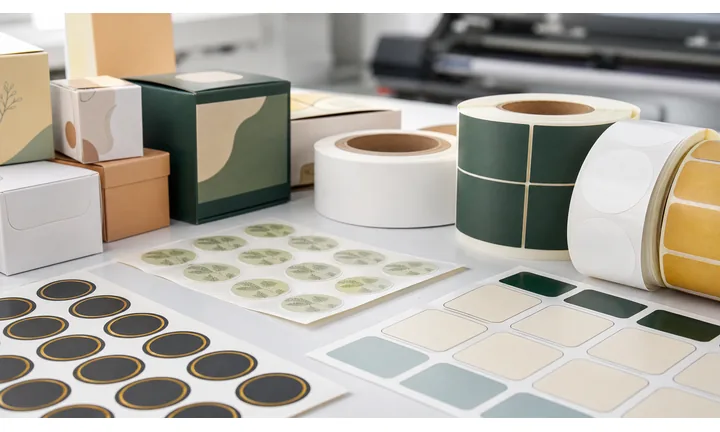
Design for the material, not only the mockup
Sticker scans depend on size, adhesive placement, surface curve, glare, abrasion, weather, and nearby artwork. A code that works in a preview can fail when printed small or placed on a difficult surface.
Proof the sticker where it will actually live.
Keep sticker destinations editable when the surface lasts
Dynamic QR helps when stickers remain on products, shelves, windows, equipment, or printed assets while URLs, manuals, offers, menus, and support pages change.
The sticker can stay in place while the destination is updated.A QR sticker should make the surface more useful
The scanner is close to a real object or place. The destination should answer the reason the sticker exists: setup, support, care, reorder, check-in, menu, offer, registration, guide, review, or contact.
Use separate sticker codes when surfaces, batches, locations, or campaigns need different destinations or reporting.Object context
Match the destination to the product, asset, package, sample, sign, or place where the sticker is applied.
Physical durability
Check size, material, contrast, glare, abrasion, weather, and curve before printing a batch.
Clear scan promise
Use short CTA copy such as setup guide, reorder, scan for menu, claim offer, or get support.
Editable routing
Use dynamic QR when sticker destinations may change after application.
Sticker actions
Make QR stickers open the action tied to the object or place
Action pathQR stickers work best when the scan solves a local question: what is this, how do I use it, where do I reorder, what offer applies, how do I get help, or what should happen next.
Open setup, care, or instructions
Use stickers on products, devices, packaging, tools, folders, or kits when scanners need manuals, videos, care notes, safety steps, or installation help.

Route to support or service
Apply stickers to equipment, assets, desks, doors, or service items so customers or staff can open help, maintenance, warranty, or contact paths.

Drive reorder or product discovery
Use product stickers, samples, shelves, and packaging to open the right item page, replacement part, refill, subscription, or accessory.

Connect events and campaigns
Put stickers on badges, handouts, booths, tables, posters, or merch when the scan should open registration, agenda, community, coupon, or follow-up.

Make locations easier to act on
Use stickers for Wi-Fi, menus, booking, reviews, maps, checklists, safety notes, feedback, and local service requests where people pause.
The scanner should know why the sticker is there
A small QR sticker needs direct copy. Say open setup guide, scan for menu, get support, reorder this item, claim offer, or leave feedback instead of relying on curiosity.
Sticker codes are easier to manage when they are named by surface
Dynamic QR stickers can be grouped by product, location, batch, campaign, team, or material so destination updates and scan reports stay understandable later.
Choose sticker placement by the action moment
Sticker print check
Proof QR stickers on the exact surface before printing the batch
Print readyStickers introduce scan risks that flat paper does not: small size, curved surfaces, glossy finish, abrasion, outdoor exposure, and placement near busy artwork or edges.
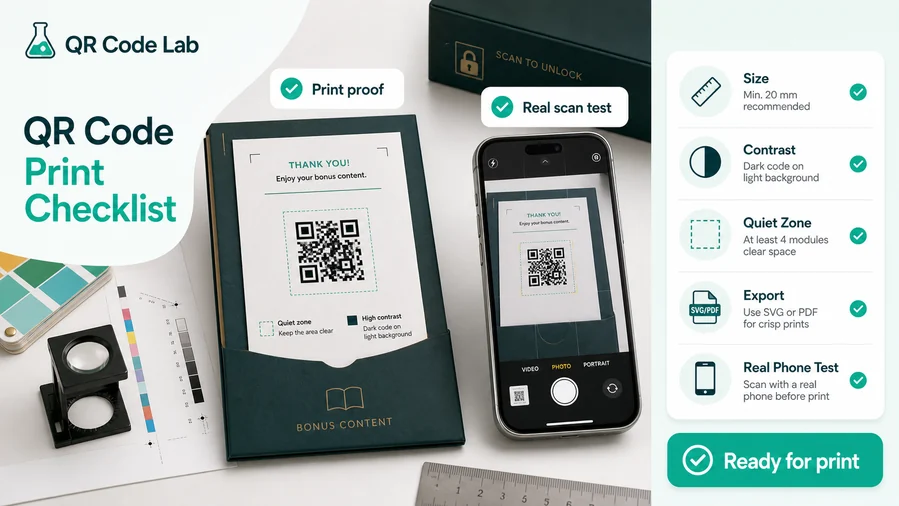
Test the smallest sticker where it will be applied
A sticker on a bottle, laptop, window, product box, tool, or shelf can behave differently from the same QR code on a white proof sheet.
Apply a sample to the real surface, scan from a natural angle, and check glare, curve, texture, edge placement, and nearby graphics.
Protect the QR pattern from print and material problems
Use vector output for professional sticker files, keep the quiet zone clear, and avoid placing the QR too close to cut lines, folds, seams, or rounded edges.
Choose strong contrast and durable material when the sticker may face handling, cleaning, sunlight, moisture, or outdoor use.
Use a mobile destination that matches the sticker location
A QR sticker on a product should not open the same thing as a QR sticker on a counter or event badge unless the scan moment is truly the same.
Use a focused mobile page when one sticker needs buttons for setup, support, documents, contact, reorder, review, and fallback actions.
Product sticker
Open setup, care, warranty, authenticity, safety, reorder, or support tied to the exact item.
Counter sticker
Open menu, Wi-Fi, booking, review, payment link, coupon, or feedback where people can act immediately.
Equipment sticker
Open maintenance guides, checklists, service request forms, manuals, or internal contact paths.
Event sticker
Connect badges, handouts, booths, and merch to agendas, maps, communities, offers, or follow-up content.
Print QR stickers only after a real surface scan test
The sticker is ready when the applied sample scans quickly, survives the intended material, and opens the right mobile action.
Sticker design
Design QR stickers to be compact, clear, and durable
Sticker designSticker design has to balance brand, CTA, size, material, and scannability in a small space that may be touched, curved, moved, or exposed.
Separate the QR from the sticker artwork
Crowded
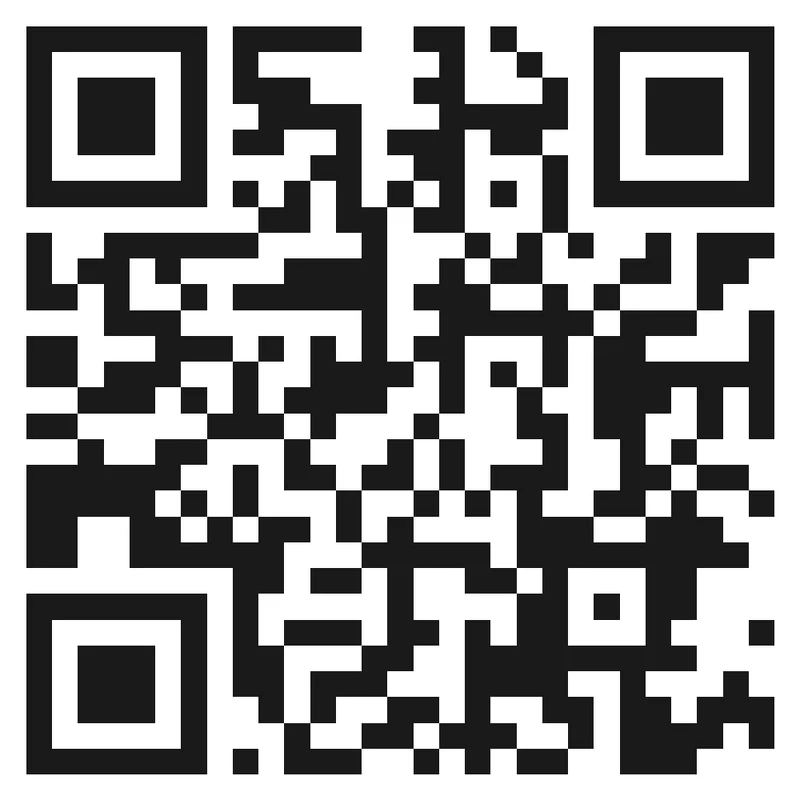
A QR code squeezed into a decorative sticker can lose quiet zone, contrast, and visual priority, especially at small sizes.
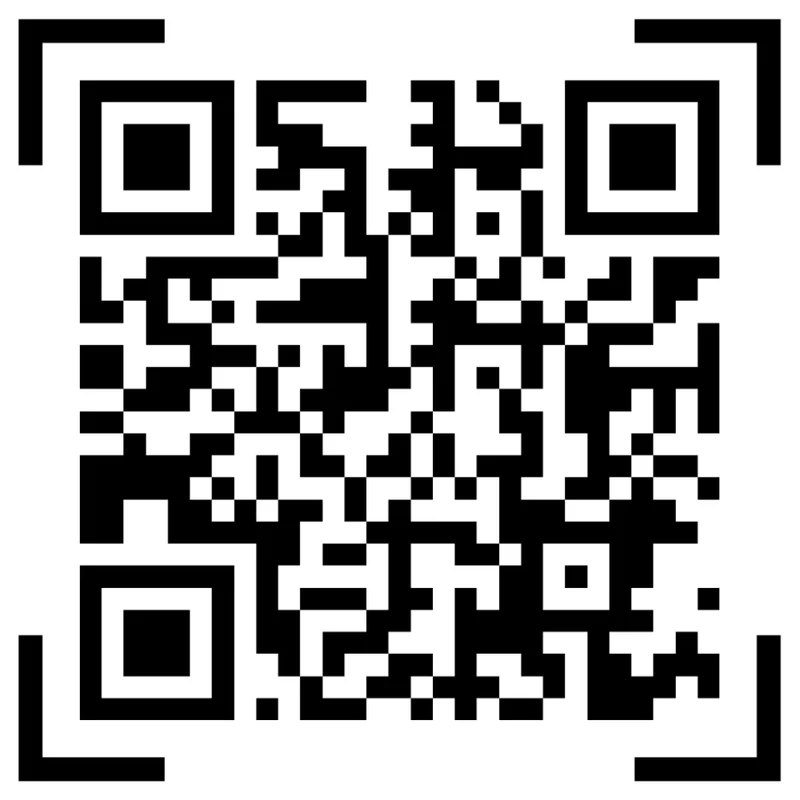
Clear
A simple frame, clean background, and short CTA make the sticker easier to understand while keeping the pattern readable.
Use brand style where it does not weaken the scan
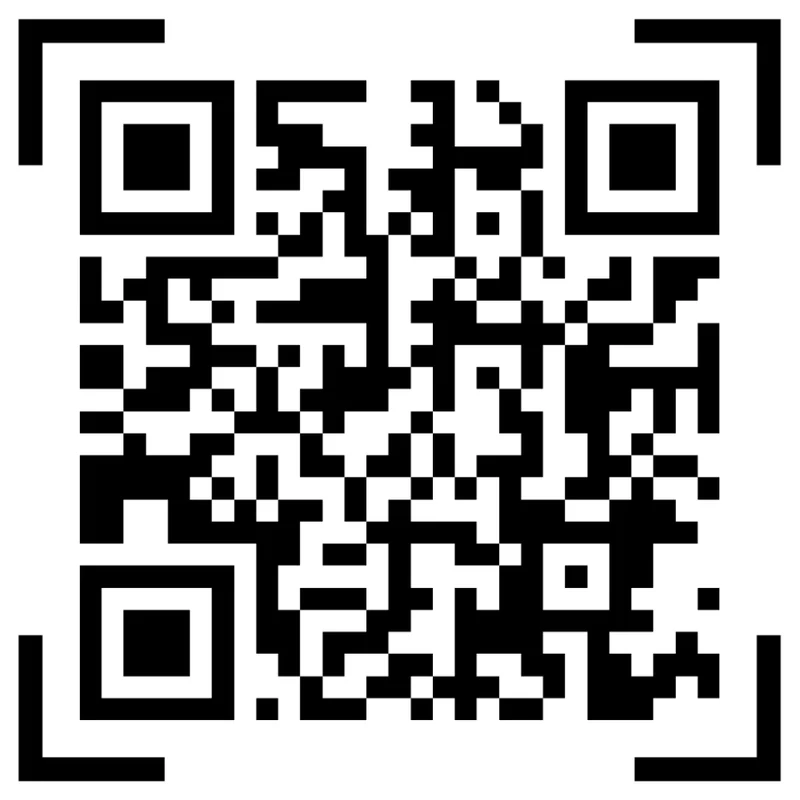
Risk
Low contrast brand colors, tiny labels, glossy coating, and oversized logos can turn a useful sticker into a slow scan.

Proofed
Keep finder corners clear, make the CTA readable, and test the sticker after applying it to the final surface.
Customize corners and modules

Standard pattern
A colored framed code already looks better, but it can still look like every other QR code.

Custom eyes and module shape
Rounded modules, styled finder corners, and cleaner patterns can make the code feel premium. Keep the three corner markers clear.
Add a logo carefully

Styled QR code
A styled code can look polished, but people may still not know what brand, profile, file, or campaign it represents.
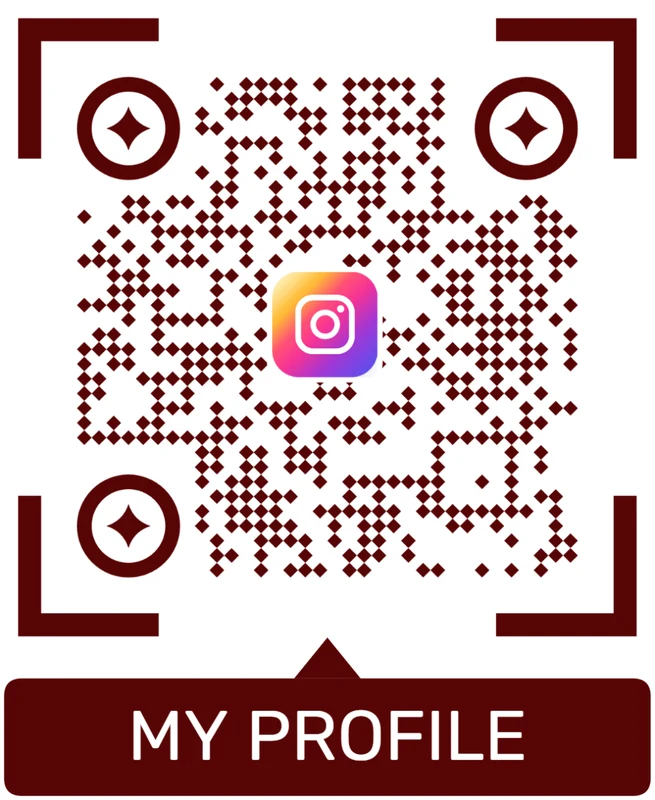
Logo QR code
A centered logo helps signal the destination. Keep it small, use a clean background behind it, and test the exported code.
A QR sticker should look intentional without sacrificing speed
Use design to explain the scan and protect durability, not to crowd the code with decoration.
Sticker placement
Place QR stickers where the scan answers the immediate question
PlacementQR stickers work because they can be applied close to the object, surface, or service moment. Placement should follow the action people are ready to take.

A sticker can be visible and still feel random
A QR sticker on a surface with no CTA or obvious benefit may be ignored even if it is easy to see.
The placement should answer what the person is doing now: opening, comparing, waiting, installing, checking out, requesting help, or reordering.
Put the sticker beside the useful next step
Use QR stickers where the phone is naturally available and the scanner understands why the destination matters.
A sticker near the action can outperform a larger code placed where people only pass by.
What surface carries the sticker?
Product, package, counter, table, window, shelf, asset, device, folder, badge, handout, or sign.
What should happen next?
Setup, support, reorder, menu, Wi-Fi, booking, review, offer, registration, checklist, guide, or contact.
Will the sticker survive the environment?
Consider handling, cleaning, moisture, sunlight, curve, abrasion, adhesive, glare, and replacement difficulty.
Does each placement need its own reporting?
Use separate dynamic QR stickers when products, locations, teams, campaigns, or surfaces should be compared.
Product surface
Open setup, care, safety, authenticity, support, reorder, or product education while the item is in hand.
Package or insert
Connect unboxing to warranty, registration, manual, review, bonus content, or customer support.
Counter or table
Open menus, Wi-Fi, booking, reviews, payment links, coupons, or feedback while people are paused.
Window or door
Use for hours, booking, menu, map, offer, event, or contact when the CTA is visible from the approach.
Shelf or display
Help shoppers compare options, see details, claim offers, request help, or open product pages.
Equipment or asset
Open manuals, checklists, service requests, maintenance logs, safety notes, or internal documentation.
Event material
Put stickers on badges, booths, handouts, posters, or merch for agenda, map, community, or follow-up.
Shipping or return area
Route customers to tracking help, return instructions, setup start pages, or post-delivery support.
Sticker placement should make the scan feel obvious
Use the sticker where it turns the physical surface into a clear, useful mobile action.
Material and surface flow
Design QR stickers around final material, scan distance, surface shape, and one clear user action
Useful sticker placements include jars, bottles, boxes, sleeves, bags, product inserts, thank-you stickers, shipping boxes, menu stickers, coupon labels, support stickers, and community cards. CTAs should be short: scan for menu, reorder here, get support, view care, claim coupon, watch setup, or join community. A sticker has less room for explanation, so the destination promise must be direct.
Before ordering stickers, test the QR code at real size on the intended material. Glossy finishes can create glare, matte materials can soften detail, and curved surfaces can distort the code. If the sticker will be applied by hand, allow enough room so it is not placed over a fold, seam, or corner. Small production mistakes can hurt scan reliability.
Dynamic QR codes are useful when the linked offer, support page, menu, or product page may change after printing. QR Code Lab manages destinations and scan reporting, while print QA remains a production responsibility. Save the tested sticker size and material notes so the next batch repeats the working setup.
After-application control
Use dynamic QR stickers when the destination may change after application
DynamicOnce a sticker is applied to a product, window, package, shelf, asset, or event item, replacing it can be slow or messy. Dynamic QR keeps the destination editable.
A fixed sticker link can age while the sticker stays in place
Static QR is fine for permanent content, but stickers often point to pages, forms, files, menus, or offers that change.
When the destination moves, every applied sticker keeps opening the old path until the physical sticker is replaced.
Editable routing keeps applied stickers useful
Dynamic QR lets the same sticker open updated support, setup, reorder, menu, event, campaign, or fallback destinations.
It also helps compare scans by surface, product, batch, location, event, or campaign when sticker placement matters.
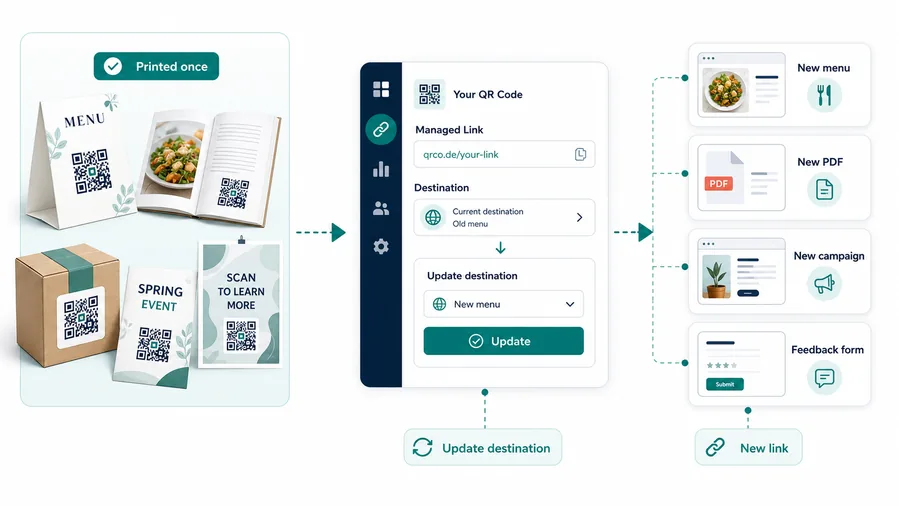
Products and packaging
Update setup guides, manuals, warranty, support, safety notes, care, and reorder destinations.
Counters and storefronts
Rotate menus, booking links, offers, review pages, feedback forms, and local service actions.
Assets and equipment
Move stickers to current maintenance checklists, service forms, documentation, and contact paths.
Events and campaigns
Change agenda, map, community, sponsor, coupon, giveaway, and follow-up links after the event stage changes.
Use dynamic when the sticker is harder to replace than the link
If the sticker will stay on a real surface for weeks or months, keep the destination editable and name the code by placement.
Template and production flow
Reserve scan-safe space first, then add CTA, brand, and product context
This page is about layout, not just QR generation. The important question is how the QR code, CTA frame, brand colors, quiet zone, sticker shape, and supporting text fit on the final sticker. A round jar sticker has different limits than a rectangular shipping label. A bottle label may curve. A thank-you insert can carry a longer CTA. A tiny support sticker may need only a short line and a very clean code.
Useful sticker templates include reorder stickers, support stickers, menu stickers, product care stickers, warranty stickers, setup-video stickers, social-follow stickers, coupon stickers, and package insert stickers. CTAs should be short enough for the format: scan for details, reorder, watch setup, claim offer, get support, or join us. The template should leave a clean quiet zone even when product text and branding are nearby.
Test the template in the exact size and shape that will be printed. Curved bottles, small labels, die cuts, glossy coatings, and busy packaging can all reduce readability. If the same sticker template will be reused, keep the QR area stable so later edits to copy or branding do not slowly squeeze the code.
A dynamic QR code can protect the destination after stickers are produced, but it cannot fix a cramped template. QR Code Lab manages the code and destination; the template owner manages production layout and final scan checks. Keep one printed proof as the approved reference before ordering more stickers.
Separate the QR from the sticker artwork
A QR code squeezed into a decorative sticker can lose quiet zone, contrast, and visual priority, especially at small sizes.
A simple frame, clean background, and short CTA make the sticker easier to understand while keeping the pattern readable.
Use brand style where it does not weaken the scan
Low contrast brand colors, tiny labels, glossy coating, and oversized logos can turn a useful sticker into a slow scan.
Keep finder corners clear, make the CTA readable, and test the sticker after applying it to the final surface.