
Workshop QR Code Generator for Registration, Handouts & Training Links
Create workshop QR codes for registration, agendas, handouts, worksheets, maps, feedback forms, slide decks, resources, and certificates. Ready for print and digital use.
Free QR code generator
Create a QR code online
Generate QR codes for websites, email, phone numbers, vCards, Wi-Fi, plain text, forms, PDF files, and campaign links. Customize colors, add a logo or frame, then download a print-ready PNG or SVG.
Choose QR code type
Website QR code, Email QR code, Phone QR code, vCard QR code, Wi-Fi QR code, Text QR code, SMS, WhatsApp, event, and download links.
Add your content
Enter your website URL, contact details, message, phone number, location, or file destination before generating the QR code.
Customize and download
Adjust QR colors, error correction, logo, frame, size, and margin. Generate QR Code, Download PNG, Download SVG, or Save and track scans.
QR solutions for this use case
Workshop learning path
Give participants the right workshop material at the right moment
A workshop QR code is useful when participants should open registration pages, agendas, handouts, worksheets, maps, feedback forms, slide decks, resource folders, recordings, certificates, or next-step pages from flyers, signs, slides, workbooks, badges, worksheets, or follow-up cards. It keeps workshop materials practical without forcing people to type long links.
The strongest workshop QR codes follow the session flow. A flyer can open registration. A room sign can open agenda and location notes. A worksheet can open supporting files. A slide can open the deck or resource folder. A closing card can open feedback and certificate instructions. A follow-up handout can open recordings, templates, or next steps. The scan should help participants continue the activity, not send them to a generic homepage.
QR Code Lab creates URL QR codes, dynamic destinations, and scan analytics. It does not collect registrations, host every file by itself, manage feedback, issue certificates, or store learner records. Your registration platform, file host, LMS, form provider, certificate tool, or event website handles the actual workshop workflow.
Workshop learning moments
Use workshop QR codes to connect training rooms to materials, signup, and follow-up
Workshop QRA workshop QR should open the exact learning action participants need: registration, agenda, worksheet, slide deck, exercise files, attendance form, feedback, certificate, replay, or next session.

Move participants from print to the right resource
Use QR codes on flyers, sign-in sheets, workbooks, slides, posters, name badges, and handouts to open the workshop material that matches the moment.
The printed CTA should say register, download workbook, open exercise, or give feedback.
Support learning before, during, and after the session
A workshop QR can deliver prework, agenda, room details, live exercises, shared files, instructor notes, replay, certificate, and follow-up resources without bloating the printed handout.
The same topic may need different QR paths by stage.
Keep training materials editable
Dynamic QR helps when slide links, worksheets, examples, forms, certificates, replay pages, and follow-up offers change after handouts or posters are printed.
Training content improves after every cohort.A workshop QR should help people learn without losing the room
Participants are often in a live session, holding a handout, watching a slide, or trying to complete an exercise. The QR destination should be direct, mobile-friendly, and aligned with the instructor’s next step.
Use separate codes when registration, exercises, feedback, certificates, and replay need different destinations.Registration and attendance
Open signup, check-in, waitlist, attendance confirmation, and calendar details.
Learning materials
Provide agenda, slides, workbook, examples, downloads, exercise files, and prep notes.
Live support
Connect participants to instructions, troubleshooting, room notes, instructor contact, and shared links.
Follow-up
Route to feedback, replay, certificate, next session, consultation, or resource library.
Events, conferences, and weddings
Match workshop QR codes to the learning action happening now
Attendee flowWorkshop QR codes should be stage-specific: promote the session before it starts, guide participants during exercises, and keep resources accessible after the room clears.

Register or check in
Use flyers, door signs, and sign-in tables for registration, waitlist, attendance, room details, and calendar reminders.

Open the workbook or slides
Send participants to the exact PDF, slide deck, worksheet, template, or reference sheet for the session.

Launch exercises and files
Use QR codes on slides or handouts for datasets, code files, examples, tools, prompts, templates, or shared folders.

Collect feedback and proof of completion
Route to survey, quiz, certificate claim, attendance confirmation, or next-step recommendation after the session.

Continue learning after the workshop
Open replay, resource library, community invite, consultation, next class, or implementation checklist.
Participants need the resource that matches the instructor’s moment
The first screen should confirm session title, resource type, and expected action before showing links.
Workshop teams need materials that can improve after print
Dynamic QR protects handouts, slides, posters, and workbooks when files or follow-up pages change.
Match workshop QR placement to training stage
Schools, classrooms, workbooks, and textbooks
Use workshop QR codes to organize resources around the learning path
Learning accessA workshop page can hold registration, prep, live exercises, downloads, replay, certificate, survey, and next lesson without making participants chase links across channels.

Prework and agenda
Open prep tasks, required accounts, agenda, time expectations, audience level, and what participants should bring.

Slides and workbook
Give participants the exact deck, PDF, worksheet, workbook, or note-taking template for the current session.

Exercise files
Share datasets, examples, templates, code files, prompts, checklists, or project files used during the workshop.

Live participation
Route to polls, shared boards, Q&A forms, chat links, attendance forms, and instructor support.

Reference library
Keep reading links, tool lists, sample projects, glossary, and follow-up resources in one mobile-friendly page.

Replay and recap
After the session, open recording, transcript, summary, slides, answers, and implementation checklist.

Certificate or assessment
Send participants to quiz, completion form, certificate claim, or continuing education details.

Next learning step
Offer next session, cohort signup, consultation, community, office hours, or advanced material.
Participants need resources at the exact training moment
The QR page should reduce context switching so the learner can stay with the session.
Instructors need one link system that can evolve
Dynamic destinations let teams revise examples, files, recordings, and follow-up pages without replacing printed workbooks.
Place workshop resource QR codes by learning stage
Workshop placement
Place workshop QR codes where participants need the next resource
PlacementWorkshop placement should match the learning moment: registration flyer, room door, sign-in table, slide, handout, workbook page, exercise sheet, or post-session card.

A generic workshop QR becomes another link to hunt through
Participants should not scan a code and then search for the right file, form, or exercise.
The printed CTA should match the immediate task.
Put the QR beside the exact training step
Use registration flyers for signup, door signs for check-in, slides for exercises, workbook pages for files, and closing cards for feedback.
The first screen should confirm the session and resource.
What stage is the workshop in?
Promotion, check-in, agenda, live exercise, file download, feedback, certificate, replay, or next session.
What should open first?
Registration, workbook, slide deck, exercise files, poll, support, survey, certificate, or replay.
Will materials change?
Use dynamic QR for revised slides, files, forms, recordings, certificates, and resource libraries.
Is the CTA specific?
Print download workbook, open exercise files, complete feedback, claim certificate, or get replay.
Workshop flyer
Open registration, agenda, instructor, date, location, and who should attend.
Door sign
Use for check-in, room notes, Wi-Fi, attendance, and late-arrival instructions.
Sign-in table
Open attendance form, materials, agenda, and support contact.
Slide deck
Send participants to polls, exercise files, templates, and live resources.
Workbook page
Place QR beside the exercise, checklist, or file needed for that page.
Handout
Open slides, examples, replay, resource library, and next learning step.
Feedback card
Route to survey, certificate, replay, and follow-up offer.
Training room poster
Use for Wi-Fi, agenda, support, office hours, and community invite.
Workshop QR placement should keep the session moving
If participants still need to ask where the file or form is, the QR destination is not specific enough.
Scan reporting
Use workshop QR analytics to compare materials and training moments
AnalyticsTracking is useful when flyers, sign-in sheets, workbooks, slides, exercise pages, feedback cards, and replay links need separate scan readouts.
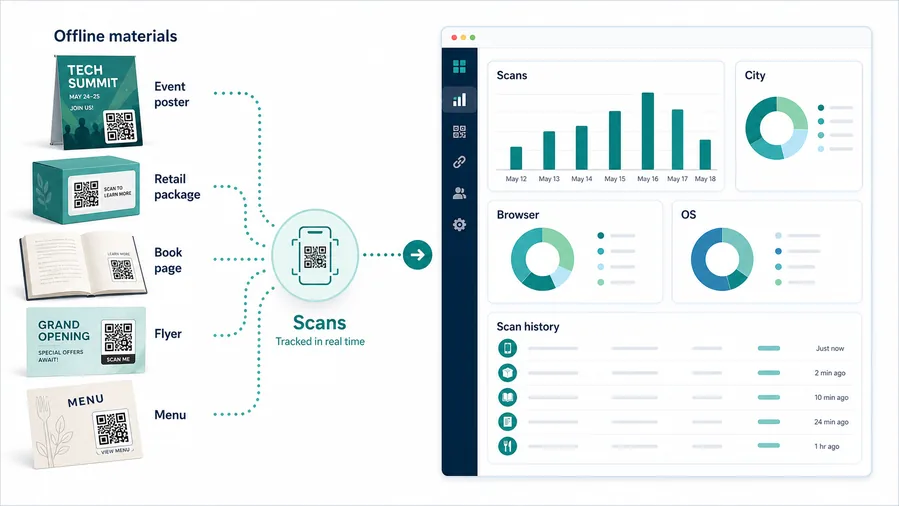
One workshop QR hides which material mattered
A shared QR can show total scans, but it cannot explain whether participants wanted registration, slides, exercise files, feedback, certificate, or replay.
That makes training cleanup weaker.
Separate workshop codes turn resources into signals
Use one dynamic code per resource, session, room, cohort, handout, or follow-up path when comparison matters.
Scan data is not attendance or completion, but it helps reveal which materials people actually use.
Scan volume
Review which workshop materials and resource prompts earned scans.
Time and device
Compare before-session, in-room, exercise, closing, replay, and follow-up periods.
Broad location
Use approximate location to catch stale posters, old workbooks, or off-site resource use.
Resource comparison
Compare registration, slides, files, polls, feedback, certificates, replay, and next-session links.
Cohort reporting
Separate codes by cohort, room, instructor, topic, or partner.
Material cleanup
Find old slide decks, outdated worksheets, and moved folders still receiving scans.
Exercise support
See which exercise pages need more explanation or easier file access.
Follow-up interest
Measure replay, certificate, consultation, community, and next-session scans.
Name workshop QR codes by session, material, and stage
Use names like intro-workshop-flyer, room-checkin, exercise-2-files, closing-feedback, or replay-followup so reports stay useful.
Session and materials flow
Place workshop QR codes where participants need the next resource immediately
Useful placements include registration flyers, agenda sheets, room signs, slides, worksheets, workbooks, badges, feedback cards, certificate cards, resource handouts, and follow-up emails that people may print or save. CTAs should say register, view agenda, download worksheet, open slides, complete feedback, get certificate, view resources, or continue training. If several materials matter, use one landing page with clear buttons.
Dynamic QR codes are helpful because workshops change in real time. Rooms move, slide decks get updated, worksheets are replaced, feedback forms change, and certificates may be published after the session. You can update the destination without changing the printed workbook or slide deck. Scan analytics can show which resources participants actually opened.
Keep the experience simple. Participants often scan between exercises, so the page should load fast and put the promised material first. QR Code Lab manages the QR destination and scan reporting, while the workshop host or learning platform handles registration, files, feedback responses, certificates, permissions, and learner records. That lets the QR code support learning without becoming the whole training system.
Scan trust
Make workshop QR codes trustworthy before participants open files or forms
TrustWorkshop QR codes can open registration forms, shared folders, downloads, exercise files, certificates, surveys, and follow-up offers. Participants should recognize the host and resource before interacting.

Wrong file or old folder
Outdated workbooks, moved slides, and old shared folders can derail a live training session.
Watch for similar-looking domains, long URLs, login or verify keywords, and pages asking for credentials after an unexpected scan.
Unclear form purpose
Registration, attendance, feedback, certificate, and consultation forms should explain what information is collected.
A trustworthy QR should not make the final destination mysterious, especially on posters, labels, menus, parking signs, or event materials.
Download trust
Participants need confidence before opening files, templates, or external tools from a QR code.
Before paying, check the domain, HTTPS, amount, recipient, and whether the destination matches the place or brand that printed the QR.Scan the printed proof like the real scanner
Confirm that the destination shows the right identity, action, provider, file, form, or support path before people rely on the QR code.
Public and printed QR codes need more trust signals because the scanner cannot see the destination until after the scan.Host and session match
Confirm the page names the same workshop, instructor, organization, date, and resource shown on the print.
Resource clarity
Make slides, workbook, exercise file, feedback, certificate, or replay obvious on the first screen.
Access check
Test permissions, mobile load, shared folder access, and region restrictions before the session.
Support path
Keep instructor, facilitator, help desk, or fallback URL visible for participants who cannot open the resource.
Publish QR codes people can verify
The printed CTA, page title, organization identity, and first action should all describe the same destination.






