
QR Code Generator for Access Links, Check-In & Passes
Create a standard QR code for your existing check-in page, entry form, visitor pass, staff portal, help page, or safety instructions. Use it on badges, signs, emails, and front-desk materials.
Free QR code generator
Create a QR code online
Generate QR codes for websites, email, phone numbers, vCards, Wi-Fi, plain text, forms, PDF files, and campaign links. Customize colors, add a logo or frame, then download a print-ready PNG or SVG.
Choose QR code type
Website QR code, Email QR code, Phone QR code, vCard QR code, Wi-Fi QR code, Text QR code, SMS, WhatsApp, event, and download links.
Add your content
Enter your website URL, contact details, message, phone number, location, or file destination before generating the QR code.
Customize and download
Adjust QR colors, error correction, logo, frame, size, and margin. Generate QR Code, Download PNG, Download SVG, or Save and track scans.
Entry workflow links
Use access control QR codes as a clear doorway to check-in or entry instructions
An access control QR code can point visitors or staff to a check-in page, entry request form, temporary pass, event badge, staff portal, help page, or safety instruction page. It is useful for offices, coworking spaces, gyms, clinics, schools, venues, events, residential buildings, and local businesses where people need the right entry workflow quickly.
QR Code Lab creates the QR code and sends the scanner to the destination you choose. It does not unlock doors, validate IDs, run access control hardware, manage appointments, process payments, collect sensitive forms, or replace your security process. The QR code should point to the trusted system, form, guide, or page your organization already uses for the real entry step.
The value is clarity at the doorway. A visitor should know whether the scan opens check-in, arrival instructions, a safety page, a delivery form, or staff help. Clear wording reduces front-desk confusion and helps people act without asking the same question again. For anything security-sensitive, avoid vague short links and make the destination clearly belong to the venue or organization.
Entry control moments
Use access QR codes where entry needs a fast next step
AccessAn access control QR code is useful when the scan supports a real entry moment: visitor check-in, gate instructions, badge lookup, room access notes, equipment pickup, or a controlled request form.
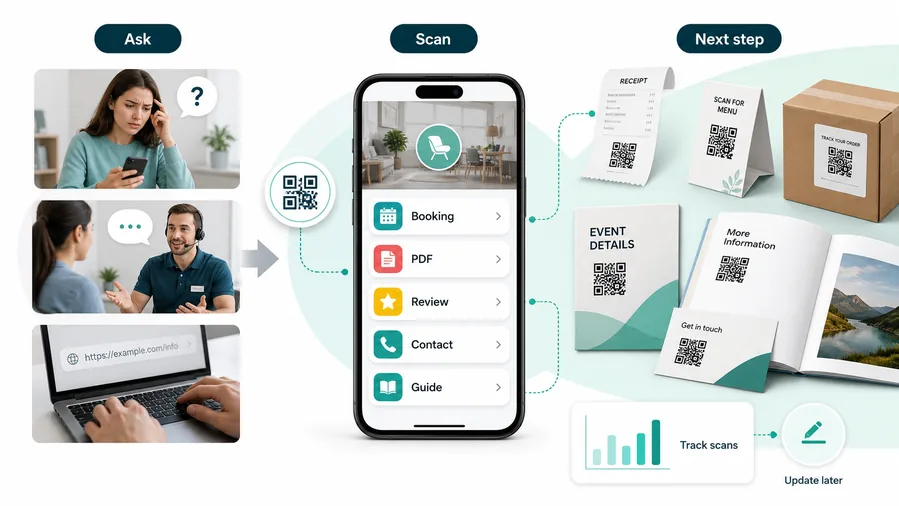
A QR code at the door without context creates uncertainty
People hesitate when a code appears beside a locked door, gate, desk, or restricted area without explaining what happens after the scan.
The destination should make the action clear before anyone assumes the QR itself grants permission.
The scan explains the entry step and routes the person correctly
Use the QR to open a check-in form, visitor instructions, host notification, pickup confirmation, room guide, or access request path that matches the exact physical location.
For customers, the strongest QR code use cases are usually the repetitive questions and next actions people already have. QR Code Lab helps turn those moments into clear buttons, files, forms, microlanding pages, editable destinations, and measurable scan activity.
Visitor check-in
Open a short form for guests, contractors, attendees, or deliveries so the front desk receives the right details without a paper clipboard.
Location instructions
Give scanners building notes, suite directions, gate codes handled outside the page, parking details, pickup windows, or host contact steps.
Badge and pickup flows
Route people to badge pickup, equipment checkout, locker instructions, room assignments, or event entry details from the place where they pause.
Operational traceability
Use separate QR codes by entrance, desk, room, shift, or pickup point when teams need to understand where demand appears.
The QR code should support access, not pretend to be access control
A scan can collect a request, show instructions, or start check-in. Permissions, identity checks, locks, badges, staff review, and payment boundaries still belong in the actual access system.
Restaurants and venues
Menus, Wi-Fi, booking, reviews, loyalty signup, event details, and feedback can live exactly where guests already pause.
Books and education
Bonus PDFs, ZIP files, worksheets, source files, updates, examples, and reader feedback can sit behind a single page-level QR code.
Retail and packaging
Care guides, warranty, setup instructions, reorder links, product education, recipes, safety notes, and reviews can follow the item home.
Services and events
Booking, contact save, registration, schedules, maps, check-in, forms, portfolio links, and follow-up pages become reachable without manual searching.
Use QR for the entry conversation, not the security decision
The best access QR pages reduce confusion at the threshold while keeping real permission, identity, payment, and privacy controls in the systems designed for them.
Physical placement
Place access QR codes where people can stop without blocking the doorway
PlacementAccess QR placement has to respect movement. A code should be visible before the bottleneck, readable from a natural distance, and paired with copy that says exactly what the scan starts.

The code appears after the person is already stuck
A QR code directly on a busy door, narrow gate, or crowded counter can slow the line and make people scan while others are waiting behind them.
If the person needs to type details, read rules, or find an approval path, give them space before the actual entry point.
The scan starts before the access decision
Place the code on lobby signs, stanchions, badge tables, delivery shelves, parking instructions, confirmation emails, or appointment reminders where the person can act without pressure.
The printed CTA should name the action: check in, request access, find your room, confirm pickup, or read arrival instructions.
Can the person stop safely?
Avoid putting the only code where scanners block a door, elevator, checkout lane, or security desk.
Is the action visible before scanning?
Use a caption like “Scan to check in” or “Scan for delivery instructions” so the QR does not feel mysterious.
Does the destination match this location?
Separate codes by entrance, desk, room, gate, or pickup point when instructions differ.
Can staff explain it quickly?
If the QR replaces a repeated desk question, the printed wording should be simple enough for staff to point at confidently.
Lobby or front desk sign
Best for visitor check-in, host notification, contractor intake, appointment arrival, and general entry instructions.
Door or gate approach
Use only when the person can scan before reaching the locked point; keep the CTA short and avoid hidden approval promises.
Badge pickup table
Useful for ticket lookup, class rosters, event arrival, waiver forms, room assignments, and attendee help.
Delivery or pickup area
Connect couriers, customers, or staff to pickup rules, confirmation forms, return notes, or handoff instructions.
Poster or event sign
Best where people pause: registration line, booth, waiting area, seat back, schedule board, or exit path. Weak when people only pass at speed.
Business card
Useful after a conversation because the person already knows why they might save a contact, open a portfolio, book a call, or follow up.
Window sign
Good for after-hours menus, booking, pickup instructions, or quick offers. Avoid complex actions when the person is outside and just walking by.
Cover or front label
Use it only when the promise is immediate and clear. Otherwise the better scan moment is often inside the material or after the first interaction.
Good placement prevents a queue from becoming a support problem
Put the access QR where the person can understand the next step calmly, then let the access system or staff handle permission.
Check-in UX
Make the access scan feel official, specific, and quick
Scan UXPeople scanning at an entrance are often in motion or under time pressure. The first screen should confirm the location, action, and trust boundary before asking for details.
The scanner knows why this page opened
visitor check-in, room lookup, delivery instructions, pickup confirmationThe destination should mention the venue, office, event, property, or service context near the top so the scanner knows they reached the correct page.
Avoid vague landing pages. At an access point, uncertainty becomes a line, a staff interruption, or a person trying the wrong door.
The form asks only for what the access moment needs
name, host, appointment time, ticket, delivery referenceKeep check-in fields short and mobile-friendly. If the team needs a host name, appointment reference, ticket, or delivery number, make that obvious before the form grows.
Long forms near a doorway create friction. Move optional questions later or use staff follow-up after the basic arrival step is complete.
The page does not imply automatic permission
approval pending, staff review, badge pickup, unlock handled elsewhereThe QR page can start a request, show instructions, or submit check-in, but it should not suggest that scanning alone opens a restricted area.
Use clear confirmation states: submitted, wait for staff, proceed to desk, show this screen, or follow the printed route.
Does the first screen name the place?
The scanner should recognize the office, event, room, property, entrance, or pickup point without guessing.
Can the action finish in under a minute?
Short forms and obvious buttons matter when people are standing near an entrance or front desk.
Is the fallback visible?
Print a staff instruction, phone path, desk note, or alternative route for people who cannot scan or complete the form.
Access QR succeeds when it reduces waiting without hiding control
Use the scan to collect the right information and guide the person, while real access approval remains visible and deliberate.
Controlled context
Place the QR code where people pause before entry
Good placements include reception signs, lobby counters, event entry desks, badge pickup tables, staff-only doors, delivery instruction boards, clinic arrival signs, coworking front desks, school visitor desks, and venue help points. The code should appear at the moment someone is ready to do the entry action, not far away from the place where the question appears.
Use short, direct CTAs such as check in, request entry, show pass, read safety steps, or contact reception. If the code points to a staff portal or restricted page, make that clear so guests do not scan the wrong thing. A QR code can reduce routine friction, but it should not make people guess whether they are in the right place.
Use dynamic QR codes when entry pages, event instructions, staff portals, safety notes, or delivery rules change. Scan analytics can show how often the printed entry point is used, which helps you improve signage and placement. The final access decision still belongs to your access, check-in, or security system. Keep that boundary clear for staff and visitors.
Access trust
Keep access QR codes trustworthy at the physical boundary
SecurityAn access QR code sits in a sensitive place. The page should look official, avoid collecting unnecessary data, and make it clear what the scan can and cannot approve.

A copied code can send people to the wrong page
Use branded destinations, short printed context, and controlled placement so visitors can distinguish the real check-in or instruction page from a pasted replacement.
Watch for similar-looking domains, long URLs, login or verify keywords, and pages asking for credentials after an unexpected scan.
Forms can collect more data than the moment needs
Ask only for details required for check-in, delivery, appointment arrival, or pickup. Sensitive identity, payment, or medical data should stay inside the proper system.
A trustworthy QR should not make the final destination mysterious, especially on posters, labels, menus, parking signs, or event materials.
A QR page can be mistaken for permission
Avoid wording that suggests scanning grants access. Confirmation screens should tell people whether staff review, badge pickup, or another verification step is still required.
Before paying, check the domain, HTTPS, amount, recipient, and whether the destination matches the place or brand that printed the QR.Check the access page before printing signs
Scan from the final sign, door, desk, badge table, or pickup area and confirm the page matches the exact location and process.
The current detailed report is a static URL analysis. It helps reveal the encoded content and basic URL risk signals, but it does not guarantee that a destination is safe and does not replace browser, antivirus, payment, or bank security checks.Decoded content
See the raw value inside the QR before opening it.
Content type
Recognize URL, Wi-Fi, mailto, phone, SMS, vCard, or plain text.
URL risk signals
Review HTTPS, shorteners, IP addresses, long URLs, encoded characters, query parameters, and sensitive keywords.
Destination report
For URL codes, view final URL fields, static redirect report fields, domain fields, TLS placeholders, page metadata fields, and risk reasons.
Treat access QR pages as part of operations
Keep ownership clear. Someone should know who updates the destination, who receives submissions, and what happens when the entrance, desk, room, or process changes.






