
QR Code POS System - Menus, Receipts & Loyalty Links
Create QR codes for POS systems linking digital menus, order pages, receipt pages, loyalty portals, payment links, support pages, and feedback forms. Use them at checkout, tables, and counters.
Free QR code generator
Create a QR code online
Generate QR codes for websites, email, phone numbers, vCards, Wi-Fi, plain text, forms, PDF files, and campaign links. Customize colors, add a logo or frame, then download a print-ready PNG or SVG.
Choose QR code type
Website QR code, Email QR code, Phone QR code, vCard QR code, Wi-Fi QR code, Text QR code, SMS, WhatsApp, event, and download links.
Add your content
Enter your website URL, contact details, message, phone number, location, or file destination before generating the QR code.
Customize and download
Adjust QR colors, error correction, logo, frame, size, and margin. Generate QR Code, Download PNG, Download SVG, or Save and track scans.
POS connected links
Use QR codes to open menus, receipts, payment links, loyalty, and feedback
A QR code for POS system workflows is useful when printed restaurant, retail, or service materials should open a digital action connected to the customer journey. It can link menus, order pages, receipt pages, loyalty portals, payment links, support pages, feedback forms, coupons, product pages, and customer account pages from counters, tables, receipts, bags, or invoices.
QR Code Lab does not replace a POS system. Instead, it helps create the scan access point that leads to the POS-related page you already use. A table card can open ordering. A receipt can open feedback or loyalty signup. A counter sign can open payment or pickup instructions. A package insert can open product support. Dynamic QR codes help when those links change after printing.
QR Code Lab creates URL QR codes and scan analytics. It does not process orders, manage inventory, move money, store POS records, issue receipts, or run loyalty accounts. Your POS, payment processor, ordering tool, loyalty platform, or support system handles the actual transaction and customer data.
POS scan workflow
POS scan workflow restaurants, cafes, bars, and food service teams with digital menus, ordering links, reservations, reviews, loyalty rewards, coupons, guest Wi-Fi, and feedback forms
POS QRUse QR codes to move restaurants, cafes, bars, and food service teams from table tents, menus, receipts, takeout bags, counter signs, food trucks, delivery packaging, and loyalty cards to digital menus, ordering links, reservations, reviews, loyalty rewards, coupons, guest Wi-Fi, and feedback forms without making guests search or type a long URL.
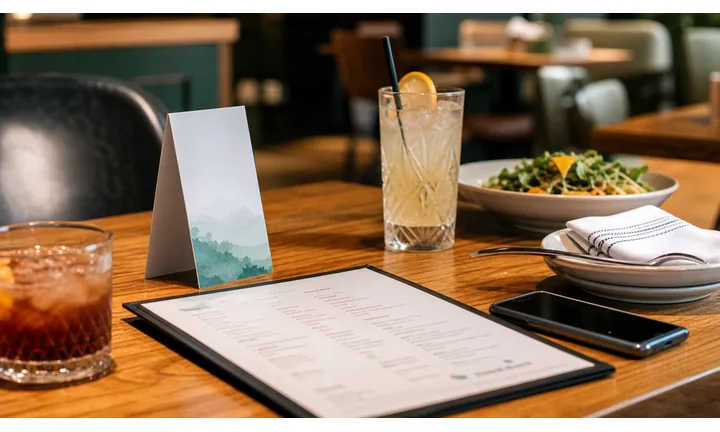
Move customers from printed touchpoints to the right transaction step
Table tents, counter cards, receipts, checkout screens, packaging, and pickup signs can send people to menus, ordering, payment links, tip pages, loyalty signup, receipts, or support. The QR should match the moment in the service flow.
Print the action clearly: scan to order, pay bill, add tip, get receipt, join rewards, or contact support.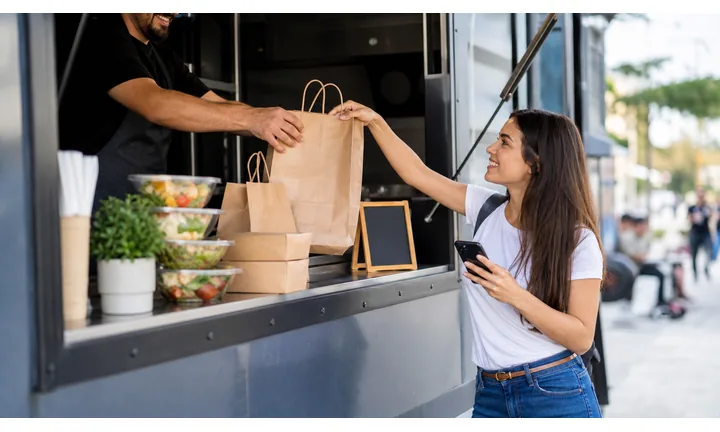
Keep QR Code Lab separate from payment processing
QR Code Lab can create and manage the shortcut, but the POS, payment provider, booking system, or ordering platform handles checkout, funds, receipts, refunds, taxes, chargebacks, and transaction records.
This boundary should be clear whenever a QR code opens payment or order actions.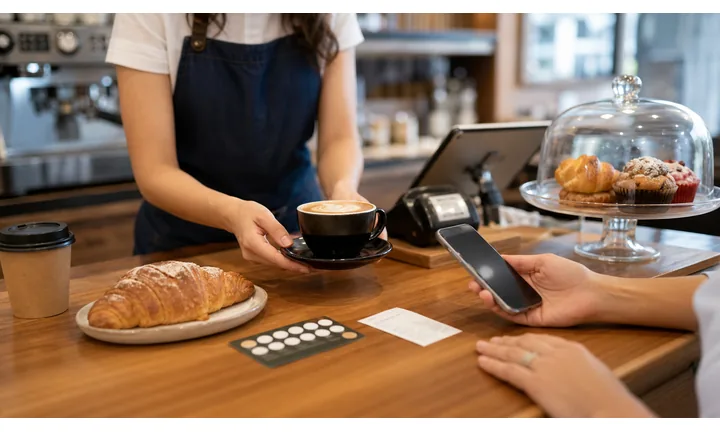
Use dynamic links when operational paths change
Restaurants and shops change menus, payment links, loyalty pages, pickup instructions, receipt destinations, and support flows. A dynamic QR lets printed assets keep working when the backend system or campaign changes.
Dynamic QR is practical for long-lived counters, table tents, receipts, and packaging.A POS QR should make the next transaction step obvious
The scanner should immediately understand whether the code opens ordering, payment, tipping, receipt lookup, loyalty, support, feedback, or a menu. Confusion around payment and receipts damages trust faster than almost any other QR use case.
Use the QR as a controlled shortcut into the POS-adjacent workflow, not as a replacement for the POS itself.Menu and ordering
Open current menus, table ordering, pickup, delivery, product catalog, or service choices.
Payment and tips
Route to trusted payment, invoice, tip, deposit, booking, or checkout pages with clear purpose.
Receipts and loyalty
Send customers to digital receipts, rewards signup, reorder, warranty, or post-purchase offers.
Support and feedback
Give customers a clear path for order issues, refunds, reviews, surveys, or help after checkout.
Restaurants, cafes, and bars
Design the POS QR around what the customer needs at this transaction moment
Guest-first flowA POS QR workflow should be practical and specific: view the menu, place an order, pay a bill, add a tip, save a receipt, join rewards, request support, or leave feedback.
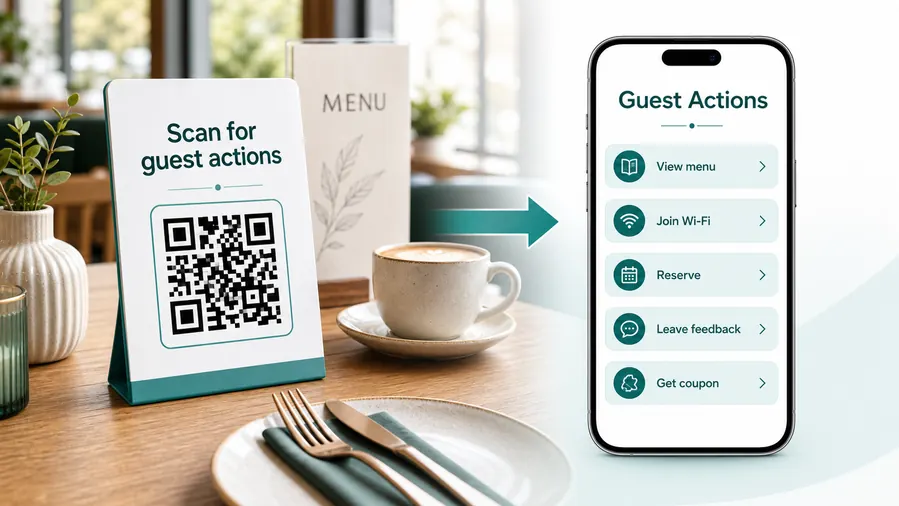
The scan should reduce transaction friction
Customers scan because they want a faster next step. The destination should load quickly, show the right brand and location, and avoid mixing payment, menu, loyalty, and support actions into one unclear page.
Open the right menu or order path
Use table tents, counter cards, and pickup signs to send customers to the current menu, order-ahead page, table ordering flow, delivery link, or product catalog.
Route payment to a trusted provider
Use QR codes for payment links, invoices, deposits, checkout pages, and tip jars while the POS or payment platform confirms the transaction.
Make receipts and order status easier to reach
Receipts, pickup cards, and package labels can open digital receipts, order status, refund instructions, warranty registration, or support forms.
Connect checkout to loyalty and reorder
After purchase, send customers to rewards signup, points, coupons, reorder, subscription, gift card, or referral pages without slowing the line.
Keep customer support visible
If the QR touches payments or orders, show how to get help with refunds, missing items, billing questions, account issues, or product problems.
Separate staff operations from customer actions
Do not mix internal POS setup, staff dashboards, inventory links, and customer checkout pages behind the same public QR code.
At the table
Menu, Wi-Fi, ordering, ask-for-help, specials.
While waiting
Drinks, dessert, event calendar, story behind the dish.
After payment
Review, private feedback, coupon, reservation.
Takeaway or delivery
Reorder link, loyalty signup, coupon, feedback.
Use dynamic QR when the destination may change
Menus, specials, reservation tools, coupons, review flows, seasonal campaigns, and ordering links change. A dynamic QR code keeps the printed code stable while letting you update where it sends the guest.
Do not make the guest solve your whole website
Most guests scan because they want one next action, not a tour of the restaurant site. If the QR code opens a hub, keep the first buttons aligned with the place where the code appears: menu at the table, review or coupon on the receipt, reorder or feedback on packaging.
Receipt and counter flow
Match each POS QR code to one clear customer action
Useful placements include receipts, table tents, checkout counters, pickup shelves, invoices, bags, product labels, menus, service desks, and return counters. CTAs should say order here, pay bill, view receipt, join rewards, get support, leave feedback, claim coupon, or check pickup. The more specific the label, the easier it is for customers to trust the scan.
Dynamic QR codes are practical because POS-related links change. Menus, order pages, payment portals, loyalty pages, and feedback forms may move while printed receipts or counter signs stay in use. Scan analytics can compare counters, tables, receipt templates, and packaging, helping you see which touchpoints actually move customers online.
Keep payment and account pages especially clear. If the scan opens a third-party processor or POS portal, show the business name and expected action before asking for personal details. QR Code Lab manages the code and scan reporting, while the POS system remains the source of truth for orders, payments, and records. That means scan counts can show interest, but the POS must confirm completed orders, refunds, receipts, and loyalty activity. Keep both systems in their proper roles.
Payment boundary
Use POS QR codes for payment links, not as the payment processor
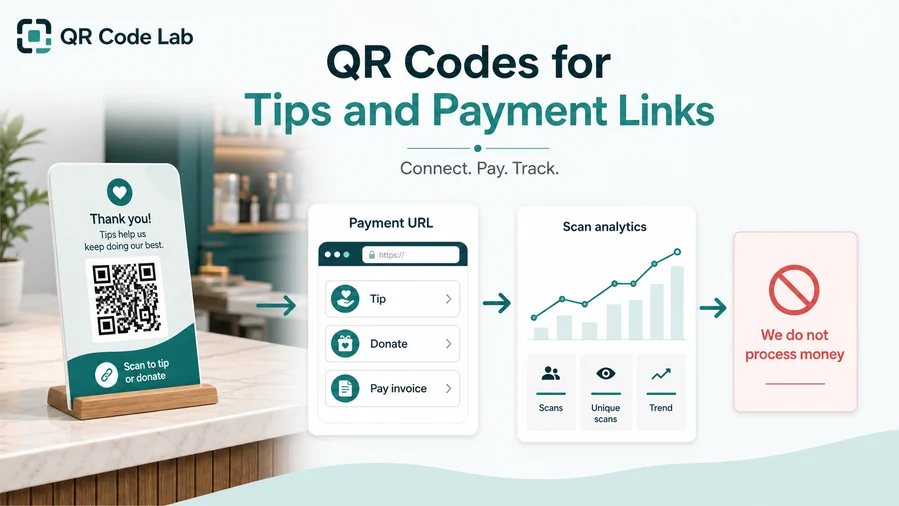
PaymentsA QR code can reduce typing and route the customer to checkout, tip, invoice, deposit, booking, or receipt actions. The POS or payment provider still handles the money, confirmation, refunds, taxes, and disputes.
Open the correct checkout context
Send customers to table payment, invoice payment, deposit, booking checkout, tip page, pickup payment, or a trusted provider page with the purpose visible.
Keep transaction confirmation in the POS
A scan can show interest, but staff should confirm payment status, receipt, refund, and order completion inside the POS or payment provider.
Reduce typing without hiding trust signals
Show brand, merchant name, amount context, secure domain, support route, and receipt expectations before customers pay.
QR Code Lab creates the shortcut; the POS or payment provider processes the transaction
Funds, receipts, refunds, chargebacks, disputes, tax records, settlement, tips, and order confirmation stay with the connected provider.
A QR scan does not prove that a bill, invoice, or tip was paid.Separate scan convenience from payment confirmation
Use the QR to get customers to the right payment page, then use the POS or payment platform to confirm the transaction.
POS trust
Make POS QR destinations trustworthy before customers pay or share data
TrustPOS QR codes often sit in public places and may open payment, order, receipt, loyalty, or support pages. The destination must clearly match the merchant, location, and action printed beside the code.

Public sticker replacement
QR codes on counters, table tents, windows, receipts, and pickup shelves can be covered or swapped, especially when they open payments or account forms.
Watch for similar-looking domains, long URLs, login or verify keywords, and pages asking for credentials after an unexpected scan.
Unclear payment ownership
Customers may hesitate if the checkout page does not show the expected merchant, provider, amount context, or receipt path.
A trustworthy QR should not make the final destination mysterious, especially on posters, labels, menus, parking signs, or event materials.
Mixed customer and staff workflows
Internal POS links, inventory tools, dashboards, or admin pages should never be exposed through public customer QR codes.
Before paying, check the domain, HTTPS, amount, recipient, and whether the destination matches the place or brand that printed the QR.Inspect the public POS QR before customers rely on it
Scan the printed proof, check the final domain, verify merchant identity, and confirm the first screen matches menu, order, payment, receipt, loyalty, or support expectations.
A QR code can be convenient and still be wrong, stale, or unsafe if the destination no longer matches the transaction.Merchant match
Confirm the destination clearly belongs to the expected store, restaurant, branch, or payment provider.
Payment clarity
Check amount context, bill purpose, tip flow, receipt expectations, and provider identity.
Public placement
Inspect counters, tables, windows, receipts, and pickup areas for damaged or replaced QR stickers.
Access boundary
Keep customer pages separate from staff-only POS, inventory, and admin links.
Publish POS QR codes customers can understand
The printed CTA, merchant identity, first screen, and support route should all describe the same transaction action.






