
Student Feedback QR Code - Surveys, Forms & Exit Tickets
Create QR codes for student feedback linking surveys, Google Forms, course evaluations, exit tickets, polls, support forms, and reflections. Use them on slides, handouts, classroom signs, and LMS pages.
Free QR code generator
Create a QR code online
Generate QR codes for websites, email, phone numbers, vCards, Wi-Fi, plain text, forms, PDF files, and campaign links. Customize colors, add a logo or frame, then download a print-ready PNG or SVG.
Choose QR code type
Website QR code, Email QR code, Phone QR code, vCard QR code, Wi-Fi QR code, Text QR code, SMS, WhatsApp, event, and download links.
Add your content
Enter your website URL, contact details, message, phone number, location, or file destination before generating the QR code.
Customize and download
Adjust QR colors, error correction, logo, frame, size, and margin. Generate QR Code, Download PNG, Download SVG, or Save and track scans.
Student response path
Make classroom feedback easy without adding more paper
A student feedback QR code is useful when learners should be able to open a survey, Google Form, course evaluation, exit ticket, poll, reflection prompt, support form, or anonymous comment page from a worksheet, slide, classroom poster, syllabus, handout, or event program. It removes the need to type a long form link during class.
Student feedback works best when the QR code is tied to a clear learning moment. A slide can open an exit ticket at the end of class. A worksheet can open a reflection form. A course handout can open midterm feedback. A workshop poster can open questions or support requests. QR Code Lab helps create dynamic QR destinations and scan analytics for these printed and projected materials.
QR Code Lab creates URL QR codes and tracks scans. It does not collect student responses by itself, grade work, manage student records, or replace school-approved form tools. Your LMS, Google Form, survey tool, school system, or support form handles the actual feedback and privacy settings. The QR code simply makes the right form easier to reach from the lesson material.
Student feedback moments
Student feedback moments schools, teachers, tutors, and training teams with assignments, worksheets, lessons, schedules, feedback, resources, and parent or student follow-up
Feedback QRUse QR codes to move schools, teachers, tutors, and training teams from worksheets, classroom posters, school handouts, lesson materials, event signs, and training packets to assignments, worksheets, lessons, schedules, feedback, resources, and parent or student follow-up without making students, parents, or attendees type a long URL.

Ask when students still remember the experience
Place QR codes on slides, handouts, classroom posters, LMS printouts, exit tickets, lab sheets, and workshop materials so students can respond while the lesson or event is still fresh.
The prompt should name what kind of feedback is being requested.
Protect trust before asking for honest answers
Students need to know whether feedback is anonymous, confidential, tied to grades, visible to instructors, or routed to student services.
Trust language is not decoration; it changes response quality.
Route feedback to someone who can act
A useful QR feedback path separates course feedback, event surveys, campus issues, advising, safety concerns, and private support requests so comments reach the right team.
One generic survey link usually weakens the signal.Student feedback QR should make the response feel worth the effort
Students are more likely to answer when the form is short, the purpose is clear, and the first screen explains how the feedback will be used.
Use CTAs such as reflect on today, rate this workshop, report an issue, suggest an improvement, or ask for help.Timing
Ask after a lesson, lab, seminar, orientation, service visit, event, or assignment milestone.
Trust boundary
Explain anonymity, visibility, instructor access, and support routing before the form.
Actionable questions
Ask about clarity, pace, materials, accessibility, support, environment, and next-step needs.
Follow-up path
Route urgent issues, private concerns, and support requests differently from general survey answers.
Schools, classrooms, workbooks, and textbooks
Connect student feedback QR codes to the exact learning moment
Learning accessStudent feedback works better when the QR appears beside the class, workshop, assignment, campus service, or event that students are evaluating.

Attach reflection to the lesson
Use QR codes on slides, handouts, worksheets, and exit tickets for quick understanding checks, confidence ratings, or muddy-point prompts.

Collect course and workshop feedback
Open short surveys after seminars, labs, tutoring sessions, orientation, training, guest lectures, or campus workshops.

Route private concerns carefully
Give students a separate path for accessibility issues, safety concerns, harassment, advising needs, or support requests that should not sit in a generic survey.

Improve materials and pacing
Ask whether examples, readings, videos, assignments, instructions, and deadlines were clear enough to act on.

Support student services
Use QR feedback in libraries, advising offices, career centers, labs, clinics, and help desks where students can report service experience.

Close the loop after events
After student events, open surveys about logistics, relevance, accessibility, speakers, food, schedule, and future topics.

Keep forms mobile and short
Students should be able to answer without logging in unnecessarily, zooming, or fighting a long desktop survey.

Update forms after the course changes
Dynamic QR keeps printed classroom and campus materials useful when forms, owners, or questions change.
Students should know why the feedback matters
The first screen should explain what is being evaluated, whether responses are anonymous, and who will review them.
Educators need feedback that can become action
Separate QR paths by class, workshop, service, or event when the team needs specific comments instead of one generic response bucket.
Put feedback QR beside the evaluated experience
Feedback placement
Place student feedback QR codes where the experience is still fresh
PlacementStudent feedback QR placement should match the response moment: end of class, workshop exit, lab station, library desk, advising office, campus event, or assignment handout.

A feedback QR without context gets vague answers
A generic survey link on a wall may collect comments, but it often lacks class, session, service, or event context.
The placement should remind students what they are responding to.
Ask when the experience is easy to remember
Use slides, exit tickets, handouts, room signs, and service counters to connect the scan to a specific lesson, event, or support interaction.
That context makes feedback more honest and easier to act on.
What did the student just experience?
Lesson, lab, assignment, seminar, advising session, campus service, event, training, or support interaction.
What feedback is useful?
Clarity, pace, materials, accessibility, confidence, logistics, support, safety, or next-step needs.
Who will act on it?
Teacher, course team, event organizer, advisor, service desk, department, or student support office.
Is trust explained?
Make anonymity, confidentiality, instructor visibility, and urgent-support routing clear before the form.
Closing slide
Best for quick lesson reflection, workshop rating, questions, and next-topic suggestions.
Exit ticket
Use for confidence checks, muddy points, attendance-adjacent prompts, and help requests.
Handout
Ask about instructions, resources, assignment clarity, and support needs tied to the material.
Lab station
Collect equipment, safety, instruction, timing, and troubleshooting feedback.
Campus service desk
Capture advising, library, IT, career center, clinic, or support experience while context is fresh.
Event sign
Ask about speaker, schedule, accessibility, logistics, topic relevance, and follow-up interest.
LMS printout
Connect offline students to course surveys, resource feedback, and support forms.
Anonymous suggestion box
Use when students need a low-pressure route for improvements, concerns, or questions.
Student feedback QR placement should improve answer quality
Use the QR where students understand what they are evaluating and why the response matters.
Feedback form UX
Make student feedback forms easy to complete on a phone
Scan UXThe QR code only removes typing. The form still has to feel short, clear, fair, and safe enough for students to answer honestly.
Use short prompts for in-class feedback
Exit ticket, muddy point, confidence checkA phone form after class should take less than a minute and focus on one useful question or a few tight prompts.
Students are more likely to answer when the form explains what will change because of the feedback.
Use structured forms for courses and events
Workshop survey, course pulse, service feedbackWhen feedback affects a course, workshop, or service, include enough context to route responses without making the form feel like paperwork.
Avoid asking for identity unless it helps provide support or follow-up.
Separate urgent or private concerns from general feedback
Safety, accessibility, harassment, advising, help requestA general survey is not the right place for urgent student support needs. Give a visible route for private contact or official reporting.
The page should tell students what is anonymous, what is confidential, and who receives each type of response.
Is the purpose clear in the first screen?
Students should know what they are evaluating and how the response may be used.
Is the form short enough for the moment?
Exit-ticket feedback, workshop surveys, and campus service comments need different lengths.
Is the privacy boundary honest?
Explain anonymity, contact collection, instructor access, and urgent-support routing before submission.
Better feedback starts before the first question
Use the QR to open a form students can trust and finish, not just a generic survey link.
Classroom feedback flow
Ask for feedback when students know exactly what they are answering
Useful placements include slides, exit ticket cards, worksheets, syllabus pages, classroom posters, workshop handouts, course evaluation sheets, support posters, and event programs. CTAs should say answer exit ticket, share feedback, ask for help, complete reflection, take poll, or rate this lesson. The request should be short and clear.
Dynamic QR codes are helpful when forms change by class, unit, semester, or event. You can update the destination without replacing every handout or poster. Scan analytics can show whether students used a slide code, worksheet code, or classroom poster, but the form platform remains responsible for responses and privacy.
Keep student trust in mind. If feedback is anonymous, say so clearly. If it is not, do not imply that it is. QR Code Lab manages the printed link and scan counts, while the school-approved tool handles identity, access, and records. Keep questions short and specific so students can answer honestly before the class moves on. For younger learners, use simple wording and avoid forms that feel like tests.
Feedback trust
Ask students for feedback without blurring anonymity, grades, or support boundaries
TrustStudent feedback QR codes should make the response path honest: what is anonymous, what is private, who sees it, and what students should do for urgent concerns.
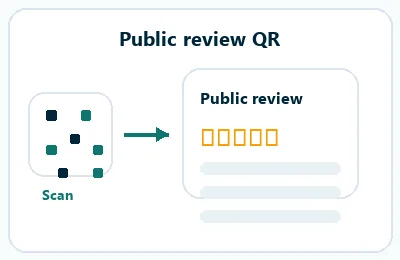
Collect course input without making students feel exposed
Use for lesson clarity, pace, materials, workload, examples, and confidence checks when the instructor or course team can improve the learning experience.
Slides, exit tickets, handouts, LMS printouts, and classroom posters. Do not imply anonymity if responses can identify the student or affect follow-up.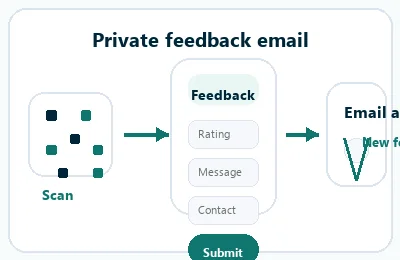
Ask about the student experience while details are fresh
Use after workshops, orientation, tutoring, campus events, labs, or seminars to understand logistics, accessibility, relevance, and next-step interest.
Workshop exits, seminar slides, campus event signs, and handouts. Avoid long generic surveys that students abandon before useful answers arrive.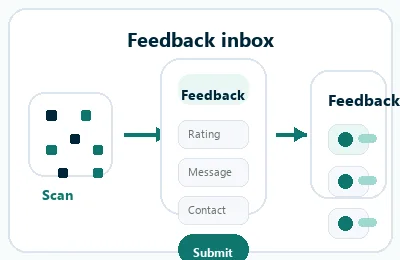
Route sensitive issues outside the general survey bucket
Accessibility needs, safety concerns, harassment, advising problems, and support requests need a clear, private route with owner and urgency expectations.
Support offices, campus service desks, course pages, and student help materials. Do not bury urgent support behind a feedback form no one monitors promptly.Student feedback works only when the trust boundary is clear
Use the QR code to make response easier, but use the page copy to make participation feel safe and worthwhile.
Student data trust
Make student feedback destinations clear before collecting responses
SafetyFeedback forms can collect student opinions, contact details, class context, accessibility needs, or sensitive concerns. The page should explain purpose, owner, visibility, and support routing before submission.

Unclear anonymity
Students may answer differently if they do not know whether responses are anonymous, identifiable, or visible to instructors.
Say the boundary before the first question.
Sensitive concerns in the wrong form
Safety, harassment, accessibility, mental health, and urgent support needs should not disappear into a general survey bucket.
Provide monitored support and reporting routes.
Over-collection of student data
Feedback quality can drop when forms ask for names, IDs, emails, or class details that are not needed.
Collect identity only when follow-up is expected and explained.Review student feedback QR destinations before publishing
Confirm the destination, form owner, privacy copy, access settings, mobile behavior, and whether urgent concerns have a separate path.
A QR checker can reveal the destination, but it does not validate institutional policy or student privacy compliance.Decoded destination
Review whether the QR opens the intended survey, class form, support page, or event feedback form.
Owner and purpose
The first screen should show the course, event, office, or team responsible for the feedback.
Privacy boundary
Check anonymity, contact collection, instructor visibility, and support-routing language.
Mobile completion
Test the form on a phone so students can answer without login friction or layout problems.
Publish feedback QR codes students can trust
Clear form ownership, honest privacy language, short questions, and monitored support routes make student feedback more useful.






