
Classroom QR Code Generator for Lessons, Forms & Resources
Create classroom QR codes for worksheets, assignments, reading materials, videos, quizzes, feedback forms, parent resources, stations, newsletters, lesson links, and print handouts.
Free QR code generator
Create a QR code online
Generate QR codes for websites, email, phone numbers, vCards, Wi-Fi, plain text, forms, PDF files, and campaign links. Customize colors, add a logo or frame, then download a print-ready PNG or SVG.
Choose QR code type
Website QR code, Email QR code, Phone QR code, vCard QR code, Wi-Fi QR code, Text QR code, SMS, WhatsApp, event, and download links.
Add your content
Enter your website URL, contact details, message, phone number, location, or file destination before generating the QR code.
Customize and download
Adjust QR colors, error correction, logo, frame, size, and margin. Generate QR Code, Download PNG, Download SVG, or Save and track scans.
Classroom resource access
Use classroom QR codes when students or parents need the right resource without typing
A classroom QR code can open lessons, worksheets, assignments, quizzes, videos, reading materials, parent forms, feedback pages, library resources, station instructions, classroom announcements, project examples, or homework help. It helps teachers reduce repeated directions and gives students or parents a faster path to the right material.
The best classroom QR code is tied to the physical learning moment. A worksheet can open a short explainer video. A station card can open instructions. A parent letter can open a form. A classroom poster can open recurring resources. A library shelf label can open reading suggestions. The scan should remove friction, not add another confusing step.
QR Code Lab creates the QR destination and can help you update or track a code when the link is dynamic. It does not host school data, grade assignments, collect student records, manage learning platforms, or replace school-approved tools. Link only to resources that are appropriate for the audience and already approved for your classroom or school workflow.
Use simple labels for younger students and clear parent-facing language for home materials. The QR code should make access easier for everyone who sees it.
Classroom access
Use classroom QR codes to put the right lesson resource one scan away
ClassroomA classroom QR code should help students, families, or staff reach the exact resource for the moment: lesson files, station instructions, forms, videos, reading links, exit tickets, or homework support.
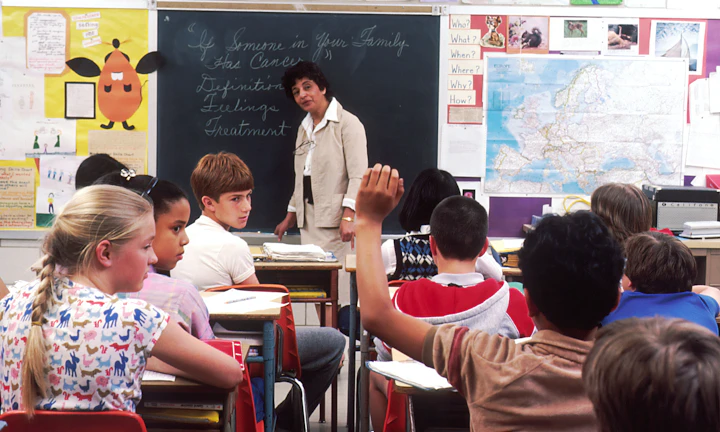
Put digital resources beside the classroom task
Use QR codes on worksheets, wall stations, lab cards, project briefs, classroom posters, take-home sheets, and slides so students can open the right material without typing a long link.
The scan should save class time, not send students searching.
Separate learning, submission, and family communication
A lesson video, exit ticket, parent note, permission form, reading packet, and assignment upload each needs a different destination and a different level of access.
Classroom QR codes work better when the printed CTA names the exact action.
Test with school devices and student permissions
Managed Chromebooks, filters, private folders, and account restrictions can break links that open for a teacher. Test the QR as a student before printing it on class materials.
Access is part of the classroom experience.A classroom QR code should make the learning path clearer
The destination should confirm the class, task, and next action quickly. Students should know whether to read, watch, submit, practice, download, or ask for help.
Do not expose private grades, student records, or teacher-only files through printed QR codes.Lessons
Open videos, slides, reading passages, vocabulary, examples, and station instructions.
Practice
Link worksheets, exercises, quizzes, timers, audio, simulations, and differentiated supports.
Forms
Use QR codes for exit tickets, reflections, parent notes, permission slips, and feedback forms.
Home support
Send families to homework directions, translations, due dates, and makeup resources.
Schools, classrooms, workbooks, and textbooks
Match classroom QR destinations to the teaching moment
Learning accessClassroom QR codes are most useful when the scan opens one focused resource students can use immediately, instead of a broad folder or course homepage.

Start an activity faster
Open station directions, lab setup, vocabulary, reading passages, warmups, or project briefs so students can begin without waiting for repeated instructions.

Support independent learning
Link mini-lessons, worked examples, audio, translations, extension tasks, or review videos for students who need help during work time.

Collect responses cleanly
Use QR destinations for exit tickets, reflections, quizzes, upload forms, peer review, or attendance checks when the class is ready to submit.

Help families understand the assignment
Put QR codes on take-home work for directions, examples, due dates, translated notes, or makeup resources that parents can open from a phone.
Parent information and school notices
QR codes on newsletters, consent forms, classroom door signs, event flyers, or student planners can open parent notes, translated information, school policy, trip details, meeting signup, calendar, or lunch menu.

Reading lists and extra materials
A textbook, workbook, library display, or reading log can point to source links, reading lists, bibliography, glossary, vocabulary, interactive maps, bonus materials, or a PDF bundle for the topic.

Classroom feedback and questions
A QR code can open an anonymous question form, exit ticket, reflection form, lesson feedback, wellbeing check-in, or support request. This helps students who need a quieter way to ask for help.
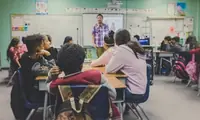
Teacher updates without reprinting
Teachers can update a resource page, assignment link, correction file, schedule, event detail, or parent instruction after materials are printed. Dynamic QR codes make handouts, posters, workbooks, and newsletters less fragile.
Students need the next action, not a maze of links
The first screen should name the class task and show whether the student should read, watch, answer, submit, or download.
Teachers need fewer repeated directions
Focused QR destinations let teachers spend more time coaching and less time reopening files, spelling URLs, or explaining where a resource lives.
Place QR codes where the lesson happens
Student scan UX
Make classroom QR scans work for real students and real devices
Scan UXA classroom scan should load quickly, work with school permissions, and show the task before students lose focus or need teacher help.
The link works outside the teacher account
LMS, Google Classroom, PDF, video, formTest with student permissions, managed devices, and school Wi-Fi. A link that works for the teacher can still fail for the class.
If login is required, tell students which account or platform to use before they assume the QR is broken.
The first screen names the class task
unit, assignment, activity, form, due dateStudents should recognize the lesson or assignment immediately. Put the task title, class context, and main action above secondary links.
A broad folder or unlabeled file list wastes the attention the QR was supposed to save.
The next step is obvious on a phone
read, watch, answer, upload, submitUse mobile-friendly pages, large buttons, and short instructions. The scan should make it clear whether students should read, watch, answer, download, or submit.
Keep extra links below the primary task so students do not wander away from the lesson.
Did you test with a student account?
Permissions are the most common classroom QR failure.
Does it scan at the final print size?
Worksheets, posters, slides, and station cards need different QR sizes.
Can students recover if scanning fails?
Use a fallback LMS path, short URL, or teacher instruction.
A classroom QR code should give time back to the lesson
Use it when the destination is focused, accessible, and clear enough for students to use without stopping the room.
School-safe use
Design classroom QR codes for shared devices, supervision, and simple instructions
Use classroom QR codes on handouts, workbook pages, station cards, bulletin boards, library shelves, parent letters, lab instructions, classroom doors, project sheets, reading logs, event notices, and take-home packets. Keep the CTA simple enough for the age group and make sure the destination works on phones, tablets, or school devices.
Think about the scanning situation. Students may share devices, work in groups, or scan under teacher supervision. Parents may scan later from home. A short, clear destination is better than a page that requires too many taps, logins, or unclear choices. If the link requires an account, say that near the code or use a landing page with instructions.
Dynamic QR codes are useful for recurring classroom signs and parent resources because links change during the term. Scan analytics can show whether resources are being accessed, but avoid treating scan counts as a complete measure of student work or learning. QR Code Lab tracks the QR path; the school tool handles the actual lesson, form, or assignment.
Student privacy
Keep classroom QR codes away from private student information
PrivacyPrinted classroom QR codes can be photographed, shared, taken home, or reused. They should open student-safe resources, not private grades, answer keys, or teacher-only files.
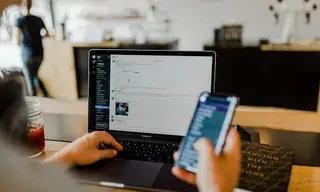
A public code can expose the wrong file
Check sharing settings before printing. Avoid editable teacher documents, private folders, answer keys, grade sheets, and student submissions.
Watch for similar-looking domains, long URLs, login or verify keywords, and pages asking for credentials after an unexpected scan.
Forms can collect more than the lesson needs
Only ask for information required for the assignment, reflection, permission slip, or classroom process.
A trustworthy QR should not make the final destination mysterious, especially on posters, labels, menus, parking signs, or event materials.
Old links can keep circulating
Worksheets and posters may stay visible after a unit ends. Update or remove destinations when access should close.
Before paying, check the domain, HTTPS, amount, recipient, and whether the destination matches the place or brand that printed the QR.Review classroom QR links before students scan
Scan from the final material with student permissions and confirm the destination is safe, focused, and mobile-friendly.
The current detailed report is a static URL analysis. It helps reveal the encoded content and basic URL risk signals, but it does not guarantee that a destination is safe and does not replace browser, antivirus, payment, or bank security checks.Decoded content
See the raw value inside the QR before opening it.
Content type
Recognize URL, Wi-Fi, mailto, phone, SMS, vCard, or plain text.
URL risk signals
Review HTTPS, shorteners, IP addresses, long URLs, encoded characters, query parameters, and sensitive keywords.
Destination report
For URL codes, view final URL fields, static redirect report fields, domain fields, TLS placeholders, page metadata fields, and risk reasons.
Treat QR codes like classroom instructions
Each printed code should have a clear purpose, a safe destination, and an owner who knows when it should be updated or removed.






