
Onboarding QR Code Generator for Setup Guides, Apps & Checklists
Create onboarding QR codes for setup guides, registration forms, tutorials, welcome pages, app downloads, checklists, videos, and support links. Make first steps easy from print fast.
Free QR code generator
Create a QR code online
Generate QR codes for websites, email, phone numbers, vCards, Wi-Fi, plain text, forms, PDF files, and campaign links. Customize colors, add a logo or frame, then download a print-ready PNG or SVG.
Choose QR code type
Website QR code, Email QR code, Phone QR code, vCard QR code, Wi-Fi QR code, Text QR code, SMS, WhatsApp, event, and download links.
Add your content
Enter your website URL, contact details, message, phone number, location, or file destination before generating the QR code.
Customize and download
Adjust QR colors, error correction, logo, frame, size, and margin. Generate QR Code, Download PNG, Download SVG, or Save and track scans.
First-run guidance
Use onboarding QR codes to put setup help where the first question happens
An onboarding QR code sends scanners to a setup guide, registration form, welcome page, tutorial, app download, checklist, training video, account activation page, support article, product start page, or first-use walkthrough. It is useful for SaaS teams, product companies, HR teams, educators, trainers, agencies, manufacturers, and support teams that need a smooth first-use path. The goal is not just to show a link; it is to help a new user finish the first useful action without searching.
QR Code Lab creates the QR code for the destination URL. It does not run onboarding workflows, collect registrations, host videos, manage support tickets, or control the app experience after the scan. The QR code is the bridge from a physical object or printed instruction into the onboarding resource you already maintain. That bridge is valuable because the user often scans while holding the box, manual, badge, workbook, or welcome sheet.
Dynamic QR codes are useful because onboarding changes often. A new setup video replaces an old one, a registration form changes, a checklist gets simplified, or a support article moves. The printed QR code can stay in the box, guide, badge, welcome pack, or classroom material while the destination evolves.
After-print control
Use dynamic QR when onboarding steps may change after materials are printed
DynamicOnboarding QR codes often live on packaging, welcome cards, equipment tags, manuals, badges, and training sheets while setup flows continue to evolve.
A fixed setup link can become outdated before the user starts
A static QR cannot follow a moved setup page, changed app link, updated training flow, new support article, or revised account step.
That creates friction exactly when the user is trying to get started.
Dynamic QR keeps the first-run path current
A managed destination lets teams update setup instructions, product pairing, app install, support, and fallback paths without replacing printed materials.
That is useful for products, SaaS onboarding, courses, events, employee materials, and customer welcome packs.
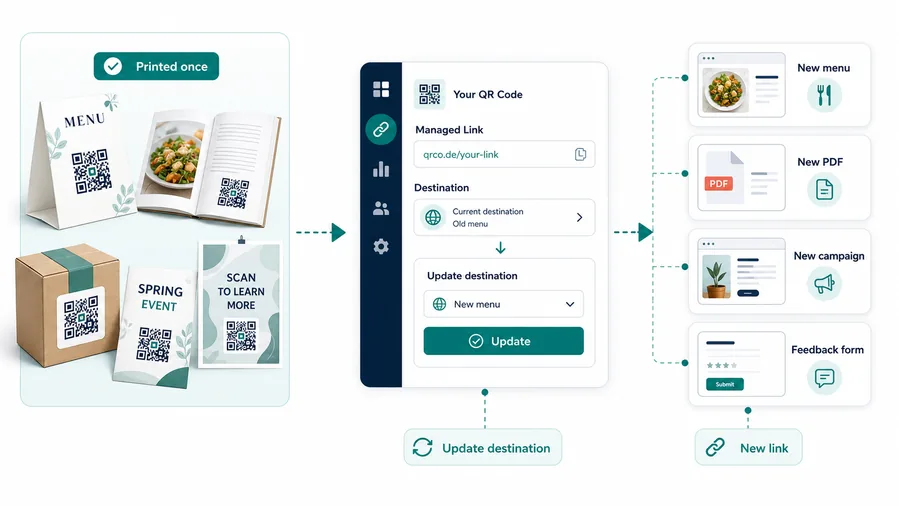
Product setup
Update install steps, app pairing, warranty, manuals, firmware notes, and support links after packaging ships.
Customer welcome
Route new customers to account setup, first task, booking, documents, training, and contact paths.
Employee or student onboarding
Keep forms, checklists, portals, schedules, and resource pages current after handouts are printed.
Event onboarding
Move attendees from registration to check-in, agenda, community, materials, and post-event resources.
Use dynamic when first-run instructions are not truly final
If the onboarding path can change while printed materials remain in use, make the QR editable from the start.
First-run UX
Make the onboarding scan show the next setup step immediately
Scan UXAn onboarding QR should reduce uncertainty at the beginning: install the app, create an account, pair a product, open training, submit a form, or contact support.
Use direct setup links for one clear first action
Install app, create account, register, pair productA direct setup QR works when every scanner needs the same first step and the destination is final.
The printed CTA should name that step so people know what will open.
Use a hub when the first run has several actions
App, manual, video, support, warrantyA mobile onboarding hub can group setup steps, app download, account creation, PDFs, videos, troubleshooting, and contact paths.
This is stronger for products, courses, teams, events, and services with multiple first-run needs.
Keep help close when setup can fail
Wrong device, login issue, missing code, supportOnboarding friction often appears when the app, account, device, region, or login step does not behave as expected.
Show fallback links and support before the user gives up.
Does the first screen match the printed promise?
If the card says start setup, the page should open setup, not a generic homepage.
Is the next step obvious on mobile?
The main button, app link, form, file, or support path should be visible without hunting.
Can the onboarding path change later?
Use dynamic QR when app links, setup steps, forms, videos, docs, or support links may change.
Onboarding QR should shorten time to first success
Choose the destination that helps the scanner complete the first useful action with the least confusion.
Onboarding handoff
Check onboarding QR codes before welcome materials leave your control
Print readyA setup QR must work in the real material: product insert, welcome card, manual, badge, training sheet, equipment tag, or employee packet.
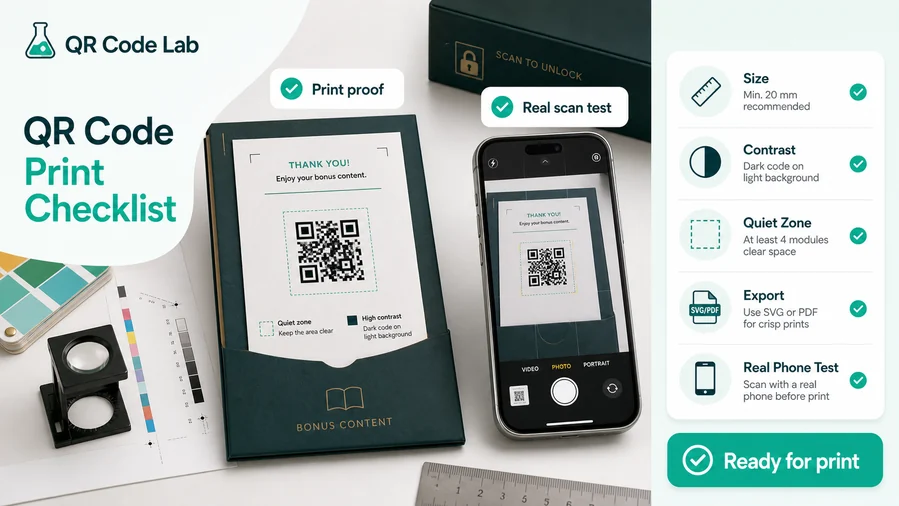
Match the QR to the first real task
Confirm whether the scanner should install an app, create an account, register a product, submit a form, open training, or contact support.
Print the CTA beside the code so the user understands the outcome before scanning.
Test setup on the devices people actually use
Scan samples from real cards, inserts, labels, and handouts at the intended size and distance.
Check Android, iPhone, desktop fallback, login, file downloads, and support links before distribution.
Use a mobile onboarding hub when setup has more than one step
A single setup URL is enough only when one action solves the first-run problem.
For products and services, a hub can show app install, account setup, manual, video, warranty, support, and fallback actions without crowding the printed material.
Welcome card
Open first login, booking, setup checklist, help center, and contact options.
Product insert
Link app install, pairing, registration, warranty, manual, care guide, and troubleshooting.
Training sheet
Route learners to modules, forms, files, videos, schedule, and support resources.
Event badge
Send attendees to check-in, agenda, community, Wi-Fi, materials, and follow-up.
Print onboarding QR only after the first-run path is tested
The printed promise, mobile destination, support fallback, and scan reliability should be checked together.
First successful action
Design the scan around the first thing the new user must complete
The best onboarding QR does not dump users into a broad help center. It sends them to the next useful step: install the app, register the product, watch setup, activate an account, open the checklist, join the class, complete orientation, confirm warranty, or contact support with the right context. A new user has limited patience. If the scan opens a page that immediately answers “what do I do now?”, the whole onboarding path feels easier.
Place onboarding QR codes where first-use friction appears: inside packaging, on setup cards, near hardware controls, in employee welcome packs, on classroom handouts, on event badges, in training workbooks, on product sleeves, or inside manuals. The surrounding text should be direct: “Start setup,” “Register your product,” “Watch the 2-minute guide,” or “Open your welcome checklist.” That wording tells the scanner why the QR code is worth using.
If onboarding has several possible paths, use a microlanding page instead of one deep link. Buttons for setup, app download, warranty, video, and support can make the first scan feel organized. If the first scan is successful, the rest of the journey has a better chance.






