
Documentation QR Code Generator for Manuals, Guides & Support
Create documentation QR codes for manuals, setup guides, API docs, product instructions, help centers, PDFs, and support pages. Keep printed materials connected to current docs online.
Free QR code generator
Create a QR code online
Generate QR codes for websites, email, phone numbers, vCards, Wi-Fi, plain text, forms, PDF files, and campaign links. Customize colors, add a logo or frame, then download a print-ready PNG or SVG.
Choose QR code type
Website QR code, Email QR code, Phone QR code, vCard QR code, Wi-Fi QR code, Text QR code, SMS, WhatsApp, event, and download links.
Add your content
Enter your website URL, contact details, message, phone number, location, or file destination before generating the QR code.
Customize and download
Adjust QR colors, error correction, logo, frame, size, and margin. Generate QR Code, Download PNG, Download SVG, or Save and track scans.
Docs access
Use a documentation QR code when the scan should answer the next support question
A documentation QR code sends scanners to a manual, help center article, setup guide, API docs, product instruction page, knowledge base, PDF, troubleshooting guide, warranty page, safety note, release note, or support resource. It is useful when a physical product, printed card, package insert, poster, classroom handout, onboarding sheet, or service material cannot carry the full explanation. The QR code should take the user to the answer, not just to a generic documentation homepage.
QR Code Lab creates the QR code for the documentation URL. It does not host, version, protect, translate, or edit the documentation itself, so the destination needs to be maintained wherever your docs live. The QR code’s job is to remove the search step and take the user to the right resource at the moment they need it. That can mean a quick start guide, a product-specific PDF, a video tutorial, an error-code article, or a support hub filtered to the right item.
For printed manuals, packaging, labels, and support cards, dynamic QR codes are often safer than static links. Documentation changes, product versions shift, screenshots become outdated, and support articles move. A dynamic destination lets the printed QR code keep working while the final documentation URL changes.
Documentation access
Use a documentation QR code when printed instructions should open the right manual immediately
Docs QRA documentation QR should connect a product label, manual, package insert, onboarding sheet, equipment tag, or training handout to the exact guide, PDF, setup page, or support article people need in that moment.
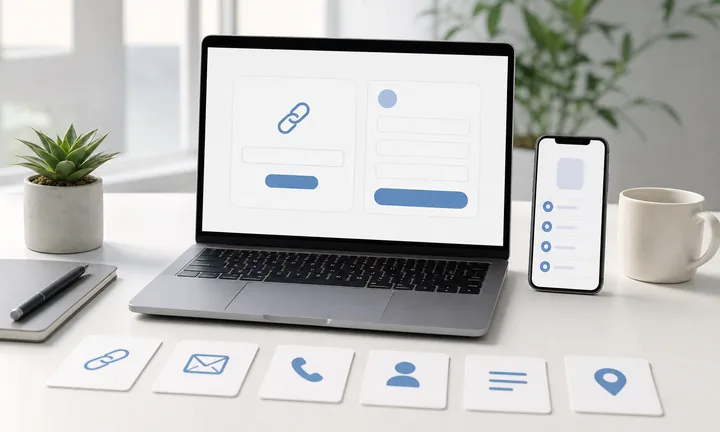
Send scanners to the exact guide, not a document library
Use documentation QR codes beside setup steps, safety notes, product labels, repair panels, training stations, classroom materials, and packaging inserts when a specific document removes confusion.
The CTA should name the document: open setup guide, view manual, download safety sheet, or get troubleshooting.
Keep long instructions out of crowded print
A QR destination can hold PDFs, videos, diagrams, multilingual notes, update history, spare-part links, warranty details, and support contact without overloading the printed material.
Print should point to the right help, not try to carry every detail.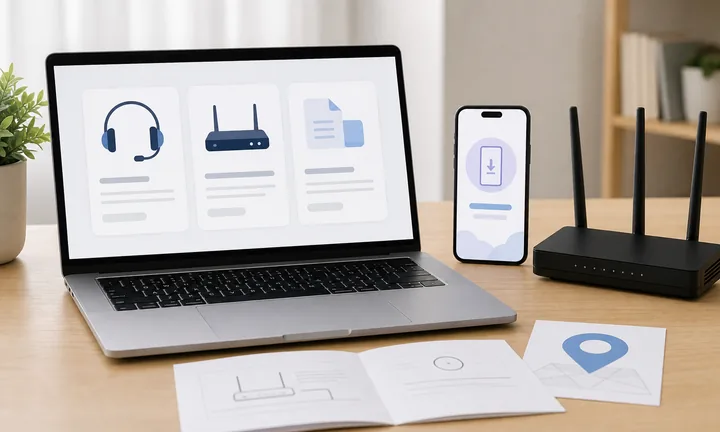
Protect documentation when versions change
Dynamic QR helps when manuals, release notes, setup flows, compliance PDFs, diagrams, or troubleshooting articles are revised after packaging or printed guides are distributed.
Documentation changes; labels and manuals stay in circulation.A documentation QR should reduce support friction at the source
The scanner is usually stuck at a task: installing, assembling, checking, learning, repairing, or verifying. The QR code should open the most useful document for that exact problem.
Use separate codes for different models, versions, languages, regions, product lines, or training contexts when accuracy matters.Exact document
Open the correct manual, setup guide, PDF, article, diagram, video, or quick-start page.
Version clarity
Show model, revision, language, region, date, or compatibility notes so people trust the document.
Support path
Place warranty, contact, troubleshooting, spare parts, and escalation paths beside the documentation.
Update control
Use dynamic QR when documents may change after print or product shipment.
After-print control
Use dynamic QR when manuals and support documents may change after print
DynamicDocumentation QR codes often live on packaging, labels, equipment, training sheets, and printed manuals long after the first PDF or help article has been revised.
A fixed document link can age faster than the printed material
A static QR is simple while the manual, PDF, or article stays final, but it cannot follow a revised guide, moved support page, new safety note, or changed setup flow.
That becomes expensive when the code is already on packaging, product labels, equipment tags, training sheets, or printed manuals.
Editable QR keeps old print connected to current help
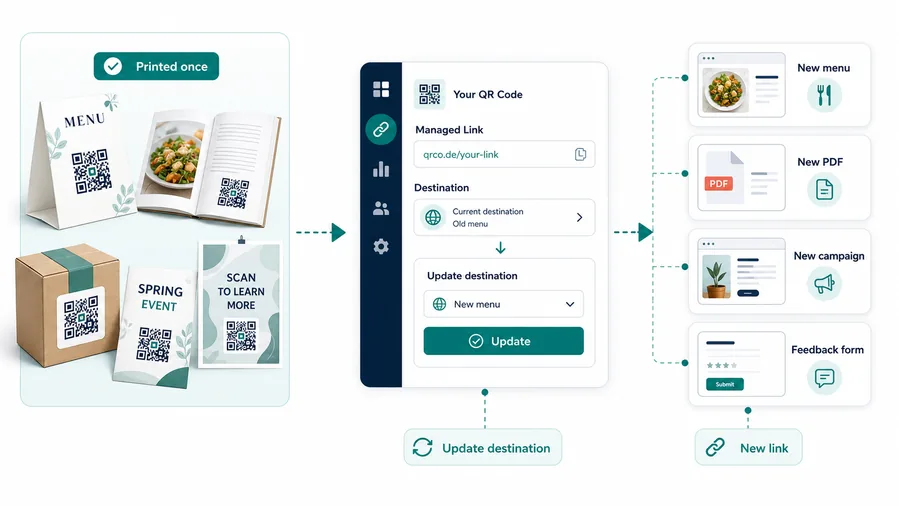
Dynamic QR separates the printed code from the final document destination, so the same physical code can open the current version of the guide.
It also lets teams compare scans by product, language, model, location, material, or support context when reporting matters.
Product manuals
Update setup guides, warranty pages, care instructions, diagrams, and troubleshooting articles after products ship.
Equipment labels
Route technicians to current service docs, safety notes, calibration steps, or maintenance checklists.
Training materials
Keep handouts connected to current lessons, videos, files, procedures, and reference sheets.
Compliance and safety
Replace outdated PDFs, recall notices, regional documents, or updated safety instructions without reprinting everything.
Use dynamic when the printed document pointer has a long life
If people may scan the QR months after the material is printed, keep the document destination editable and clearly versioned.
Documentation print handoff
Check documentation QR codes before manuals, labels, or inserts go to print
Print readyA documentation QR has to remain readable, trustworthy, and tied to the right document after ink, material, packaging, and version changes complicate the scan.
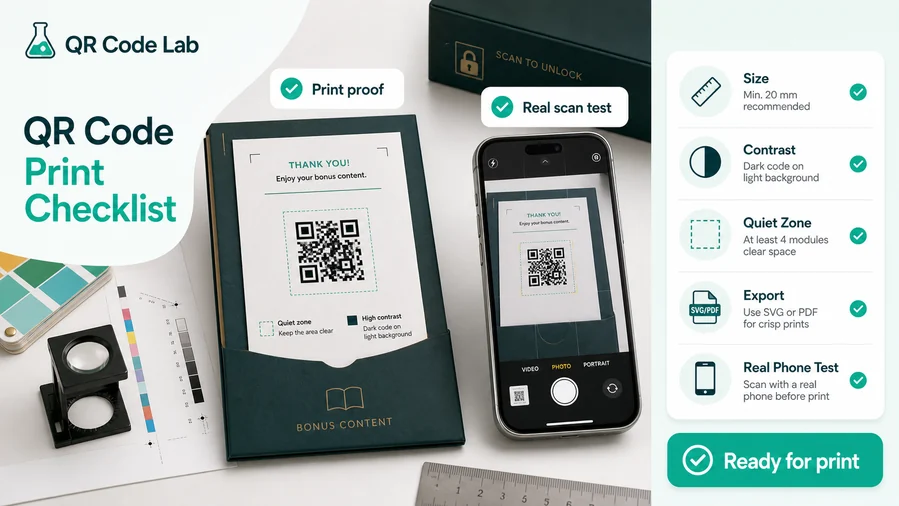
Match the code to the document version
Confirm model, SKU, language, region, revision, file name, and destination before the QR goes into a manual, label, insert, or equipment plate.
Print a sample and scan it from the real distance: packaging, folded manuals, glossy labels, and small instruction cards can behave differently from a screen preview.
Make the document easy to use on a phone
Large PDFs, desktop-only docs, and buried downloads create frustration after the scan. Use a mobile page when the scanner needs several support actions.
Keep setup guide, warranty, troubleshooting, diagrams, spare parts, and contact paths easy to tap without hunting through a full knowledge base.
Use a doc hub when one scan needs more than one support action
A direct PDF is enough for one stable manual, but product and training materials often need setup, video, troubleshooting, warranty, language choices, and contact options together.
The printed QR stays simple while the destination gives scanners the exact help path for their product, course, or equipment context.
Product insert
Open setup guide, warranty, care instructions, registration, troubleshooting, and support contact.
Equipment label
Route technicians to maintenance steps, calibration notes, service records, and safety procedures.
Training handout
Link learners to slides, worksheets, videos, reference PDFs, examples, and updated resources.
Compliance sheet
Keep regional documents, safety notes, certificates, and revision history reachable from print.
Print only after the QR, document, and support path agree
The code should open the right version, scan at the real size, and give people a clear next step when the document alone is not enough.
Documentation scan UX
Make the documentation scan solve the task people are holding in their hands
Scan UXA documentation QR should open useful help immediately: setup, manual, diagram, troubleshooting, warranty, safety note, training file, or support path.
Use a direct file when one document is the whole answer
Manual, PDF, datasheet, safety sheetA direct document QR works when the scanner needs one stable file and the file opens cleanly on a phone.
The printed CTA should name the document so people understand what they will receive before scanning.
Use a support page when the task has several possible answers
Setup, troubleshooting, warranty, video, contactA mobile support page can organize manuals, videos, diagrams, downloads, warranty, spare parts, and contact options in one place.
This is stronger when different scanners may need different help from the same printed material.
Use managed routing when versions matter
Model, language, region, revisionDocumentation mistakes are often version mistakes: wrong model, old revision, wrong language, or moved file.
A dynamic destination helps keep old print connected to the current approved document.
Does the page match the printed product or lesson?
Confirm model, version, language, region, course, or equipment before trusting the destination.
Can the document be used on a phone?
Check file size, download behavior, zoom level, button visibility, and whether the first screen explains the task.
Is support available when the document is not enough?
Add troubleshooting, warranty, contact, spare parts, or escalation paths when scanners may still need help.
The QR should shorten the path from problem to answer
Choose the destination that gives the scanner the right document and the next support option without a search.
Support moment
Put the documentation QR where the question actually appears
The best documentation QR code is not necessarily on the front page of a manual. It may belong near the confusing setup step, beside a serial number, on a packaging insert, inside a product lid, next to a control panel, on an equipment sticker, or on a support card that ships with the product. The scan should feel like help appearing exactly where the user got stuck. That is much stronger than forcing them to search your whole help center.
Use the CTA to name the help being offered: “Scan for setup video,” “Open the safety guide,” “Read warranty steps,” “Troubleshoot this error,” or “Get API docs.” If the documentation set is large, consider sending people to a mobile-friendly landing page rather than directly to a long PDF. A landing page can separate setup, troubleshooting, warranty, safety, video, downloads, and support links so the scanner does not have to hunt inside one heavy document.
For products with long shelf life, keep the QR dynamic. Product docs often change after the box is printed, and a redirect gives you room to correct links, update versions, or add better resources without wasting packaging.