
Guest Wi-Fi QR Code Generator for Hotels, Offices & Events
Create guest Wi-Fi QR codes for hotels, rentals, cafes, offices, events, waiting rooms, lobbies, and visitor areas so guests can connect without typing passwords or asking staff.
Free QR code generator
Create a QR code online
Generate QR codes for websites, email, phone numbers, vCards, Wi-Fi, plain text, forms, PDF files, and campaign links. Customize colors, add a logo or frame, then download a print-ready PNG or SVG.
Choose QR code type
Website QR code, Email QR code, Phone QR code, vCard QR code, Wi-Fi QR code, Text QR code, SMS, WhatsApp, event, and download links.
Add your content
Enter your website URL, contact details, message, phone number, location, or file destination before generating the QR code.
Customize and download
Adjust QR colors, error correction, logo, frame, size, and margin. Generate QR Code, Download PNG, Download SVG, or Save and track scans.
Visitor network access
Use a guest Wi-Fi QR code to remove password typing without weakening your network plan
A guest Wi-Fi QR code stores the network name, password, and security type so visitors can join from a scan. It is useful for hotels, vacation rentals, cafes, salons, offices, clinics, event venues, coworking spaces, waiting rooms, and homes where guests often ask for the password or type it incorrectly.
Wi-Fi QR codes are usually static because the actual credentials are encoded in the QR pattern. That direct format lets many phones show a native join prompt after scanning. The trade-off is important: because the phone reads the Wi-Fi data directly, QR Code Lab cannot collect scan analytics for that static behavior and cannot change the password after printing unless you create a new code.
The practical setup is simple, but the network decision matters. Use a guest network when possible, keep internal devices separated, avoid sharing staff networks, update printed cards when credentials change, and do not place private network details in public areas where they can be photographed or reused later.
If guests need rules, support details, or a welcome message, place that text around the code or use a separate landing page next to the Wi-Fi instructions.
Guest network access
Let visitors join Wi-Fi without exposing the wrong network
Wi-FiA guest Wi-Fi QR code should make access easy for visitors while keeping the network boundary clear: guest SSID, correct password, public placement, and no accidental exposure of staff or POS credentials.
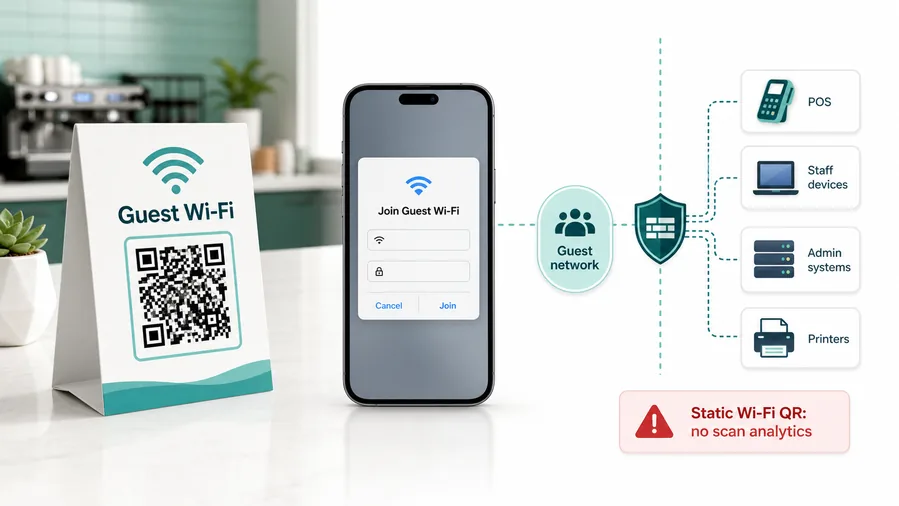
Use the guest network, not the staff network
The QR code should encode only the visitor SSID and password. Keep POS devices, office laptops, printers, cameras, and staff tools on a separate internal network.
This is why static Wi-Fi QR is often better than dynamic for joining a network. A redirect URL cannot open the same native Wi-Fi flow.Print the QR where visitors naturally ask for Wi-Fi
Place it at reception, tables, waiting areas, rooms, counters, conference spaces, and rental check-in notes so staff do not have to repeat credentials all day.
If you need analytics, you can track a landing page, but the experience becomes a web page with Wi-Fi instructions, not a native join-network QR.Plan password changes before signs spread
If the guest password rotates, update the printed material or use a managed page that explains the current access process instead of leaving old cards in circulation.
Use a guest network, client isolation, router-level limits, and a password rotation process. QR codes make access easier; they do not make the network safe.A QR code is convenience, not network security
Anyone who can see or photograph the printed QR can reuse the guest credentials. Network isolation, router settings, captive portals, and password rotation still matter.
Configure network security on your router, firewall, access point, or IT management system.Make access simple while keeping the boundary obvious
Use the QR code to reduce typing and staff interruptions, then use network settings to protect everything guests should not reach.
Wi-Fi placement
Place guest Wi-Fi QR codes where visitors pause with a phone in hand
PlacementGuest Wi-Fi QR placement should match the moment people usually ask for credentials: check-in, seating, waiting, meeting setup, room arrival, or customer support.

The Wi-Fi code is hidden after guests already ask staff
If the QR lives only behind the counter, staff still have to explain the network name and password every time.
A guest Wi-Fi code should be visible where visitors can scan without interrupting the service flow.
The code appears at the natural waiting point
Use reception signs, table tents, room cards, lobby posters, checkout counters, and meeting room displays where guests already pause.
The caption should say “Join guest Wi-Fi” and name the network so visitors know what the scan will do.
Where do visitors first need connection?
Reception, table, room, waiting area, meeting room, or rental check-in each has a different scan moment.
Can guests scan without staff help?
Make the code large enough, readable, and close to a clear network name.
What happens when the password changes?
Remove old signs or use a destination that can explain current access steps.
Is the printed card public?
Assume anyone nearby can copy the guest credentials from the QR code.
Reception or lobby
Best for hotels, clinics, salons, offices, coworking spaces, and venues where guests ask on arrival.
Table tent or counter card
Useful for cafes, restaurants, waiting rooms, and service desks where guests sit or stand for a few minutes.
Hotel room or rental guide
Works well beside room instructions, smart TV notes, checkout details, and house rules.
Meeting room sign
Helps visitors, vendors, and event attendees connect before presentations, calls, or workshops begin.
Poster or event sign
Best where people pause: registration line, booth, waiting area, seat back, schedule board, or exit path. Weak when people only pass at speed.
Business card
Useful after a conversation because the person already knows why they might save a contact, open a portfolio, book a call, or follow up.
Window sign
Good for after-hours menus, booking, pickup instructions, or quick offers. Avoid complex actions when the person is outside and just walking by.
Cover or front label
Use it only when the promise is immediate and clear. Otherwise the better scan moment is often inside the material or after the first interaction.
Wi-Fi QR placement should reduce repeated credential questions
Put the code where the request naturally happens, then keep the guest network separate from anything private.
Wi-Fi sign readiness
Print guest Wi-Fi QR codes so they scan before frustration starts
Print readyWi-Fi QR codes are often scanned from table tents, room cards, counters, wall signs, and meeting displays. They need enough size, contrast, and plain instructions to work before guests ask staff.
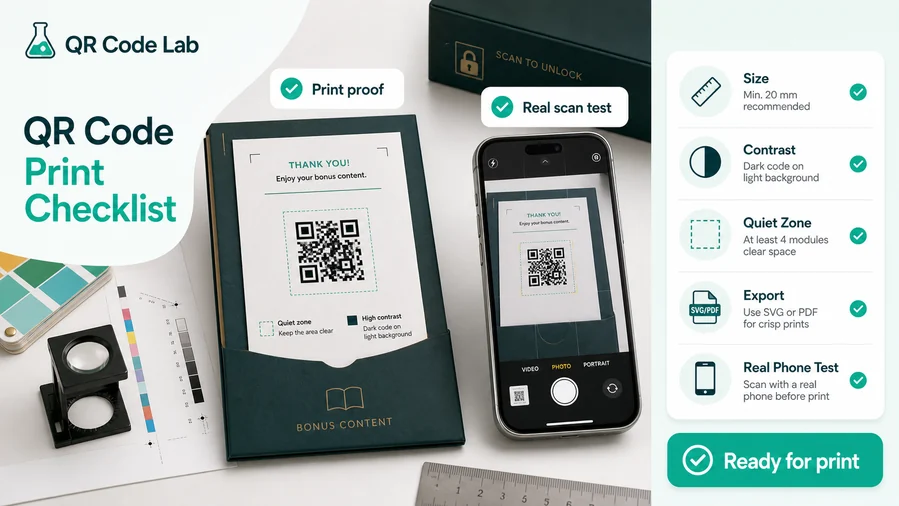
Keep the network name visible beside the code
Print the guest SSID near the QR code so visitors can confirm they are joining the expected network before scanning.
Use strong contrast, enough quiet zone, and a size that works from the real table, counter, wall, or room distance.
Test with the phones guests actually use
Scan the printed sample on iPhone and Android from the intended distance and lighting, not only from a design file on your monitor.
If the code is laminated, placed behind glass, printed on textured stock, or displayed in low light, test those conditions before distributing signs.
Use a small instruction page when native Wi-Fi behavior is not enough
Native Wi-Fi QR codes are convenient, but some venues need extra instructions for captive portals, room-specific access, conference passwords, device limits, or support notes.
A simple mobile page can explain the network name, access rules, help contact, and fallback steps while the printed sign stays clean.
Hotel room card
Show guest Wi-Fi, front desk help, checkout notes, and room support without asking guests to call.
Cafe table tent
Let customers join Wi-Fi while waiting for an order without staff repeating the password.
Meeting room sign
Help visitors connect before a call, workshop, presentation, or vendor session starts.
Rental welcome sheet
Pair Wi-Fi access with house rules, support contact, and checkout instructions.
A Wi-Fi QR sign should work before the guest asks
Print it clearly, test the real sign, and keep the network boundary visible so access feels easy and intentional.
Guest support
Put Wi-Fi QR signs where people naturally ask for the password
Good placements include reception desks, room cards, cafe tables, waiting rooms, coworking areas, rental welcome books, salon stations, conference check-in desks, lobby signs, hotel folders, meeting rooms, and visitor badges. The code should be easy to scan without asking staff to spell the SSID or password.
Use plain supporting copy: scan to join guest Wi-Fi, network for visitors, or connect to the guest network. If your venue has several networks, make the right one obvious. If the password changes often, use printed inserts or small replaceable cards instead of permanent wall signs. For hotels and rentals, include a fallback typed password for older devices or guests who cannot scan.
If you need analytics or a branded welcome step, use a dynamic web page that explains the network and support details, but understand that this is different from a native Wi-Fi QR payload. For direct Wi-Fi joining, the static credential format is usually the right tool. QR Code Lab can create the code, but your router and network security plan keep the guest network safe.






