
Webinar QR Code Generator for Registration & Replay Links
Create webinar QR codes for registration pages, replay links, speaker pages, slide decks, handouts, calendars, reminder pages, and event promos. Use them on slides, posters, booths, and handouts.
Free QR code generator
Create a QR code online
Generate QR codes for websites, email, phone numbers, vCards, Wi-Fi, plain text, forms, PDF files, and campaign links. Customize colors, add a logo or frame, then download a print-ready PNG or SVG.
Choose QR code type
Website QR code, Email QR code, Phone QR code, vCard QR code, Wi-Fi QR code, Text QR code, SMS, WhatsApp, event, and download links.
Add your content
Enter your website URL, contact details, message, phone number, location, or file destination before generating the QR code.
Customize and download
Adjust QR colors, error correction, logo, frame, size, and margin. Generate QR Code, Download PNG, Download SVG, or Save and track scans.
Webinar registration path
Move people from print or slides to the right webinar action
A webinar QR code is useful when offline materials, slides, booths, postcards, handouts, or speaker cards should open a registration page, replay link, speaker page, slide deck, handout, calendar page, reminder page, or event promo. It helps people reach the webinar destination without typing a long URL from a poster or presentation screen.
The destination should match the webinar stage. Before the event, the QR code can open registration or a calendar save page. During a live talk, it can open slides, speaker notes, or a question form. After the session, the same printed or shared code can open the replay, handouts, next event, or follow-up offer. QR Code Lab helps update dynamic destinations as the webinar moves through that lifecycle.
QR Code Lab creates URL QR codes and scan analytics. It does not host webinars, collect registrations, send reminders, manage attendance, or store replay videos. Your webinar platform, registration form, calendar tool, video host, email system, or resource page handles the actual participant experience and follow-up.
Webinar registration moments
Webinar registration moments event, wedding, venue, and attendee teams with registration, RSVPs, ticket pages, schedules, maps, guest details, and follow-up
Webinar QRUse QR codes to move event, wedding, venue, and attendee teams from invitations, banners, badges, programs, table cards, venue signs, and attendee handouts to registration, RSVPs, ticket pages, schedules, maps, guest details, and follow-up without making guests search or type a long URL.

Turn offline promotion into webinar registration
Use QR codes on flyers, booth signs, slides, classroom boards, sales handouts, receipts, and direct mail to open the exact webinar registration page while interest is fresh.
The print should name topic, date, and expected value.
Set expectations before the form
The first screen should confirm topic, speaker, date, time zone, length, replay availability, audience level, and what the registrant will learn.
Good context increases form completion quality.
Keep webinar links editable after promotion starts
Dynamic QR helps when registration pages, time zones, speaker pages, agenda, calendar links, replay pages, and follow-up offers change after materials are printed.
Useful for campaigns that run across channels.A webinar QR code should make the learning promise clear before registration
People scan because a topic, speaker, event, or offer caught their attention. The destination should confirm what they get, when it happens, and what happens after they register.
Use specific CTAs: register for webinar, save your seat, get replay, download agenda, or join live training.Registration
Open the exact form with topic, speaker, date, time zone, and audience fit visible.
Calendar and reminders
Let registrants add the event, understand time zone, and know whether replay is available.
Learning resources
Provide agenda, worksheet, speaker notes, slides, prep material, or related guide.
Post-webinar follow-up
Route scanners to replay, demo booking, offer, certificate, survey, or nurture path.
Events, conferences, and weddings
Match webinar QR codes to the registration or learning action
Attendee flowA webinar QR should open a focused action: register, save a seat, add to calendar, download the agenda, get the replay, join live, or request follow-up.

Open the registration page
Send flyers, slides, booth signs, email printouts, and classroom boards to the exact webinar form with the topic already obvious.

Add calendar and time-zone context
Give registrants local time, calendar buttons, reminder expectations, and replay availability before they leave the page.

Share the agenda and speaker proof
Use QR codes for topic outline, speaker bio, case studies, worksheet, prep material, and who should attend.

Route live attendees quickly
Use day-of-event QR codes for join links, access instructions, support, slides, chat rules, and troubleshooting.

Continue after the webinar
Move people to replay, certificate, survey, demo booking, consultation, coupon, or next lesson after the event.
Registrants need clarity before they commit time
The first screen should answer what they will learn, when it happens, who teaches it, and what they receive afterward.
Webinar teams need links that survive campaign changes
Dynamic QR helps when registration systems, speaker pages, calendar links, replay pages, and follow-up offers change after print or slide decks are shared.
Match webinar QR placement to campaign intent
Schools, classrooms, workbooks, and textbooks
Use webinar QR codes to deliver learning resources before and after the session
Learning accessA webinar registration QR can do more than collect a form. It can connect learners to agenda, prep files, worksheets, replay, slides, certificates, surveys, and follow-up lessons.

Agenda and learning goals
Show the session outline, audience level, skills covered, prerequisites, and expected outcome before registration.

Speaker and proof
Open presenter bio, case studies, company context, examples, testimonials, or course credentials that make attendance feel worthwhile.

Prep materials
Send registrants to worksheets, checklists, reading links, setup instructions, software requirements, or questions to prepare.

Calendar and reminders
Provide calendar holds, time-zone clarity, reminder expectations, join instructions, and replay policy.

Live session resources
Use QR codes on slides or event pages for polls, chat rules, downloads, support, and active exercises.

Replay access
After the session, move scanners to replay, transcript, slides, summary, bonus files, and next recommended lesson.

Certificate or completion
Route learners to attendance confirmation, certificate claim, quiz, assessment, or continuing education notes when relevant.

Feedback and next step
Use post-webinar QR codes for survey, demo booking, consultation, product trial, course enrollment, or community invite.
Learners need the useful material close to the session
A QR code should make the webinar easier to attend, understand, remember, and act on afterward.
Hosts need one campaign path that can evolve
Dynamic destinations keep registration, prep, live links, replay, and follow-up resources aligned as the webinar campaign changes.
Place webinar resource QR codes by learning stage
Webinar placement
Place webinar QR codes where the topic already has attention
PlacementWebinar QR placement should connect a promotion or presentation moment to registration, join link, agenda, replay, or follow-up without making people type a long URL.

A webinar QR without topic context feels like another form
People are less likely to scan when the print does not explain topic, date, speaker, value, or replay availability.
The QR should continue a clear learning promise.
Put the QR beside the reason to register
Use flyers for registration, slides for live resources, booth signs for save-a-seat actions, and handouts for replay or follow-up.
The landing page should match the promise printed near the code.
What stage is the webinar in?
Promotion, registration, reminder, live session, replay, certificate, survey, or follow-up offer.
What should open first?
Registration form, agenda, calendar link, join page, resource hub, replay, or consultation page.
Will details change?
Use dynamic QR for dates, speakers, registration platforms, calendar links, replays, and offers.
Is the value visible before the scan?
Print topic, date, speaker, outcome, replay note, or save your seat CTA close to the QR.
Printed flyer
Open registration with topic, date, speaker, value, and replay expectation visible.
Slide deck
Use for live join, downloads, polls, replay, demo booking, and next resources.
Trade show sign
Send booth visitors to save a seat, get agenda, or request post-webinar follow-up.
Classroom board
Open training registration, worksheet, replay, certificate, or student resource page.
Direct mail
Connect offline campaigns to registration, calendar hold, and offer detail.
Handout
Use after talks for replay, slides, checklist, consultation, or survey.
Email printout
Make long registration links usable for offline audiences and office posting.
Event program
Route attendees to related webinar, follow-up training, sponsor session, or replay.
Webinar QR placement should make registration feel immediate
The scanner should know what they are signing up for before the form asks for contact details.
Scan reporting
Use webinar QR analytics to compare promotion channels and registration intent
AnalyticsTracking is useful when flyers, slides, booth signs, handouts, classrooms, direct mail, and partner placements need separate scan readouts.
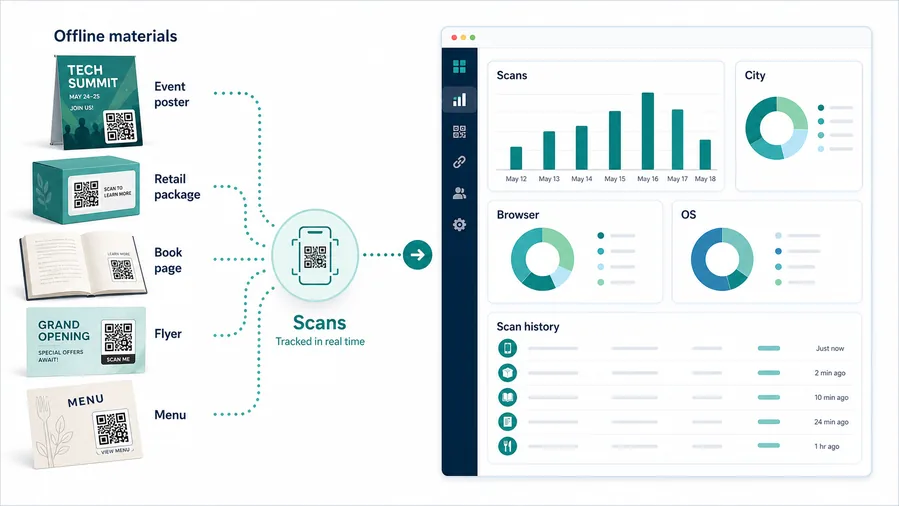
One webinar QR hides which promotion created interest
A shared QR code can show total scans, but it cannot explain whether a flyer, slide, booth sign, classroom board, handout, or partner placement created the action.
That makes campaign improvement harder.
Separate webinar codes make promotion easier to read
Use one dynamic code per channel, event, partner, topic, speaker, or asset when comparison matters.
Scan analytics are not completed registrations, but they show which offline prompts earn attention.
Scan volume
Review which webinar assets and placements generated interest during the campaign.
Time and device
Compare scans around talks, booth hours, mail drops, classes, reminder windows, and replay periods.
Broad location
Use approximate location to catch partner placements, old flyers, or unexpected regions.
Stage comparison
Compare registration, live join, replay, slides, certificate, survey, and demo booking scans.
Promotion channel reporting
Compare flyers, slides, mailers, booth signs, classroom boards, and partner handouts.
Topic and speaker testing
Use separate codes for topics, presenters, audiences, or session tracks.
Replay follow-up
Measure interest in replay, slides, worksheet, certificate, consultation, and next course.
Old campaign cleanup
Find expired registration links, moved replay pages, and old webinar offers still receiving scans.
Name webinar QR codes by campaign, stage, and placement
Use names like tax-webinar-flyer, booth-demo-register, slide-replay, or partner-mailer-agenda so reports stay useful.
Registration and replay flow
Use webinar QR codes before, during, and after the session
Useful placements include event flyers, conference slides, direct mail, handouts, booth signs, speaker cards, course pages, certificates, replay cards, and printed follow-up materials. CTAs should say register for the webinar, save the date, watch replay, download slides, meet the speaker, open handout, or get a reminder. If time matters, show the date, time, and timezone near the code.
Dynamic QR codes are especially useful for webinars because links change. A registration page may close, a replay may replace the live link, and handouts may be updated after the session. Instead of reprinting materials, you can update the destination in QR Code Lab. Scan analytics can compare slides, flyers, booth signs, and handouts to see which placements created interest.
Keep the mobile experience simple. Someone scanning from the back of a room or from a postcard should immediately see the webinar topic and next step. QR Code Lab manages the QR destination and scan data, while your webinar system handles registration, reminders, attendance, replays, email permissions, and participant records.
Scan trust
Make webinar QR codes trustworthy before people register
TrustWebinar QR codes often open forms, calendar links, replay pages, downloads, certificates, or sales follow-up. The destination should clearly match the host, topic, and promise.

Unclear host or topic
People hesitate when a QR opens a form without host identity, topic, speaker, date, or expected value visible.
Watch for similar-looking domains, long URLs, login or verify keywords, and pages asking for credentials after an unexpected scan.
Old registration pages
Printed flyers and slide decks can keep sending people to expired forms, moved replays, or outdated offers.
A trustworthy QR should not make the final destination mysterious, especially on posters, labels, menus, parking signs, or event materials.
Unexpected data collection
Registration pages should explain what information is collected and whether sales or marketing follow-up will happen.
Before paying, check the domain, HTTPS, amount, recipient, and whether the destination matches the place or brand that printed the QR.Scan the printed proof like the visitor will
Confirm that the destination shows the right organization, HTTPS page, action, form, map, schedule, or support path before people rely on the QR code.
Public QR codes need more trust signals because anyone can scan them and some placements can be tampered with.Host and topic match
Confirm the print, landing page, and form name the same webinar, speaker, date, and organization.
Form purpose clarity
Make registration, replay access, certificate, survey, or demo request obvious before contact fields.
Privacy and follow-up
Explain reminder emails, replay delivery, sales contact, and data use where relevant.
Old link check
Update or retire QR destinations after the live date, replay move, or offer change.
Publish QR codes people can verify
The printed CTA, page title, organization identity, and first action should all describe the same destination.






