
Support QR Code Generator for Help Centers, Tickets & Manuals
Create support QR codes for help centers, contact forms, troubleshooting guides, warranty pages, manuals, chat links, ticketing systems, packaging, product inserts, and labels fast.
Free QR code generator
Create a QR code online
Generate QR codes for websites, email, phone numbers, vCards, Wi-Fi, plain text, forms, PDF files, and campaign links. Customize colors, add a logo or frame, then download a print-ready PNG or SVG.
Choose QR code type
Website QR code, Email QR code, Phone QR code, vCard QR code, Wi-Fi QR code, Text QR code, SMS, WhatsApp, event, and download links.
Add your content
Enter your website URL, contact details, message, phone number, location, or file destination before generating the QR code.
Customize and download
Adjust QR colors, error correction, logo, frame, size, and margin. Generate QR Code, Download PNG, Download SVG, or Save and track scans.
Support shortcut
Use a support QR code when the scanner needs help without searching your site
A support QR code sends scanners to a help center, contact form, troubleshooting guide, warranty page, manual, chat link, ticket form, product support page, setup article, return instructions, replacement part page, or service request flow. It is useful for product teams, SaaS companies, ecommerce sellers, manufacturers, agencies, service businesses, and support teams that want fewer dead-end support moments. The scan should take the customer to the right help, not to a generic homepage.
QR Code Lab creates the QR code for the support URL. It does not run chat, ticketing, warranty systems, support workflows, or customer service automation. The support experience belongs to the destination you choose; the QR code simply makes that destination easier to reach from print, packaging, labels, manuals, receipts, service materials, product stickers, and onboarding cards. That shortcut can reduce frustration when a customer is already stuck.
Support links often change as products evolve. A dynamic QR code lets you update the final destination later, route people to a better article, swap a contact form, or move from a launch support page to a mature knowledge base without reprinting the physical asset.
Support scan moments
Turn printed support moments into the right help path
SupportA support QR code should open the help someone needs from the object, place, receipt, package, manual, or service moment in front of them. The scan should reduce confusion before it becomes a ticket or a repeated staff question.
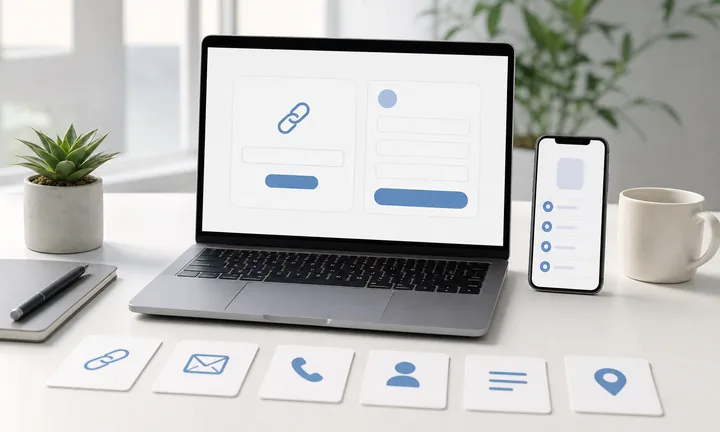
Put help beside the place where people get stuck
Use support QR codes on product labels, setup cards, receipts, equipment stickers, manuals, packaging inserts, front desks, classroom sheets, and venue signs when the scanner is likely looking for help right now.
The printed CTA should name the help path: setup, warranty, troubleshooting, contact, or service request.
Choose the support destination by urgency
A simple issue may need a troubleshooting article or PDF. A personal problem may need a contact form, callback, SMS, or live support path. A product setup question may need a short video and registration link together.
Support QR works when the first screen feels specific to the problem.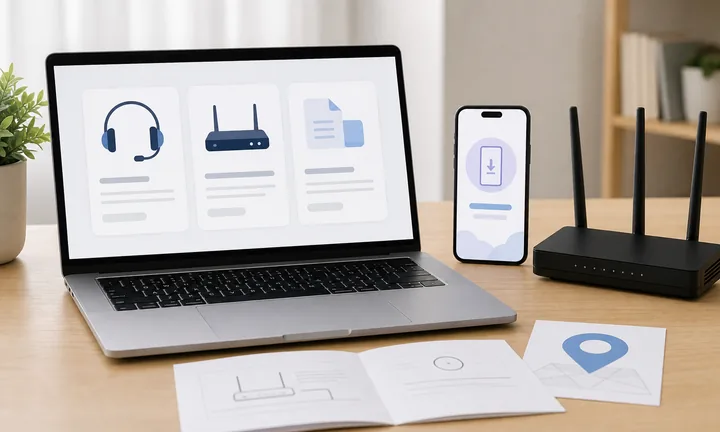
Keep support links editable after the material ships
Support articles, warranty forms, setup videos, return pages, and contact rules change after products, cards, and labels are printed. Dynamic QR lets the same code open the current help path later.
Support content improves; printed codes should not trap old instructions.The scan should prevent a support dead end
QR Code Lab creates the bridge from print to support. The destination still needs to be mobile-friendly, current, reachable by the intended audience, and honest about what help is available.
If the scan opens a broad homepage, private file, or stale article, the QR code adds friction instead of removing it.Match the problem
Point setup labels to setup help, receipts to order support, warranty cards to registration, and equipment stickers to the right service path.
Give a fallback contact
When the article does not solve the problem, offer a form, phone number, SMS path, email, or support page that continues the request.
Test outside your team
Scan from a normal phone and confirm the destination is public, readable, fast, and not hidden behind internal permissions.
Separate support placements
Use different dynamic QR codes for packaging, receipts, manuals, counters, and equipment when you need to understand where support demand starts.
Support scan experience
Make the support scan open help that matches the problem
Scan UXPeople scan support QR codes because they want friction removed. The first screen should recognize the context, offer the likely fix, and make escalation easy if self-service is not enough.
Open the exact article, guide, or file
Setup guide, troubleshooting, warranty, returns, care instructionsDirect support links work when the printed context points to one clear resource and the page is already strong on mobile.
The destination should confirm the product, issue, or service moment immediately. A scanner should not have to search a help center after scanning a support label.
Offer contact when the article is not enough
Form, callback, phone, SMS, email, ticketSupport QR often needs a second path for people who cannot solve the issue alone.
Use a mobile support page when the scanner may need to choose product version, order number, location, service type, or preferred contact method before the team can help.
Dynamic QR keeps the support route current
Updated docs, new form, changed policy, revised setup videoDynamic QR is useful when printed support materials may outlive the first version of the help content.
It also lets you compare scan activity by support placement, while tickets, calls, and resolutions remain measured in your support system.
Does the page recognize the support context?
The first screen should match the product, service, location, order, issue, or printed promise that made the person scan.
Can the scanner continue if self-service fails?
Provide a clear contact path, support form, phone option, or escalation link instead of ending at one article.
Is the destination available to real customers?
Test permissions, load time, mobile readability, region access, and whether the support page works without an internal login.
Support QR should shorten the path to help
Use the QR code to remove typing, searching, and repeated questions. If the scan does not open a specific useful help path, choose a better destination before printing.
Support placement timing
Place support QR codes where questions actually appear
PlacementSupport QR codes work best at the moment of confusion: setup, checkout, unboxing, repair, return, pickup, classroom use, venue help, or product care. The placement should make the help promise obvious.

A support QR in a generic footer gets ignored
A visible QR code is not enough if people do not understand what help it opens or why it belongs there.
Support scans usually happen when someone is stuck, waiting, unboxing, returning, repairing, or trying to complete a task. Place the code at that point, not in leftover design space.
The code belongs beside the support trigger
Put the QR near the serial number, setup step, receipt detail, warranty note, troubleshooting instruction, service counter, or physical object that creates the question.
The label should say what help opens, such as setup help, warranty registration, return instructions, service request, or contact support.
What just happened?
The person opened a box, hit a setup problem, finished a purchase, found a defect, reached a counter, read a manual, or needed service.
What should happen next?
The scan should open the support resource, form, contact path, return page, warranty flow, or troubleshooting step that fits that exact situation.
Is the phone naturally available?
Receipts, cards, labels, manuals, packaging inserts, desks, and equipment stickers are stronger than moving signs or crowded public posters.
Is the help value obvious?
Use plain CTA text: get setup help, register warranty, report an issue, request service, return this item, or contact support.
Product label or serial area
Good for setup, model-specific docs, warranty, parts, service requests, and troubleshooting tied to the exact product.
Packaging insert
Help buyers find setup videos, care instructions, registration, return rules, and support contacts while the product is new.
Receipt or invoice
Connect payment, order, return, reorder, warranty, billing, and support questions to the correct help path after purchase.
Manual or quick-start guide
Place the QR near the step where people are likely to need a video, file, diagram, or troubleshooting page.
Front desk or service counter
Open check-in, appointment help, queue updates, feedback, billing questions, or after-hours support when staff are busy.
Equipment sticker
Useful for maintenance instructions, fault reporting, inspection logs, service requests, and emergency contact paths.
Event or venue sign
Route visitors to accessibility help, organizer contact, lost-and-found, maps, schedule changes, or urgent assistance.
Classroom or training material
Let learners open help, examples, submission instructions, teacher contact, or corrected resources from the printed task.
Put support QR where it prevents a repeated question
If the placement does not connect to a real support moment, remove the code or choose a more specific destination.
Support updates
Keep printed support QR codes useful as help content changes
DynamicSupport destinations change after print: articles move, warranty forms change, return policies update, videos improve, and service routing shifts. Dynamic QR protects labels, cards, manuals, receipts, and packaging from stale help links.
A fixed help link can point to yesterday’s answer
A static QR code is fine when the support destination is permanent and the printed material is short lived.
For products, services, and operations, support pages often change after real questions arrive. A fixed printed URL can keep sending people to old instructions or a dead form.
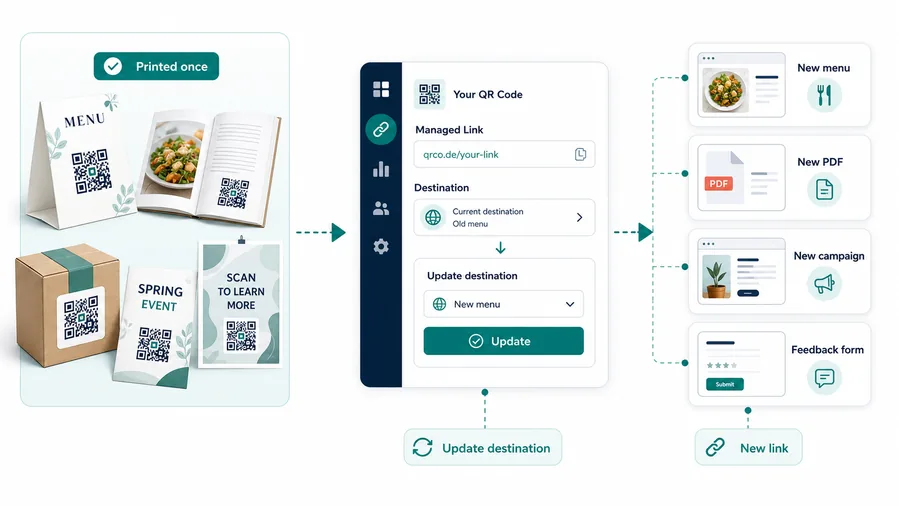
The same printed code can open the current help path
A dynamic QR code lets the printed asset keep one scan point while the final support destination changes behind it.
That gives teams room to replace setup videos, correct documentation, update warranty forms, route seasonal service requests, or change contact options without reprinting.
Product support
Update setup guides, troubleshooting articles, warranty pages, parts links, and care instructions after labels or inserts are shipped.
Service operations
Change quote forms, appointment paths, after-hours help, regional routing, and issue-reporting pages without replacing cards or signs.
Returns and policies
Keep receipts, invoices, and packaging pointing to current return rules, refund instructions, forms, and customer help.
Training and onboarding
Replace outdated lessons, support documents, videos, checklists, and contact paths while printed training materials stay usable.
Use dynamic when support content is likely to improve
If real customer questions may change the best answer, keep the printed support QR editable from the start.
Help at the point of friction
Place the support QR where the user is likely to get stuck
Support QR codes are strongest near the problem: on a product label, inside a box, beside a setup step, on a warranty card, near a device control panel, on a repair receipt, in a manual section, on a service desk sign, or next to an error code explanation. A generic footer QR is easier to ignore than a code placed beside the exact question. The more specific the placement, the more helpful the scan feels.
Use plain CTAs that name the help: “Scan for setup help,” “Open warranty support,” “Troubleshoot this device,” “Start a return,” or “Contact product support.” If the user may need multiple support paths, consider a landing page with buttons: setup guide, troubleshooting, warranty, contact form, replacement parts, live chat, and documentation. That can be more useful on mobile than sending every scan to one long help article.
Dynamic QR helps support stay current. If the top issue changes, the article moves, the product version changes, or the support team switches tools, the printed code can keep working while the destination changes behind it. That matters most on packaging, labels, and manuals that stay in use for months.