
QR Code for Food Delivery - Menus, Orders & Tracking Links
Create QR codes for food delivery linking menus, order pages, tracking pages, reviews, coupons, payment links, and support pages. Use them on bags, receipts, flyers, and storefront signs.
Free QR code generator
Create a QR code online
Generate QR codes for websites, email, phone numbers, vCards, Wi-Fi, plain text, forms, PDF files, and campaign links. Customize colors, add a logo or frame, then download a print-ready PNG or SVG.
Choose QR code type
Website QR code, Email QR code, Phone QR code, vCard QR code, Wi-Fi QR code, Text QR code, SMS, WhatsApp, event, and download links.
Add your content
Enter your website URL, contact details, message, phone number, location, or file destination before generating the QR code.
Customize and download
Adjust QR colors, error correction, logo, frame, size, and margin. Generate QR Code, Download PNG, Download SVG, or Save and track scans.
QR solutions for this use case
Delivery order path
Make reorders, tracking, support, and reviews easier after delivery
A QR code for food delivery can open a menu, order page, delivery tracking page, review request, coupon, payment link, support page, or location-specific landing page. It is useful for restaurants, ghost kitchens, cafes, local delivery teams, and food vendors that still rely on printed bags, receipts, counter signs, flyers, or door hangers to create repeat orders.
The scan should remove the small friction that usually kills a reorder. A customer should not have to search for the restaurant, guess which delivery page is current, or type a long URL from a receipt. The QR code can send them directly to the current menu, a reorder offer, a support page for delivery issues, or a review path after the meal. QR Code Lab helps create print-ready QR codes, dynamic destinations, and scan analytics for those printed touchpoints.
QR Code Lab creates URL QR codes only. It does not process payments, manage orders, collect forms, run memberships, or operate POS software. The ordering, payment, delivery, and support workflow belongs to the linked platform, while QR Code Lab helps make the printed path easier to scan, update, and measure.
Delivery order path
Help food-delivery customers order, track, reorder, pay, and get support faster
Delivery flowA food-delivery QR code should connect bags, receipts, flyers, counter cards, coupons, and driver handoffs to the next useful action: order again, track a delivery, contact support, claim a deal, tip, or leave feedback.
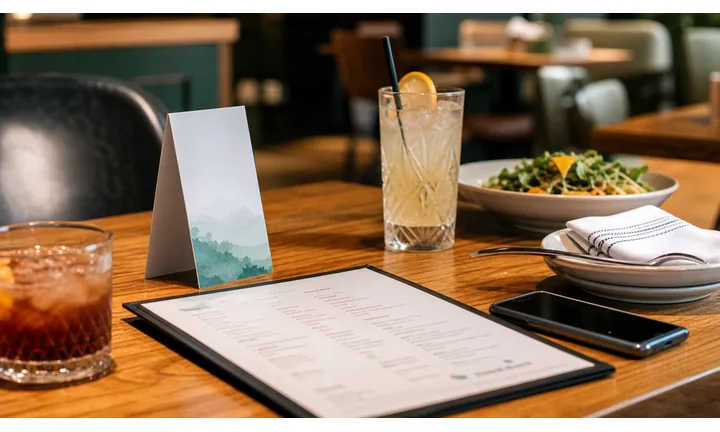
Turn every delivered order into a clean return path
Use QR codes on bags, receipt stickers, menu inserts, and thank-you cards to open reorder links, location-specific menus, delivery apps, subscription offers, and support pages.
The scan should make the next order easier while the meal and brand are still present.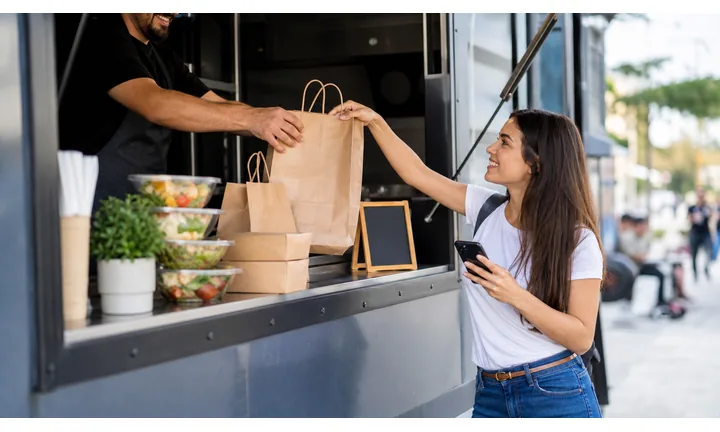
Route delivery issues to the right place quickly
A strong QR destination can separate missing items, refund questions, late orders, driver contact, restaurant support, and platform support so customers do not guess where to complain.
Clear support paths protect the customer experience after the bag leaves the store.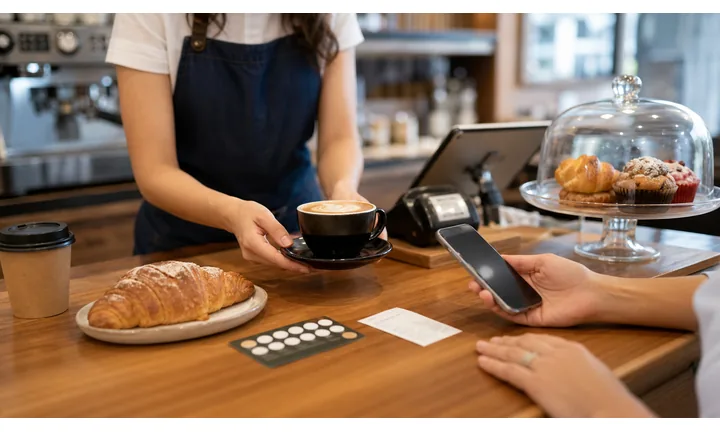
Keep delivery offers and menus current after inserts are printed
Dynamic QR helps when prices, delivery zones, app links, coupons, seasonal menus, hours, and partner platforms change after flyers or packaging are already in circulation.
Delivery print travels; editable destinations keep it from going stale.A food-delivery QR should make the next order or support step obvious
The customer may be hungry, checking a late order, opening a bag, sharing feedback, or deciding whether to order again. The QR destination should answer that moment with a direct mobile action.
Use CTAs such as reorder, track delivery, claim coupon, contact support, tip driver, leave feedback, or view menu.Before ordering
Open menus, deals, delivery areas, app links, pickup options, and catering pages.
During delivery
Route to tracking, driver contact, support, missing-item help, and order status.
After the meal
Use receipts and packaging for reviews, coupons, loyalty, reorder, and feedback.
By channel
Keep direct ordering, marketplace links, local branches, and campaign pages separated and editable.
Restaurants, cafes, and bars
Match food-delivery QR codes to the customer action after the bag arrives
Guest-first flowDelivery QR codes work when they answer the exact moment: reorder from the receipt, check a missing item, claim a coupon, tip, review the meal, or open the current menu for next time.
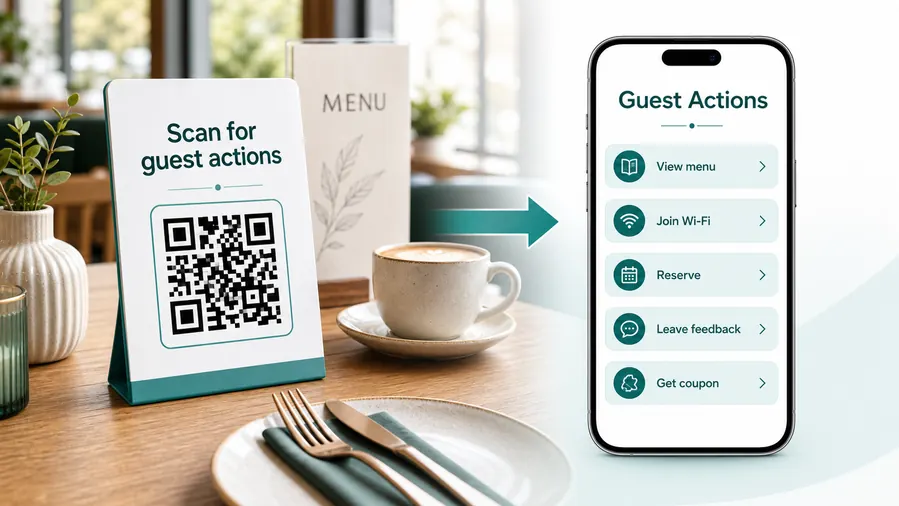
Start with the delivery reason to scan
The best delivery QR flow does not send every scanner to the same homepage. It opens the action created by the bag, receipt, flyer, coupon, or support card in front of the customer.
Make reordering easier than searching again
Use bag stickers, receipts, and inserts to open the same restaurant, branch, menu category, or delivery app path the customer is likely to use next.
Send support issues to the right destination
Give customers a clear route for missing items, wrong orders, late delivery, refund questions, allergies, and platform-specific help.
Offer coupons after a completed order
Put return offers on receipts, boxes, bags, and thank-you cards so customers can claim a next-order discount while the brand is still remembered.
Collect feedback without blocking support
Use QR codes for quick private feedback, public reviews, order quality notes, and store-level comments after the customer has eaten.
Show current menu and delivery details
Route printed flyers to live menus, hours, delivery zones, pickup options, sold-out items, and seasonal specials.
Open tipping or payment links carefully
If the QR leads to a tip, balance, deposit, or checkout page, label the purpose clearly and let the provider confirm the transaction.
Before ordering
Current menu, delivery zone, coupons, pickup, app link, and catering.
At handoff
Tracking, driver contact, support, missing-item help, and order status.
After eating
Review, feedback, reorder, coupon, loyalty, and referral offer.
Packaging insert
Menu update, support path, delivery app link, and next-order promotion.
Use dynamic QR when delivery menus and channels change
Dynamic QR keeps bags, flyers, receipts, and coupons useful when prices, hours, platform links, delivery zones, and offers move.
Do not make support harder than the problem
Delivery customers are often frustrated when they scan. Put the most urgent actions first and keep the page fast, branch-aware, and mobile-friendly.
Delivery placement
Place food-delivery QR codes where customers can reorder or solve an issue immediately
PlacementFood-delivery QR placement should follow the order journey: flyer, checkout, bag, receipt, handoff, support, and return offer. The code should make sense at the exact moment the customer sees it.

The code is printed but the action is vague
A QR on a bag or flyer can be visible and still useless if it does not say whether it opens menu, reorder, tracking, coupon, support, or payment.
Delivery customers scan quickly and usually want one answer, not a brand maze.
The code sits beside the delivery task
Use receipt QR for reorder and support, bag QR for coupons and feedback, flyer QR for current menus, and driver-card QR for handoff instructions.
The first screen should match the printed promise and the branch or platform context.
What just happened?
The customer saw a flyer, placed an order, received a bag, noticed an issue, finished the meal, or wants to order again.
What should happen next?
Open menu, reorder, track, contact support, claim coupon, tip, review, or check delivery details.
Is the code near the relevant object?
A receipt code should handle order-specific follow-up; a flyer code should open a current menu or offer.
Will the destination change?
Use dynamic QR for menus, coupons, app links, delivery zones, support pages, and seasonal offers.
Bag sticker
Open reorder, coupon, feedback, delivery support, or current menu while the meal is in hand.
Receipt
Route to order support, review, loyalty, tip, coupon, refund guidance, and reorder.
Menu flyer
Show live menu, hours, delivery zone, platform choices, catering, and seasonal offers.
Driver handoff card
Provide tracking help, contact instructions, missing-item support, and delivery feedback.
Counter pickup sign
Open pickup instructions, app download, order status, and loyalty signup.
Coupon insert
Send customers to a next-order offer, branch-specific deal, referral page, or app campaign.
Packaging label
Open allergens, heating instructions, product notes, and support for packaged delivery items.
Catering box
Link to setup notes, invoice payment, reorder, event feedback, and support contact.
Delivery QR placement should shorten the path from bag to action
Use each code where the customer can immediately understand why scanning helps.
Delivery link control
Keep food-delivery QR links current across menus, platforms, and offers
DynamicDelivery materials move through bags, flyers, receipts, coupons, and partner channels. Dynamic QR keeps those printed pieces useful when menus, hours, app links, and support paths change.
Delivery print can outlive the offer or platform link
Static QR works only while the menu, coupon, branch link, and delivery provider stay the same.
Food delivery changes quickly: prices, hours, availability, zones, and platform pages can move before old inserts disappear.
The same bag or flyer can open the current destination
Dynamic QR lets the restaurant update menu pages, coupon links, direct ordering, marketplace pages, support forms, and catering pages without replacing every print piece.
That protects delivery campaigns where materials travel beyond the store.
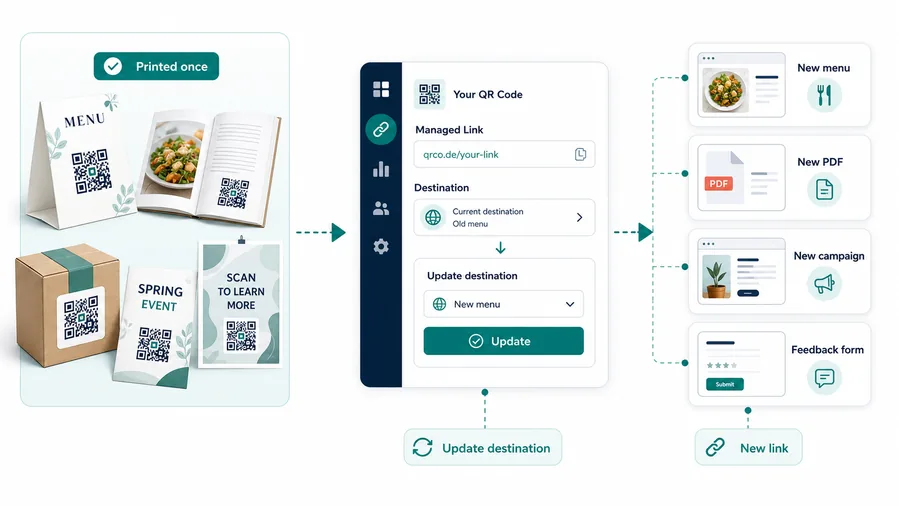
Menu and pricing
Update item availability, prices, seasonal specials, hours, and delivery zones behind printed flyers and bag inserts.
Ordering channels
Switch between direct ordering, pickup, marketplace apps, branch pages, and catering forms as operations change.
Support routing
Move missing-item, refund, order-status, and branch-contact pages without reprinting receipts or support cards.
Coupons and campaigns
Keep holiday, lunch, loyalty, referral, and return-order offers current after packaging is distributed.
Use dynamic QR when delivery print leaves your control
If a bag, flyer, receipt, or coupon may circulate after links change, an editable destination is safer.
Delivery scan reporting
Use scan data to compare delivery materials, not to claim every reorder
AnalyticsTracking helps compare food-delivery touchpoints: bags, receipts, flyers, coupons, pickup signs, driver cards, marketplace campaigns, and catering boxes.
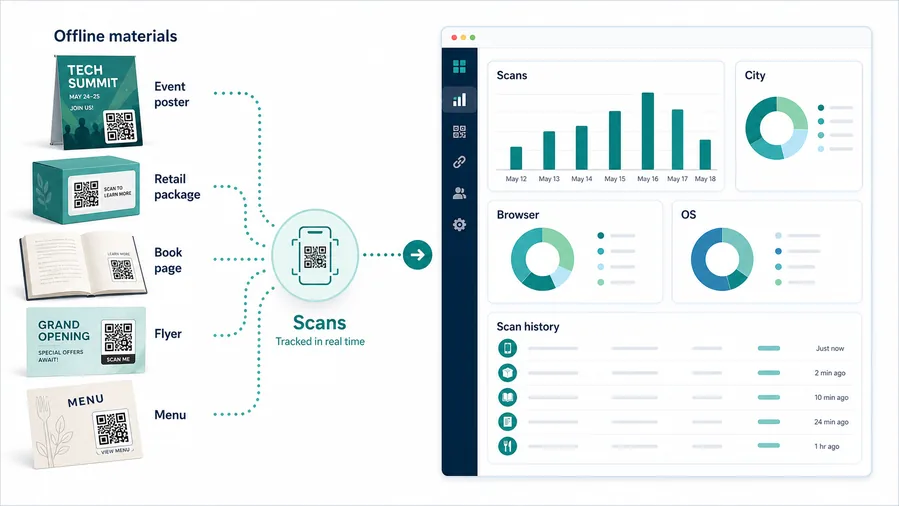
All delivery scans collapse into one report
A single QR code can show total interest, but it cannot tell whether a bag sticker, receipt, flyer, coupon, or pickup sign created the scan.
That makes it harder to improve reorder prompts, support paths, and local campaigns.
Each delivery material becomes a useful signal
Use separate dynamic QR codes for receipts, bags, flyers, driver cards, coupons, and catering boxes when comparison matters.
Scan analytics show attention and timing; order and payment conversion remain inside the ordering or POS system.
Scan volume
Review how many scans each delivery material received during the selected campaign or branch period.
Time and device
See when customers scanned and which device, browser, or operating system opened the destination.
Broad location
Use approximate location signals to review branch or delivery-zone patterns without treating them as customer identity.
Code comparison
Compare bags, receipts, flyers, coupons, pickup signs, driver cards, and catering boxes side by side.
Reorder campaigns
Compare bag stickers, receipt offers, and menu inserts to see which ones earn next-order interest.
Support routing
Spot QR codes that receive scans after delivery issues, late orders, or missing-item complaints.
Coupon tests
Use separate codes for lunch offers, weekend delivery, referral coupons, and branch-specific promotions.
Operational cleanup
Find expired offers, dead platform links, zero-scan inserts, and codes still scanning after campaigns end.
Name delivery QR codes by material and branch
Tracking works only when code names match the real bag, receipt, flyer, coupon, platform, or location being compared.
Packaging and reorder flow
Put the QR code where the customer has the food and the phone nearby
Useful placements include delivery bags, box stickers, receipts, counter cards, takeout menus, door hangers, coupon cards, fridge magnets, driver handouts, and local flyers. Match the CTA to the moment: order again, track delivery, get support, claim next coupon, leave a review, or save our menu. A bag sticker can focus on reorder and support, while a neighborhood flyer can focus on first-time ordering or a local delivery offer.
Dynamic QR codes are helpful because menus, delivery zones, coupons, payment links, and support pages change. Scan analytics can show whether packaging, receipts, or flyers actually bring customers back. That does not prove an order was completed, but it shows which printed materials successfully moved people into the digital ordering path.
Keep the destination direct. If a customer scans from a receipt, they should not land on a slow desktop homepage. Send them to the exact menu, support page, coupon, or reorder path that matches the printed message. For package stickers, use short labels because the customer may scan after the meal when they only want one clear next action.
Delivery payment boundary
Use delivery QR codes for order and payment links, not payment proof
PaymentsQR Code Lab can create the QR code, keep the destination editable, and show scan activity. The ordering app, POS, wallet, marketplace, or payment provider handles checkout, receipts, refunds, disputes, and order status.
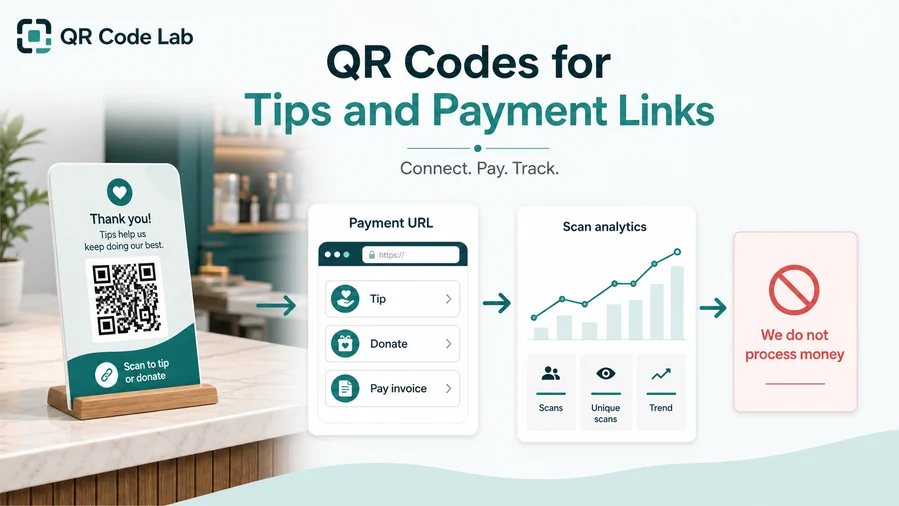
Open checkout or reorder without typing
Use QR codes on bags, receipts, catering boxes, flyers, and counter cards to reach trusted order, payment, or tip pages quickly.
Clarify tips, balances, and catering payments
If the QR opens a tip, deposit, catering invoice, or balance payment, label the purpose before the scan.
Keep payment destinations editable
Dynamic QR helps when provider links, branch pages, marketplace URLs, or catering checkout pages change.
A scan does not confirm an order or payment
Scan analytics can show that someone opened a payment or order page, but only the POS, marketplace, wallet, or payment provider can confirm completion.
Use the ordering or payment system as the source of truth for refunds, disputes, receipts, and delivery status.Keep delivery payment QR codes convenient and honest
Use QR to shorten the route to checkout while the actual transaction stays with the correct provider.
Delivery trust
Make food-delivery QR destinations recognizable before customers order, pay, or complain
TrustDelivery QR codes can open ordering, payment, support, coupons, and feedback pages. The destination should show the restaurant or provider clearly and match the printed promise on the bag, receipt, or flyer.

Fake or confusing order pages
Customers may hesitate if a QR on a bag or flyer opens a page that does not clearly match the restaurant, branch, or delivery provider.
Show the brand, location, and purpose before checkout or account actions.
Payment links without clear purpose
Tip, balance, catering, or checkout QR codes should explain what the customer is paying for before the provider page opens.
Payment confirmation belongs in the provider, not scan analytics.
Old coupons still traveling with packaging
Bags, flyers, and receipt inserts can keep circulating after offers, menus, or delivery zones change.
Review long-lived delivery materials and use dynamic QR for campaigns that move quickly.Inspect delivery QR destinations before packaging goes out
Confirm the encoded destination, restaurant identity, branch context, CTA match, and whether the QR opens menu, order, payment, coupon, support, or feedback.
A QR checker helps reveal the destination, but it does not replace payment, order, or support-system review.Decoded destination
Review whether the QR opens the intended menu, ordering, support, coupon, payment, or feedback page.
Brand and branch
The first screen should match the restaurant or location the customer expects.
Payment purpose
Tips, balances, deposits, and checkout links should make the reason clear before payment.
Printed material
Check bags, receipts, flyers, and coupons for outdated or mismatched QR codes.
Publish delivery QR codes customers can trust
Use clear CTAs, recognizable destinations, current offers, and support paths so QR codes reduce friction instead of creating doubt.






