
Bulk QR Code Generator for Teams, Labels, Events & Campaigns
Plan bulk QR workflows for products, labels, events, classrooms, and campaigns. Until self-serve bulk tools launch, create individual codes, API plans, or dynamic tracking reports.
Free QR code generator
Create a QR code online
Generate QR codes for websites, email, phone numbers, vCards, Wi-Fi, plain text, forms, PDF files, and campaign links. Customize colors, add a logo or frame, then download a print-ready PNG or SVG.
Choose QR code type
Website QR code, Email QR code, Phone QR code, vCard QR code, Wi-Fi QR code, Text QR code, SMS, WhatsApp, event, and download links.
Add your content
Enter your website URL, contact details, message, phone number, location, or file destination before generating the QR code.
Customize and download
Adjust QR colors, error correction, logo, frame, size, and margin. Generate QR Code, Download PNG, Download SVG, or Save and track scans.
Bulk planning
Plan bulk QR generation carefully before you print hundreds of codes
Bulk QR generation is useful when every item, label, attendee, product, room, asset, coupon, student sheet, ticket, or package needs its own code. That is a different problem from making one QR image. You need naming, destination mapping, export formats, ownership, testing, review, and a way to avoid printing the wrong destination at scale. The bigger the batch, the more important the plan becomes.
Full self-serve bulk QR generation is in development at QR Code Lab. For now, the honest path is to create individual QR codes, use dynamic QR codes when destinations may change, and plan API or technical workflows where appropriate. Do not treat a bulk print run as a spreadsheet afterthought; mistakes multiply quickly. A wrong URL on one flyer is annoying. A wrong URL across 5,000 labels is expensive.
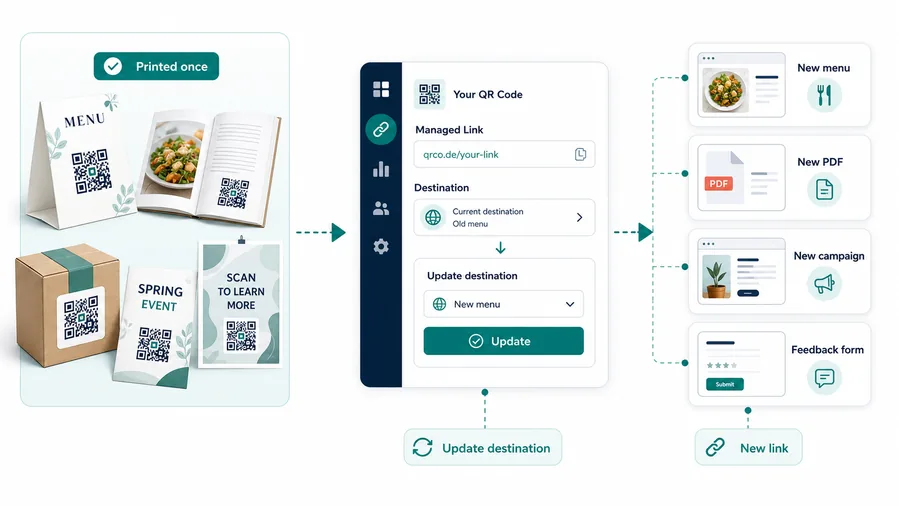
Dynamic QR codes help because they separate the printed image from the final destination. If a batch destination changes, a product URL moves, or a campaign needs correction, you have more room to fix the link after printing than with static one-off QR images.
After-print control
Use dynamic QR for bulk batches that cannot afford stale destinations
DynamicA bulk export can multiply one destination mistake across labels, cards, packaging, tickets, classroom sheets, or campaign materials. Dynamic QR keeps the printed code stable while the destination remains manageable.
One spreadsheet mistake can become thousands of bad scans
Static QR is fine when the encoded value is final, but it cannot follow a moved product page, updated manual, expired offer, or corrected support form.
After files go to print, every wrong row becomes a physical asset that must be relabeled, reprinted, or explained to customers.
Each printed code can keep working while destinations change
Dynamic QR separates the printed image from the final destination, so the operations team can update links without touching the printed material.
That matters for packaging, manuals, product labels, event assets, regional campaigns, classroom sheets, and partner distributions.
Product and SKU batches
Route each label to the current manual, warranty page, registration form, care guide, or product education page without reprinting every package.
Campaign and event batches
Keep posters, tickets, badges, handouts, and partner materials useful when landing pages, dates, offers, or registration forms change.
Location and team batches
Separate codes by branch, booth, region, department, or sales team when destinations and reporting need clear ownership.
Operations handoff
Give printers, support teams, and campaign owners a stable code map that can be reviewed after the export leaves the original spreadsheet.
Use dynamic when the batch will live outside your control
If the code is going onto physical materials, bulk work should assume that some destinations will need correction, updates, or reporting after launch.
Bulk setup decision
Choose the bulk QR setup by what must stay editable after export
Batch setupBulk QR work is less about making many images and more about protecting the mapping between each printed code, its destination, and the reporting the team needs later.
URL QR code
Use for websites, landing pages, menus, product pages, portfolios, booking pages, and campaign pages.
Best dynamic when links may changePDF / File QR code
Use for menus, manuals, worksheets, bonus materials, brochures, certificates, ZIP archives, and checklists.
Dynamic is safer for printvCard QR code
Use for business cards, badges, counters, portfolios, sales materials, and follow-up contact details.
Static opens native contact saveWi-Fi QR code
Use for cafes, hotels, offices, classrooms, venues, rental spaces, and guest networks.
Usually best as staticForm QR code
Use for feedback, registrations, quote requests, surveys, support requests, applications, and check-in.
Dynamic helps forms evolveWhatsApp / messaging QR
Use when the next step is a conversation: support, sales, booking, delivery questions, or consultation.
Prefilled messages reduce frictionMaps QR code
Use for venues, offices, stores, events, pickup points, property listings, booths, and meeting locations.
Great for physical destinationsSocial QR code
Use for Instagram, TikTok, YouTube, X, LinkedIn, Behance, creator pages, and community profiles.
Best when relationship continuesPayment link QR code
Use for invoices, tips, donations, event payments, deposits, checkout pages, and payment requests.
Make amount and context clearNative action?
Wi-Fi, vCard, email, phone, and SMS often work best when the action is encoded directly, especially if the native phone interface matters.
Editable or measurable?
Use a dynamic QR code when the destination may change, files may be replaced, campaigns need analytics, or printed material must stay useful later.
Several actions?
Use a microlanding page when one scan should offer buttons, files, contact, feedback, booking, social links, or multiple next steps.
Bulk planning prevents support work later
Name groups, owners, destinations, and print placements before export so the batch can be audited weeks after the files are handed to a printer or operations team.
Batch reporting
Name bulk QR codes so scan data stays useful after launch
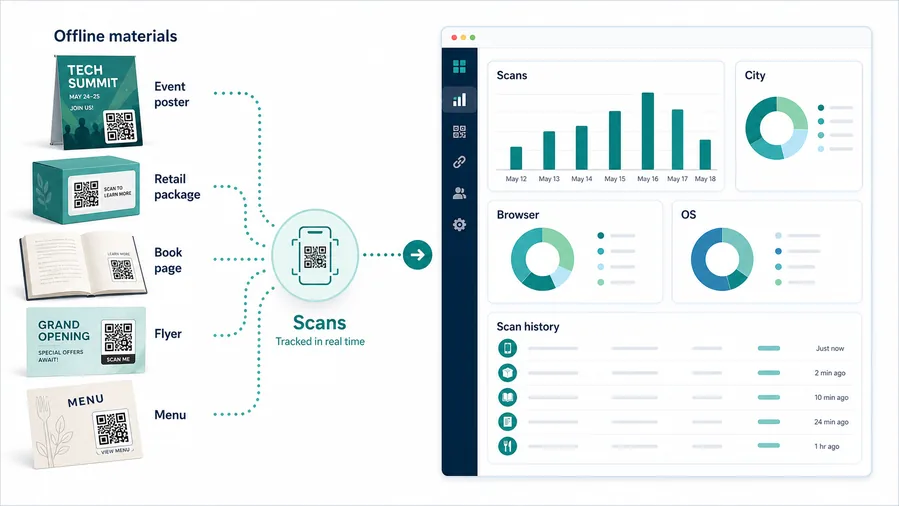
AnalyticsBulk scan reporting is valuable only when each code name matches a real row, material, location, team, campaign, or print placement that somebody can recognize later.
One code hides which batch earned attention
A shared QR can show total interest, but it cannot tell whether scans came from a package insert, poster, table card, ticket, branch, or partner placement.
That may be enough for a small test, but it is weak for bulk operations where every row exists for a reason.
Separate codes turn each placement into a readable signal
Create distinct dynamic QR codes when product lines, regions, materials, teams, or locations need their own readout.
The scanner experience can stay the same while the dashboard shows which parts of the batch are actually getting used.
Scan volume
Review how many scans each batch, material, label group, or campaign code received during the selected period.
Time and device
Check when people scanned and which device, browser, or operating system opened the destination.
Broad location
Use approximate location signals to notice regional patterns without treating them as exact personal identity.
Code comparison
Compare rows, batches, materials, and placements side by side when operational decisions depend on real usage.
Packaging batches
Compare scans by SKU, batch, language, market, insert type, or product family after items ship.
Print campaign packs
Separate posters, flyers, badges, table cards, and handouts so the team can see which material earned attention.
Regional distribution
Give branches, partners, locations, or field teams separate codes when ownership and follow-up differ.
Cleanup after launch
Spot zero-scan rows, unexpected destinations, strange locations, or codes that keep scanning after a campaign should have ended.
Plan reporting before the bulk export
A useful dashboard starts with meaningful code names, not with a pile of anonymous QR images after the print run is already distributed.
Bulk print handoff
Check bulk QR files before one bad row becomes a print problem
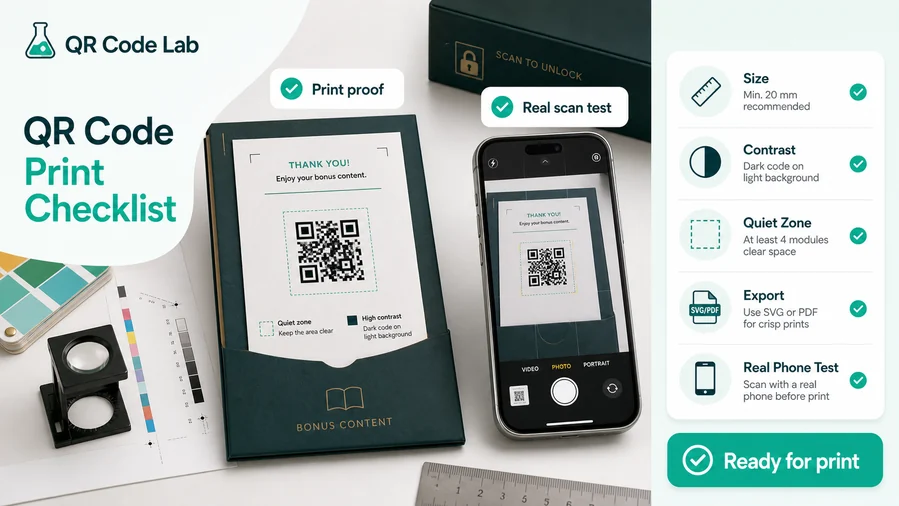
Print readyBulk QR batches need proofing beyond a single preview: file naming, destination mapping, scan size, quiet zone, owner review, and representative sample tests.
Verify the spreadsheet before export
Check that every row has the intended destination, label, owner, campaign, product, location, and final file name before QR images are generated.
Use stable naming conventions so exported SVG, PDF, or PNG files still make sense to printers and operators after they leave the original tool.
Test representative codes at real size
Scan samples from each batch, product group, material, and destination type before files go to print or production.
Labels, inserts, posters, badges, tickets, and packaging all need different scan distances, quiet zones, and contrast checks.
Use a landing page when one printed code needs several actions
Some bulk codes should not jump straight to one URL. Product setup, manuals, warranty, support, videos, downloads, and feedback may belong together behind a clean mobile page.
A managed destination lets each printed code stay simple while the page behind it presents the exact actions for that item, location, or campaign.
Product labels
Use stable naming for SKU, batch, region, language, or product-family variants before sending files to print.
Campaign packs
Separate codes by poster, flyer, table card, badge, handout, partner, or channel when comparison matters.
Operations sheets
Keep spreadsheet IDs, exported filenames, destinations, owners, and print notes together for later support.
Sample scans
Test a few codes from every group on real phones before the batch is approved for distribution.
A clean bulk export saves painful cleanup later
The QR image, destination map, file name, and printed placement should be checked together before the batch leaves your control.






