
QR Code Label Template for Product Labels, Shelves & Tags
Create QR label templates for product labels, shelf tags, inventory labels, packaging, shipping labels, bottles, jars, and boxes. Keep padding clear and print size scan-safe today.
Free QR code generator
Create a QR code online
Generate QR codes for websites, email, phone numbers, vCards, Wi-Fi, plain text, forms, PDF files, and campaign links. Customize colors, add a logo or frame, then download a print-ready PNG or SVG.
Choose QR code type
Website QR code, Email QR code, Phone QR code, vCard QR code, Wi-Fi QR code, Text QR code, SMS, WhatsApp, event, and download links.
Add your content
Enter your website URL, contact details, message, phone number, location, or file destination before generating the QR code.
Customize and download
Adjust QR colors, error correction, logo, frame, size, and margin. Generate QR Code, Download PNG, Download SVG, or Save and track scans.
Design and tracking options
Label layout path
Use QR code label templates when the layout must fit small labels, shelf tags, bottles, jars, packaging, and inventory stickers
A QR code label template is about layout and repeatability. It helps teams place QR codes on small labels, product labels, shelf tags, shipping labels, bottles, jars, inventory stickers, and packaging without redesigning every piece from scratch. It is useful for retail teams, ecommerce brands, packaging designers, warehouses, print shops, makers, food brands, cosmetics brands, and product teams that need consistent scan points across many items.
This is different from a label generator page. The template question is how the QR code, CTA, product text, border, quiet zone, and brand elements fit together on a constrained surface. A jar label may need a small code with a short CTA. A shelf tag may need price and product information beside the code. A shipping label may need operational clarity. An inventory label may need fast scanning over decorative polish.
QR Code Lab creates URL QR codes and visual QR assets, but it does not print labels, manage inventory, run retail systems, or control the final template software. The final layout still needs proof scanning and print QA.
Label and sticker QR moments
Use QR label templates to keep repeated printed codes consistent
Label QRA QR label template should make repeated labels easier to produce without losing the important details: scan promise, size, quiet zone, destination, batch naming, and print testing.
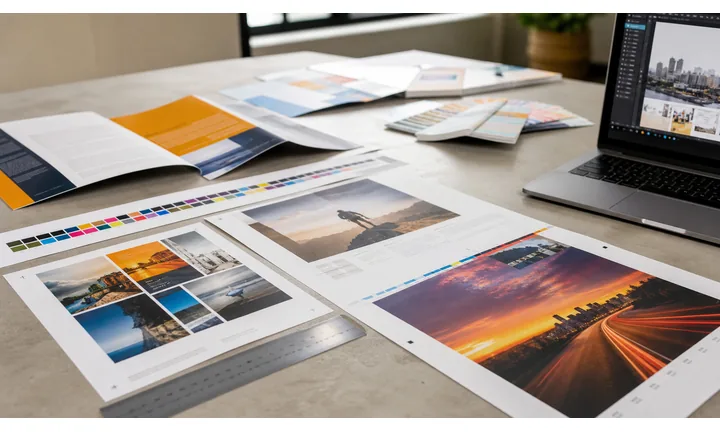
Turn a small label into a useful product path
Use QR labels on packaging, jars, boxes, equipment, shelves, samples, folders, bottles, tags, and inserts when the physical surface cannot carry all the details.
The label should promise the specific benefit, not just show a code.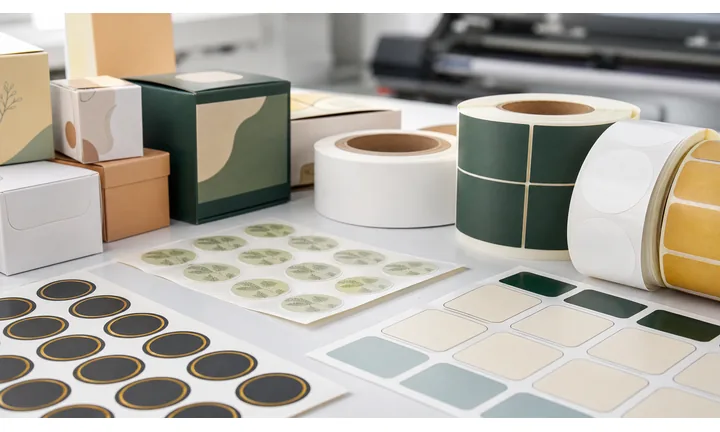
Make the scan match the item in someone’s hand
A label QR works best when it opens the resource for that exact SKU, batch, location, instruction set, campaign, or service asset instead of a generic homepage.
Specific labels reduce support friction after purchase or handoff.
Keep labels useful after files and pages change
Dynamic QR helps when manuals, warranty pages, safety notes, recipes, care guides, reorder links, menus, and promotions may change while printed labels remain in use.
Labels often live longer than the first destination URL.A QR label should connect the object to the right action
The scanner is usually holding the product, reading a tag, opening a package, checking a shelf, or reviewing a printed asset. The destination should answer the question created by that physical moment.
Use separate QR labels when batches, products, regions, languages, or placements need different destinations or reporting.Product support
Open setup, care, manual, warranty, safety, specs, compatibility, or troubleshooting content.
Customer action
Lead to reorder, registration, review, feedback, coupon, subscription, or contact paths.
Operational clarity
Use naming and dynamic links so label exports remain understandable after print.
Print reliability
Check label size, material, contrast, curvature, adhesive placement, and scan distance before rollout.
Product label actions
Make each QR label open the action buyers need after the physical handoff
Product pathQR labels work when they answer the next customer question: how to set this up, what is inside, how to register, where to reorder, how to get help, or what changed.
Open setup and care instructions
Put the QR label near the unboxing or first-use moment so buyers can open manuals, videos, care notes, recipes, or installation steps without searching.

Connect warranty and registration
Use labels, inserts, or tags to route customers to warranty registration, proof of purchase, serial lookup, safety notices, or product-specific support.
Support reorder and replenishment
Send scanners to the right replacement part, refill, subscription, accessory, size, flavor, color, or SKU page while the product is still in hand.
Collect feedback at the right time
Use QR labels after delivery, setup, or use to ask for reviews, private feedback, support requests, or product improvement notes.
Handle batch-specific information
Use separate dynamic QR labels for regions, languages, lots, campaign runs, seasonal variants, or packaging versions when content differs.
The buyer should not have to decode the label
Write a short promise beside the QR code so the scanner knows whether it opens setup help, warranty, safety notes, reorder, ingredients, specs, or customer support.
The brand gets cleaner post-purchase paths
Dynamic QR labels can reduce stale inserts, simplify support handoffs, and help compare which packages, regions, or product lines earn scans.
Put the QR label where the question appears
Template print check
Build the QR label template around final-size proofing
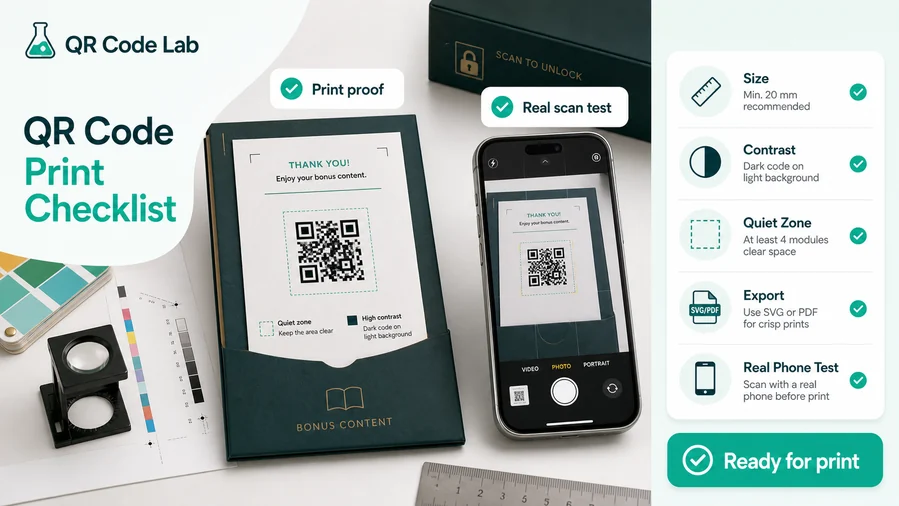
Print readyA template is useful only if every repeated label keeps enough QR size, quiet zone, contrast, CTA space, and destination clarity after names, batches, SKUs, or translations are inserted.
Match label size to scan distance and surface
Small stickers, curved bottles, textured boxes, glossy sleeves, and folded tags all need more careful testing than a large flat poster.
Print a real-size sample, place it on the intended surface, and scan it from the distance customers will naturally use.
Keep artwork sharp and the quiet zone clean
Export vector artwork for professional label layouts and protect the quiet zone from borders, dielines, photos, folds, seams, and nearby text.
If the label uses brand color, ink limits, or special material, test contrast after printing rather than trusting the screen preview.
Use a mobile page when the label needs more than one action
A label can open setup, warranty, care, reorder, review, contact, safety, documents, and product education from one compact printed code.
A focused mobile page keeps the printed label simple while giving buyers the exact actions they need after scanning.
Product label
Open setup, specifications, ingredients, authenticity, safety notes, care, or reorder content tied to the item.
Package insert
Connect buyers to registration, support, instructions, review, bonus files, and follow-up offers.
Shelf label
Help shoppers compare variants, view details, request help, claim an offer, or open a product page.
Asset sticker
Route staff or customers to maintenance, manuals, service history, checklists, and support contacts.
Approve the template before producing the batch
Test the smallest filled-in label, not the cleanest empty template, before exporting a full run.
Template design
Design the QR label template so every repeated label stays scannable
Label designTemplates protect consistency, but they can also hide failures when long product names, batch IDs, translations, or variable fields crowd the QR code.
Use the frame to separate the code from package artwork
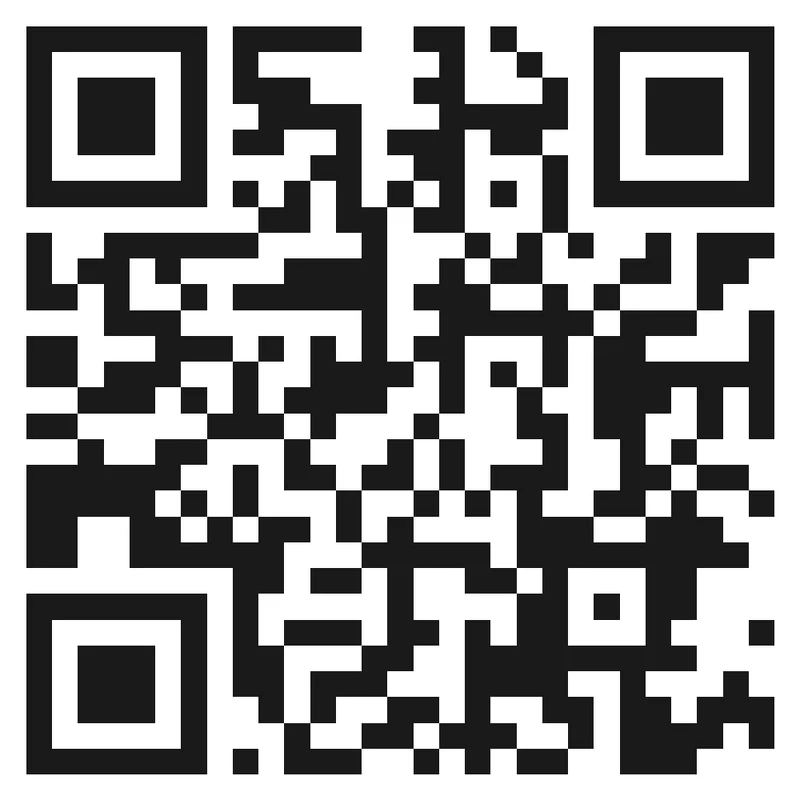
Crowded
A bare QR code placed near photos, ingredient blocks, barcodes, or decorative patterns can disappear into the label design.
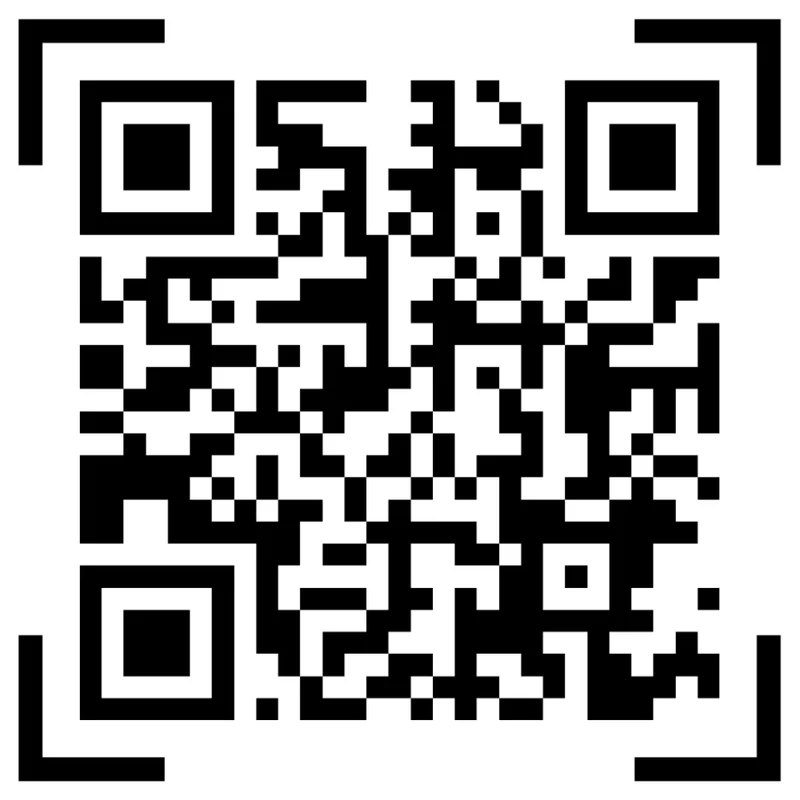
Clear
A simple frame, quiet zone, and short CTA help the code stand apart while telling buyers why scanning is useful.
Use color and logo only where the label still scans
Risk
Tiny logo treatments, low contrast brand colors, glossy material, and curved surfaces can make a label QR harder to read.
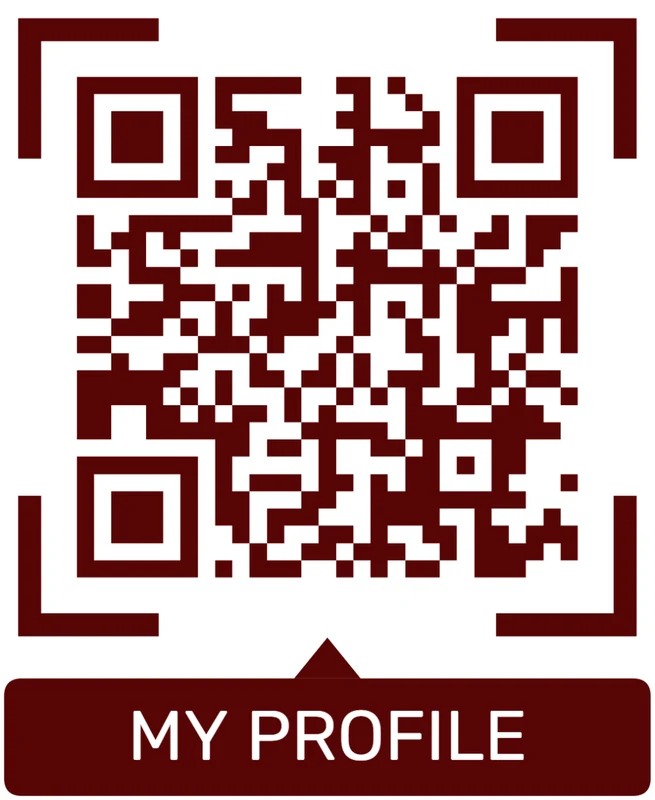
Proofed
Keep finder corners readable, maintain contrast, test the smallest label size, and use CTA copy that matches the linked product action.
Customize corners and modules
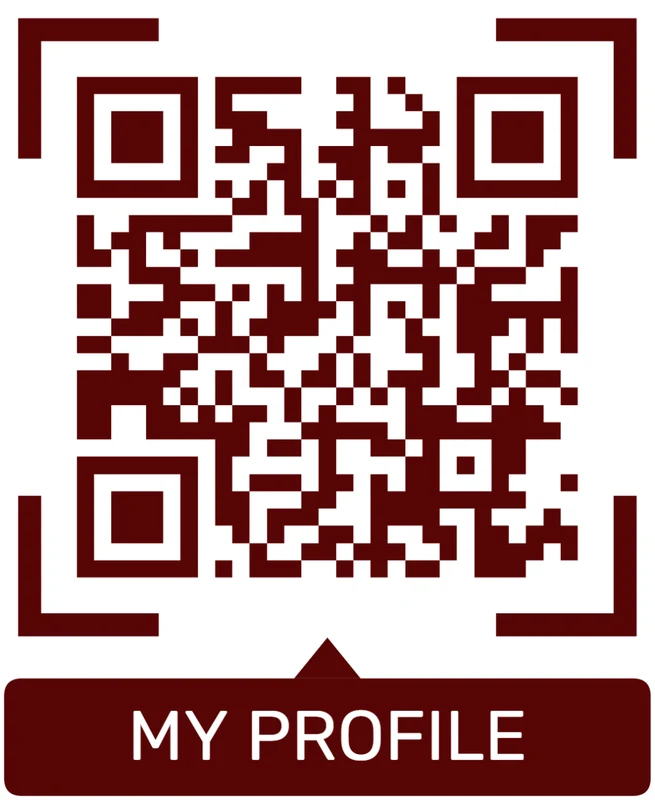
Standard pattern
A colored framed code already looks better, but it can still look like every other QR code.
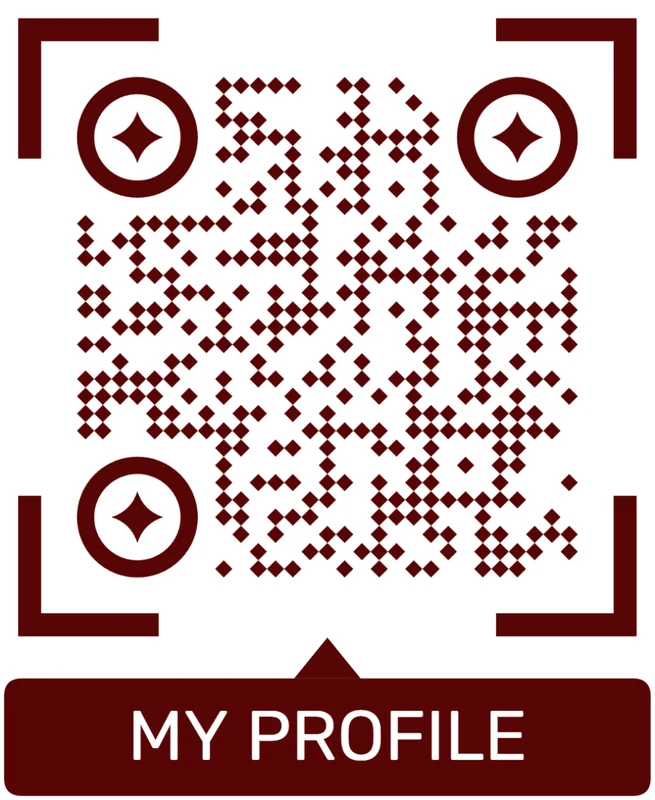
Custom eyes and module shape
Rounded modules, styled finder corners, and cleaner patterns can make the code feel premium. Keep the three corner markers clear.
Add a logo carefully
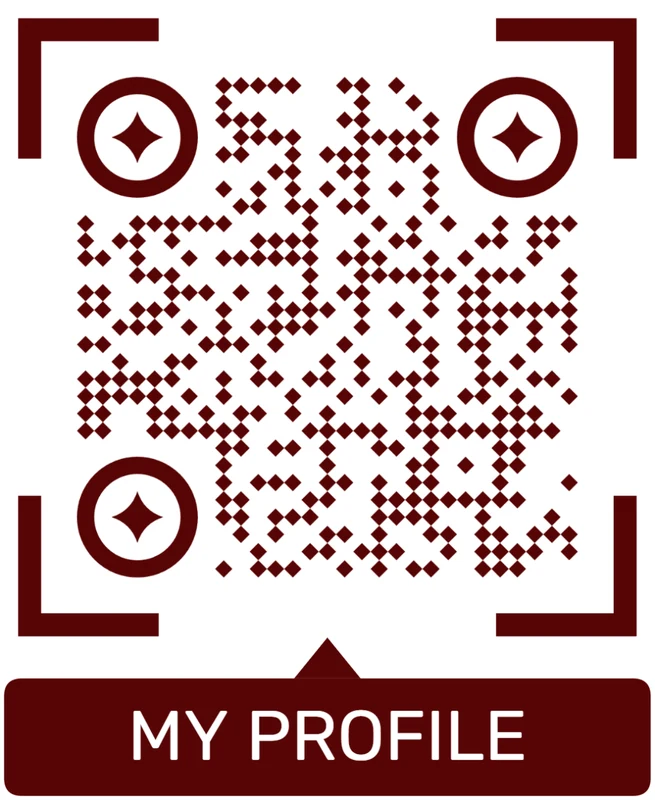
Styled QR code
A styled code can look polished, but people may still not know what brand, profile, file, or campaign it represents.
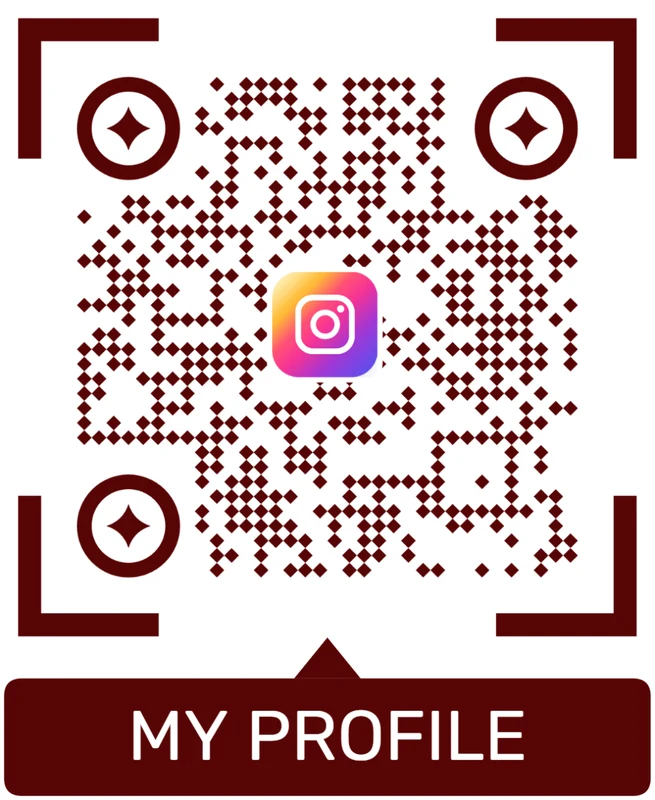
Logo QR code
A centered logo helps signal the destination. Keep it small, use a clean background behind it, and test the exported code.
The template should protect the QR zone automatically
Reserve stable space for the QR code, CTA, quiet zone, and destination cue so variable label content cannot squeeze the scan area.
Template placement
Choose template placements that still make sense across the whole batch
PlacementA QR label template should work for every item in the run. Check whether the same location fits different SKUs, package sizes, languages, regions, and customer moments.

Visible does not always mean useful
A QR label can be easy to see but ignored if it appears before the customer understands the benefit or after the moment has passed.
Placement should follow the action: compare, open, install, register, care, reorder, review, or get support.
Place the code beside the question the product creates
Put setup help near the first-use moment, warranty on inserts, care instructions on tags, reorder paths on consumables, and support where issues are likely.
The label CTA should make the destination obvious before the customer scans.
What is the customer holding?
Product, box, bottle, insert, tag, folder, shelf label, sample, asset sticker, or service card.
What question happens here?
Setup, safety, ingredients, care, registration, warranty, reorder, comparison, review, or support.
Is the phone naturally available?
Unboxing, checkout, shelf comparison, installation, maintenance, and support moments usually scan better than pass-by placements.
Will the destination need updates?
Use dynamic QR labels when documents, warranty pages, product pages, campaigns, or support links can change.
Front label
Use only for high-value actions where the CTA is short and the code does not crowd required product information.
Back label
Strong for ingredients, specifications, safety notes, care, authenticity, manuals, and support.
Package insert
Good for setup, warranty, registration, review, bonus content, and post-purchase follow-up.
Product tag
Useful for care instructions, sizing, materials, authenticity, reorder, and customer service.
Shelf label
Help shoppers compare variants, open details, claim offers, or request help without searching.
Asset sticker
Open maintenance records, manuals, checklists, service contacts, or internal documentation.
Shipping label area
Use carefully for returns, tracking help, setup start pages, or delivery follow-up where it will not confuse carriers.
Sample card
Connect samples to product pages, consultation forms, portfolios, offers, or reorder paths.
A repeatable template still needs a real scan moment
Use the template where the QR action is consistently useful across the batch, then vary destinations with dynamic links when needed.
Template and production flow
Build label templates that protect the QR code first, then fit brand, CTA, and product information around it
Useful templates include product detail labels, warranty labels, care instruction labels, shelf tags, bottle labels, jar labels, inventory stickers, shipping inserts, support labels, and reorder labels. CTAs should be short: scan for details, view care, register warranty, reorder, get support, or watch setup. The template should reserve a clean quiet zone before adding decorative borders or dense product copy.
For production, test the template at real size and on the actual surface. Curved containers, glossy coatings, small labels, and busy backgrounds can all reduce scan reliability. If the same template will be reused across many SKUs, test the worst cases too: darkest label, smallest size, longest product name, and most reflective finish.
Dynamic QR codes can protect the destination after printing, but they cannot rescue a layout that is too small or cluttered. QR Code Lab manages the QR destination; the template owner manages final layout and print readiness. Treat the template as a production asset, not a one-time graphic.
After-print control
Use dynamic QR in templates when batches may need different destinations
DynamicTemplate labels often cover many SKUs, regions, languages, product runs, or campaign versions. Dynamic QR keeps each printed code editable after export.
A fixed QR label can outlive the first destination
Static QR is fine for permanent product information, but labels often point to pages, files, forms, or offers that change after printing.
When the destination moves, every printed label keeps sending buyers to the old path.
Editable labels protect long-lived print
Dynamic QR lets the same printed label route to updated setup guides, warranty pages, PDFs, safety notes, support, reorder pages, and campaigns.
Separate dynamic labels can also compare scans by SKU, batch, package type, region, or placement.
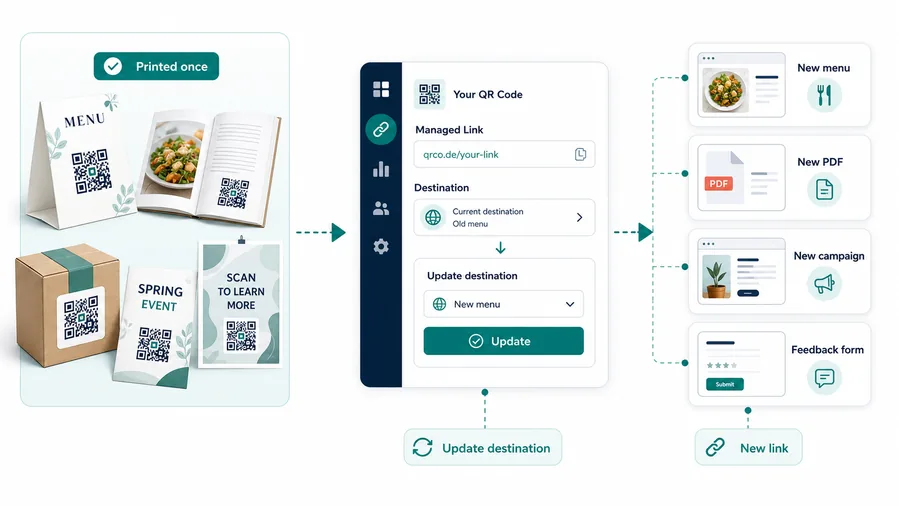
Setup and care updates
Replace manuals, videos, care instructions, troubleshooting, and safety notes without changing printed labels.
Warranty and registration
Move customers to the current registration, support, serial lookup, policy, or claim page.
Reorder and replacement parts
Update product pages, refills, accessories, subscriptions, and regional store links as inventory changes.
Campaign and compliance changes
Route seasonal offers, recalls, notices, language variants, and batch-specific information to the right destination.
Name template codes before the batch leaves the system
A template run is easier to manage when each QR code name matches the SKU, batch, region, language, material, or placement it represents.