
Google Play QR Code Generator for Android App Campaigns
Create Google Play QR codes for Android app listings, launch campaigns, packaging, onboarding cards, retail displays, event materials, ads, support pages, and product inserts today.
Free QR code generator
Create a QR code online
Generate QR codes for websites, email, phone numbers, vCards, Wi-Fi, plain text, forms, PDF files, and campaign links. Customize colors, add a logo or frame, then download a print-ready PNG or SVG.
Choose QR code type
Website QR code, Email QR code, Phone QR code, vCard QR code, Wi-Fi QR code, Text QR code, SMS, WhatsApp, event, and download links.
Add your content
Enter your website URL, contact details, message, phone number, location, or file destination before generating the QR code.
Customize and download
Adjust QR colors, error correction, logo, frame, size, and margin. Generate QR Code, Download PNG, Download SVG, or Save and track scans.
Android app install path
Use a Google Play QR code when the scan is meant for Android users
A Google Play QR code points scanners to an Android app listing, Play campaign URL, product onboarding link, beta page, or Android-focused download landing page. It works best when the printed material is clearly intended for Android users or when the app experience depends on the Google Play ecosystem. Think of Android device manuals, retail demo cards, support stickers, trade show handouts, launch flyers, packaging inserts, or setup cards where the next step is installing or opening the Android app.
QR Code Lab encodes the destination URL and can make the QR code printable, branded, and dynamic. It does not control Google Play attribution, install reporting, reviews, ranking, regional availability, account login, or the behavior of the Play Store page. If you rely on campaign parameters, a measurement link, or a Play Console campaign URL, test that exact URL before printing and make sure it still opens cleanly from a phone camera scan.
If the same printed asset should serve both Android and iOS users, use a broader app download landing page or smart routing URL. A QR code that sends an iPhone user directly to Google Play creates friction before the app ever gets a chance.
Android install moments
Use a Google Play QR code when the scan should open an Android app listing
Google Play QRA Google Play QR should take Android users from packaging, retail displays, event materials, onboarding cards, manuals, or launch posters to the correct app install path.
Make Android installation immediate
Use Google Play QR codes where someone is ready to install: product setup, device pairing, event check-in, retail demo, classroom app, loyalty program, or customer onboarding.
The CTA should say install on Google Play or download the Android app.
Explain the app before the store handoff
The destination should make app name, publisher, purpose, account requirements, permissions, region, and setup step clear before Google Play opens.
Install trust starts before the store button.
Keep launch and onboarding links editable
Dynamic QR helps when Google Play URLs, campaign pages, beta links, referral parameters, support notes, or onboarding instructions change after printed materials are distributed.
App links change faster than print.A Google Play QR should remove install friction for Android users
The scanner may be setting up a product, standing at a booth, reading a package insert, or watching a demo. The QR should confirm the app and make the next install step safe.
Use direct Google Play links for Android-only materials and a routing page when the audience may include iPhone or desktop.Android listing
Open the correct Google Play product page, beta path, instant app, or Android campaign destination.
Setup context
Explain account creation, product pairing, permissions, subscription, region, or post-install step.
Print campaigns
Use on packaging, inserts, posters, retail displays, badges, slides, and launch materials.
Fallback support
Offer iPhone, web, beta, unsupported-region, or help paths when the scanner is not on Android.
Android install setup
Choose a Google Play QR setup by audience and install routing
SetupA direct Google Play QR works when the material is Android-only and the listing is final. Use dynamic or a landing page when scanners may need Android, iPhone, web fallback, beta, or onboarding context.
URL QR code
Use for websites, landing pages, menus, product pages, portfolios, booking pages, and campaign pages.
Best dynamic when links may changePDF / File QR code
Use for menus, manuals, worksheets, bonus materials, brochures, certificates, ZIP archives, and checklists.
Dynamic is safer for printvCard QR code
Use for business cards, badges, counters, portfolios, sales materials, and follow-up contact details.
Static opens native contact saveWi-Fi QR code
Use for cafes, hotels, offices, classrooms, venues, rental spaces, and guest networks.
Usually best as staticForm QR code
Use for feedback, registrations, quote requests, surveys, support requests, applications, and check-in.
Dynamic helps forms evolveWhatsApp / messaging QR
Use when the next step is a conversation: support, sales, booking, delivery questions, or consultation.
Prefilled messages reduce frictionMaps QR code
Use for venues, offices, stores, events, pickup points, property listings, booths, and meeting locations.
Great for physical destinationsSocial QR code
Use for Instagram, TikTok, YouTube, X, LinkedIn, Behance, creator pages, and community profiles.
Best when relationship continuesPayment link QR code
Use for invoices, tips, donations, event payments, deposits, checkout pages, and payment requests.
Make amount and context clearNative action?
Wi-Fi, vCard, email, phone, and SMS often work best when the action is encoded directly, especially if the native phone interface matters.
Editable or measurable?
Use a dynamic QR code when the destination may change, files may be replaced, campaigns need analytics, or printed material must stay useful later.
Several actions?
Use a microlanding page when one scan should offer buttons, files, contact, feedback, booking, social links, or multiple next steps.
Decide whether the scan should install or explain first
For mixed-device audiences, a short landing page with Google Play, App Store, web fallback, and setup notes is usually safer than one platform-specific link.
After-print control
Use dynamic QR when Google Play campaigns may change after print
DynamicAndroid install campaigns often move from beta to launch, change campaign URLs, update onboarding, or need fallback paths after packaging, posters, or retail materials are already live.
A fixed Play link can age before the printed material does
A static QR is simple while the listing stays final, but it cannot adapt if the Google Play URL, beta path, campaign page, or onboarding flow changes.
That matters on packaging, launch posters, retail displays, product inserts, and event handouts.
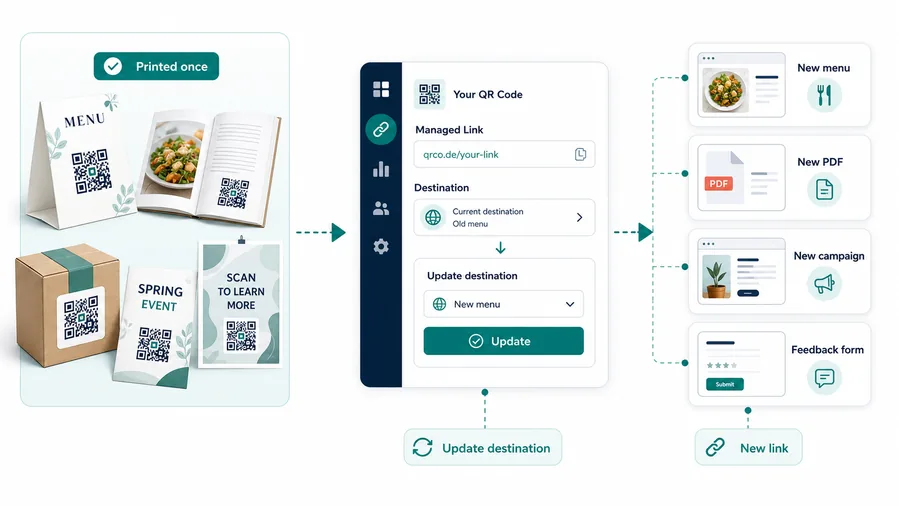
Editable QR keeps Android install paths current
Dynamic QR lets the printed code stay stable while the app destination changes behind it.
It also lets teams compare scans by campaign, partner, branch, package, event, or placement.
App launch campaigns
Move from waitlist or beta to public Google Play listing when the app is ready.
Product onboarding
Update setup steps, pairing instructions, account requirements, and support links after shipping.
Retail and events
Refresh booth signs, shelf cards, posters, and handouts as offers or demos change.
Device and region fallback
Adjust unsupported-device notes, country availability, web fallback, iPhone path, and support destinations.
Use dynamic when Android install links are part of a campaign
If the QR will live in print or across launch stages, keep the destination editable and test the install path on real devices.
Android install UX
Make the Google Play scan confirm the app before install
Scan UXA Google Play QR should make app name, publisher, platform, and setup reason clear before the scanner leaves for the Android listing.
Use direct Google Play links for Android-only materials
Google Play, Android app, betaA direct Play link is clean when the printed material explicitly targets Android users and the listing is final.
The CTA should tell the scanner exactly which app and platform will open.
Use a landing page when platform or context matters
Google Play, App Store, web fallback, setupA short landing page can explain why the app is needed, show Android and iPhone options, and give setup notes before the store opens.
This is stronger for packaging, retail displays, onboarding cards, and event materials.
Connect install to the next setup step
Create account, pair product, redeem offerInstallation is often not the end of the job. The scanner may need account setup, product pairing, permissions, code redemption, or help.
Keep support visible for store errors, unsupported devices, region limits, and login issues.
Does the scanner know this is an Android app?
Show app name, publisher, Google Play wording, and reason to install before the handoff.
Is the platform assumption safe?
If iPhone users may scan the same material, use a universal landing page instead of an Android-only destination.
Is there a fallback path?
Offer web, iPhone, beta, region, device support, or manual setup guidance when the Play path does not work.
The Google Play scan should reduce install uncertainty
Use the simplest route that gets Android users to the right app and explains the next setup step.
Android campaign fit
Use Google Play QR codes where Android intent is clear
Google Play QR codes fit Android onboarding cards, product manuals, retail demos, device setup flows, support stickers, packaging inserts, app launch flyers, service desks, and campaign materials aimed at Android users. The printed context should make the next step obvious: install the app, open support, pair a device, join a beta, claim an Android-specific offer, manage an account, or continue setup. A clear CTA does more work than a generic “download app” label.
Be honest about the audience. If the code is on packaging that anyone may scan, a landing page with both App Store and Google Play buttons is usually kinder. If the code is on an Android accessory, Google Play can be direct and efficient. If the app has regional limits, device requirements, or a login step, explain that on the destination page instead of letting the store page surprise the user.
Dynamic QR is useful when the Play listing, campaign URL, region-specific link, beta program, or onboarding page may change. It also gives scan data from offline materials, which store analytics alone may not separate by poster, package, manual, or support card. That makes the print campaign easier to judge after launch.