
Discord Bot QR Code - Bot Invites, Docs & Support Links
Create a Discord bot QR code linking bot invite URLs, setup pages, documentation, support servers, command guides, and onboarding pages. Share it from streams, posters, merch, and event signs.
Free QR code generator
Create a QR code online
Generate QR codes for websites, email, phone numbers, vCards, Wi-Fi, plain text, forms, PDF files, and campaign links. Customize colors, add a logo or frame, then download a print-ready PNG or SVG.
Choose QR code type
Website QR code, Email QR code, Phone QR code, vCard QR code, Wi-Fi QR code, Text QR code, SMS, WhatsApp, event, and download links.
Add your content
Enter your website URL, contact details, message, phone number, location, or file destination before generating the QR code.
Customize and download
Adjust QR colors, error correction, logo, frame, size, and margin. Generate QR Code, Download PNG, Download SVG, or Save and track scans.
Related QR code generators
Bot onboarding
Use a Discord bot QR code when the scanner needs the invite or setup path
A Discord bot QR code can point scanners to a bot invite URL, setup page, documentation, support server, command guide, onboarding page, or release notes. It is useful for bot developers, SaaS teams, gaming communities, support teams, creators, educators, and community managers who need a physical or event touchpoint to continue into a Discord workflow.
The QR code should not hide the setup decision. Bot invite links can include permissions, scopes, and server choices, so the scanner should understand what the bot does before adding it. A small developer card may open the invite directly. A conference booth, product insert, classroom slide, or help document may work better with a short page that explains setup steps, permissions, commands, and support.
QR Code Lab creates a URL QR code for the destination you provide. It does not operate the bot, approve permissions, create servers, send messages, manage roles, collect leads, or run Discord. Dynamic QR codes are helpful when invite links, docs, or support pages change after cards, stickers, or manuals are printed.
Discord bot invite moments
Use a Discord bot QR code when the scan should install or authorize a bot
Bot QRA Discord bot QR should send server admins, moderators, community managers, or event staff to the correct bot invite with clear permissions, server fit, and setup expectations.
Make bot installation easier during live conversations
Use Discord bot QR codes on conference booths, community decks, setup guides, moderator notes, product docs, livestream overlays, and onboarding materials when the next step is bot authorization.
The CTA should say invite the bot or add this bot to your server.
Explain permissions before the invite opens
Admins should understand what the bot can do, which permissions it requests, what commands or automations it adds, and where support or documentation lives.
Permission clarity builds trust before authorization.
Keep setup links editable as the bot evolves
Dynamic QR helps when invite scopes, support docs, command guides, pricing pages, changelogs, or onboarding flows change after printed and event materials are distributed.
Bot setup changes faster than print.A Discord bot QR should prepare admins before authorization
The scanner is not just joining a channel; they may be granting a bot access to a server. The page should make the bot purpose, permissions, owner, setup path, and support route clear.
Use direct invite links only when the audience already trusts the bot; use a landing page when permissions or setup need explanation.Bot invite
Open the correct Discord OAuth or bot invite URL with the intended scopes and permissions.
Permission context
Explain moderation, alerts, support, games, analytics, tickets, or automation features before install.
Setup docs
Link command guides, role requirements, server settings, onboarding, and troubleshooting.
Campaign reporting
Use separate QR codes for booths, docs, partner pages, communities, and events when scan comparison matters.
Bot invite UX
Make the Discord bot scan explain permissions before the admin clicks authorize
Scan UXA bot QR code should reduce setup friction without hiding the trust boundary: the scanner needs to know what the bot does and why it needs access.
Use direct bot invites for trusted admin audiences
OAuth invite, server admin, known botA direct invite can work when the scanner already knows the bot and expects the authorization screen.
The printed CTA should make clear that the next step is adding a bot, not joining a Discord server.
Use a setup page when permissions need context
Permissions, commands, roles, docsA landing page can explain bot purpose, owner, requested permissions, setup steps, command examples, and support before Discord opens.
This is better for public events, printed docs, partner campaigns, and communities that do not already know the bot.
Keep troubleshooting close to the invite
Roles, scopes, support, changelogBot installs can fail because of missing admin rights, role hierarchy, server restrictions, or changed OAuth scopes.
A managed destination can keep invite, documentation, support, and changelog links current.
Does the CTA say this is a bot invite?
Avoid vague Discord wording when the scan opens an authorization or OAuth screen.
Are permissions explained clearly?
Name the main permissions, features, and setup requirements before asking an admin to authorize.
Is support easy to find?
Link docs, command help, setup guides, support server, or contact path when installation can fail.
The bot QR should earn trust before the authorization screen
Use the shortest path that still explains what the bot adds to a server and how to configure it safely.
After-print control
Use dynamic QR when Discord bot invites and setup docs may change
DynamicBot invite URLs, OAuth scopes, command guides, support servers, setup steps, and pricing pages can change after event signage, manuals, or onboarding materials are printed.
A fixed bot invite can become the wrong setup path
A static QR may keep opening an old invite, outdated docs, deprecated command list, or support page after the bot changes.
That is risky when printed materials are used by admins who need accurate permissions and configuration steps.
Editable QR keeps the bot invite and docs current
Dynamic QR lets the printed code stay stable while the destination changes from invite to setup guide, release notes, pricing, or support.
It also lets teams compare scans from events, docs, community campaigns, and partner materials.
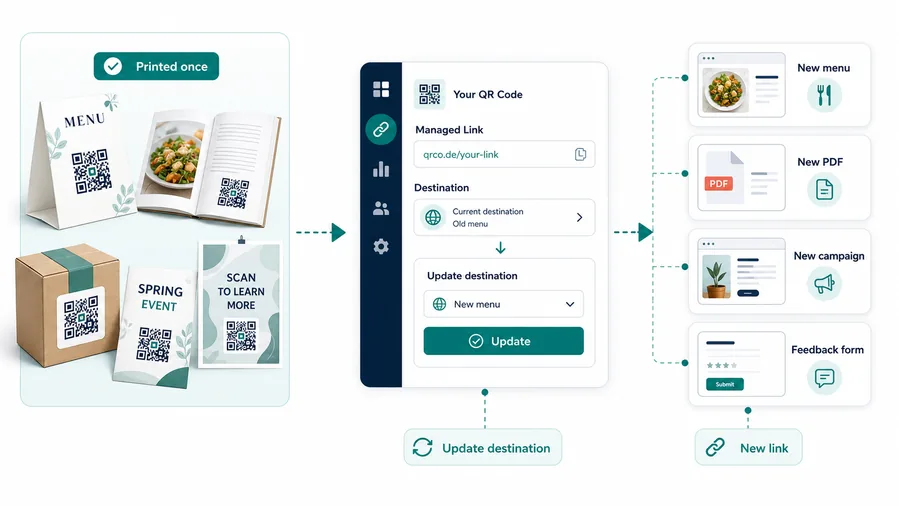
Event booth demos
Update the QR from demo invite to public install page, follow-up guide, or support destination after the event.
Printed setup guides
Keep command docs, permission notes, role setup, and troubleshooting links current after guides are distributed.
Community campaigns
Use separate codes for partner servers, moderators, creators, and launch materials when reporting matters.
Product onboarding
Route admins to the current bot install flow, workspace setup, account connection, and support path.
Use dynamic when bot setup is still evolving
If permissions, commands, docs, or support links may change, keep the printed QR editable rather than locking the first invite forever.
Permission clarity
Do not make the QR code skip the explanation people need before adding a bot
For a simple developer card, the QR can open the bot invite directly. For conferences, classrooms, support teams, product docs, onboarding cards, and community events, a short landing page may be better. It can show what the bot does, which permissions it requests, where it can be installed, what commands matter first, and where to get help if the scanner is not the server owner.
This is also where QR Code Lab helps with real-world material. A static invite link can expire or become outdated. A dynamic QR code lets you keep the printed code but update the final destination when the bot invite, setup guide, changelog, or support server changes. Scan analytics can compare booths, manuals, stickers, slides, and packaging to learn which materials send people into the setup path.
Keep the promise clear. If the code opens an invite, say invite bot. If it opens docs, say setup guide. QR Code Lab manages the QR path and scan counts; Discord and your bot system handle permissions, roles, commands, server access, moderation, and user data.






