
Генератор QR-кодів для Wi-Fi для гостьових мереж, кафе та подій
Створюйте QR-коди для Wi-Fi для кафе, готелів, оренд, офісів, студій, подій та зон для гостей — сканери підключаються швидше без введення SSID або пароля з табличок, карток чи мобільних пристроїв.
Free QR code generator
Create a QR code online
Generate QR codes for websites, email, phone numbers, vCards, Wi-Fi, plain text, forms, PDF files, and campaign links. Customize colors, add a logo or frame, then download a print-ready PNG or SVG.
Choose QR code type
Website QR code, Email QR code, Phone QR code, vCard QR code, Wi-Fi QR code, Text QR code, SMS, WhatsApp, event, and download links.
Add your content
Enter your website URL, contact details, message, phone number, location, or file destination before generating the QR code.
Customize and download
Adjust QR colors, error correction, logo, frame, size, and margin. Generate QR Code, Download PNG, Download SVG, or Save and track scans.
Доступ до гостьової мережі
Дайте можливість людям підключатися до Wi-Fi без введення пароля вручну
QR-код для Wi-Fi — це один з найяскравіших прикладів, коли статичний QR-код дійсно корисний. Код може містити назву мережі, тип безпеки та пароль, тому більшість телефонів розуміють вміст і показують рідний запит "приєднатися до цієї мережі" після сканування. Сканер не потребує відкриття веб-сайту або проходження через перенаправлення, що робить досвід швидким і звичним.
Ця пряма поведінка усуває багато дрібних незручностей. Гостям не потрібно читати довгий пароль з таблички, персоналу не потрібно повторювати облікові дані, а помилки при введенні зникають. Це добре працює в кафе, готелях, офісах, клініках, салонах, класах, орендованих приміщеннях, коворкінгах, студіях, залах очікування та зонах реєстрації подій, де відвідувачам потрібно швидко отримати доступ, а персонал не повинен витрачати час на написання паролів.
Недолік полягає в тому, що статичні QR-коди для Wi-Fi не створюють аналітики сканування в QR Code Lab і не можуть бути оновлені після друку. Якщо ви зміните пароль або назву мережі, надруковані знаки потрібно буде замінити. Для безпеки діліться гостьовою мережею, а не приватною мережею, яку використовують ваші бізнес-системи.
Як QR-коди допомагають
Як QR-коди допомагають Доступ до Wi-Fi з SSID, паролем Wi-Fi, типом безпеки та опцією прихованої мережі
Основний QR потікВикористовуйте QR-коди, щоб перевести Доступ до Wi-Fi з екранів, карток, етикеток, посібників з налаштування, матеріалів підтримки та друкованих кампаній до SSID, пароль Wi-Fi, тип безпеки та опція прихованої мережі, не змушуючи людей вводити довгі посилання або копіювати деталі вручну.
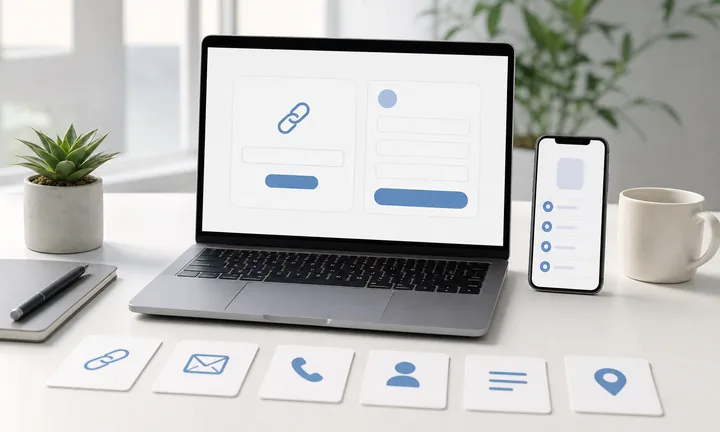
Перетворіть правильний контент на один чистий скан
Створюйте QR-коди для URL-адрес вебсайтів, PDF, електронної пошти, телефонних номерів, SMS, vCard, простого тексту, Google Форм, Google Карт, подій календаря, посилань на додатки, чатів WhatsApp, доступу до Wi-Fi та посилань на відгуки, щоб Доступ до Wi-Fi могли надсилати сканери для SSID без ручного введення.
Відповідайте типу QR-коду на завдання: відкриття посилання, збереження контакту, початок повідомлення, підключення до Wi-Fi, завантаження додатку або заповнення форми.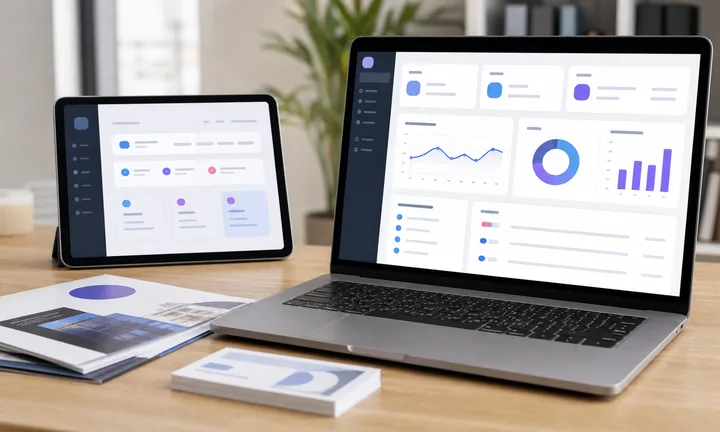
Зберігайте цілі редагованими та вимірювальними після друку
Використовуйте динамічні, редаговані, відстежувані, масові, аналітичні та багатопосилальні робочі процеси для оновлення цілей, порівняння розміщень, вимірювання сканувань та визначення, коли статичний QR-код достатній, а коли відстеження варте зусиль.
Динамічні QR-коди допомагають, коли надруковані посилання, кампанії, PDF, сторінки додатків або цільові сторінки можуть змінюватися після розповсюдження.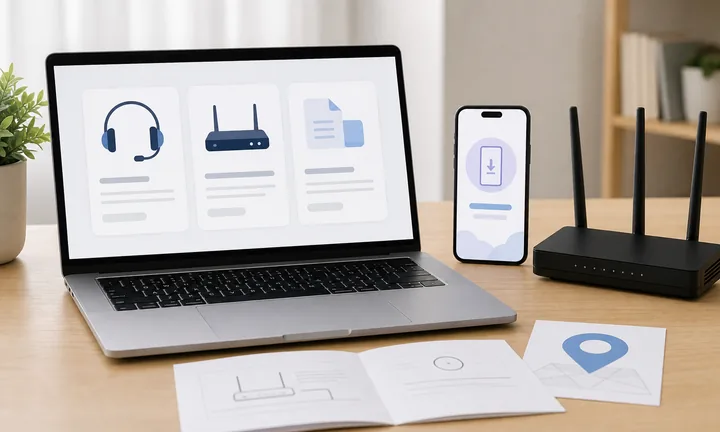
Підключіть налаштування, документацію, підтримку та усунення неполадок
Вказуйте сканерам з посібників, карток для onboarding, вставок продуктів, статей допомоги, посібників з налаштування, документації API, матеріалів підтримки, карток Wi-Fi та сторінок усунення неполадок на документацію, контактні форми, посилання на чат, підтримку, бази знань, завантаження додатків або рекомендації щодо виправлення сканування.
Для чутливих даних посилайте на надійну сторінку замість того, щоб кодувати приватні дані, ключі API, дані клієнтів або внутрішні секрети безпосередньо в публічний QR-код.Виберіть тип QR перед вибором дизайну
Для Доступ до Wi-Fi QR-код має вказувати людям на SSID, пароль Wi-Fi, тип безпеки та опція прихованої мережі з призначенням, яке точно відповідає тому, що має зробити сканування: відкрити, зберегти, зателефонувати, надіслати повідомлення, підключитися, завантажити, відстежити або пояснити.
QR Code Lab створює QR-міст. Форми, магазини додатків, клієнти електронної пошти, карти, мережі Wi-Fi, аналітичні рішення, системи підтримки, використання API та контент призначення залишаються з послугами, які ви вже використовуєте.Назвіть результат сканування
Скажіть людям, чи відкриває сканування URL, PDF, форму, контакт, карту, електронну пошту, SMS, завантаження додатку, мережу Wi-Fi, сторінку відгуків або ресурс підтримки.
Використовуйте динамічні посилання для змінних цілей
Зберігайте надруковані кампанії корисними, коли URL, PDF, сторінки додатків, документація, посилання на підтримку або цільові сторінки змінюються.
Вимірюйте лише те, що допомагає
Використовуйте аналітику сканування, коли вам потрібні дані про розміщення, час, пристрій або кампанію; використовуйте статичні коди для простих постійних навантажень.
Тримайте приватні деталі подалі від публічних кодів
Уникайте кодування паролів, API-ключів, приватних даних клієнтів або внутрішньої інформації в QR-кодах, призначених для публічного використання.
QR-код Wi-Fi за 3 кроки
Легкі 3 крокиСлідуйте простому покроковому плану, щоб створити QR-код Wi-Fi, який дозволяє людям миттєво підключатися до вашої мережі без введення паролів.

Введіть назву вашої мережі (SSID), виберіть правильний тип безпеки та додайте пароль Wi-Fi, якщо це необхідно. Ці дані повинні відповідати налаштуванням вашого маршрутизатора.

Згенеруйте QR-код Wi-Fi та перевірте попередній перегляд. Переконайтеся, що код чіткий, з високим контрастом і достатнього розміру для надійного сканування.

Перевірте QR-код за допомогою кількох пристроїв, а потім завантажте його для настільних карток, настінних знаків, номерів готелів, офісів або друкованих матеріалів.
Доступ для гостей та безпека мережі
Примітки до QR-коду гостьового Wi-Fi
Безпека Wi-FiQR-код Wi-Fi спрощує підключення, але не ідентифікує гостей, не відстежує сканування і не захищає вашу внутрішню мережу. Розглядайте його як зручний шлях доступу, а не як систему безпеки.
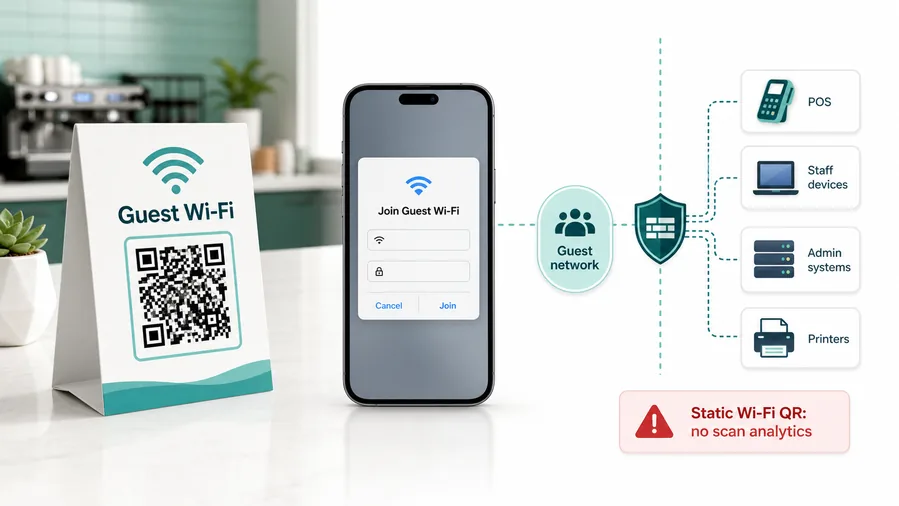
Статичний QR-код Wi-Fi відкриває нативну дію пристрою
QR-код Wi-Fi зазвичай зберігає назву мережі, тип шифрування та пароль безпосередньо в коді. Багато телефонів можуть читати цей формат і показувати вбудоване повідомлення "приєднатися до мережі".
Саме тому статичний QR-код Wi-Fi часто кращий за динамічний для підключення до мережі. URL-адреса перенаправлення не може відкрити той же нативний процес Wi-Fi.Статичний QR-код Wi-Fi не надає аналітики сканування
Оскільки телефон читає облікові дані Wi-Fi локально, сканування не проходить через QR Code Lab. Немає підрахунку сканувань, аналітики пристроїв, аналітики міст, журналу перенаправлень або ідентифікації відвідувачів.
Якщо вам потрібна аналітика, ви можете відстежувати цільову сторінку, але досвід стане веб-сторінкою з інструкціями Wi-Fi, а не нативним QR-кодом для приєднання до мережі.Доступ для гостей потребує справжньої гостьової мережі
Якщо ви надаєте людям доступ до мережі без їх ідентифікації, відокремлюйте гостей від внутрішніх систем. Не ставте користувачів публічного Wi-Fi в ту ж мережу, що й POS-пристрої, платіжні термінали, офісні ноутбуки, принтери, адміністративні панелі, сховища, камери або інструменти для персоналу.
Використовуйте гостьову мережу, ізоляцію клієнтів, обмеження на рівні маршрутизатора та процес ротації паролів. QR-коди спрощують доступ; вони не роблять мережу безпечною.Попередження про безпеку мережі
QR-код Wi-Fi ділиться обліковими даними мережі. Будь-хто, хто може бачити, фотографувати, друкувати, пересилати або повторно використовувати QR-код, може приєднатися до мережі, поки пароль не зміниться. QR Code Lab не аутентифікує гостей, не ізолює пристрої, не моніторить мережевий трафік і не захищає внутрішні системи.
Налаштуйте безпеку мережі на вашому маршрутизаторі, брандмауері, точці доступу або системі управління ІТ.QR-коди для Wi-Fi зменшують тертя. Безпека мережі залишається за мережею.
Використовуйте QR Code Lab для створення чистого, друкованого QR-коду для Wi-Fi. Використовуйте ваш маршрутизатор, точку доступу, брандмауер або ІТ-інструменти, щоб контролювати, хто може отримати доступ після підключення.
Статичні та динамічні QR-коди
Вибір для друкуВибір не в тому, який QR-код виглядає краще. Йдеться про те, що сканер має отримати: реальні дані відразу чи кероване посилання, яке можна змінювати та вимірювати пізніше.
Статичний QR-код
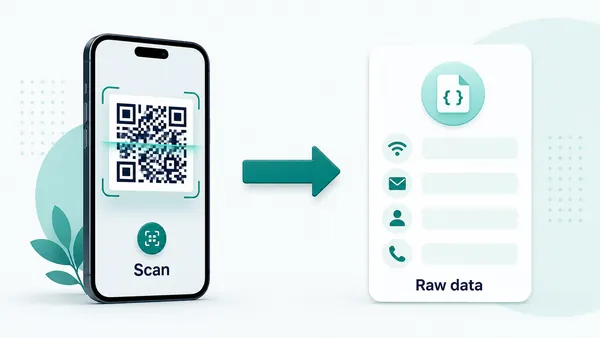
Статичний QR-код містить фактичні дані всередині QR-шаблону. Для Wi-Fi це зазвичай означає, що ім'я мережі, тип шифрування та пароль закодовані безпосередньо, тому більшість телефонів можуть показати рідний запит "приєднатися до цієї мережі" після сканування.
Те ж саме стосується кодів для електронної пошти, телефону, SMS, vCard, календаря та простого тексту. Пристрій отримує формат, який вже розуміє: відкрити додаток для пошти, почати дзвінок, підготувати повідомлення або показати інтерфейс для збереження контакту.
Ця пряма поведінка є основною перевагою статичних QR-кодів. Немає кроку перенаправлення та проміжної сторінки, тому сканування відчувається миттєвим і знайомим. Компроміс також зрозумілий: оскільки нічого не проходить через QR Code Lab після сканування, місце призначення не можна редагувати, а статистику сканування не можна збирати.
Динамічний QR-код
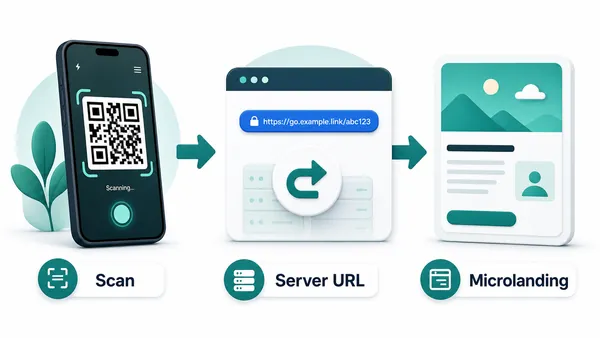
Динамічний QR-код завжди містить кероване URL спочатку. Це перенаправлення робить можливими редагування та аналітику: QR Code Lab отримує сканування, записує корисні сигнали, а потім відправляє відвідувача на поточне місце призначення.
Оскільки QR-вантаж є URL, пристрій зазвичай обробляє його як веб-посилання, а не як рідну команду Wi-Fi, електронної пошти, контакту чи календаря. Для цих випадків динамічний QR-код часто означає показ невеликої цільової сторінки, де відвідувач може продовжити до реальної дії.
Перевага полягає в контролі після друку. Ви можете замінити PDF, змінити URL кампанії, оновити меню, замінити файл або виміряти, чи насправді сканують книгу, флаєр, етикетку чи упаковку без повторного друку коду.
Швидке рішення
Безпека мережі
QR-код для гостьового Wi-Fi має бути зручним, не розкриваючи вашу приватну мережу
Найбезпечніший варіант — окрема гостьова мережа з ізоляцією від внутрішніх пристроїв, принтерів, POS-систем, ноутбуків співробітників, адміністративних панелей та інструментів для офісу. QR-код спрощує доступ, тому дизайн мережі має бути продуманим до того, як пароль буде надруковано публічно. Якщо будь-хто в кімнаті може відсканувати код, вважайте, що облікові дані є публічними, і будуйте мережу з урахуванням цієї реальності.
Розмістіть код там, де люди зупиняються з телефонами в руках: на столах, на рецепції, у залах очікування, на картках кімнат, у гостьових посібниках, на робочих столах, на стінах класів, у вітальних книгах для оренди та в зонах привітання на заходах. Видима табличка недостатня; сканування має відповідати реальному потоку відвідувачів. Табличка на дверях може бути проігнорована, коли телефон у кишені, але картка на столі часто працює, оскільки гість вже влаштувався.
Якщо вам потрібна аналітика, прийняття умов, ваучери або ідентифікація користувачів, простий статичний Wi-Fi QR-код не підійде. У такому випадку використовуйте інструменти вашої мережі/капітивного порталу та розглядайте QR-код як шлях до правильного потоку доступу.
Досвід після сканування
Покращте досвід сканування
UX скануванняQR-код — це лише точка входу. Справжній досвід починається після сканування, а ваш рівень контролю залежить від того, що відкриває код.
Пряме дію: пристрій обробляє це
Wi-Fi, vCard, телефон, електронна пошта, SMS, звичайне URLКоли QR-код містить прямі дані, телефон вирішує, що показати. Він може відкрити запит на підключення до Wi-Fi, екран збереження контактів, поштовий клієнт, набір номера, SMS-композитор, браузер або інший додаток, обраний користувачем.
QR Code Lab не може багато чого покращити в цьому рідному інтерфейсі. Сумісність залежить від програми сканера, камери, операційної системи, браузера та налаштувань користувача. Ваша відповідальність — закодувати чисті дані: правильні облікові дані Wi-Fi, дійсну електронну пошту, охайну vCard, робоче URL та чіткий надпис біля коду.
Відстежений QR: ваше призначення несе досвід
Динамічне URL, відстежена кампанія, зовнішня сторінка, PDF, формаКоли динамічний QR-код перенаправляє на ваш веб-сайт, форму, сторінку магазину, PDF, сторінку бронювання або кампанію, QR Code Lab може керувати посиланням, зберігати його редагованим і записувати аналітику сканування. Але сторінка, на яку потрапляють люди, все ще є вашим досвідом.
Це призначення повинно бути швидким, зручним для мобільних пристроїв і чесним щодо обіцянки, надрукованої біля QR-коду. Основний CTA має бути видимим без пошуку, форми повинні бути короткими, файли повинні відкриватися коректно на телефонах, а контент не повинен виглядати як настільна сторінка, стиснута на маленькому екрані.
Мікролендінг: QR Code Lab формує досвід
Хостингова сторінка, кнопки, зображення, файли, контакт, зворотний зв'язокСторінка мікролендінгу QR Code Lab корисна, коли у вас немає хорошого мобільного призначення або коли одне сканування повинно запропонувати кілька дій. Замість того, щоб відправляти людей на важку сторінку, ви можете представити чисту сторінку, орієнтовану на мобільні пристрої, з чіткими кнопками, файлами, зображеннями, посиланнями та контактними діями.
Ось де QR Code Lab може зробити найбільше для досвіду сканування. Контент організовано для телефонів, кнопки легко натискати, завантаження PDF або ZIP можуть бути представлені чітко, а сторінка може бути оновлена після друку. Це добре працює для книг, упаковки, меню, подій, інструкцій, бонусних матеріалів та потоків зворотного зв'язку.
Що з'являється в перші 3 секунди?
Сканер повинен одразу зрозуміти, куди він потрапив і чому це відповідає обіцянці поруч із QR-кодом.
Чи очевидна наступна дія на телефоні?
Головна кнопка, файл, форма, контактна дія або завантаження повинні бути видимими та легкими для натискання без масштабування чи пошуку.
Чи відповідає місце призначення контексту сканування?
QR-код на упаковці, сторінці книги, чеку, плакаті або наметі повинен відкривати ресурс, який має сенс у цей момент.
Сканування не є метою. Наступна дія - це мета.
Сканований QR-код - це лише половина справи. Місце призначення повинно робити наступний крок очевидним, швидким і зручним на телефоні.
Безпека, перевірка та довіра
Зберігайте QR-коди в безпеці та надійності
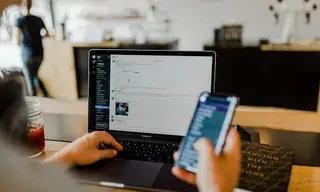
Примітки з безпекиПеред скануванням QR-коду, переконайтеся, що призначення зрозуміле. Перед відкриттям невідомого QR-коду перевірте, що всередині: декодований вміст, тип вмісту, структура URL, видимі ризики та звіт про призначення.
Фальшиві сторінки входу
QR-код у незнайомому місці може привести до фішингової сторінки, що виглядає як банк, постачальник електронної пошти, служба доставки, соціальна мережа або корпоративний портал. Сторінка може запитувати логін, пароль, одноразовий код, фразу для відновлення або деталі верифікації облікового запису та вкрасти їх.
Слідкуйте за схожими доменами, довгими URL, словами "увійти" або "перевірити" та сторінками, які запитують облікові дані після несподіваного сканування.
Сховані перенаправлення та незрозумілі призначення
Короткі посилання та ланцюги перенаправлень можуть приховувати, куди врешті-решт відправляє QR-код. Деякі перенаправлення є нормальними аналітичними, але невідомі коди можуть відправляти людей на шкідливі сторінки, фальшиві оновлення браузера, шахрайські сповіщення, підозрілі завантаження або запити на встановлення.
Надійний QR не повинен робити фінальне призначення таємничим, особливо на плакатах, етикетках, меню, знаках парковки або матеріалах подій.
Сторінки платежів, що виглядають реальними
QR-коди для платежів вимагають додаткової обережності. Фальшива сторінка може імітувати екран банку, оформлення замовлення, оплату парковки, донати, квитки або платіжний шлюз. Написи на кнопках та макет можуть бути спроектовані так, щоб заплутати людей щодо того, що підтверджується, скасовується або оплачується.
Перед оплатою перевірте домен, HTTPS, суму, отримувача та чи відповідає призначення місцю або бренду, що надрукував QR.Перевірте QR перед тим, як довіряти йому
QR Code Lab Safety Checker спочатку читає зображення QR і показує, що насправді закодовано. Він може ідентифікувати URL, Wi-Fi, електронну пошту, телефон, SMS, vCard або простий текст, а потім показати декодоване значення перед тим, як ви вирішите, чи відкривати його.
Поточний детальний звіт є статичним аналізом URL. Він допомагає виявити закодований вміст та основні ризики URL, але не гарантує, що призначення безпечне, і не замінює перевірки безпеки браузера, антивірусу, платежів або банку.Декодований вміст
Перегляньте сире значення всередині QR перед його відкриттям.
Тип вмісту
Визначте URL, Wi-Fi, mailto, телефон, SMS, vCard або простий текст.
Сигнали ризику URL
Перевірте HTTPS, скорочувачі, IP-адреси, довгі URL, закодовані символи, параметри запиту та чутливі ключові слова.
Звіт про призначення
Для кодів URL перегляньте поля фінальних URL, поля статичних перенаправлень, доменів, заповнювачі TLS, метадані сторінки та причини ризику.
Зробіть свої QR-коди більш надійними
QR-код, що виглядає безпечно, це не лише про безпеку. Це також про зменшення невизначеності для сканера. Використовуйте зрозумілий текст призначення, брендовану цільову сторінку, звичайні домени HTTPS та видиме пояснення того, що відбувається після сканування.
Міні FAQ за ситуацією сканування
Поширені запитання про цей QR-код
Швидкі відповідіШвидкі відповіді щодо звичайного використання цього QR-коду: друковані матеріали, динамічні посилання, відстеження сканування, дизайн, безпека, файли, рідні дії та мобільний досвід після сканування.
Друковані матеріали
Для флаєрів, меню, упаковки, книг, постерів, етикеток, карток та знаків.
Чи можу я змінити QR-код після друку?
Тільки якщо код є динамічним або вказує на керовану цільову сторінку. Статичний QR-код зберігає фінальний контент безпосередньо, тому призначення, надруковане на ньому, не можна редагувати пізніше.
Якого розміру я повинен друкувати?
Розмір залежить від відстані сканування, поверхні та якості друку. Залиште код достатньо великим, залиште зону тиші навколо нього та протестуйте з реальної відстані перегляду.
Чи слід використовувати SVG чи PNG?
Для друку SVG або PDF/векторний вихід зазвичай безпечніший, оскільки залишається чітким. PNG підходить для екранів або невеликих цифрових використань, коли роздільна здатність достатньо висока.
Чи потрібно тестувати перед публікацією?
Так. Тестуйте на реальних телефонах, на iOS та Android, з фінального надрукованого розміру та поверхні перед відправкою файлу на друк.
Динамічні QR-коди
Для друкованих кодів, де призначення, файл, кампанія або сторінка можуть змінюватися.
Що робить QR-код динамічним?
Динамічний QR-код спочатку містить кероване URL. Це URL може перенаправляти сканери на поточне призначення і може бути оновлено пізніше.
Чи можу я оновити призначення пізніше?
Так, якщо QR-код динамічний. Надрукований шаблон залишається незмінним, тоді як призначення за ним може змінюватися.
Чи помітять користувачі перенаправлення?
Зазвичай вони бачать звичайний веб-потік. Нативні дії, такі як Wi-Fi або vCard, можуть поводитися інакше, оскільки динамічні QR-коди містять URL, а не прямі дані пристрою.
Чи краще динамічне для друку?
Часто так. Повторний друк меню, етикеток, книг, флаєрів або постерів зазвичай дорожчий, ніж оновлення керованого призначення.
Відстеження та аналітика
Для кампаній, друкованих матеріалів, подій, упаковки, меню та книг.
Чи можу я побачити, скільки людей відсканувало?
Відстежувані або динамічні QR-коди можуть збирати аналітику сканування. Статичні нативні QR-коди зазвичай не проходять через QR Code Lab після сканування.
Яка аналітика є корисною?
Обсяг сканувань, час, сигнали пристрою/браузера та сигнали місцезнаходження, де це можливо, допомагають показати, які друковані матеріали насправді використовуються.
Чи ідентифікує відстеження особу?
Аналітика сканування повинна розглядатися як сигнали на рівні сканування, а не як гарантована особиста ідентифікація окремого сканера.
Чому варто відстежувати офлайн-матеріали?
Це допомагає вам порівняти, чи заслуговують постери, упаковка, чеки, меню, книги чи картки більше уваги, оновлень або повторного друку.
Файли та цільові сторінки
Для PDF, ZIP-завантажень, бонусів для читачів, робочих аркушів, посібників та ресурсних центрів.
Чи може QR-код відкривати PDF або файл?
Так. Він може безпосередньо вказувати на файл або на цільову сторінку з кнопками для одного або кількох файлів.
Прямий файл чи цільова сторінка?
Прямий файл підходить для одного простого завантаження. Цільова сторінка краще, коли потрібні інструкції, кілька файлів, кнопки або майбутні оновлення.
Чи можу я замінити файл пізніше?
Так, коли файл знаходиться за керованим місцем призначення або динамічним QR-потоком. Статичні прямі посилання важче змінювати після друку.
Що повинна показувати цільова сторінка?
Використовуйте чіткий заголовок, коротке пояснення, зручний для мобільних пристроїв макет і очевидні кнопки для наступної дії.
Дизайн і брендинг
Для логотипів, кольорів, рамок, міток CTA та стилізації, готової до друку.
Чи можу я додати логотип?
Так, але залиште достатньо видимих модулів QR і протестуйте результат. Логотип має підтримувати дизайн, а не заважати скануванню.
Чи можуть QR-коди бути кольоровими?
Так. Зберігайте сильний контраст між переднім і фоновим планом, уникайте кольорів, які роблять QR-шаблон занадто світлим.
Чи можу я інвертувати кольори?
Тільки після тестування. Деякі сканери погано обробляють інвертовані коди, особливо на глянцевому або низькоконтрастному друці.
Що таке зона тиші?
Це порожній край навколо QR-коду. Не обрізайте його і не розміщуйте текст, рамки або графіку занадто близько до коду.
Безпека та довіра
Для невідомих QR-кодів, публічних друкованих матеріалів, платіжних посилань та сторінок перевірки безпеки.
Як дізнатися, що всередині QR-коду?
Використовуйте перевірник безпеки QR, щоб розшифрувати зображення QR та переглянути сирий вміст перед відкриттям.
Чи може QR-код приховувати фішингове посилання?
Так. Шаблон QR приховує посилання, поки його не розшифрують, тому невідомі публічні QR-коди слід ретельно перевіряти.
Що слід перевірити перед відкриттям?
Перевірте домен, HTTPS, скорочувачі, незвично довгі URL, закодовані символи, чутливі ключові слова та чи відповідає призначення фізичному контексту.
Чи гарантує перевірник безпеку?
Ні. Він допомагає переглядати розшифрований вміст та основні сигнали ризику, але не замінює перевірки безпеки браузера, антивірусу, банку чи платежів.
Нативні дії
Для QR-кодів Wi-Fi, електронної пошти, телефону, SMS, календаря та vCard.
Чому QR-код Wi-Fi поводиться інакше?
Статичний QR-код Wi-Fi зберігає структуровані дані мережі, тому багато телефонів можуть показувати запит на підключення до мережі.
Чи може динамічний QR-код відкривати нативний Wi-Fi безпосередньо?
Зазвичай ні. Динамічний QR-код спочатку містить URL, тому телефон сприймає його як веб-посилання, а не безпосередні облікові дані Wi-Fi.
Чи може QR-код ініціювати дії електронної пошти або телефону?
Так, якщо QR-код містить формати, такі як mailto:, tel: або sms:. Пристрій вирішує, як обробити дію.
Коли слід використовувати статичний QR для нативних дій?
Використовуйте статичний QR-код, коли важливіше безпосереднє дію пристрою, ніж редагування, перенаправлення або аналітика сканування.
Досвід сканування
Для мобільних сторінок, мікро-лендингів, CTA, форм та ясності після сканування.
Що повинні бачити користувачі після сканування?
Вони повинні бачити мобільну сторінку або рідку дію з одним очевидним наступним кроком.
Скільки кнопок повинна мати цільова сторінка?
Тримайте фокус. Від однієї до п'яти кнопок зазвичай працює краще, ніж повне меню навігації сайту.
Чи повинен QR-код вести на головну сторінку?
Зазвичай ні. Він повинен відкривати точну дію, обіцяну поруч з надрукованим кодом.
Як зменшити плутанину?
Додайте короткий підпис поруч з QR-кодом і зробіть так, щоб призначення відповідало надрукованому контексту: меню, файл, бронювання, зворотний зв'язок, оплата або контакт.
Використовуйте це міні-FAQ, щоб усунути сумніви перед скануванням.
Найкращий QR-код відповідає на запитання сканера до появи тертя: що це, де воно відкриється, чи можна йому довіряти, і що робити далі?
Чому обирають QR Code Lab
ПеревагиВикористовуйте одне робоче місце для створення брендованих QR-кодів, автоматизації генерації, перевірки призначень, оновлення динамічних посилань та вимірювання того, що насправді сканують.
Безкоштовно для використання
Створюйте, редагуйте, скануйте QR-коди та переглядайте корисну статистику у своєму обліковому записі без прихованих платежів.
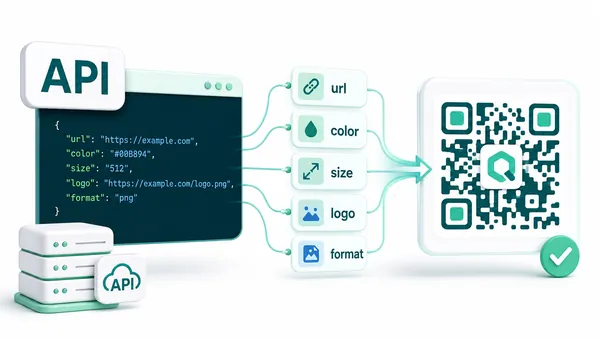
Генерація API з параметрами
Генеруйте QR-коди з API з практичними параметрами для призначення, розміру, кольорів, логотипу, формату та робочих процесів кампанії.
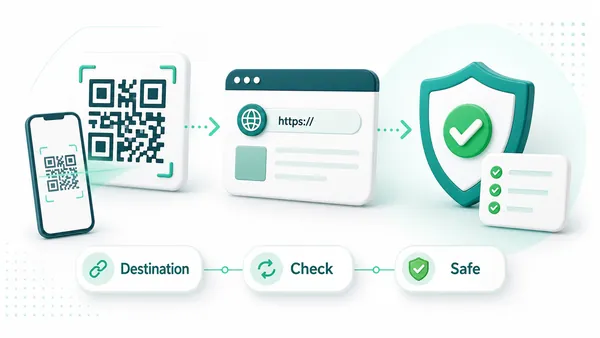
Перевірка безпеки призначення
Перевірте фінальне призначення перед скануванням: перевірте посилання, перенаправлення та основні сигнали безпеки перед друком або поширенням.
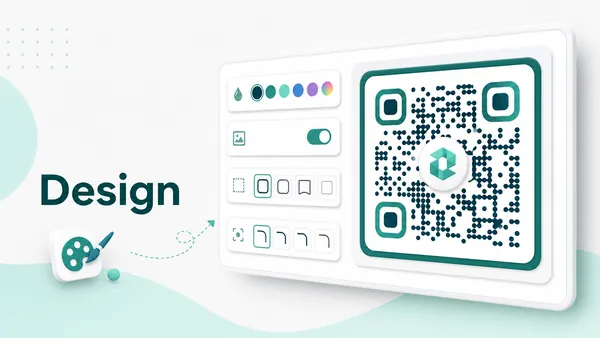
Повний контроль дизайну
Налаштуйте кольори, фон, логотип, рамки та стилі кутів, зберігаючи читабельність QR-коду.
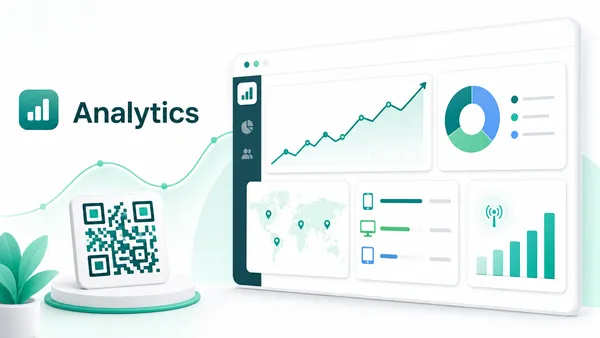
Аналітика в реальному часі
Відстежуйте загальну та унікальну кількість сканувань, пристрої, операційні системи, місця розташування та щоденну активність в реальному часі.
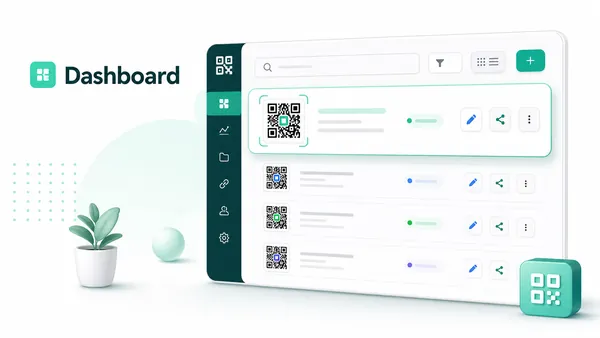
Розширена панель управління
Керуйте всіма QR-кодами в одному місці: редагуйте вміст, шукайте, діліться, організовуйте та контролюйте кампанії.
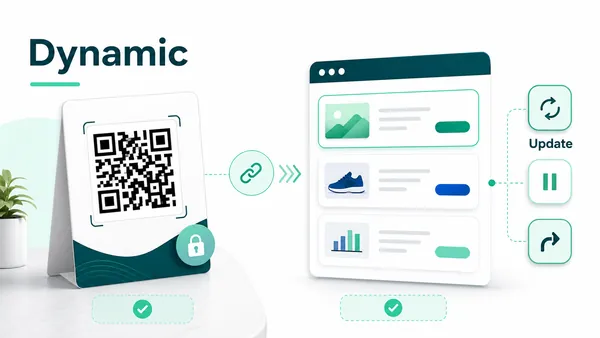
Динамічні QR-коди
Оновлюйте, призупиняйте або перенаправляйте надруковані QR-коди після запуску без повторного друку фізичного активу.
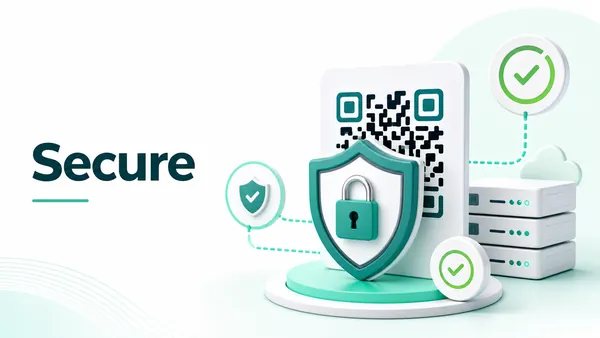
Безпечно та надійно
Використовуйте надійне робоче місце з безпечними з'єднаннями, стабільними перенаправленнями та практичними запобіжниками для QR-вмісту.






